Multi-Vendor & Complex SaaS Marketplaces
 Modern Headless & Jamstack Web Development
 High-End Corporate & Specialized Business Websites
 Advanced API, Checkout & Database Troubleshooting
Hosting Suspended for Resource Limits: Clean Code & Restore
Account suspended for CPU, RAM, or inode limits? Learn the exact checks, cleanup commands, and code fixes that get shared hosting back online—plus when Fixwebnode should take over.
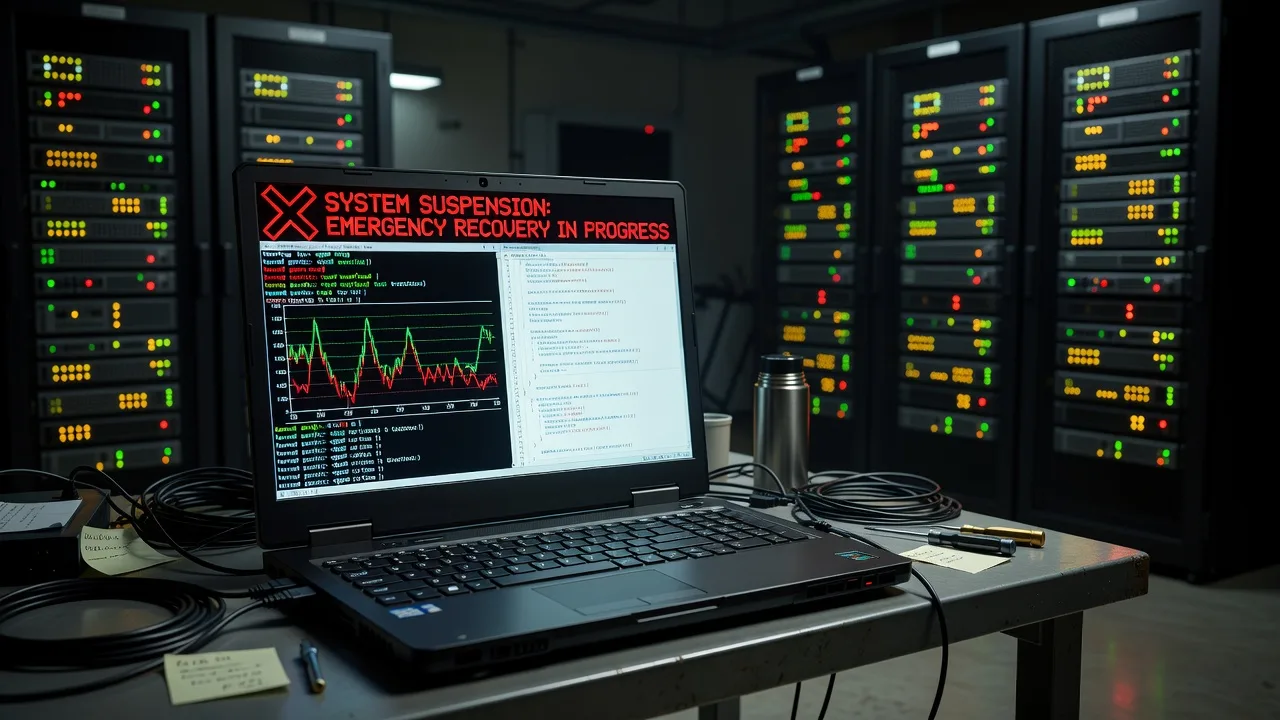
If your host locked the account for exceeding CPU, memory, disk, or process limits, this guide walks you through finding the culprit, cleaning the code and files, and restoring the site safely.
Shared and managed hosts suspend accounts when one site burns through resources and threatens neighbors. The suspension notice is rarely the full story—you still need logs, process lists, and a clean codebase before support will unsuspend you. Below is a practical runbook for homeowners and small businesses: diagnose the spike, fix what you can over SSH or file manager, verify usage drops, and know when to book Fixwebnode for hosting resource-limit recovery.
We work with clients across metro regions and remote stacks; see all service areas if you need on-call help after DIY steps stall.
Why resource-limit suspensions matter
Hosts measure CPU seconds, memory, concurrent processes, disk inodes, and I/O. A single misbehaving cron, plugin, or malware dropper can trip soft limits, then hard-suspend the account. Until usage is proven down, support will not restore HTTP. Cleaning code is not optional marketing fluff—it is the evidence trail that gets you back online.
Typical stack assumptions for the commands below: Linux shared or VPS access with SSH, bash, standard tools (ps, find, du, mysql/mariadb client), and a PHP site (WordPress or custom). Adapt paths to your home directory (often ~/public_html or ~/www).
Common issues that trigger suspensions
These problems show up repeatedly in suspension tickets. Each has different symptoms and a different cleanup path.
- Runaway PHP-FPM or cron workers — CPU pegged at 100%;
topshows manyphp-cgi/php-fpmchildren; host email cites “CPU limit exceeded.” - Log and cache bloat filling disk or inodes — Site still “works” until write failures; suspension cites disk or inode quota;
error_logfiles are multi-gigabyte. - Heavy or unindexed database queries — Slow admin and front end; MySQL processlist full of long
SELECTs; CPU and I/O both high during traffic spikes. - Malware, webshells, or spam mailers — Sudden outbound mail or unknown PHP files; resource graphs spike at odd hours; host flags “abusive processes.”
- Recursive includes, infinite loops, or broken plugins — 500 errors under load; one request forks endless work; suspension follows a deploy or plugin update.
Issue 1 — Runaway PHP and cron processes
When the host cites CPU, start with live processes and scheduled jobs before you touch application code.
Step 1 — Inspect CPU and process owners
ps aux --sort=-%cpu | head -n 25
top -b -n 1 | head -n 40
ps -u "$USER" -o pid,ppid,pcpu,pmem,etime,cmd --sort=-pcpu | head -n 30
Note PIDs of long-running php, wp-cron, or unknown binaries under your user.
Step 2 — List and disable aggressive crons
crontab -l
ls -la ~/cron* 2>/dev/null
# Comment out every non-essential job, then reload by saving:
crontab -e
On cPanel, also open Cron Jobs in the panel and pause high-frequency entries (every minute is a common offender).
Step 3 — Stop runaway workers safely
# Replace PID with values from ps; prefer graceful stop first
kill PID
sleep 2
kill -9 PID
# If your host allows touching PHP-FPM pools (VPS only):
# sudo systemctl reload php8.2-fpm
On pure shared hosting you usually cannot restart system FPM; killing your user processes and fixing the script is the path.
Step 4 — Find the code path burning CPU
find ~/public_html -type f -name "*.php" -mtime -7 -printf "%T@ %p\n" | sort -nr | head -n 40
grep -R --include="*.php" -nE "set_time_limit\s*\(\s*0\s*\)|while\s*\(\s*true\s*\)|fastcgi_finish_request" ~/public_html 2>/dev/null | head
Disable the plugin/theme or wrap the loop with hard limits. For WordPress, rename the suspect plugin folder:
mv ~/public_html/wp-content/plugins/heavy-plugin ~/public_html/wp-content/plugins/heavy-plugin.offStep 5 — Verify CPU drops
ps -u "$USER" -o pcpu,pmem,cmd --sort=-pcpu | head
sleep 30
ps -u "$USER" -o pcpu,pmem,cmd --sort=-pcpu | head
When to call Fixwebnode: if processes respawn immediately, you lack SSH, or the host requires a written root-cause report before unsuspend—book recovery via the resource-limit cleanup landing page.
Issue 2 — Disk, inode, and log bloat
Quota suspensions often hide in error_log, backup piles, and session directories—not in “the website” itself.
Step 1 — Measure disk and inodes
df -h ~
df -i ~
du -h --max-depth=1 ~ 2>/dev/null | sort -hr | head -n 20
du -h --max-depth=1 ~/public_html 2>/dev/null | sort -hr | head -n 20
Step 2 — Locate huge logs and temp files
find ~ -type f -size +100M -printf "%s %p\n" 2>/dev/null | sort -nr | head -n 30
find ~/public_html -type f \( -name "error_log" -o -name "*.log" -o -name "debug.log" \) -printf "%s %p\n" 2>/dev/null | sort -nr | head
Step 3 — Truncate logs (do not delete open handles blindly)
# Safer than rm on active logs:
: > ~/public_html/error_log
: > ~/public_html/wp-content/debug.log
find ~/public_html -type f -name "error_log" -size +10M -exec sh -c ': > "$1"' _ {} \;
Step 4 — Clear caches and stale sessions
rm -rf ~/public_html/wp-content/cache/*
rm -rf ~/tmp/sess_* 2>/dev/null
find ~/public_html/wp-content/uploads -type f -name "*.tmp" -delete
Step 5 — Fix the code that floods logs
Turn off WP_DEBUG_LOG in production, remove error_reporting(E_ALL) noise from custom plugins, and cap third-party verbose logging. Example WordPress wp-config.php hardening:
define('WP_DEBUG', false);
define('WP_DEBUG_LOG', false);
define('WP_DEBUG_DISPLAY', false);
Step 6 — Re-check quota
du -sh ~ ~/public_html
df -i ~
find ~ -xdev -type f 2>/dev/null | wc -l
When to call a pro: inode counts in the millions, no SSH (panel-only), or backups you cannot identify safely. Related Linux package-source breakage on self-managed boxes is a separate job—see specialist gigs such as Fix Corrupted Linux APT Sources.list in Colorado and Fix Linux Corrupted APT sources.list - Connecticut Expert when the server OS itself cannot install cleanup tools.
Issue 3 — Database queries exhausting CPU and I/O
Bloated tables, missing indexes, and plugins scanning full postmeta on every request are classic suspension drivers.
Step 1 — Capture live query load
mysql -u DBUSER -p -e "SHOW FULL PROCESSLIST;"
mysql -u DBUSER -p -e "SHOW GLOBAL STATUS LIKE 'Threads_running'; SHOW GLOBAL STATUS LIKE 'Slow_queries';"
Replace DBUSER with credentials from wp-config.php or your host panel. Kill only queries you own and understand:
mysql -u DBUSER -p -e "KILL QUERY_ID;"Step 2 — Find oversized tables
mysql -u DBUSER -p -e "
SELECT table_schema, table_name,
 ROUND(data_length/1024/1024,1) AS data_mb,
 ROUND(index_length/1024/1024,1) AS index_mb,
 table_rows
FROM information_schema.tables
WHERE table_schema NOT IN ('mysql','information_schema','performance_schema','sys')
ORDER BY (data_length+index_length) DESC LIMIT 20;
"
Step 3 — Clean safe high-churn tables (WordPress example)
mysql -u DBUSER -p DBNAME -e "
DELETE FROM wp_options WHERE option_name LIKE '_transient_%' OR option_name LIKE '_site_transient_%';
DELETE FROM wp_posts WHERE post_type = 'revision' AND post_modified < (NOW() - INTERVAL 30 DAY);
OPTIMIZE TABLE wp_options, wp_postmeta, wp_posts;
"
Always snapshot the database first from the host panel or:
mysqldump -u DBUSER -p DBNAME | gzip -c > ~/db-backup-$(date +%F).sql.gzStep 4 — Reduce application query pressure
- Disable object-cache plugins that are misconfigured and stampeding the DB.
- Replace
posts_per_page = -1custom queries with paginated queries. - Add indexes only after
EXPLAINon the slow statement—do not spray indexes blindly.
mysql -u DBUSER -p DBNAME -e "EXPLAIN SELECT ID FROM wp_posts WHERE post_type='product' AND post_status='publish';"Step 5 — Verify
mysql -u DBUSER -p -e "SHOW FULL PROCESSLIST;"
# Front-end check
curl -s -o /dev/null -w "%{http_code} %{time_total}\n" https://YOURDOMAIN.example/
When to book Fixwebnode: corrupted InnoDB tables, unknown schemas, or hosts that require a DBA-style report before lifting the suspension.
Issue 4 — Malware, webshells, and spam mailers
Odd-hour CPU spikes and mass mail almost always mean hostile PHP dropped in uploads or an old theme.
Step 1 — Hunt recently modified PHP outside normal paths
find ~/public_html -type f -name "*.php" -mtime -14 -printf "%T+ %p\n" | sort
find ~/public_html/wp-content/uploads -type f \( -name "*.php" -o -name "*.phtml" \) 2>/dev/null
grep -R --include="*.php" -nE "eval\s*\(\s*base64_decode|gzinflate\s*\(|shell_exec\s*\(|passthru\s*\(" ~/public_html 2>/dev/null | head -n 50
Step 2 — Quarantine, do not only delete
mkdir -p ~/quarantine
# move suspicious file rather than rm -f until you confirm
mv ~/public_html/wp-content/uploads/evil.php ~/quarantine/
Step 3 — Lock down execution in uploads
cat > ~/public_html/wp-content/uploads/.htaccess <<'EOF'
<FilesMatch "\.(?i:php|phtml|php5|phar)$">
 Require all denied
</FilesMatch>
EOF
Step 4 — Rotate secrets after cleanup
- Change all CMS, database, FTP, and panel passwords.
- Invalidate WordPress salts (new keys in
wp-config.php). - Revoke unused API keys and application passwords.
Step 5 — Confirm mail and CPU calm
ps -u "$USER" -o pid,pcpu,cmd | grep -Ei 'php|perl|python|mail'
# Review outbound mail queue if your host exposes it in the panel
When DIY stops: encoded loaders, reinfection within hours, or host forensic requirements—use Fixwebnode rather than whack-a-mole file deletes.
Issue 5 — Infinite loops and broken plugin/theme code
After an update, one request can recurse until the process limit trips.
Step 1 — Enable temporary isolation
cd ~/public_html/wp-content/plugins && for d in */; do mv "$d" "${d%/}.off"; done
# Re-enable one by one:
mv some-plugin.off some-plugin
For a custom app, feature-flag the new route or revert the last deploy from git:
cd ~/public_html
git log --oneline -n 10
git checkout HEAD~1 -- path/to/suspect-file.php
Step 2 — Add hard guards in custom code
# Example pattern inside a long job (PHP)
set_time_limit(30);
ini_set('memory_limit', '128M');
Remove while (true) without backoff; ensure recursive functions have a depth cap.
Step 3 — Stress-check a single URL
curl -s -o /dev/null -w "%{http_code} time=%{time_total}\n" https://YOURDOMAIN.example/suspect-path
ab -n 20 -c 2 https://YOURDOMAIN.example/suspect-path
Watch ps in another session while you hit the URL. If processes multiply without bound, keep that code offline.
When to call Fixwebnode: no version control, tangled custom theme, or host still refusing unsuspend after plugin isolation.
When DIY is enough vs when to book Fixwebnode
DIY is enough when you have SSH or full file manager access, can identify one clear offender (log file, cron, plugin), usage graphs drop after cleanup, and the host only needs confirmation that limits are respected.
Book a specialist when any of these apply:
- Account is locked so hard you cannot edit files or databases.
- Malware reinfects after cleanup.
- Database is corrupt or dumps fail.
- You need a written incident summary for the host’s abuse desk.
- Multiple sites on one account keep bouncing limits.
Fixwebnode is the direct specialist for this recovery path—not a bid board. Start from the service page and describe the suspension email, host panel type, and whether SSH works.
Get back online with a clear next step
Resource-limit suspensions end when the spike is gone and the code path that caused it is fixed or removed. Work the issues in order: processes and crons, disk/inodes, database, malware, then application loops. Capture before/after command output so support can unsuspend with confidence.
If you want a specialist to take over cleanup, verification, and the host conversation, open a booking conversation on the Hosting Account Suspended Due to Resource Limits — clean your code and get back online page. For regional coverage details, use Fixwebnode service areas.