Multi-Vendor & Complex SaaS Marketplaces
 Modern Headless & Jamstack Web Development
 High-End Corporate & Specialized Business Websites
 Advanced API, Checkout & Database Troubleshooting
NGINX Recovery on Linux: Logs, Revert, Restart, Verify
Site down after an NGINX change? Follow a practical Linux recovery runbook—check logs, recovery mode, revert config, restart services, and verify—built for Australian server owners and remote support via Fixwebnode.
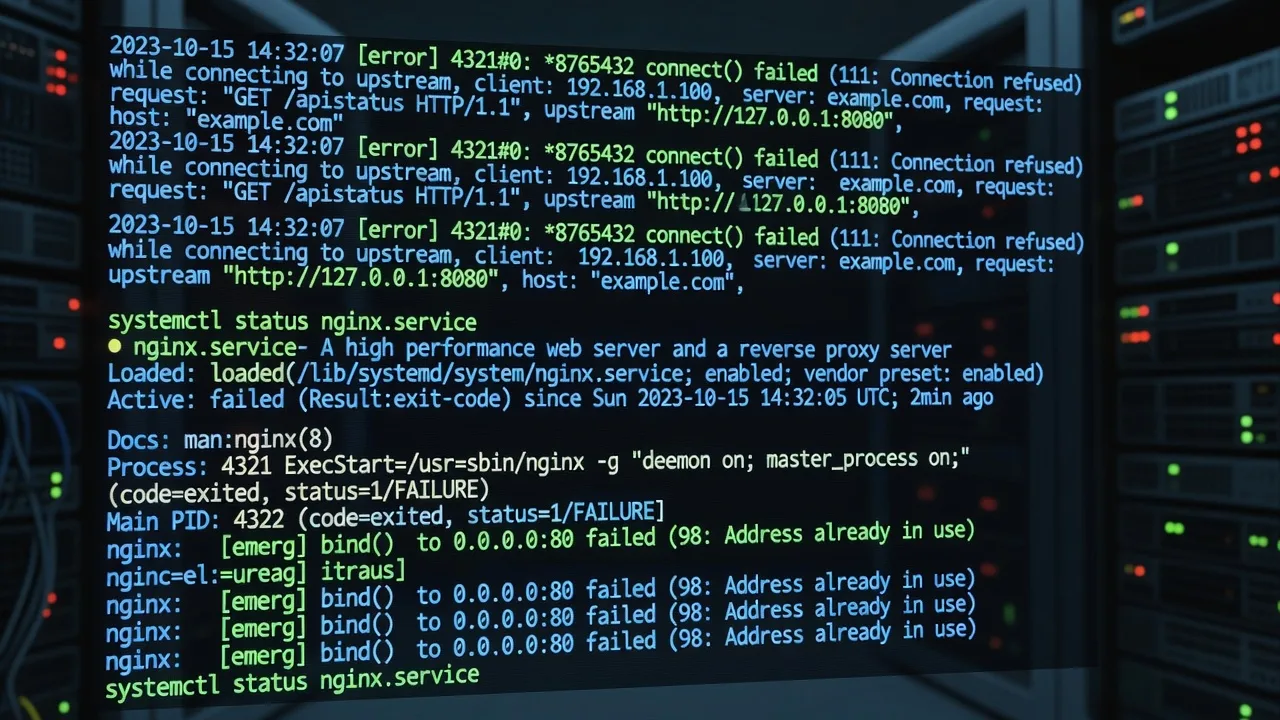
If your Linux web server stopped serving traffic after an NGINX edit, this guide walks you through a full recovery: check the logs, reboot into recovery mode when needed, revert the bad change, restart services, and verify the stack is healthy again.
Australian homeowners and small businesses often hit this after a late-night config tweak, a failed SSL path update, or a rushed deploy. Remote server support from Fixwebnode focuses on the same NGINX recovery path you can start yourself—then finishes the hard parts when the box will not come back cleanly.
Assumptions: Ubuntu or Debian-style Linux with systemd, NGINX as the front-end web server, optional PHP-FPM, and SSH access (or console access via your VPS/cloud panel). Work as a user with sudo. Prefer a maintenance window and a known-good config backup before you change anything else.
Why a full NGINX recovery process matters
NGINX fails closed: one bad directive, missing certificate file, or wrong upstream socket can take the whole site offline. Guessing with random restarts often makes it worse. A disciplined sequence—logs first, safe boot if the host is unstable, revert, controlled restarts, then verification—gets production back with fewer surprises and a clear audit trail for whoever supports the server next.
How do I recover a failed NGINX Linux web server in Australia?
Start by reading NGINX and system logs, test the config with nginx -t, boot recovery or single-user mode only if the host will not stay up, restore the last known-good site or nginx.conf change, then restart NGINX (and PHP-FPM if used) and confirm HTTP, TLS, and upstream health. If the server is unreachable over SSH or every restart fails the same way, book remote help from Fixwebnode rather than forcing more edits blind.
| Symptom | Quick fix | When to call Fixwebnode |
|---|---|---|
| NGINX won’t start; syntax error in logs | Run nginx -t, restore backup config, reload | No backup, nested includes, or multi-vhost mess |
| 502 / upstream connect failed | Check PHP-FPM socket/port vs proxy_pass; restart pool | Custom stacks, multiple pools, or unclear app root |
| Host unstable or SSH drops after change | Console recovery mode; mount RW; revert last edit | No console, disk/full FS, or boot loop |
Common NGINX recovery issues (unique symptoms)
1. Config syntax or include error — NGINX refuses to start
Symptoms: systemctl status nginx shows failed; browser times out; nginx -t prints “unexpected }”, “unknown directive”, or “open() failed” on an include path. Often follows a hand-edited server block or a copy-paste from another host.
2. Broken TLS paths after certificate or directory move
Symptoms: NGINX starts or reloads then exits; error log cites cannot load certificate or key; HTTPS fails while HTTP may still answer on another server block. Common after Let’s Encrypt renewals, manual cert moves, or renaming /etc/nginx/ssl.
3. Upstream / PHP-FPM mismatch — HTTP 502 Bad Gateway
Symptoms: NGINX is running; static files may work; PHP or app routes return 502; error log shows connect() to unix:/run/php/....sock failed or connection refused to 127.0.0.1:9000. Root cause is socket name, pool stop, or wrong fastcgi_pass / proxy_pass.
4. Unstable host after a bad change — need recovery mode
Symptoms: SSH drops, high load, full disk from runaway logs, or the instance reboots into a half-broken multi-user target where NGINX and dependents thrash. You need console recovery, read-write remount, and a clean revert before normal restarts.
Full recovery runbook: check logs → recovery mode → revert → restart → verify
Step A — Check the logs (always first)
Do not edit configs until you know the failing file and line.
Step 1 — Service status and recent journal
sudo systemctl status nginx --no-pager -l
sudo journalctl -u nginx -xe --no-pager | tail -n 80
Note Active state, main PID, and the first hard error (syntax, permission, bind, SSL).
Step 2 — NGINX error and access logs
sudo tail -n 100 /var/log/nginx/error.log
sudo tail -n 50 /var/log/nginx/access.log
# Debian/Ubuntu sites often also log per-vhost:
sudo ls -la /var/log/nginx/
Step 3 — Config test without applying a reload
sudo nginx -t
sudo nginx -T 2>/dev/null | head -n 5
nginx -t validates syntax and key file paths. Fix whatever it names before any restart loop.
Step 4 — Disk space and permissions (quick)
df -h
sudo du -sh /var/log/nginx/* 2>/dev/null
sudo ls -la /etc/nginx/sites-enabled/
sudo namei -l /etc/nginx/nginx.conf
A full /var or root filesystem will block logging and sometimes reloads. Fix space before chasing phantom config bugs.
Step B — Reboot into recovery mode (only when the host is unsafe)
Use this when SSH is flaky, the machine reboots uncleanly, or multi-user keeps re-failing the same unit. On cloud VPS in Australia, open the provider serial/VNC console first so you are not locked out.
Step 1 — Prefer a clean maintenance reboot if SSH still works
sudo systemctl isolate rescue.target
# or older pattern:
# sudo systemctl isolate rescue
Enter root password if prompted. Network may be limited depending on distro defaults.
Step 2 — From GRUB (if you cannot reach a shell)
At the GRUB menu, edit the default kernel line: add systemd.unit=rescue.target (or single on some images), boot, then remount read-write:
mount -o remount,rw /
mount -a
df -h
# Confirm you can edit configs:
ls /etc/nginx
Step 3 — Bring networking only if you need packages or remote copy
sudo systemctl start networking 2>/dev/null || sudo systemctl start NetworkManager 2>/dev/null
ip -br a
If the sole goal is revert-and-boot, skip package installs until NGINX is healthy again.
Step C — Revert the change (restore known-good NGINX config)
Revert the smallest unit that broke the server: one site file, one snippet, or nginx.conf—not a blind full wipe.
Step 1 — Identify what changed
sudo ls -lt /etc/nginx/sites-enabled/ /etc/nginx/conf.d/ 2>/dev/null
sudo grep -R "ssl_certificate\|fastcgi_pass\|proxy_pass\|include " /etc/nginx/sites-enabled/ -n
# If you use etckeeper or git in /etc:
cd /etc && sudo git status 2>/dev/null
cd /etc && sudo git log --oneline -n 5 2>/dev/null
Step 2 — Disable a bad site without deleting history
# Example: bad vhost symlink
sudo rm -f /etc/nginx/sites-enabled/broken-site.conf
# Keep the file in sites-available for inspection
sudo ls -la /etc/nginx/sites-available/
Step 3 — Restore from backup (.bak, panel snapshot, or copy)
# Common patterns — adjust filenames to yours
sudo cp -a /etc/nginx/nginx.conf.bak /etc/nginx/nginx.conf
sudo cp -a /etc/nginx/sites-available/example.com.conf.bak /etc/nginx/sites-available/example.com.conf
sudo ln -sf /etc/nginx/sites-available/example.com.conf /etc/nginx/sites-enabled/example.com.conf
Step 4 — Manual surgical revert if you still remember the edit
Open the file named by nginx -t, undo the last directive block (listen, root, ssl_certificate, include, or upstream), save, and re-test. Avoid stacking new “fixes” on top of an untested file.
sudo nginx -tOnly continue when the test reports syntax ok and successful config test.
Step D — Restart the services in the right order
Step 1 — Leave rescue if you used it
sudo systemctl isolate multi-user.target
# or reboot once configs are restored:
# sudo reboot
Step 2 — PHP-FPM (or app backend) before or with NGINX
# Adjust version to what is installed
sudo systemctl restart php8.2-fpm 2>/dev/null || sudo systemctl restart php8.1-fpm 2>/dev/null || sudo systemctl restart php-fpm 2>/dev/null
sudo systemctl status php8.2-fpm --no-pager 2>/dev/null || sudo systemctl status php-fpm --no-pager 2>/dev/null
Confirm the socket or port matches your NGINX fastcgi_pass:
ls -la /run/php/ 2>/dev/null
ss -lptn | grep -E 'nginx|php|9000'
Step 3 — NGINX restart (full restart after major revert; reload only when already healthy)
sudo nginx -t && sudo systemctl restart nginx
sudo systemctl status nginx --no-pager -l
If a reload is enough after a minor verified edit:
sudo nginx -t && sudo systemctl reload nginxStep 4 — Related helpers often forgotten
# Fail2ban or firewall only if you changed ports
sudo systemctl status fail2ban --no-pager 2>/dev/null
sudo ss -lptn | grep ':443\|:80'
Step E — Verify end-to-end
Step 1 — Local HTTP/HTTPS checks
curl -I http://127.0.0.1/
curl -Ik https://127.0.0.1/
curl -I -H "Host: your-domain.example" http://127.0.0.1/
Expect sane status codes (200/301/302), not empty replies or connection refused.
Step 2 — Public path and TLS
curl -I https://your-domain.example
sudo tail -n 20 /var/log/nginx/error.log
Step 3 — Confirm no failed units
systemctl --failed --no-pager
sudo journalctl -u nginx -n 30 --no-pager
Document what you reverted (filename + reason). That note saves the next recovery.
How to fix each common issue (DIY steps)
Fix issue 1 — Syntax / include errors
- Run
sudo nginx -tand copy the file:line it reports. - Open only that file; compare against a backup or a known-good sibling vhost.
- Comment out the newest block with
#, save, re-runnginx -t. - When test passes:
sudo systemctl restart nginxandcurl -Ilocally. - Re-introduce changes one directive at a time with a test after each save.
Call Fixwebnode when includes chain across many files, streams/mail blocks are mixed in, or you lack any backup and production must return immediately.
Fix issue 2 — TLS certificate path failures
- From the error log, note the missing
ssl_certificate/ssl_certificate_keypaths. - Confirm files exist and permissions allow the NGINX user to read them:
sudo ls -la /etc/letsencrypt/live/your-domain.example/ 2>/dev/null
sudo ls -la /etc/ssl/ 2>/dev/null
sudo nginx -t- Point the server block back to the real fullchain and privkey (or restore the previous working paths from backup).
- Test and reload:
sudo nginx -t && sudo systemctl reload nginx. - Verify with
curl -Ik https://your-domain.example.
Book a specialist if certificates were partially renewed, chains are incomplete across intermediate files, or HTTP works but every HTTPS vhost fails after an automated renew hook.
Fix issue 3 — 502 from PHP-FPM / upstream mismatch
- Confirm NGINX is up and the 502 is application routes only.
- Read the exact upstream in the error log and in the site file.
- Align socket or port:
grep -R "fastcgi_pass\|proxy_pass" /etc/nginx/sites-enabled/ -n
ls -la /run/php/
sudo systemctl restart php8.2-fpm 2>/dev/null || sudo systemctl restart php-fpm
sudo nginx -t && sudo systemctl reload nginx- Hit a PHP info or health URL; watch
error.loglive:
sudo tail -f /var/log/nginx/error.log- If the pool crashes again, check pool logs under
/var/log/php*and free memory withfree -h.
Escalate when multiple PHP versions collide, WordPress or custom apps need deeper stack fixes, or you also need application-level repair—Fixwebnode can pair server recovery with related work such as WordPress core and plugin failure recovery or PHP and WordPress software installation support where that matches your stack.
Fix issue 4 — Recovery-mode revert when the host will not stay up
- Use provider console; boot rescue/single-user; remount
/read-write. - Free space if
df -hshows root or/varfull (truncate huge rotated logs only after copying a sample). - Restore NGINX backups; disable the last enabled site symlink.
nginx -tinside rescue if binaries are available; thensystemctl isolate multi-user.targetor reboot.- Verify with
systemctl status nginxand localcurl.
If there is no console access, disk errors on mount, or GRUB/kernel issues beyond NGINX, stop DIY and get remote hands on the instance.
When DIY is enough vs when to book Fixwebnode
DIY is reasonable when you still have SSH, nginx -t points to a clear file, a backup exists, and a single restart brings HTTP back. Pause self-fixes when the server is unreachable without console skills, every change introduces a new error, disk or RAID faults appear, firewall/TLS automation fights you, or the outage is costing sales and you need a steady remote operator.
Fixwebnode is a direct specialist provider for Linux and NGINX recovery—not a freelance marketplace. Remote support covers Australian businesses and site owners across service regions listed on the service areas page, with the same log → revert → restart → verify discipline described here.
Book remote NGINX recovery help
If you are mid-outage, save the output of nginx -t, systemctl status nginx, and the last fifty lines of /var/log/nginx/error.log, then start a conversation for remote recovery. Talk to Fixwebnode about Ubuntu/Linux server support and NGINX recovery so a specialist can finish the revert, stabilise services, and verify your sites without marketplace bidding or guesswork.
Conclusion
A full Linux NGINX recovery is a sequence, not a single restart: read logs and nginx -t, use recovery mode only when the host is unsafe, revert the smallest bad change, restart PHP-FPM and NGINX in order, then verify with curl, ports, and clean journals. Follow the DIY steps above for syntax, TLS path, and 502 upstream failures; bring in Fixwebnode when access, backups, or complexity block a safe restore.