Multi-Vendor & Complex SaaS Marketplaces
 Modern Headless & Jamstack Web Development
 High-End Corporate & Specialized Business Websites
 Advanced API, Checkout & Database Troubleshooting
Lost Root Login on Your VPS? Safe Linux Password Reset
Developer gone and no root password? Learn how to boot your VPS into recovery mode, reset the Linux root login safely, and when Australian teams should book Fixwebnode for remote help.
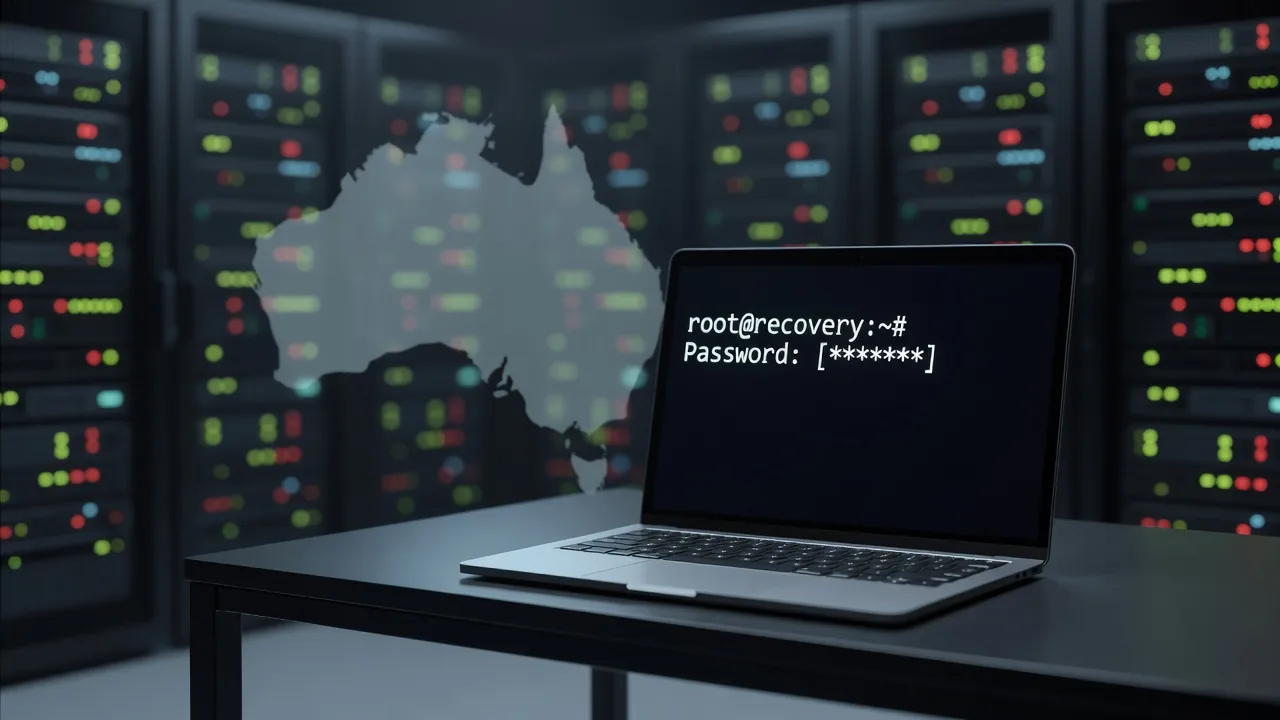
If your developer vanished and nobody on the team has the Linux root password, you are not locked out forever—you need a controlled recovery boot, not guesswork.
This guide is for Australian small businesses and site owners who still control the VPS panel (DigitalOcean, Linode, Vultr, AWS Lightsail, and similar) but cannot SSH in as root or sudo. Fixwebnode provides direct remote Linux server support so you can regain root safely, verify the disk, and lock the account down again without wiping production data.
Why a missing root login is an emergency—not a “wait and see” problem
Without root you cannot patch packages, rotate keys, renew TLS, inspect logs, or stop a compromised process. Sites stay up until the next failure, then you have no path in. In Australia, that often means stalled e‑commerce, unpaid invoices, or a marketing site that cannot be updated before a campaign. The fix is almost always the same pattern: boot the VPS into the provider’s recovery or rescue environment, mount the system disk, chroot (or use passwd against the mounted root), set a new root password, then reboot to normal mode and harden access.
How do I reset a lost Linux root password on a VPS in Australia?
Use your cloud provider’s recovery or rescue mode, mount the server’s root filesystem, then run passwd (often inside a chroot) to set a new root password and reboot into normal mode. Keep the VPS panel login and any snapshot tools ready first so you can roll back if the wrong disk is mounted. If the panel itself is locked, the disk will not mount cleanly, or you are unsure which volume is root, book remote help rather than risking a wipe.
| Symptom | Quick fix | When to call Fixwebnode |
|---|---|---|
| SSH rejects root / “Permission denied” | Recovery boot → mount disk → passwd | No panel access, or multiple disks |
| Only a non-sudo user works | Recovery → fix sudoers / unlock root | sudoers syntax errors after edit |
| Rescue boots but blank or wrong FS | List block devices; mount correct partition | LVM, RAID, or encrypted root |
| Password works, SSH still blocked | Fix sshd_config & firewall in chroot | Host key or fail2ban lockouts |
Common issues when the developer disappears and root is unknown
These failures look similar from the outside (“we cannot log in”) but need different recovery paths.
1. Root password unknown and SSH key-only access is gone
Symptoms: Permission denied (publickey,password), no working private key in the team password manager, and the only admin left the company.
2. A normal user exists but has no sudo and root is locked
Symptoms: You can SSH as deploy or ubuntu, but sudo asks for a password nobody knows, or root is set !! in /etc/shadow.
3. Recovery mode boots, but the root filesystem will not mount
Symptoms: Rescue console is up, yet /dev/vda1 is empty, LVM volumes are inactive, or you mounted a data disk instead of the OS disk.
4. Password reset succeeds, but SSH still refuses root or times out
Symptoms: Console login works after reset; remote SSH still fails because PermitRootLogin is no, PasswordAuthentication is off, or UFW/firewalld still blocks your IP.
5. Provider “reset root password” button does nothing useful
Symptoms: Panel claims password was emailed, but cloud-init never ran, the instance uses custom images, or you only ever used SSH keys.
Issue 1 — Full root password reset via VPS recovery mode
This is the core fix when nobody has root. Exact menu names differ by provider; the Linux steps after rescue boots are the same.
Prerequisites: Login to the VPS control panel, ability to power cycle, and ideally a fresh snapshot before you change anything.
Step 1 — Snapshot, then enable recovery/rescue
In the provider panel, take a snapshot or backup. Power off the instance if required, enable Recovery, Rescue, or Boot from ISO (Ubuntu live / provider rescue image), then boot. Open the web console or provider serial console—not SSH to the old IP yet.
Step 2 — Identify and mount the real root disk
lsblk -f
cat /proc/partitions
mkdir -p /mnt/root
# Typical single-disk VPS (adjust device/partition):
mount /dev/vda1 /mnt/root
# If separate boot + root, mount root first, then:
# mount /dev/vda1 /mnt/root/boot
Confirm you see familiar paths:
ls /mnt/root
ls /mnt/root/etc
head -n 5 /mnt/root/etc/os-release
If you see only lost+found or empty data, unmount and try the next partition (/dev/vda2, /dev/sda1, etc.).
Step 3 — Bind system mounts and chroot (preferred)
mount --bind /dev /mnt/root/dev
mount --bind /proc /mnt/root/proc
mount --bind /sys /mnt/root/sys
mount --bind /run /mnt/root/run
chroot /mnt/root /bin/bash
Step 4 — Set a new root password and unlock the account
passwd root
# Choose a long random password; store it in your team vault immediately.
# If root was locked:
passwd -u root
# Debian/Ubuntu sometimes use:
usermod -U root
Optional: confirm shadow no longer shows ! or * locking root:
grep '^root:' /etc/shadowStep 5 — Exit chroot, unmount, disable rescue, reboot normal
exit
umount /mnt/root/dev /mnt/root/proc /mnt/root/sys /mnt/root/run
umount /mnt/root
# If busy:
# umount -l /mnt/root
In the panel, turn off recovery/rescue, set boot back to the local disk, and power cycle. From your laptop:
ssh root@YOUR.SERVER.IP
# or:
ssh -i ~/.ssh/your_key root@YOUR.SERVER.IP
Step 6 — Immediately harden after regain
mkdir -p /root/.ssh
chmod 700 /root/.ssh
# Paste your team pubkey into authorized_keys, then:
chmod 600 /root/.ssh/authorized_keys
# Ubuntu example — create a sudo user and prefer keys over password root SSH:
adduser opsadmin
usermod -aG sudo opsadmin
When to call a pro: encrypted root (LUKS), custom kernels, or you cannot tell which disk is OS versus database storage. Fixwebnode can drive the console session with you remotely across Australia.
Issue 2 — User can log in but has no sudo; root stays locked
Sometimes SSH works for an app user, but privilege escalation is broken. Recovery still helps, and you can fix sudoers without guessing the old root password.
Step 1 — Boot rescue and chroot as above
Step 2 — Grant sudo to a known staff account
# Inside chroot:
usermod -aG sudo opsadmin
# or on RHEL/CentOS/Alma:
# usermod -aG wheel opsadmin
visudo -c
# Ensure a safe rule exists, e.g. via /etc/sudoers.d/opsadmin:
echo 'opsadmin ALL=(ALL) ALL' > /etc/sudoers.d/opsadmin
chmod 440 /etc/sudoers.d/opsadmin
visudo -c -f /etc/sudoers.d/opsadmin
Step 3 — Unlock root or set its password if you still need it
passwd root
passwd -u root
Step 4 — Verify after normal boot
ssh opsadmin@YOUR.SERVER.IP
sudo -i
whoami
# expect: root
When to book Fixwebnode: visudo -c reports parse errors, or automation rewrites sudoers on every boot (broken config management left behind by the missing developer).
Issue 3 — Rescue is up but the filesystem will not mount cleanly
Wrong device selection is the usual cause. LVM and XFS/ext4 journal replay are next.
Step 1 — Map every block device
lsblk -o NAME,SIZE,FSTYPE,TYPE,MOUNTPOINT,UUID
blkid
cat /etc/fstab
Read /etc/fstab from a tentatively mounted candidate so you know the real root UUID.
Step 2 — LVM activation (common on older VPS images)
apt-get update && apt-get install -y lvm2 2>/dev/null || yum install -y lvm2
vgscan
vgchange -ay
lvs
mount /dev/ubuntu-vg/root /mnt/root
# names vary — use lvdisplay
Step 3 — Repair filesystem only if needed
# Unmounted partition only:
fsck -y /dev/vda1
Do not run destructive reformat commands. If fsck reports heavy corruption, stop and get a specialist with the snapshot still intact.
Step 4 — Finish passwd in chroot once mount is correct
Repeat the chroot and passwd root steps from Issue 1, then reboot to disk.
When to call Fixwebnode: software RAID, multi-disk setups, or LUKS prompts you do not have the passphrase for.
Issue 4 — Root password works on console; SSH still fails
Authentication and network policy often still block remote root after a successful reset.
Step 1 — From chroot or after local console login, inspect SSH
grep -E '^(PermitRootLogin|PasswordAuthentication|PubkeyAuthentication|Port)' /etc/ssh/sshd_config /etc/ssh/sshd_config.d/* 2>/dev/null
sshd -t
Step 2 — Temporary, controlled enable for recovery (then tighten)
# Prefer fixing keys over leaving password root open.
mkdir -p /root/.ssh
chmod 700 /root/.ssh
# Install your pubkey, then:
sed -i 's/^#\?PermitRootLogin.*/PermitRootLogin prohibit-password/' /etc/ssh/sshd_config
systemctl restart ssh || systemctl restart sshd
Step 3 — Firewall and fail2ban
ufw status verbose
# If you locked yourself out earlier, from console:
ufw allow OpenSSH
ufw reload
# fail2ban unban example:
fail2ban-client status sshd
fail2ban-client set sshd unbanip YOUR.OFFICE.IP
Step 4 — Confirm from outside
ssh -v root@YOUR.SERVER.IP
journalctl -u ssh -u sshd -n 50 --no-pager
When to book help: host keys rotated unexpectedly, custom non-22 ports behind a cloud security group you cannot edit, or repeated bans you cannot clear from rescue.
Issue 5 — Panel “reset password” did not restore access
Many Australian-hosted VPS images never apply the emailed password if cloud-init is disabled or the machine was cloned manually.
Step 1 — Do not keep requesting panel resets in a loop
Use recovery mode once, with a snapshot.
Step 2 — Fix cloud-init or set password directly on disk
# Inside chroot — direct account fix beats waiting on cloud-init:
passwd root
# Optional: force cloud-init to run next boot only if you understand the image:
# cloud-init clean --logs
Step 3 — Ensure serial/console login works for next emergency
systemctl enable serial-getty@ttyS0.service 2>/dev/null || true
grep '^root:' /etc/passwd
When to call Fixwebnode: provider support only offers reinstall, and you must preserve /var/www, databases, or Docker volumes.
When DIY is enough vs when to book Fixwebnode
DIY is reasonable when: you still control the cloud panel, there is one obvious disk, you can open a web console, and you are comfortable with mount, chroot, and passwd. Follow the numbered steps, document the new credentials in a shared vault, add a second admin user, and prefer SSH keys.
Book a specialist when: data is more valuable than experiment time; you see LVM, RAID, or encryption; rescue mounts the wrong volume; SSH and firewall issues stack on top of the password problem; or the only “fix” the host offers is a destructive rebuild. Fixwebnode works as a direct remote Linux provider for teams across Australia—not a freelance marketplace—so one engineer stays on the recovery path until root works and access is hardened.
We support common distributions used in production (Ubuntu, Debian, Alma/RHEL-family, and others). If your stack sits with teams in Adelaide or Melbourne, you can also review dedicated Linux coverage via Adelaide Linux experts and Melbourne Linux experts. For broader geography, see all service areas.
Regain root, then lock the door—talk to Fixwebnode
A vanished developer and a missing root password is stressful, but recovery mode plus a careful passwd on the mounted system disk is a standard, reversible procedure when you still own the VPS. Snapshot first, mount the correct root, reset and unlock, fix SSH/firewall if needed, then create a documented sudo user and keys so this cannot strand the business again.
If you want a guided remote session instead of solo console work, start a conversation with Fixwebnode through our Ubuntu and Linux server support page. Tell us your provider, distro, and whether a snapshot already exists—we will help you get root back safely and leave the server in a maintainable state for your team in Australia.