Multi-Vendor & Complex SaaS Marketplaces
 Modern Headless & Jamstack Web Development
 High-End Corporate & Specialized Business Websites
 Advanced API, Checkout & Database Troubleshooting
Configure Redis Object Caching on Linux VPS (Surfers Paradise)
Slow dynamic pages on your Linux VPS? Learn how to install and tune Redis object caching, fix connection refused and eviction issues, and know when Fixwebnode should take over remotely.
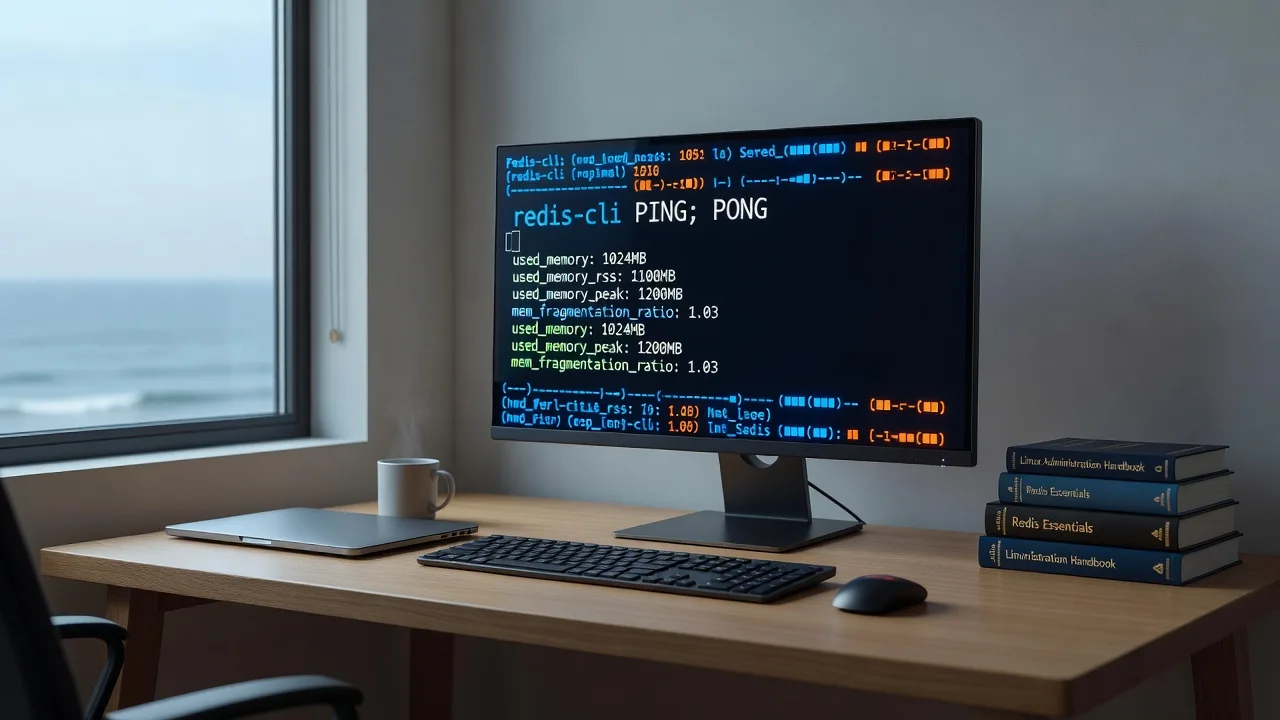
If your WordPress or app stack on a Linux VPS feels sluggish under load—especially database-heavy pages—Redis object caching is one of the highest-impact fixes you can apply without rewriting code.
This guide is for homeowners and small businesses running sites from a Linux VPS who need practical, remote-friendly steps: install Redis, wire it to PHP/WordPress, verify it is actually caching, and recover when it fails. Location context matters only for support logistics—we work with clients in Surfers Paradise and across your area via secure remote access. Fixwebnode is a direct specialist provider for Redis & Memcached caching setup, not a freelance marketplace.
By the end you will have copy-pasteable commands, three distinct failure modes with DIY resolution paths, and a clear line for when to book remote help instead of guessing at redis.conf.
Why Redis object caching matters on a Linux VPS
Object caching stores expensive query results, options, and computed objects in memory so PHP does not hit MySQL/MariaDB on every request. On a modest VPS, that often cuts TTFB and admin-ajax latency more than theme tweaks alone. Memcached is a valid alternative for simple key-value caches; Redis adds persistence options, richer data types, and is the usual choice for WordPress object cache drop-ins.
Misconfiguration is common: Redis installed but never bound correctly, PHP extensions missing, plugins pointing at the wrong socket, or memory limits so low that the cache thrashs. The rest of this post stays on those problems—install, configure, diagnose, and recover Redis object caching on Linux VPS hosts.
Why is Redis object caching not speeding up my Linux VPS site?
Most “Redis is installed but nothing feels faster” cases mean PHP never talks to a healthy Redis instance: the service is down, listening on the wrong interface, the object-cache drop-in is missing, or every key is evicted under memory pressure. Confirm the daemon, the PHP extension, and a real cache hit ratio before changing themes or hosts.
| Symptom | Quick check | When to call Fixwebnode |
|---|---|---|
| Site unchanged after “enabling Redis” | redis-cli PING and plugin connection test | Drop-in conflicts or multi-site path issues |
| Intermittent 502 / PHP timeouts | Redis log + maxmemory policy | Recurring OOM or socket permission loops |
| Connection refused on 6379 | Bind address, firewall, systemd status | Hardened VPS / custom network namespaces |
Common Redis & Memcached caching issues on Linux VPS
These three problems show up repeatedly when people try to configure Redis object caching on a production VPS. Each has a different root cause—do not treat them as the same “restart and hope” fix.
1. Redis running but PHP cannot connect (connection refused / timed out)
Symptoms: WordPress object-cache plugins report failure; wp redis status errors; PHP-FPM slow log fills with remote Redis timeouts; browser still hits full page generation every time.
2. Cache never sticks—hit rate near zero or constant evictions
Symptoms: INFO stats shows climbing evicted_keys; admin still slow after “warm” traffic; object cache metrics show sets without gets; Memcached/Redis memory pegged at the cap.
3. Stale or conflicting object data after deploys or plugin updates
Symptoms: Old option values or menu HTML after updates; cart/session weirdness when object cache and page cache disagree; two drop-ins or Redis plus a conflicting Memcached plugin both active.
How to fix issue 1: Redis up, PHP still cannot connect
Goal: prove Redis accepts local connections, then align PHP and your app to the same host/socket.
Step 1 — Confirm the service and basic health
sudo systemctl status redis-server || sudo systemctl status redis
sudo redis-cli PING
Expect PONG. If the unit is inactive:
sudo systemctl enable --now redis-server
# Debian/Ubuntu package name may be redis-server; RHEL-family often redis
sudo journalctl -u redis-server -n 50 --no-pager
Step 2 — Check bind address and protected mode
On a single-app VPS, prefer localhost only.
grep -E '^(bind|protected-mode|port|unixsocket)' /etc/redis/redis.conf
sudo ss -lntp | grep 6379
Typical safe local settings:
bind 127.0.0.1 ::1
protected-mode yes
port 6379
After edits:
sudo systemctl restart redis-server
sudo redis-cli -h 127.0.0.1 PING
Step 3 — Install and verify the PHP extension
# Debian/Ubuntu example for PHP 8.2 — adjust version
sudo apt-get update
sudo apt-get install -y php8.2-redis redis-tools
sudo systemctl reload php8.2-fpm
php -m | grep -i redis
If you use Nginx + PHP-FPM, reload both after extension install:
sudo systemctl reload php8.2-fpm
sudo systemctl reload nginx
Step 4 — Point the application at 127.0.0.1:6379 (or the Unix socket)
For WordPress with a maintained Redis object-cache plugin, set host 127.0.0.1, port 6379, and flush after first connect. Verify with:
sudo redis-cli INFO keyspace
sudo redis-cli DBSIZE
Generate a few front-end requests, then check DBSIZE again—keys should increase if the drop-in is live.
Step 5 — Firewall only if you intentionally expose Redis (usually do not)
sudo ss -lntp | grep 6379
# Redis should NOT listen on a public interface for object caching
If Redis is bound to a public IP, rebind to localhost immediately; object cache traffic should stay on-box.
When to call Fixwebnode: custom containers, non-standard sockets, SELinux/AppArmor denials, or PHP builds without package extensions. Book Configure Redis & Memcached Object Caching on Linux VPS Remote for a guided remote session.
How to fix issue 2: zero hits, evictions, or thrashing memory
Goal: size maxmemory, pick a sane eviction policy, and confirm the app reuses keys.
Step 1 — Read live memory and eviction stats
sudo redis-cli INFO memory
sudo redis-cli INFO stats | grep -E 'evicted_keys|keyspace_hits|keyspace_misses'
A rising evicted_keys with a tiny maxmemory means the cache is a revolving door—not a speedup.
Step 2 — Set maxmemory relative to VPS RAM
Leave headroom for MySQL, PHP-FPM, and the OS. Example for a 4 GB VPS dedicating ~512 MB to Redis (adjust to your reality):
sudo redis-cli CONFIG SET maxmemory 512mb
sudo redis-cli CONFIG SET maxmemory-policy allkeys-lru
sudo redis-cli CONFIG REWRITE
Persist the same values in /etc/redis/redis.conf so reboots keep them:
maxmemory 512mb
maxmemory-policy allkeys-lru
Step 3 — Restart and re-measure under realistic traffic
sudo systemctl restart redis-server
# hit key pages, wp-admin, and a logged-in flow
sudo redis-cli INFO stats | grep -E 'keyspace_hits|keyspace_misses|evicted_keys'
Hit ratio should climb after warm-up. If misses stay dominant, the app may not be using the object cache API (missing drop-in) or keys are overly unique per request.
Step 4 — Separate page cache from object cache
Full-page caches (Nginx fastcgi_cache, plugin page cache) and Redis object cache solve different layers. Disabling one to “test” the other is fine; running two object-cache backends (Redis plugin + Memcached plugin) is not.
# Quick Memcached presence check if you suspect dual stacks
systemctl is-active memcached 2>/dev/null || true
php -m | grep -i memcache || true
Pick one object-cache backend for the app. For dynamic WordPress that still needs server-level page caching strategy, see Advanced Server-Level Caching for Dynamic WordPress Sites.
Step 5 — Watch PHP-FPM and MySQL while Redis is healthy
sudo tail -n 100 /var/log/nginx/error.log
# PHP-FPM pool slow log path varies; common pattern:
sudo tail -n 50 /var/log/php8.2-fpm.log
If Redis is clean but MySQL still saturates CPU, object caching may be working while uncached queries or missing indexes remain—the next bottleneck, not a Redis install failure.
When to call Fixwebnode: shared VPS noisy neighbours, unclear RAM budget with Elasticsearch/Java on the same box, or eviction storms after every cron run. Remote tuning beats random maxmemory guesses.
How to fix issue 3: stale objects and plugin/drop-in conflicts
Goal: one authoritative object-cache implementation, clean flush discipline after deploys.
Step 1 — Inventory drop-ins and caching plugins
ls -la /var/www/*/wp-content/object-cache.php 2>/dev/null
ls -la wp-content/object-cache.php 2>/dev/null
wp plugin list --status=active 2>/dev/null | grep -iE 'redis|memcache|object|cache' || true
Only one object-cache drop-in should exist. Remove or disable Memcached object-cache plugins if Redis is the chosen backend.
Step 2 — Flush Redis safely after structural changes
sudo redis-cli INFO keyspace
sudo redis-cli FLUSHDB
# Prefer FLUSHDB on the dedicated DB index your app uses;
# avoid FLUSHALL on shared Redis used by multiple apps
Then reload PHP-FPM so long-running workers drop in-memory assumptions:
sudo systemctl reload php8.2-fpmStep 3 — Verify writes after flush
sudo redis-cli MONITOR
# In another terminal, load homepage and wp-admin once, then Ctrl+C MONITOR
sudo redis-cli DBSIZE
You should see SET/GET traffic correlated with page loads. No traffic means the drop-in still is not engaged.
Step 4 — Align Redis database index and prefix
If multiple sites share one Redis, give each a unique prefix or DB index in the plugin/config so flushes and key collisions do not cross sites. Confirm with:
sudo redis-cli --scan --pattern '*' | head
sudo redis-cli CONFIG GET databases
Step 5 — Document a post-deploy cache order
- Deploy code/plugin updates.
- Reload PHP-FPM.
- Flush object cache DB used by the app.
- Purge page cache (plugin or Nginx) separately.
- Spot-check cart, login, and a raw dynamic template.
When to call Fixwebnode: multisite with shared Redis, WooCommerce session oddities, or drop-ins reappearing after managed-host “optimizers” rewrite wp-content.
Baseline install checklist (when Redis is not on the box yet)
If you are starting cold on Debian/Ubuntu:
sudo apt-get update
sudo apt-get install -y redis-server redis-tools php-redis
sudo systemctl enable --now redis-server
sudo redis-cli PING
php -r 'echo phpversion("redis") ? "redis ext ok\n" : "missing\n";'
Lock down to localhost as shown earlier, set maxmemory, wire the app, then measure keyspace_hits under real clicks—not only a green “connected” badge in a plugin UI.
When DIY is enough vs when to book Fixwebnode
DIY is enough when you have SSH, a single site on the VPS, Redis packages from the distro, and symptoms match connection refused, simple memory caps, or an obvious dual-plugin conflict. The numbered steps above are designed for that path.
Book Fixwebnode when any of the following is true: Redis must share the host with other tenants safely; you need Memcached and Redis roles clarified across staging/production; PHP was compiled custom; SELinux blocks the Unix socket; WooCommerce or membership plugins show cache-coherency bugs after every release; or you simply cannot afford trial-and-error on a live storefront.
We deliver this work remote/digital—SSH or agreed secure access—so geography is about who we support, not a truck roll. Fixwebnode covers clients in Surfers Paradise and all service areas listed on our site, as a direct specialist team.
Talk to Fixwebnode about Redis object caching
If you want Redis (or Memcached) object caching configured correctly on your Linux VPS—verified hits, sane memory policy, and no conflicting drop-ins—start a conversation on the service page. Use the landing overview for Redis & Memcached Caching: Boosting App Speed or go straight to remote configuration via Configure Redis & Memcached Object Caching on Linux VPS Remote.
Bring your distro version, PHP version, and whether the stack is WordPress or custom PHP. We will focus on measurable cache behaviour, not generic “speed tips,” so your Surfers Paradise or wider QLD-facing site actually serves dynamic pages faster under real traffic.