Multi-Vendor & Complex SaaS Marketplaces
 Modern Headless & Jamstack Web Development
 High-End Corporate & Specialized Business Websites
 Advanced API, Checkout & Database Troubleshooting
Fix Shopify Speed for Australian Stores: Full DIY Guide
Slow Shopify checkout loses Australian buyers. Run PageSpeed Insights, audit apps, compress images, clean your theme, and re-test—with clear steps and when to book Fixwebnode.
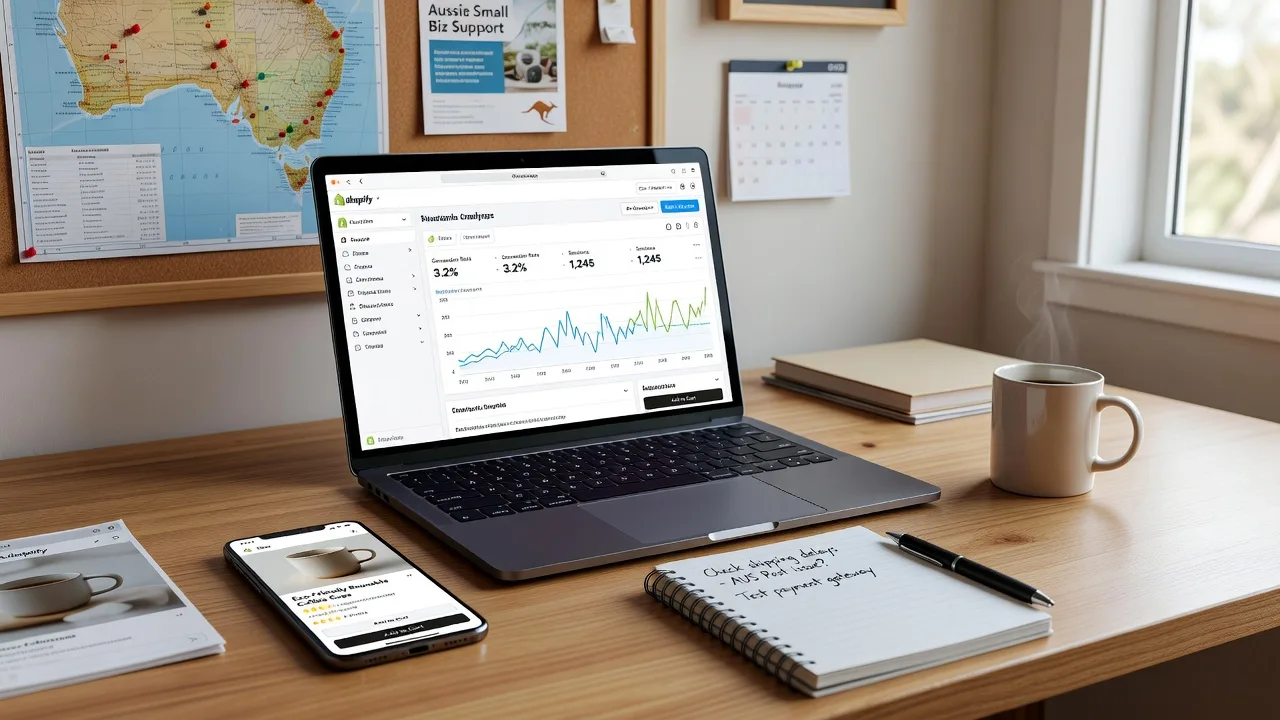
If your Shopify store feels sluggish for shoppers in Australia—product pages hanging, mobile scores in the red, or cart steps that stall—you are leaving sales on the table. This guide walks you through a complete, practical workflow: run PageSpeed Insights, audit apps, compress images, clean your theme, and re-test until load behaviour is stable. Fixwebnode works directly with individuals, sole traders, and local operators on website repair across Australia, including hands-on Shopify speed work when DIY hits a wall.
You do not need server access. Everything below uses Shopify admin, free browser tools, and careful change control. Work on a theme duplicate or development store when you can, and note every app you disable so you can roll back cleanly.
Why Shopify speed matters for Australian customers
Australian buyers often browse on mobile data, switch between product tabs, and abandon carts when the first meaningful paint drags. Shopify’s global stack helps, but store-level weight—apps, uncompressed media, and theme scripts—still decides whether a Sydney or Melbourne shopper stays or leaves. A disciplined diagnose-and-fix loop beats random app installs and “speed booster” plugins that add more JavaScript.
Fixwebnode supports stores across the Australia service area as a direct specialist provider: remote theme and app cleanup first, with on-site or drop-off device help when your only working admin machine, tablet, or point-of-sale browser is the bottleneck. See all regions on the service areas hub.
How do I diagnose and fix a slow Shopify store for buyers in Australia?
Start with a cold PageSpeed Insights run on your homepage and a top product URL from an Australian location mindset (mobile first), then remove or defer heavy apps, compress and correctly size images, strip unused theme sections and scripts, and re-test the same URLs until LCP, INP, and CLS improve. Keep a written change log so each win is reversible. If scores stall after a clean audit, book a specialist rather than stacking more apps.
| Symptom | Quick fix | When to call Fixwebnode |
|---|---|---|
| Mobile LCP over ~2.5s on hero or PDP | Compress hero image; defer non-critical apps | Theme liquid or app conflicts you cannot isolate |
| Long main-thread blocks / janky taps | Disable chat, upsell, and pixel stacks one by one | Required apps fight each other after DIY |
| Layout jumps (CLS) on add-to-cart | Reserve image space; fix font and banner shifts | Persistent CLS after theme section cleanup |
Common Shopify speed issues Australian stores hit
These problems show up repeatedly on real merchant stores. Each has a different root cause—treat them separately so you do not “fix” one layer while breaking another.
1. App and script pile-up (slow interaction, high TBT)
Symptoms: Add-to-cart feels delayed; PageSpeed flags long main-thread tasks; multiple review, chat, upsell, loyalty, and pixel apps load on every template.
2. Heavy product and banner images (poor LCP)
Symptoms: Hero and gallery photos are multi-megabyte PNGs or uncropped camera uploads; Largest Contentful Paint is the big image; mobile looks soft yet still downloads slowly.
3. Bloated or poorly configured theme (render-blocking CSS/JS)
Symptoms: Homepage loads dozens of sections you no longer use; unused slideshows and video backgrounds; Online Store 2.0 theme still ships old custom liquid and duplicate jQuery.
4. Layout shift on mobile checkout paths (CLS)
Symptoms: Sticky bars, late-loading fonts, or review widgets push content after first paint; Core Web Vitals show unstable layout on collection and product templates.
Step-by-step: run PageSpeed Insights the right way
Baseline before you change anything. Without a baseline you cannot tell whether an app removal actually helped Australian mobile users.
- Open Google PageSpeed Insights in a desktop browser and paste your homepage URL.
- Run Mobile first, then Desktop. Save the performance score, LCP, INP (or TBT if shown), and CLS, plus the top “Opportunities” and “Diagnostics” lines.
- Repeat for one best-selling product page and one collection page—homepage-only tests miss PDP bloat.
- In Chrome, open an Incognito window, hard-refresh, and optionally throttle to a mid-tier mobile profile so you feel what a shopper feels.
- Export or screenshot results with the date. You will compare the same three URLs after every major change batch.
If the field data (CrUX) panel shows poor real-user metrics for Australia-heavy traffic, prioritise mobile LCP and interaction delay over cosmetic desktop scores.
How to fix issue 1: audit and slim Shopify apps
Apps inject storefront scripts. Stacking “just one more” marketing tool is the most common self-inflicted slowdown.
Step 1 — Inventory
- In Shopify admin, open Settings → Apps and sales channels and list every installed app.
- Mark each as critical (payments, subscriptions you cannot pause), useful but deferrable, or unused.
- Note apps that load sitewide chat, pop-ups, quizzes, or multiple analytics pixels.
Step 2 — Controlled disable test
- Duplicate your live theme (Online Store → Themes → … → Duplicate) so you have a rollback.
- Remove or disable one non-critical app at a time; wait a few minutes; re-run PageSpeed on the same product URL.
- Record score deltas. Prefer uninstalling abandoned apps over leaving them “installed but unused.”
- For apps you must keep, open their settings and turn off storefront widgets on templates that do not need them (for example, hide chat on checkout-related pages if the app allows).
Step 3 — Script hygiene
- Check Online Store → Themes → Edit code only if you are comfortable: search theme.liquid and key snippets for third-party
<script>tags pasted outside apps. - Remove obvious dead pixels and old tag-manager snippets you no longer use. If unsure, stop and book a pro—do not delete payment or checkout scripts.
When to call Fixwebnode: required apps conflict, or removing one breaks a bundle/upsell you still need. Specialists can re-architect loading order without guessing in production.
How to fix issue 2: compress and size images properly
Media weight dominates LCP on fashion, homewares, and food stores common among Australian independents.
Step 1 — Find the offenders
- In PageSpeed, open the LCP element detail—usually a hero or product image URL.
- In admin, go to Content → Files (or the product media library) and sort large uploads by size where possible.
- On a product, download the main image and check dimensions: serving a 4000px-wide photo into a 600px slot wastes bandwidth.
Step 2 — Compress before upload
- Export masters to JPEG or WebP at sensible quality (often 70–85% for photos).
- Resize to the largest size your theme actually displays (many product grids never need more than ~1500–2000px on the long edge).
- Replace hero and top SKU images first—the pages you measured—then work through bestsellers.
- Add descriptive alt text while you are there; it does not replace compression but keeps the catalogue tidy.
Step 3 — Theme and app image settings
- In the theme editor, disable autoplay background videos on mobile if the theme offers that toggle.
- Turn off lazy-load conflicts: one lazy strategy is enough. Double lazy-load apps can delay LCP.
- Re-run PageSpeed on the same PDP and confirm the LCP image weight dropped.
When to call Fixwebnode: hundreds of SKUs, automated import pipelines, or a theme that ignores srcset and always pulls full-size assets.
How to fix issue 3: clean your theme
Theme cleanup removes render-blocking weight without buying another paid “optimizer.”
Step 1 — Section diet
- Open the theme editor on the homepage.
- Remove or hide unused slideshows, multiple announcement bars, marquee tickers, and “instagram feed” sections that pull external scripts.
- Keep one clear hero, trust row, and collection entry points. Fewer sections mean fewer assets.
Step 2 — Feature flags
- Disable theme features you do not use: quick view if it loads extra JS globally, hovering zoom libraries on collection grids, and decorative parallax.
- Choose system-safe font settings: limit custom font weights to those you actually apply (for example regular + bold only).
Step 3 — Code-level pass (careful)
- On the duplicate theme, search for outdated libraries and duplicate CSS bundles only if you know the theme structure.
- Do not edit checkout beyond Shopify’s allowed brand settings.
- Publish the cleaned theme only after a click-through of home → collection → product → cart on your phone.
For stubborn liquid and asset issues, Fixwebnode’s focused Shopify work—such as Shopify speed optimization aimed at sub-2s load behaviour—is built for this layer, not generic “install an app” advice.
How to fix issue 4: calm CLS and visual jank
Australian mobile shoppers notice buttons that jump under their thumb. CLS is a separate problem from raw kilobytes.
- Give images width/height or aspect-ratio containers in the theme so space is reserved before paint.
- Avoid inserting late banners above the product title after load; prefer a static announcement bar sized in the theme.
- Load webfonts consistently; eliminate font swaps that reflow prices and headings.
- Re-test product and collection URLs in PageSpeed and watch the CLS figure, not only the performance score.
If CLS remains after section cleanup, see dedicated help for Core Web Vitals CLS visual bug fixes on Australia sites.
Re-test protocol (do not skip)
- Clear your own browser cache or use Incognito.
- Re-run PageSpeed on the same three URLs with mobile first.
- Compare LCP image size, script count, and CLS against your baseline sheet.
- Place a test order path on a phone using Australian mobile data if you can—lab scores miss real checkout friction.
- If a change hurt metrics, revert that single change from your log before trying the next idea.
Ship improvements in small batches: apps first, then images, then theme sections, then fine CLS work. Mixing all four overnight makes root-cause tracking impossible.
When DIY is enough vs when to book Fixwebnode
DIY is enough when you can uninstall unused apps, replace a handful of hero and PDP images, and remove homepage sections, and PageSpeed mobile metrics move in the right direction within a day or two of careful testing.
Book Fixwebnode when you need deep theme liquid work, app scripts you cannot disable without breaking revenue features, persistent CLS/INP after cleanup, or when the computer you use for admin is failing (cracked laptop screen, unreliable browser crashes, failing drive) and you need local or drop-off help in Australia to keep trading while the storefront is optimised. Bring a backup of critical CSVs (products, customers) on a USB stick if you attend in person, and note your Shopify store URL plus staff access policy—never share passwords over insecure channels.
Fixwebnode is a direct specialist for storefront repair and speed work—not a freelance marketplace. You speak with the people doing the work, whether the session is remote theme surgery or practical on-site device support tied to keeping your Shopify admin online.
Talk through your store’s speed plan
If your Australian Shopify store still crawls after a disciplined PageSpeed run, app audit, image pass, theme clean, and re-test, start a straightforward conversation with Fixwebnode. Outline your top URLs, which apps you must keep, and what shoppers complain about on mobile.
Book a Shopify speed and website repair conversation with Fixwebnode and get a practical path—DIY checkpoints you can still own, plus specialist work where it actually pays off.