Multi-Vendor & Complex SaaS Marketplaces
 Modern Headless & Jamstack Web Development
 High-End Corporate & Specialized Business Websites
 Advanced API, Checkout & Database Troubleshooting
Break WordPress Maintenance Loop: Remote DIY Fixes
Stuck on “Briefly unavailable for scheduled maintenance”? Learn the real causes, safe remote DIY steps to clear the loop, and when Fixwebnode should take over for Melbourne and remote sites.
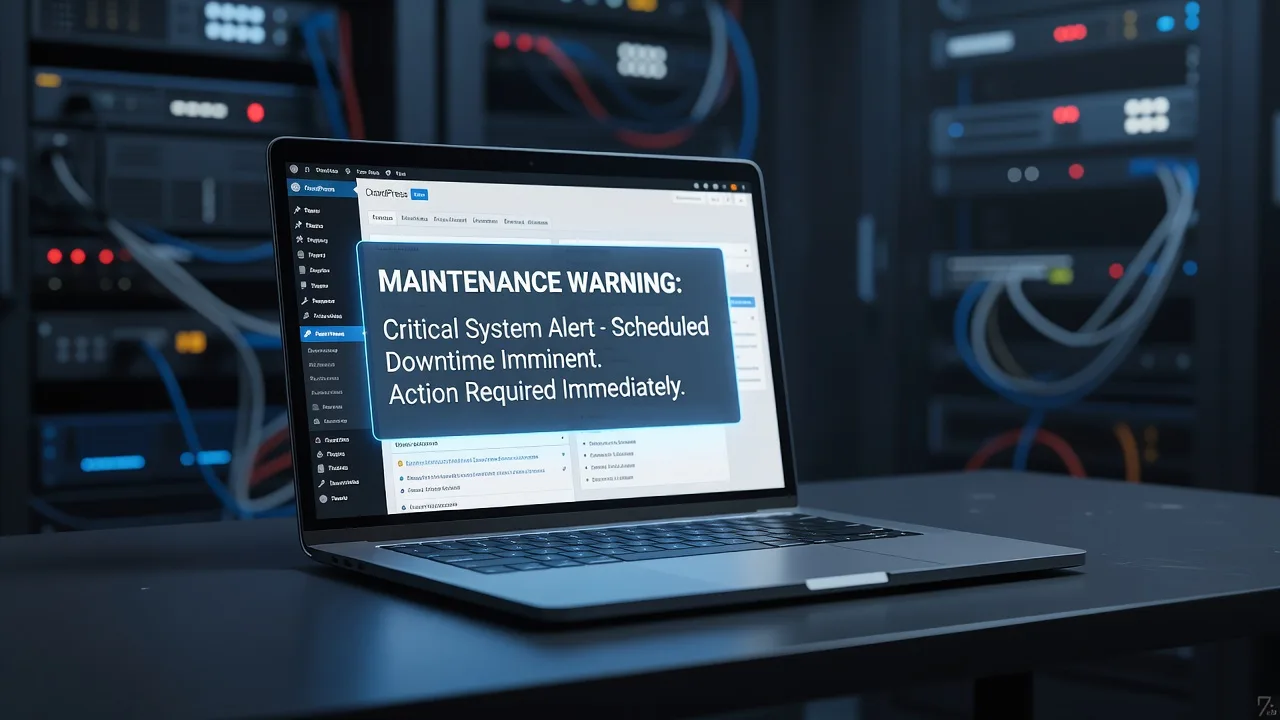
If your WordPress site will not leave the “Briefly unavailable for scheduled maintenance” screen, this guide walks you through remote diagnostics and safe fixes you can run yourself.
That message is meant to last seconds during a core, plugin, or theme update. When it never clears, visitors bounce, checkout stops, and search crawlers hit a soft outage. This post stays on that failure mode only: how the maintenance lock works, the distinct reasons it sticks, numbered DIY steps over SSH or SFTP, and when to book specialist remote help from Fixwebnode WordPress Support. We support site owners across your area and deliver this work remotely for Melbourne businesses and others who need the loop cleared without waiting on a marketplace.
Why the WordPress maintenance loop matters
WordPress creates a file named .maintenance in the site root at the start of an automatic or dashboard update. While that file exists and is recent, front-end requests show the maintenance page instead of your theme. If PHP crashes mid-update, the host kills the process, disk quota fills, or a plugin fatals, the file can remain. Sometimes a half-written update also leaves broken plugin files, so even after you delete .maintenance the site fatals and a retry script recreates the lock.
For small businesses, the loop looks like a full outage: blank maintenance page, no admin login path that “just works,” and support tickets stacking up. Clearing it correctly means removing the lock, verifying the filesystem and PHP errors, finishing or rolling back the interrupted update, and confirming caches and opcode caches are not still serving the maintenance response.
What causes the “Briefly unavailable for scheduled maintenance” loop?
Searchers usually want a straight answer: the site is stuck because WordPress still thinks an update is running, almost always because the .maintenance file was never removed or keeps being rewritten after a failed update. Delete or rename that file via SFTP or SSH, then check the update left the install consistent. If the page returns immediately after you remove the file, look for a fatal error, bad plugin drop-in, or object cache still holding the maintenance flag.
| Symptom | Quick fix | When to call Fixwebnode |
|---|---|---|
| Maintenance page only; admin may still load | Remove or rename root .maintenance | File returns within minutes or you lack SSH/SFTP |
| Maintenance clears, then white screen / 500 | Disable last-updated plugin; read PHP error log | Fatal in core or unknown malware drop-in |
| Lock keeps reappearing after delete | Stop stuck WP-Cron / update process; fix disk & permissions | Recreates under multiple users or host-level cron |
Common issues that trap the maintenance screen
These problems are distinct. Treat them separately rather than only deleting one file and hoping.
- Orphaned
.maintenanceafter a killed update — Classic stuck banner. Update started, process died, file left behind with a recent timestamp. Site looks “down” even though core files may be fine. - Interrupted plugin or theme update that fatals after unlock — You remove the lock, then get a white screen, HTTP 500, or “There has been a critical error.” The maintenance message was hiding a broken
plugins/orthemes/tree. - Permissions, ownership, or immutable flags blocking removal — You cannot delete
.maintenanceover FTP, or it reappears owned byroot/ the web user after a host-side auto-update. - Object cache, full-page cache, or CDN still serving maintenance HTML — File is gone on disk, but visitors (and sometimes you) still see the maintenance page until Redis/Memcached, nginx fastcgi_cache, or the CDN edge is purged.
Issue 1 — Orphaned .maintenance file (primary lock)
Symptom: every public URL shows the scheduled maintenance message; wp-admin may or may not load. Root cause: .maintenance still present in the WordPress root (same folder as wp-config.php).
Step 1 — Confirm the file over SSH
From the account that owns the site document root:
cd /path/to/wordpress
ls -la .maintenance
stat .maintenance
cat .maintenance
You should see a small PHP file that sets a timestamp variable. If ls reports “No such file,” skip to Issue 4 (cache) or Issue 2 (fatal after unlock).
Step 2 — Rename first (safer than delete)
mv .maintenance .maintenance.bak-$(date +%Y%m%d%H%M)Renaming preserves evidence if a host process or malware rewrites it.
Step 3 — Verify the front end and admin
curl -sI https://your-domain.example/ | head -n 20
curl -sI https://your-domain.example/wp-admin/ | head -n 20
Expect HTTP 200 (or your normal redirect), not a body that only contains the maintenance string. Open the site in a private browser window.
Step 4 — If you only have SFTP
Connect to the document root, enable view of dotfiles, rename .maintenance to .maintenance.bak, then retest. Do not upload a blank replacement file.
When to call a pro: you cannot authenticate to SSH/SFTP, the host panel file manager refuses dotfiles, or the file reappears within a few minutes of removal.
Issue 2 — Failed plugin/theme update hiding behind the lock
Symptom: after .maintenance is gone, the site shows a critical error, white screen, or partial layout. Root cause: the update that created the lock never finished writing plugin or theme files.
Step 1 — Read the PHP error log
# Common locations — adjust to your host
tail -n 100 ~/logs/error.log
tail -n 100 /var/log/nginx/error.log
tail -n 100 /var/log/php*-fpm.log
# Or WordPress debug log if already enabled
tail -n 100 /path/to/wordpress/wp-content/debug.log
Note the plugin or theme path named in the fatal.
Step 2 — Disable plugins from the filesystem (no admin required)
cd /path/to/wordpress/wp-content
mv plugins plugins.disabled
mkdir plugins
Retest the site. If it loads, the fault is inside a plugin. Restore the folder and isolate:
rmdir plugins
mv plugins.disabled plugins
cd plugins
# Move the suspect plugin aside (example name)
mv broken-plugin-name broken-plugin-name.off
Step 3 — Same pattern for a broken theme
cd /path/to/wordpress/wp-content/themes
mv problem-theme problem-theme.off
WordPress will fall back to a default theme if one is installed. Then reinstall the theme or plugin cleanly from a known-good zip via admin or WP-CLI:
wp plugin install broken-plugin-name --force
wp plugin activate broken-plugin-name
wp theme install problem-theme --force
Step 4 — Confirm no second maintenance lock
ls -la /path/to/wordpress/.maintenance
wp core is-installed && wp core version
When to call Fixwebnode: fatals point at wp-includes or wp-admin, you have no default theme left, or you suspect the “update” dropped unfamiliar PHP in wp-content/mu-plugins or root drop-ins.
Issue 3 — Permissions, ownership, or stuck update processes
Symptom: delete fails with “Permission denied,” or .maintenance returns owned by a different user after auto-updates. Root cause: web user vs deploy user mismatch, read-only flag, full disk, or a still-running update/cron.
Step 1 — Disk and inode checks
df -h /path/to/wordpress
df -i /path/to/wordpress
If disk or inodes are at 100%, free space before anything else; updates will keep failing and rewriting the lock.
Step 2 — Ownership and mode on the root
cd /path/to/wordpress
ls -la .maintenance wp-config.php
# Example remediation when you are sure of the correct web user:
# sudo chown www-data:www-data .maintenance
# chmod u+rw .maintenance
# rm -f .maintenance
Only change ownership to the user your PHP-FPM or Apache pool actually runs as. Wrong chown breaks future updates.
Step 3 — Look for stuck PHP update workers
ps aux | grep -E 'wp-cron|plugin-install|update.php' | grep -v grepIf a runaway process holds the site in a loop, stop it through your host panel or a controlled kill only when you understand the PID. Then remove .maintenance again.
Step 4 — WP-Cron and transient cleanup (when WP-CLI works)
wp cron event list
wp transient delete --all
wp cache flush
When to call a pro: files are immutable at the host layer, you share a locked-down cluster, or processes respawn under root and you cannot change pool users safely.
Issue 4 — Cache and CDN still showing maintenance
Symptom: SSH shows no .maintenance, curl from the server returns 200 HTML of the real site, but browsers and external monitors still see maintenance text. Root cause: full-page cache, object cache drop-in, or CDN edge.
Step 1 — Compare origin vs public edge
# From the server (origin)
curl -sI http://127.0.0.1/ -H 'Host: your-domain.example' | head -n 20
# From your laptop (edge)
curl -sI https://your-domain.example/ | head -n 20
Step 2 — Flush WordPress object cache and popular drop-ins
wp cache flush
# If Redis object cache is in use:
redis-cli FLUSHDB
# Restart PHP to clear OPcache holding old bootstrap paths
sudo systemctl reload php8.2-fpm
# nginx example — only if you manage the vhost cache zone
sudo nginx -t && sudo systemctl reload nginx
Adjust the PHP-FPM service name to the version on the host (php8.1-fpm, php-fpm, etc.).
Step 3 — Purge CDN / host page cache
In Cloudflare, your host panel, or the caching plugin, purge everything for the domain. Retest in a private window and with curl -sI until cf-cache-status or equivalent shows a fresh hit/miss of real content.
When to call Fixwebnode: you do not control DNS/CDN tokens, multiple layers disagree on content, or maintenance HTML is injected at the edge by a WAF rule you did not set.
When DIY is enough vs when to book Fixwebnode
DIY is enough when you can reach the document root, rename .maintenance, the front end returns, admin loads, and logs show a single failed plugin you can replace. Stay remote-only if you are comfortable with SFTP or SSH and you take a backup first:
cd /path/to/wordpress
tar -czf ~/wp-backup-$(date +%Y%m%d).tar.gz .
wp db export ~/wp-db-$(date +%Y%m%d).sql
Book specialist help when the lock returns, core files are half-updated, you cannot access hosting credentials safely, malware-like drop-ins appear in the error log, or an e-commerce catalogue must come back cleanly under time pressure. Fixwebnode works as a direct WordPress support provider—not a freelance marketplace—so you speak with the people doing the remote repair. Geography: we cover service areas listed on our all service areas page and handle this maintenance-loop job remotely for Melbourne and other regions when SSH, SFTP, or host panel access is available.
For a focused remote engagement on this exact fault, use the service page Fix WordPress Scheduled Maintenance Loop Error — Remote.
Book remote help and get the site out of maintenance
If the numbered steps above did not clear the loop, or you would rather not risk plugin moves on a live shop, start a conversation with Fixwebnode. Share the domain, host login method, when the update started, and any error-log lines you already captured. We will take it from the lock file through cache purge and a stable admin hand-back.
Begin here: WordPress Support with Fixwebnode. Remote diagnostics are arranged around your maintenance window so visitors spend as little time as possible on the scheduled-maintenance screen.