Multi-Vendor & Complex SaaS Marketplaces
 Modern Headless & Jamstack Web Development
 High-End Corporate & Specialized Business Websites
 Advanced API, Checkout & Database Troubleshooting
Trace Bit-Rot on Interplanetary Drives: dmesg to e2fsck
Storage gone read-only after cold-soak corruption? Learn how to read dmesg, scan dead flash with badblocks, and repair ext4 with e2fsck—plus when Australian operators should book Fixwebnode on-site.
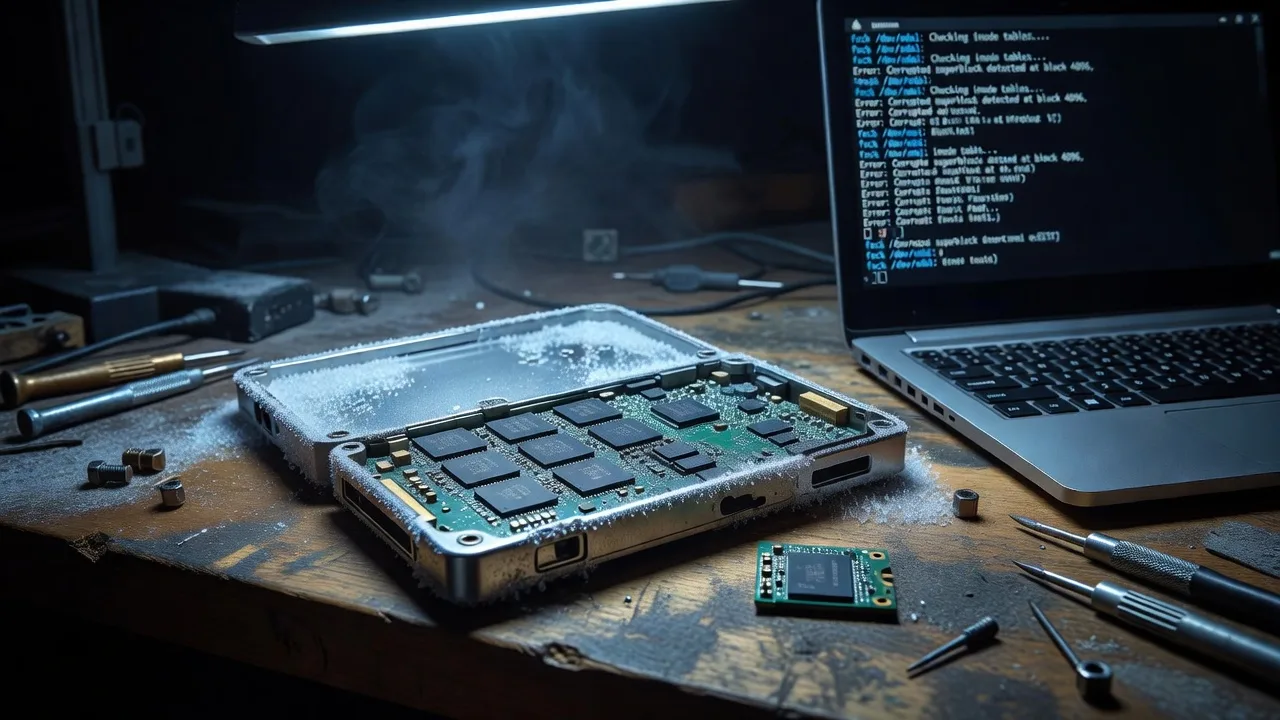
When an “interplanetary” drive—any SSD, NVMe, or rugged USB volume pushed through extreme cold, vibration, or long idle—drops into read-only mode, you need a calm terminal workflow, not guesswork. This guide walks Australian homeowners and small-business operators through the same low-level path a specialist uses: confirm kernel I/O faults with dmesg, map dead flash geometry with badblocks, and force an ext4 repair with e2fsck so bad sectors stay permanently remapped. If you would rather hand the chassis to a direct local specialist, start at Fixwebnode’s Australia repair desk.
Bit-rot and filesystem errors show up as sudden read-only mounts, checksum mismatches, and files that open as garbage after deep cold or power loss. Below is a practical on-site / drop-off path for physical drives you can unplug and inspect in Australia—not a remote-server playbook.
How do you fix a read-only interplanetary drive with bit-rot in Australia?
Unplug the volume, attach it to a known-good Linux workstation, read the kernel log with dmesg for I/O and ext4 errors, non-destructively scan the chip with badblocks, then run a forced e2fsck only after a verified backup. If the drive still remounts read-only, the controller is failing—book an in-person or drop-off repair rather than rewriting more data.
| Symptom | Quick local check | When to call Fixwebnode |
|---|---|---|
| Remounts read-only | dmesg | tail for I/O error / ext4-ro | Repeats after clean cable and PSU check |
| Silent bad blocks / bit-rot | Read-only badblocks -v pass | Growing bad-block list or SMART failing |
| Broken ext4 metadata | Unmounted e2fsck -f repair | Journal replay fails or inode tables unreadable |
Why low-level corruption matters on extreme-condition storage
Flash cells and spinning media both accumulate uncorrectable errors after thermal shock (the classic “minus 130 degrees” cold-soak story), brownouts, or years of unread sectors. The Linux kernel often protects you by forcing the filesystem read-only. That buys safety—but it does not heal dead cells or torn journals. Australian workshops, field kits, and small studios that keep mission logs, camera packs, or offline backups on rugged drives hit this pattern regularly when a volume returns from a vehicle, freezer test, or long shelf sit.
Fixwebnode works as a direct specialist for individuals, sole traders, and local operators across the Australia service area: on-site inspection where practical, or drop-off bench work when the drive must leave the machine. You bring the physical device and any prior backups; we do not ask you to post projects or collect bids.
Common issues with bit-rot and filesystem errors
1. Kernel forces the volume read-only after I/O faults
Symptoms: Writes fail with “Read-only file system”; mount shows ro; apps crash mid-save. Root cause is usually uncorrectable media errors or a torn journal the kernel refuses to trust.
2. Dead flash cells and silent bit-rot
Symptoms: Files open but checksums drift; random sectors return I/O error; SMART reallocated-sector count climbs. Geometry on the NAND/controller has failed cells that need mapping out before you trust the volume again.
3. ext4 metadata damage after unclean shutdown or cold power loss
Symptoms: Mount delays, “superblock” or “inode” complaints, missing directories, or journal replay loops. The filesystem configuration—not only the payload data—needs a forced consistency repair.
4. Connector and power flakiness mistaken for “dead chip”
Symptoms: Errors vanish when the drive is reseated on another port or powered from a stable supply. Cold-soaked cables and enclosures in field kits often fail before the flash does.
Issue 1 — Diagnose a drive forced into read-only mode with dmesg
Work on a second, healthy Linux machine. Do not keep writing to the failing volume.
What to bring / prepare: the physical drive or enclosure, its cable, a known-good USB/SATA/NVMe adapter, and a current backup of anything still readable. Label the device before you unplug it.
Step 1 — Attach read-only first where possible
Connect the suspect drive. Prefer a USB bridge with a write-protect switch if you have one. Note the new device node (for example /dev/sdb) via the desktop disk utility or:
lsblk -o NAME,SIZE,MODEL,SERIAL,MOUNTPOINTStep 2 — Read the kernel’s verdict
sudo dmesg --ctime | tail -n 80
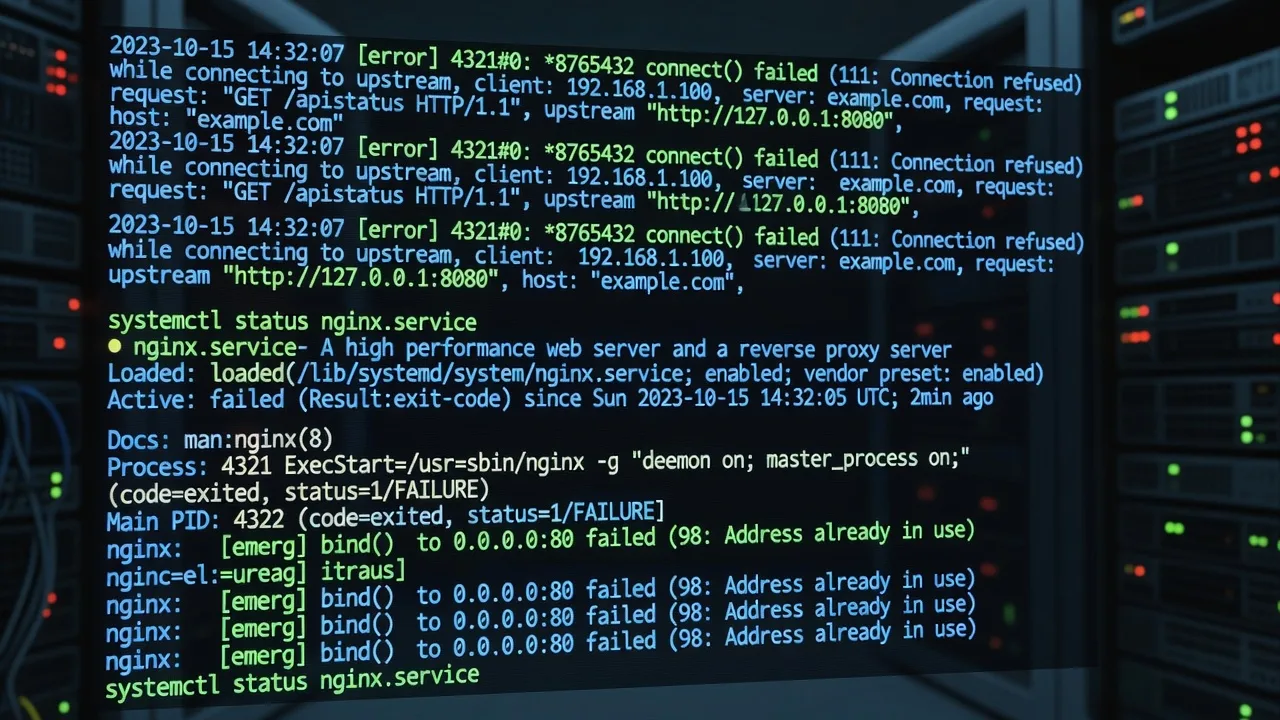
sudo dmesg --ctime | grep -Ei 'ext4|I/O error|Buffer I/O|read-only|blk_update_request|medium error|nvme'
Look for repeated I/O errors on a specific device, ext4 remounting read-only, or NVMe medium errors. That confirms hardware-level faults rather than a simple permissions mistake.
Step 3 — Confirm mount flags without writing
findmnt -no TARGET,SOURCE,FSTYPE,OPTIONS /path/where/it/mounted
cat /proc/mounts | grep sd
If you see ro or errors=remount-ro, treat the volume as evidence: copy critical files out once, then unmount.
Step 4 — Safe data skim before repair
sudo umount /dev/sdX1
sudo mkdir -p /mnt/rescue
sudo mount -o ro /dev/sdX1 /mnt/rescue
rsync -aHAX --info=progress2 /mnt/rescue/ /path/to/backup/folder/
sudo umount /mnt/rescue
Replace sdX1 with your real partition. Verification: spot-check file counts and open a few known documents from the backup.
When to call Fixwebnode: dmesg floods with medium errors on every attach, the machine hard-locks during enumeration, or you cannot obtain a stable device node. That is controller or PCB territory—book bench diagnostics rather than more DIY writes.
Issue 2 — Scan physical chip geometry for dead flash cells with badblocks
After a readable backup exists, map bad sectors. Prefer a non-destructive read-only scan first; destructive write-mode tests erase data and should wait until the volume is expendable or fully imaged.
Step 1 — Identify the whole-disk node
lsblk -b -o NAME,SIZE,TYPE,MODEL
sudo smartctl -a /dev/sdX
Note SMART attributes for reallocated, pending, and offline uncorrectable sectors. Rising counts support a badblocks pass.
Step 2 — Non-destructive read-only surface scan
sudo badblocks -v -s -b 4096 -c 64 /dev/sdX 2>&1 | tee ~/badblocks-readonly-$(date +%F).logThis reads the geometry and lists unreadable blocks without writing patterns. Large modern disks take hours; leave the box powered and cool.
Step 3 — Optional destructive test only on empty or fully imaged disks
sudo badblocks -wsv -b 4096 /dev/sdX 2>&1 | tee ~/badblocks-write-$(date +%F).logWrite-mode confirms cells that fail program/erase. Never run -w on a partition that still holds unique data.
Step 4 — Feed the bad list into filesystem tools later
Keep the log. e2fsck can mark bad blocks from a list so the filesystem permanently avoids them:
sudo e2fsck -l ~/badblocks-readonly-YYYY-MM-DD.log /dev/sdX1When to call Fixwebnode: bad block counts grow between two scans, SMART predicts failure, or the enclosure disconnects mid-pass. Specialists can image at a lower layer, swap adapters, and decide whether donor-board or data-recovery paths are safer than another DIY cycle.
Issue 3 — Force an ext4 configuration repair with e2fsck
Only run filesystem repair on an unmounted partition, after backup. Forced checks rewrite metadata so dead storage sectors stay mapped out of allocation.
Step 1 — Unmount and confirm nothing holds the device
sudo umount /dev/sdX1
sudo lsof | grep sdX || true
cat /proc/mounts | grep sdX || echo "not mounted"
Step 2 — Read-only assessment first
sudo e2fsck -n /dev/sdX1The -n flag reports problems without changing the disk. Note superblock, journal, inode, and directory issues.
Step 3 — Forced repair and bad-block awareness
sudo e2fsck -f -y -c /dev/sdX1-f forces a full check even if the filesystem looks clean; -y answers yes to fixes (use only when you accept automated repairs); -c runs a read-only bad-block scan and marks bad blocks so ext4 permanently avoids them. For a pre-built list from Issue 2, use -l instead of -c.
If the primary superblock is damaged, try a backup superblock (common locations depend on block size; mke2fs -n on a throwaway test can show candidates—do not format the patient disk):
sudo e2fsck -f -y -b 32768 /dev/sdX1Step 4 — Journal and mount verification
sudo tune2fs -l /dev/sdX1 | grep -E 'Filesystem state|Last checked|Free blocks'
sudo mount -o rw /dev/sdX1 /mnt/rescue
mount | grep rescue
sudo umount /mnt/rescue
Expected outcome: filesystem state “clean”, stable rw mount, and no immediate return to read-only in dmesg.
Step 5 — If the kernel still remounts read-only
sudo dmesg --ctime | tail -n 40Fresh I/O errors after a successful e2fsck mean the media or controller is still failing. Stop writing; clone if needed and schedule hardware replacement.
When to call Fixwebnode: e2fsck aborts on multiply-claimed blocks you do not understand, backup superblocks also fail, or encryption headers (LUKS) sit in front of ext4 and unlock is uncertain. Bring the drive, adapter, and any recovery keys you already use—never email keys in plain form.
Issue 4 — Rule out cold-damaged cables and power before condemning the chip
Field kits that sat near freezing often fail at the connector long before NAND dies.
- Inspect the enclosure for frost residue, bent USB-C pins, or cracked SATA latches.
- Retry on a second port and a second cable powered from a wall supply, not a bus-powered hub.
- Listen/watch for reconnect loops in
dmesgwhile you wiggle the cable—if errors track movement, replace the bridge first. - Only after a stable link should you rerun badblocks or e2fsck.
When to call Fixwebnode: the drive enumerates with a different capacity each plug-in, or PCB burn marks / swollen capacitors are visible. That is on-bench electronics work, not another filesystem pass.
When DIY is enough vs when to book Fixwebnode
DIY is reasonable when: you already have a full backup, the drive enumerates stably, dmesg shows a clear ext4 remount-ro event, and a single e2fsck plus read-only badblocks pass returns a clean mount.
Book a specialist when: backups are incomplete, errors multiply during the scan, the chassis is a production POS or camera pack you cannot risk, NVMe namespaces disappear, or you need same-visit hardware swap and filesystem rebuild handled together. Fixwebnode is a direct provider—not a freelance marketplace—covering work across the wider service areas hub with local Australian drop-off and on-site options where scheduling allows (often same-day when booked early, without guaranteed travel windows).
Expect to supply: the physical drive or whole PC, a note of symptoms (read-only, dates of cold exposure, prior commands run), and confirmation of whether a backup already exists. Do not ship unique unencrypted secrets without a plan you control.
Book a conversation for stubborn bit-rot and read-only drives
If your volume still drops to read-only after dmesg review, badblocks mapping, and a forced ext4 repair—or you simply want a specialist to run the terminal path on the bench—talk to Fixwebnode directly. Individuals, sole traders, and local operators can start here: https://fixwebnode.com.au/website-repair-australia. Describe the drive type, symptoms, and whether the unit can be dropped off; we will outline the next diagnostic step without marketplace bids or guesswork pricing pages.