Multi-Vendor & Complex SaaS Marketplaces
 Modern Headless & Jamstack Web Development
 High-End Corporate & Specialized Business Websites
 Advanced API, Checkout & Database Troubleshooting
WordPress Malware Cleanup for Sydney Law Firms: Step-by-Step
Hacked WordPress site? Clear backdoors, spam injections, and rogue admins with practical DIY steps, then harden security so Sydney law firm sites stay trustworthy and online.
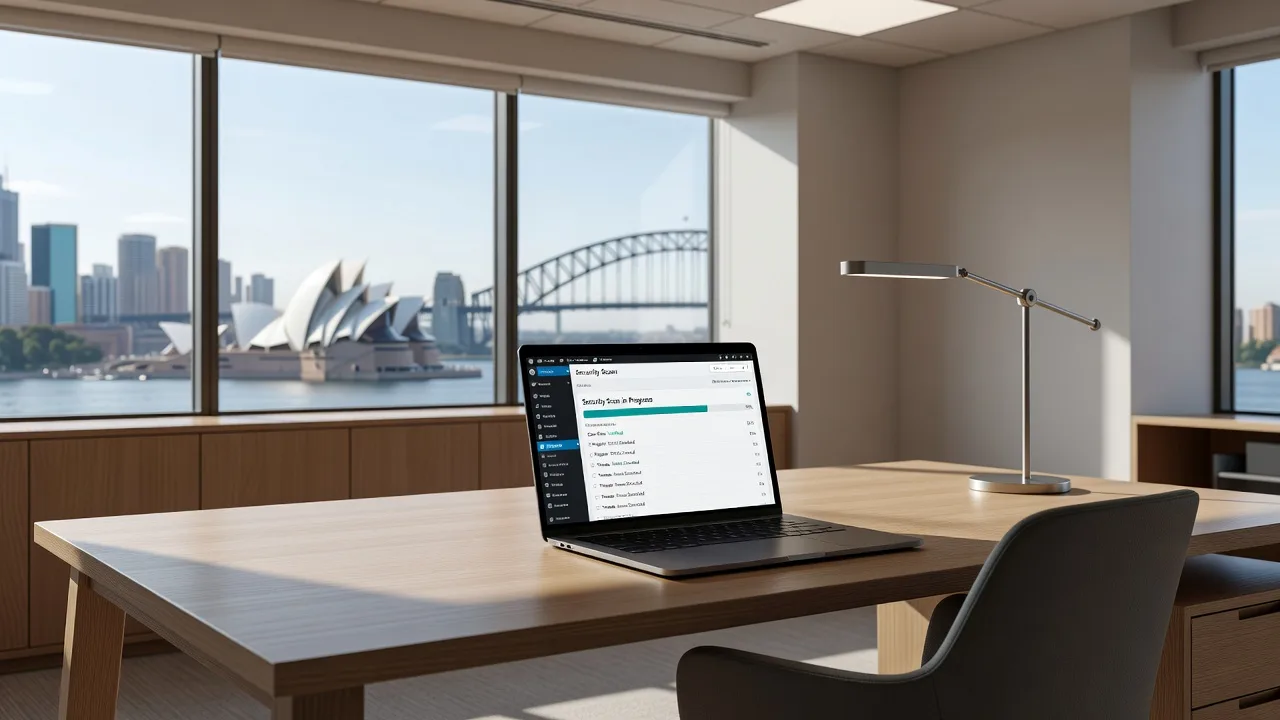
If your firm’s WordPress site is redirecting clients, serving spam, or locked behind a browser warning, this guide walks you through safe cleanup and hardening you can run yourself—plus when remote specialist help is the smarter path.
Law practices in Sydney rely on their websites for enquiries, matter intake, and reputation. A compromise is not only a technical headache; it can leak client trust and trigger search or hosting blocks. This post stays on malware removal and security hardening for WordPress: real symptoms, numbered DIY steps, verification checks, and clear points to book WordPress Support from Fixwebnode when the infection is deeper than a plugin swap. Work is remote and digital, so you can keep practising while the site is cleaned.
Why malware cleanup matters for Sydney law firm WordPress sites
Attackers target professional-services sites because they often run older themes, shared hosting, and many plugins. Once inside, malware may inject phishing pages, steal form submissions, or keep a backdoor for re-entry. Cleanup is not “delete one odd file and hope.” You need isolation, evidence from logs, file integrity checks, credential rotation, and lasting hardening.
Fixwebnode provides direct WordPress support for hacked-site cleanup and hardening—not a freelance marketplace. If you need coverage notes for where remote work is offered, see All service areas. For urgent malware cases aligned with our emergency playbooks, the Emergency WordPress Malware Removal & Security South Yarra service page outlines the same remote response model used for professional sites.
What does a hacked WordPress law firm site look like in practice?
Typical signs include unexpected redirects to unrelated domains, Google Safe Browsing or host abuse notices, new administrator users you did not create, PHP files modified outside normal deploy windows, and outbound spam from contact forms. A solid first response is: take the site read-only or maintenance mode if possible, snapshot files and the database, rotate hosting and WordPress passwords from a clean device, then inspect logs and core files before you “reinstall everything” blindly.
| Symptom | Quick DIY check | Call Fixwebnode when |
|---|---|---|
| Browser “deceptive site” or odd redirects | Compare live files to a clean backup; scan wp-content for new PHP | Redirect persists after theme/plugin rollback |
| Unknown admin user or role changes | Audit wp_users / wp_usermeta; force password resets | Users reappear after deletion (backdoor) |
| Mail or CPU spikes; spam forms | Check cron, mail() wrappers, and access logs | Web shell or multiple droppers found |
Common issues on compromised WordPress sites
These problems show up repeatedly on professional WordPress installs. Each has a different root cause, so treat them as separate workstreams rather than one vague “virus scan.”
1. Hidden PHP backdoors and eval droppers in uploads or mu-plugins
Symptoms: Site looks fine in the dashboard, but search results or clients hit malware landing pages; wp-content/uploads contains .php files; odd must-use plugins appear; file timestamps jump at 3 a.m.
2. Database spam injection and rogue administrator accounts
Symptoms: Homepages or posts contain hidden links or crypto-mining scripts in the HTML source; SEO plugins show unexpected titles; users named like wp-support-team or random strings hold administrator rights.
3. Compromised themes/plugins and persistent scheduled tasks
Symptoms: After you delete a bad plugin, infection returns; wp cron or real system cron keeps calling unknown PHP; functions.php or a child theme gains obfuscated code; outbound connections to strange domains appear in access or firewall logs.
4. SSL, caching, and CDN serving the infected copy
Symptoms: You cleaned origin files, but visitors still see the old payload; mixed content or certificate warnings appear after emergency restores; a reverse proxy or page cache keeps poisoned HTML.
How to fix issue 1: find and remove PHP backdoors
Work from SSH or your host’s terminal with a recent off-site backup already secured. Prefer read-only investigation first so you do not destroy forensic clues you may need later.
Step 1 — Put the site in maintenance and snapshot state
If you use WP-CLI:
cd /var/www/html
wp maintenance-mode activate
wp db export ~/backup-before-cleanup-$(date +%F).sql
tar -czf ~/files-before-cleanup-$(date +%F).tar.gz wp-content
Export and archive give you a rollback point if a delete goes too far.
Step 2 — Hunt executable PHP where it should not live
find wp-content/uploads -type f \( -name '*.php' -o -name '*.phtml' -o -name '*.phar' \) -print
find wp-content/mu-plugins -type f -name '*.php' -ls
grep -R --line-number -E 'eval\s*\(|base64_decode\s*\(|gzinflate\s*\(|assert\s*\(' wp-content --include='*.php' | head -n 80
Any PHP under uploads is suspicious on a normal law-firm brochure or blog site. Obfuscated eval chains in random filenames are classic droppers.
Step 3 — Compare core against clean WordPress packages
wp core verify-checksums
wp plugin verify-checksums --all
wp theme verify-checksums --all
Failed checksums flag modified core or official plugin/theme files. Replace only from wordpress.org or your known vendor packages—not from “cleaned” copies attackers left behind.
Step 4 — Quarantine, do not only rename in place
mkdir -p ~/quarantine-malware
# example: move a confirmed bad file out of the web root
mv wp-content/uploads/2024/09/wp-tmp.php ~/quarantine-malware/
Re-scan after each batch. Clear object and page caches so the live site stops serving poisoned opcodes or HTML.
Step 5 — Verify
find wp-content/uploads -type f -name '*.php' -print
wp core verify-checksums
curl -I https://your-firm-domain.example
Expect no PHP left under uploads (unless you intentionally run a documented exception), clean checksums, and normal response headers without surprise redirects.
When to call Fixwebnode: webshells reappear after deletion, mu-plugins keep regenerating, or you lack SSH and only have a messy file manager. Remote cleanup can include full backdoor sweeps and post-clean monitoring guidance via WordPress Support.
How to fix issue 2: clean the database and lock down users
File cleanup alone fails if options, posts, or users still hold injected scripts or attacker accounts.
Step 1 — List administrators and recent users
wp user list --role=administrator --fields=ID,user_login,user_email,user_registered
wp db query "SELECT option_name FROM wp_options WHERE option_value LIKE '%<script%' OR option_value LIKE '%eval(%' LIMIT 50;"
Adjust the table prefix if yours is not wp_.
Step 2 — Remove unknown admins and force resets
wp user delete ATTACKER_USERNAME --reassign=YOUR_ADMIN_ID
wp user update YOUR_ADMIN_ID --user_pass='use-a-long-random-password-here'
wp option patch update admin_email your.partner@firm.example
Rotate hosting panel, SFTP, database, and email passwords from a device you trust. Enable two-factor authentication on the remaining admin accounts.
Step 3 — Strip injected content from posts and options
wp search-replace 'https://malicious-example.invalid' '' --dry-run
wp post list --format=ids | xargs -n 1 -I{} wp post get {} --field=post_content | grep -i 'base64\|document.write' || true
Use dry-run first. For widespread spam links, restore clean post content from a pre-infection backup rather than hand-editing hundreds of rows.
Step 4 — Inspect cron and autoloaded options
wp cron event list
wp option list --autoload=on --search='template'
wp db query "SELECT COUNT(*) AS c FROM wp_options WHERE autoload='yes';"
Delete unknown cron hooks that call plugin paths you already removed.
Step 5 — Verify
Log in as each remaining admin, confirm no surprise users return within 24 hours, view-source the homepage for hidden anchors, and re-submit a test contact form while watching mail logs.
When to call Fixwebnode: injected content is serialised deep inside page builders, users repopulate automatically, or the database dump is too large to edit safely without downtime planning.
How to fix issue 3: kill persistence in themes, plugins, and cron
Persistence is why “I deleted the malware file” fails a week later.
Step 1 — Inventory and stage a clean stack
wp plugin list --status=active
wp theme list
wp plugin deactivate --all
wp theme activate twentytwentyfour
With a default theme and plugins off, confirm whether the malicious behaviour stops. That isolates custom code versus core.
Step 2 — Reinstall known-good packages
wp core download --force
wp plugin install wordpress-seo --force
# reinstall each required plugin from official sources only
wp plugin activate PLUGIN_SLUG
Do not upload zip files emailed by unknown “support.” Prefer official directories or your version-controlled copies.
Step 3 — Review server and application cron
crontab -l
ls -la /etc/cron.d/ 2>/dev/null
wp cron event list
grep -R "wget\|curl.*php" /var/log/nginx/access.log 2>/dev/null | tail -n 50
Remove attacker cron lines that download remote PHP. On PHP-FPM hosts, reload after file cleanup:
sudo systemctl reload php8.2-fpm
sudo systemctl reload nginx
Use your actual PHP version service name.
Step 4 — Harden write permissions temporarily during cleanup
find wp-content -type d -exec chmod 755 {} \;
find wp-content -type f -exec chmod 644 {} \;
chmod 600 wp-config.php
Ensure the web user cannot write to code directories once installs are finished, according to your host’s documented model.
Step 5 — Verify persistence is gone
Wait through at least one full day of real traffic. Re-run checksum verification and the uploads PHP find command. Confirm no new admin users and no unexpected outbound mail volume.
When to call Fixwebnode: infection returns on a schedule, multiple sites on one host share the malware, or you need a structured hardening pass after emergency containment. Related build and recovery work can sit alongside cleanup—see Melbourne WordPress Website Development if a cleaner rebuild is safer than endless patching of a ruined theme.
How to fix issue 4: flush caches, fix SSL, and stop serving poisoned HTML
Origin can be clean while edges still hurt clients.
Step 1 — Purge application and reverse-proxy caches
wp cache flush
wp transient delete --all
# example nginx fastcgi cache wipe — path varies by host
sudo find /var/cache/nginx -type f -delete 2>/dev/null
sudo systemctl reload nginx
In Cloudflare or similar, purge everything for the zone after origin is clean.
Step 2 — Confirm certificates and HTTPS redirects
sudo certbot certificates
curl -sI https://your-firm-domain.example | head -n 20
wp option get siteurl
wp option get home
siteurl and home must match your real HTTPS canonical URL with no attacker domain.
Step 3 — Re-check public reputation signals
Request a review in Google Search Console if a security warning was raised, resubmit the homepage sitemap, and confirm hosting abuse tickets are closed only after you can prove clean files and logs.
When to call Fixwebnode: CDN rules were altered by the attacker, SSL keeps failing after renewals, or multiple hostnames still redirect into malware domains.
Security hardening after cleanup (do not skip)
Cleanup without hardening invites the same breach back.
- Update WordPress core, themes, and plugins; remove unused code entirely.
- Replace shared admin logins with named users and least privilege.
- Turn on automatic backups stored off the web root, with a tested restore.
- Restrict
xmlrpc.phpif you do not need it; rate-limit login routes at the web server or WAF. - Disable file editing in the dashboard by adding
define('DISALLOW_FILE_EDIT', true);towp-config.phpwhen appropriate. - Keep PHP current on the host; old PHP versions are a frequent entry path on small business sites.
# quick login noise check after hardening
tail -n 100 /var/log/nginx/access.log | grep -E 'wp-login|xmlrpc' || true
When DIY is enough vs when to book Fixwebnode
DIY is reasonable when: you have SSH or reliable SFTP, a recent clean backup, a single obvious bad plugin or PHP file under uploads, and the site returns to normal after checksum repair, user audit, and cache purge—with no recurrence for several days.
Book Fixwebnode when: backdoors regenerate, client form data may have been exposed, Google or the host still flags the site after your pass, multiple environments (staging and production) are tied together, or partners need the firm online the same business day without guesswork. Fixwebnode works as a direct remote specialist for WordPress malware removal and hardening. Mention your hosting panel and whether you can provide staging access when you start the conversation.
Sydney firms often need quiet, documented recovery rather than public drama—remote sessions let you keep internal IT or practice managers in the loop while files and the database are handled carefully.
Book remote WordPress malware cleanup and hardening
If redirects, unknown admins, or recurring PHP droppers are still on your plate, do not keep reinstalling plugins at random. Start a direct conversation with Fixwebnode for remote cleanup, verification, and hardening tailored to professional WordPress sites. Use the landing page to book WordPress support: WordPress Support. For geography and remote coverage details, visit All service areas. When the situation is urgent, the Emergency WordPress Malware Removal & Security South Yarra page matches the emergency malware workflow, and longer-term rebuild conversations can reference Melbourne WordPress Website Development if a clean rebuild is the safer end state.
Bring your host login method, a note of when symptoms started, and any abuse emails from Google or your provider. That short brief speeds isolation, cleanup, and the hardening steps that keep a law firm site trustworthy after the incident.