Multi-Vendor & Complex SaaS Marketplaces
 Modern Headless & Jamstack Web Development
 High-End Corporate & Specialized Business Websites
 Advanced API, Checkout & Database Troubleshooting
Google Malware Warning on WordPress: First File to Check
Woke up to Google’s “Site Contains Malware” banner? Learn the first WordPress file to inspect, three common infection patterns Australian site owners hit, and clear DIY steps—plus when to book Fixwebnode remote support.
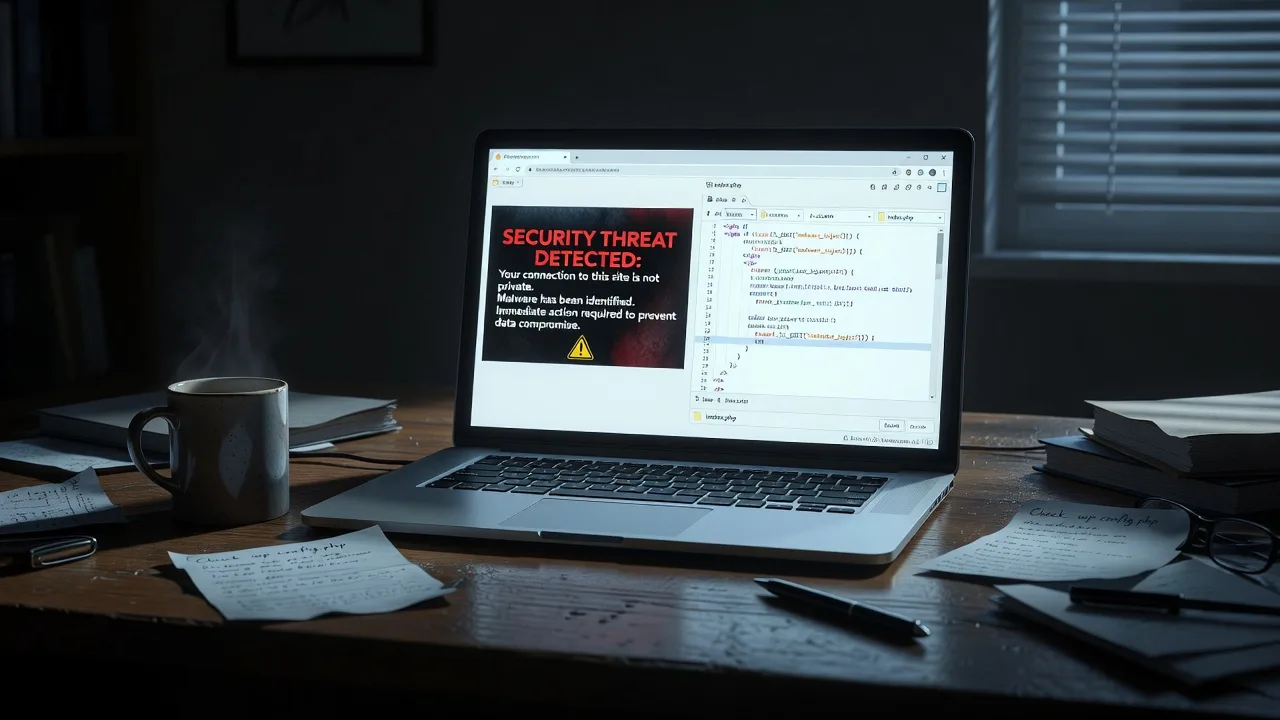
If you opened Search Console or Chrome and saw “This site may be hacked” or “Site contains malware,” stop guessing and start with one file. This guide is for Australian homeowners and small businesses running WordPress who need a practical remote cleanup path—not vague security slogans.
Below you will check the first file most malware touches, run real diagnostics over SSH or hosting File Manager, and decide when DIY is safe versus when to hand the site to a specialist. Fixwebnode provides direct WordPress support for Australian businesses—remote diagnosis and cleanup without a marketplace middle layer. Start here: WordPress Support.
Why a Google malware warning on WordPress matters
Google flags sites after Safe Browsing detects injected scripts, phishing pages, or drive-by download patterns. Traffic drops, ads get disapproved, and customers in Australia lose trust the moment Chrome shows the interstitial. WordPress is a frequent target because plugins, themes, and writable upload folders give attackers easy persistence.
The goal is not “run one scanner and hope.” You need to find the entry point, remove the payload, rotate credentials, and request a review. Work methodically so you do not delete core files you still need.
What is the first file you should check after a Google malware warning?
Check the site root index.php first, then immediately open wp-config.php. Malware almost always prepends or appends obfuscated PHP (eval, base64_decode, gzinflate, long nonsense variable names) to one of these two files so every page load executes the payload before WordPress boots.
If either file is longer than a clean copy, contains unfamiliar includes, or has code above the opening WordPress comment block, treat it as compromised and continue the steps below.
| Symptom | Quick check | When to call Fixwebnode |
|---|---|---|
| Chrome / Search Console malware banner | Diff root index.php and wp-config.php against a clean copy | Obfuscated code you cannot safely remove |
| Unexpected redirects or spam links | Inspect .htaccess and active theme functions.php | Reinfection after you clean once |
| Unknown admin users or odd cron mail | List wp_users and wp-content/uploads for .php shells | No SSH access or multisite / WooCommerce risk |
Common issues behind a “Site Contains Malware” warning
These are distinct failure modes Australian WordPress owners hit after a Google flag. Symptoms differ; so do the fixes.
1. Root index.php or wp-config.php injected with obfuscated PHP
Symptoms: Homepage still “looks fine” in an already-open browser, but Safe Browsing blocks new visitors; file size of index.php jumped; Search Console lists “Hacked content” or “Social engineering.”
2. .htaccess redirect or auto_prepend_file backdoor
Symptoms: Mobile users land on spam or pharmacy pages; desktop sometimes clean; odd RewriteRule or php_value auto_prepend_file lines you never added.
3. Malicious PHP droppers inside wp-content/uploads (or cache folders)
Symptoms: Google lists long random URLs under /wp-content/uploads/; scanners find .php files next to images; site reinfects after you only restored theme files.
4. Compromised admin user plus poisoned theme functions.php
Symptoms: Unknown administrator in Users; spam posts scheduled; functions.php ends with a base64 blob or remote file_get_contents call.
How to fix each issue (DIY runbook)
Work on a maintenance window. Take a full backup first (files + database) even if the site is dirty—you may need artefacts for forensics. Prefer SSH. If you only have cPanel/Plesk File Manager, the same file checks apply.
Fix 1 — Clean root index.php and wp-config.php (first files)
Compare against known-good WordPress core. Do not invent “fixes” inside obfuscated blocks—replace with clean copies from wordpress.org matching your version.
Step 1 — Confirm version and open a shell in the site root
cd ~/public_html
# or your vhost path, e.g. /var/www/example.com/public
wp core version 2>/dev/null || grep wp_version wp-includes/version.php
Step 2 — Inspect the first lines of the two critical files
head -n 40 index.php
head -n 80 wp-config.php
wc -l index.php wp-config.php
grep -nE 'eval\s*\(|base64_decode|gzinflate|str_rot13|assert\s*\(|preg_replace\s*\(.*/e' index.php wp-config.php
A clean root index.php is short (typically under ~20 lines) and loads wp-blog-header.php. Anything before <?php that is not a normal open tag, or long encoded strings, is hostile.
Step 3 — Replace index.php with a clean core copy
wp core download --force --skip-content
# Or manually: download wordpress-x.y.z.zip, extract only index.php into the root
ls -la index.php
head -n 20 index.php
Step 4 — Repair wp-config.php carefully
Never overwrite wp-config.php from core (core does not ship your secrets). Open it, remove only foreign code above or below your real defines, keep DB credentials and salts intact. If salts look tampered or you suspect full compromise, regenerate salts from the WordPress salt API and update all defines, then force every user to re-login later.
grep -nE 'DB_|AUTH_KEY|SECURE_AUTH|LOGGED_IN|NONCE_|table_prefix' wp-config.php
# After manual cleanup, PHP syntax check:
php -l wp-config.php
php -l index.php
Step 5 — Verify the front end and PHP error log
curl -sI https://YOUR-DOMAIN.example | head -n 20
tail -n 100 ~/logs/error.log 2>/dev/null || tail -n 100 /var/log/nginx/error.log
When to call Fixwebnode: If wp-config.php is heavily obfuscated, includes remote URLs, or you are unsure which lines are yours—remote specialists restore a clean config without breaking the database connection.
Fix 2 — Remove .htaccess redirects and auto_prepend traps
Step 1 — Back up and view the file
cp .htaccess .htaccess. bak.$(date +%Y%m%d)
cat .htaccess
Step 2 — Strip hostile rules
Delete unknown RewriteRule targets to external domains, odd RewriteCond user-agent branches used for cloaking, and any of:
php_value auto_prepend_file ...
php_value auto_append_file ...
SetHandler application/x-httpd-php
AddType application/x-httpd-php .png .jpg
A minimal WordPress .htaccess usually only has the standard BEGIN/END WordPress rewrite block. If your host needs custom rules (HTTPS force, security headers), re-add those deliberately after cleanup.
Step 3 — Reload the web server if you control it
sudo nginx -t && sudo systemctl reload nginx
# or
sudo apachectl configtest && sudo systemctl reload apache2
Step 4 — Confirm no redirect loop
curl -sI https://YOUR-DOMAIN.example | grep -iE 'HTTP/|location|content-type'When to call Fixwebnode: Host-level includes outside the web root, or malware that rewrites .htaccess on every request via a still-active cron or mu-plugin.
Fix 3 — Hunt and quarantine PHP shells in uploads
Uploads should be images, PDFs, and similar—not executable PHP.
Step 1 — Find PHP under uploads and common drop paths
find wp-content/uploads -type f \( -name '*.php' -o -name '*.phtml' -o -name '*.phar' -o -name '*.suspected' \) -print
find wp-content/cache wp-content/upgrade wp-includes -type f -name '*.php' -mtime -30 2>/dev/null | head
grep -R --include='*.php' -nE 'FilesMan|c99|r57|eval\s*\(\s*\$_(POST|GET|REQUEST)|move_uploaded_file' wp-content/uploads 2>/dev/null | head
Step 2 — Quarantine, do not leave in place
mkdir -p ~/malware-quarantine
find wp-content/uploads -type f \( -name '*.php' -o -name '*.phtml' \) -exec mv -v {} ~/malware-quarantine/ \;
Step 3 — Block PHP execution in uploads (Apache example)
Create wp-content/uploads/.htaccess:
<FilesMatch "\.(?i:php|phtml|phar|php5)$">
 Require all denied
</FilesMatch>
Nginx hosts should deny location ~* /wp-content/uploads/.*\.php$ in the server block, then reload nginx.
Step 4 — Rescan and compare
find wp-content/uploads -name '*.php' | wc -l
# Expect 0
When to call Fixwebnode: Hundreds of mutated filenames, webshells outside uploads, or malware that only appears when a specific query string is present (cloaking).
Fix 4 — Remove rogue admins and clean theme/plugin persistence
Step 1 — List administrators
wp user list --role=administrator --fields=ID,user_login,user_email,user_registeredDelete accounts you do not recognise (after confirming they are not a legitimate staff address).
wp user delete ROGUE_ID --reassign=YOUR_ADMIN_IDStep 2 — Inspect the active theme functions.php and mu-plugins
wp theme list
wp plugin list --status=must-use
wc -l wp-content/themes/*/functions.php
grep -nE 'eval\s*\(|base64_decode|gzinflate|file_get_contents\s*\(\s*["\']https?://' wp-content/themes/*/functions.php wp-content/mu-plugins/*.php 2>/dev/null
Step 3 — Reinstall the active theme/plugin from a trusted package
wp theme install twentytwentyfour --force
# Prefer re-installing YOUR real theme from a clean zip you trust, not only a default theme
wp plugin install wordfence --activate
wp plugin install better-search-replace --soft
Then run a reputable malware scanner plugin or host scanner. Manually delete unknown must-use plugins.
Step 4 — Rotate all secrets
- Change WordPress admin passwords and hosting panel passwords.
- Reset database password in the host panel and update wp-config.php to match.
- Revoke application passwords and regenerate FTP/SFTP keys.
- Update salts in wp-config.php so existing cookies die.
wp config shuffle-salts
wp cache flush
wp rewrite flush
When to call Fixwebnode: WooCommerce or membership data at risk, multisite, or attacker still creating users after password changes (server-level backdoor).
After cleanup: Search Console and hardening
Step 1 — Confirm the public response is clean
curl -sL https://YOUR-DOMAIN.example | grep -iE 'eval\(|fromCharCode|document\.write\(|pharmacy|viagra' | head
curl -sI https://YOUR-DOMAIN.example/wp-login.php | head -n 15
Step 2 — Request review
In Google Search Console open Security Issues (or Safe Browsing reports), document what you removed, then submit a review. Do not request review while shells still exist—repeat flags slow recovery.
Step 3 — Basic hardening so Australia-facing traffic stays clean
- Keep core, themes, and plugins updated; remove abandoned plugins.
- Disable file editing:
define('DISALLOW_FILE_EDIT', true);in wp-config.php. - Ensure TLS is valid; renew Let’s Encrypt if certificates expired.
- Restrict SFTP to keys; disable unused PHP handlers.
# Example certbot renew check on a typical VPS
sudo certbot certificates
sudo systemctl status php8.2-fpm nginx
When DIY is enough vs when to book Fixwebnode
DIY is reasonable when: you have SSH or full File Manager access, the only damage is a short injection in index.php / .htaccess, you can restore a clean theme zip, and no payment or customer data was exposed.
Book a specialist when: the site reinfects within hours, Google lists dozens of spam URLs, wp-config.php is unreadable, checkout or membership plugins are involved, or you cannot afford downtime while learning forensics. Fixwebnode works as a direct remote WordPress support provider for Australian small businesses—diagnosis, malware removal, credential rotation guidance, and help preparing the Safe Browsing review—not a freelance bidding board.
Service coverage and remote support options across Australia are summarised on the All service areas page. Most malware cleanups complete fully remote once you can share secure hosting access.
Talk to Fixwebnode about your malware warning
If you woke up to a Google “Site contains malware” warning and the root index.php or wp-config.php already looks wrong, do not leave the payload live while you experiment. Bring a clean backup snapshot if you have one, note your WordPress version, and start a conversation with the team that handles WordPress support for Australian businesses directly.
Next step: open WordPress Support, describe the Search Console message and what you already found in index.php, and book a remote cleanup session. The sooner the first infected file is neutralised, the sooner you can request Google’s review and restore normal traffic.