Multi-Vendor & Complex SaaS Marketplaces
 Modern Headless & Jamstack Web Development
 High-End Corporate & Specialized Business Websites
 Advanced API, Checkout & Database Troubleshooting
WordPress Crashed After Plugin Update: Emergency Rollback Guide
Site down after a plugin update? Learn how to roll back safely—white screen, critical errors, and admin lockouts—plus when Fixwebnode should take over recovery.
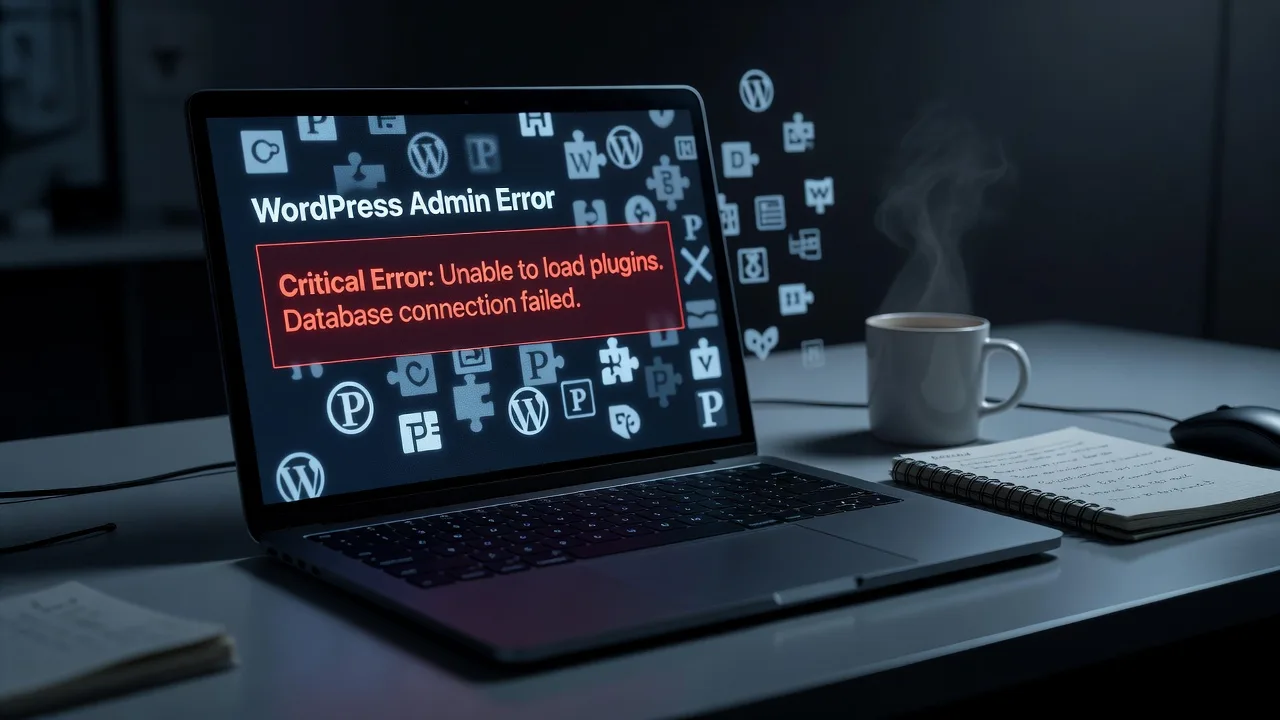
If your WordPress site went dark right after a plugin update, this guide walks you through emergency rollback steps you can run yourself—and when to hand recovery to a specialist.
A single plugin update can throw a fatal PHP error, blank the front end, or lock you out of wp-admin. Homeowners and small businesses often hit this on a weekday morning with no staging site and no recent backup habit. Below is a practical emergency rollback playbook: identify the failure mode, reverse the change safely, and verify the site is stable again. When DIY stops being safe, WordPress Support from Fixwebnode can take over recovery without marketplace bidding or guesswork. Fixwebnode works with clients across our service areas, including Melbourne and Essendon, Victoria.
Why a plugin-update crash needs a controlled rollback
WordPress loads active plugins on every request. If the new plugin code fatals during bootstrap, you get a white screen, the “There has been a critical error” screen, or a redirect loop before themes even render. Rolling back is not “delete everything and hope.” You need to isolate the bad plugin, restore a known-good version or deactivate it, clear caches, and confirm PHP and database state match what the rest of the stack expects.
Do this in order: regain access (file manager or SSH), stop the broken code from loading, restore files or versions if needed, then test front end and admin. Skip random reinstalls of WordPress core until the plugin layer is stable—core reinstalls rarely fix a plugin fatal and can mask the real cause.
Common issues after a bad plugin update
These are distinct failure modes you will actually see in production—not generic “site is slow” complaints.
- White screen of death (WSOD) with empty response — Browser shows a blank page; no WordPress UI. Often a fatal error with display_errors off, or memory exhaustion right after the update.
- “There has been a critical error on this website” — WordPress recovery mode email may arrive; admin may be partially blocked while the front end fails on specific templates that call the plugin.
- Admin login works but plugins screen fatals or loops — You can reach wp-login.php, yet Plugins or Dashboard dies because the updated plugin hooks into
admin_initor loads a broken Composer autoloader. - Front end 500s only on certain pages — Home loads, but cart, checkout, forms, or a builder-powered page fatals—typical when the plugin’s new major version drops a function your child theme or another plugin still calls.
- Update left mixed file versions (partial FTP/upload failure) — Half the plugin files are new, half are old; class names collide or
vendor/is incomplete. Symptoms look random and “clear cache” does nothing.
How to fix each issue (emergency rollback steps)
Issue 1 — White screen of death after the update
Symptom: every URL returns empty HTML or a bare 500. You cannot use wp-admin.
Step 1 — Get shell or file-manager access
Use your host’s SSH, SFTP, or control-panel file manager. Confirm you are in the WordPress root (where wp-config.php and wp-content/ live).
Step 2 — Turn on logging long enough to see the fatal
In wp-config.php, ensure debug log is on (remove the site from public view if needed). Add or adjust:
define('WP_DEBUG', true);
define('WP_DEBUG_LOG', true);
define('WP_DEBUG_DISPLAY', false);
@ini_set('display_errors', 0);
Reload the broken page once, then read the log:
tail -n 80 wp-content/debug.logYou want the plugin path and PHP fatal line (e.g. undefined function, type error, allowed memory size).
Step 3 — Disable the culprit without wp-admin
Fastest safe rollback: rename the plugin’s directory so WordPress stops loading it.
cd wp-content/plugins
ls -la
mv problem-plugin-slug problem-plugin-slug.off
If you are unsure which plugin just updated, rename the whole plugins folder temporarily:
cd wp-content
mv plugins plugins.off
mkdir plugins
Reload the site. If it comes back, move plugins back and disable one-by-one:
mv plugins.off/* plugins/
rmdir plugins.off
cd plugins
mv suspect-slug suspect-slug.off
Step 4 — Prefer WP-CLI when SSH works
wp plugin list
wp plugin deactivate problem-plugin-slug
wp plugin install problem-plugin-slug --version=1.2.3 --force
wp cache flush
Replace 1.2.3 with the last known good version from the plugin’s development log or your earlier backup.
Step 5 — Verify
wp option get siteurl
curl -I https://your-domain.example/
Expect HTTP 200 and a normal HTML title. Turn WP_DEBUG back to false when stable.
If renaming plugins does not restore the site, the crash may involve a must-use plugin, object-cache drop-in, or a corrupted wp-content/object-cache.php—stop DIY file surgery and contact a pro (see below).
Issue 2 — Critical error screen and recovery-mode lockout
Symptom: WordPress shows the critical error message; you may have a recovery-mode link in email, or that link expired.
Step 1 — Use recovery mode if the email is valid
Open the recovery link from an admin address, deactivate the flagged plugin, then reinstall the previous version from Plugins → Add New → Upload (zip of the old build) or via WP-CLI as above.
Step 2 — If recovery mode is unavailable, deactivate via WP-CLI or SQL-safe option edit
wp plugin deactivate problem-plugin-slug --skip-plugins --skip-themesIf WP-CLI cannot bootstrap, rename the plugin folder (Issue 1, Step 3).
Step 3 — Clear fatal-causing opcode/page caches
wp cache flush
# If using a host-level PHP restart (example names vary by host):
# touch empty file to rebuild opcache after file rename is often enough
ls wp-content/plugins/problem-plugin-slug.off
Also purge CDN/host page cache from the host panel so visitors are not served a cached 500 page.
Step 4 — Confirm admin and front end
wp core verify-checksums
wp plugin status problem-plugin-slug
Checksums failing on core files means something else changed during the incident—do not ignore that.
Call Fixwebnode when recovery mode never arrives, multiple plugins are marked crashed, or wp core verify-checksums reports unexpected modifications that you did not make.
Issue 3 — Admin loads but Plugins / Dashboard fatals
Symptom: front end might work; wp-admin white-screens on plugin pages because the updated code runs only in admin context.
Step 1 — Deactivate from CLI while skipping plugins
wp plugin deactivate problem-plugin-slug --skip-plugins
wp plugin list --status=active
Step 2 — Roll back to a pinned version
wp plugin install problem-plugin-slug --version=PREVIOUS_VERSION --force
wp plugin activate problem-plugin-slug
If the plugin is premium and WP-CLI cannot fetch it, upload the old zip via SFTP into wp-content/plugins/ and extract over the broken tree, or restore that directory from backup.
Step 3 — Restore only the plugin from backup (host or local copy)
# Example: extract a known-good plugin tree from a tarball backup
cd ~/backups
tar -tzf site-backup.tar.gz | grep 'wp-content/plugins/problem-plugin-slug' | head
cd /path/to/wordpress
tar -xzf ~/backups/site-backup.tar.gz wp-content/plugins/problem-plugin-slug
Step 4 — Smoke-test admin routes
Load /wp-admin/plugins.php and /wp-admin/index.php. If still fatal, check wp-content/debug.log again—another plugin may hook the same admin page.
Issue 4 — Only some pages 500 after the update
Symptom: marketing home page is fine; WooCommerce checkout, membership gate, or a form endpoint dies.
Step 1 — Identify the stack trace for that URL
tail -n 100 wp-content/debug.log
# Reproduce once:
curl -s -o /dev/null -w "%{http_code}\n" https://your-domain.example/checkout/
Step 2 — Rollback or replace the integration plugin only
wp plugin deactivate offending-slug
wp plugin install offending-slug --version=KNOWN_GOOD --force
Step 3 — Check for removed functions in a child theme
Search the theme for calls into the plugin API that the new version removed:
grep -R "old_function_name" wp-content/themes/your-child-theme || trueTemporarily comment out or guard those calls, or keep the plugin on the older version until the theme is updated.
Step 4 — Flush rewrite rules and caches after rollback
wp rewrite flush
wp cache flush
Issue 5 — Partial update / mixed plugin files
Symptom: errors reference missing files under wp-content/plugins/…/vendor or “cannot redeclare class”; update was interrupted.
Step 1 — Do not “update again” on a live mixed tree
Delete or move the broken plugin directory entirely, then install a clean copy of the previous version.
cd wp-content/plugins
mv problem-plugin-slug problem-plugin-slug.broken.$(date +%Y%m%d)
wp plugin install problem-plugin-slug --version=KNOWN_GOOD --force
wp plugin activate problem-plugin-slug
Step 2 — Compare file counts if you have a good backup
find wp-content/plugins/problem-plugin-slug -type f | wc -l
find /path/to/backup/wp-content/plugins/problem-plugin-slug -type f | wc -l
Large mismatches mean the live tree is still incomplete—restore from backup instead of patching file-by-file.
Step 3 — Verify autoload and no duplicate folders
ls -la wp-content/plugins | grep problem-plugin
wp plugin list
Ensure only one directory for that slug exists (no -old copy still active via a second folder name WordPress might not show cleanly).
When DIY is enough vs when to book Fixwebnode
DIY is enough when you have SSH or reliable SFTP, a clear single-plugin culprit, a known-good version or backup of that plugin folder, and the site returns 200 after deactivate/rollback with clean logs.
Book Fixwebnode when any of the following is true:
- You cannot access hosting files, or the host panel alone is not enough to stop the fatal.
- Deactivating plugins does not restore the site (mu-plugins, drop-ins, malware-modified core, or database options serialization issues).
- Checksums fail, unfamiliar admin users appear, or the “update” coincided with a hack—rollback alone is not forensics.
- WooCommerce, membership, or booking data may be mid-write; you need a consistent file + database restore, not only a plugin folder rename.
- You need a staging-safe update process going forward so the next plugin release cannot take production down.
Fixwebnode is a direct WordPress support specialist—not a freelance marketplace. For ongoing care in Victoria, see WordPress Maintenance & Support Retainer Essendon, Victoria. Growing Melbourne teams that need implementation help after recovery can use WordPress Developer for Growing Melbourne Small Businesses. Geography and coverage details stay on our All service areas page.
Get the site back online—then harden the update path
Emergency rollback is rename/deactivate, restore a known-good plugin build, flush caches, and confirm logs are clean. Do not keep WP_DEBUG_DISPLAY on for visitors, and schedule real off-host backups before the next bulk update.
If you are still staring at a white screen, a critical-error loop, or a half-applied plugin tree, start a conversation with Fixwebnode via WordPress Support. We will focus on this crash, get a safe rollback or restore in place, and help you avoid the same outage on the following update cycle.