


 Multi-Vendor & Complex SaaS Marketplaces
 Modern Headless & Jamstack Web Development
 High-End Corporate & Specialized Business Websites
 Advanced API, Checkout & Database Troubleshooting
Why Too Many Plugins Slow & Break Your WordPress Site
Too many WordPress plugins drag load times, crash updates, and hurt rankings. Learn how Australians can cut abandoned plugins, replace heavy widgets with clean HTML/CSS, and know when Fixwebnode should take over.
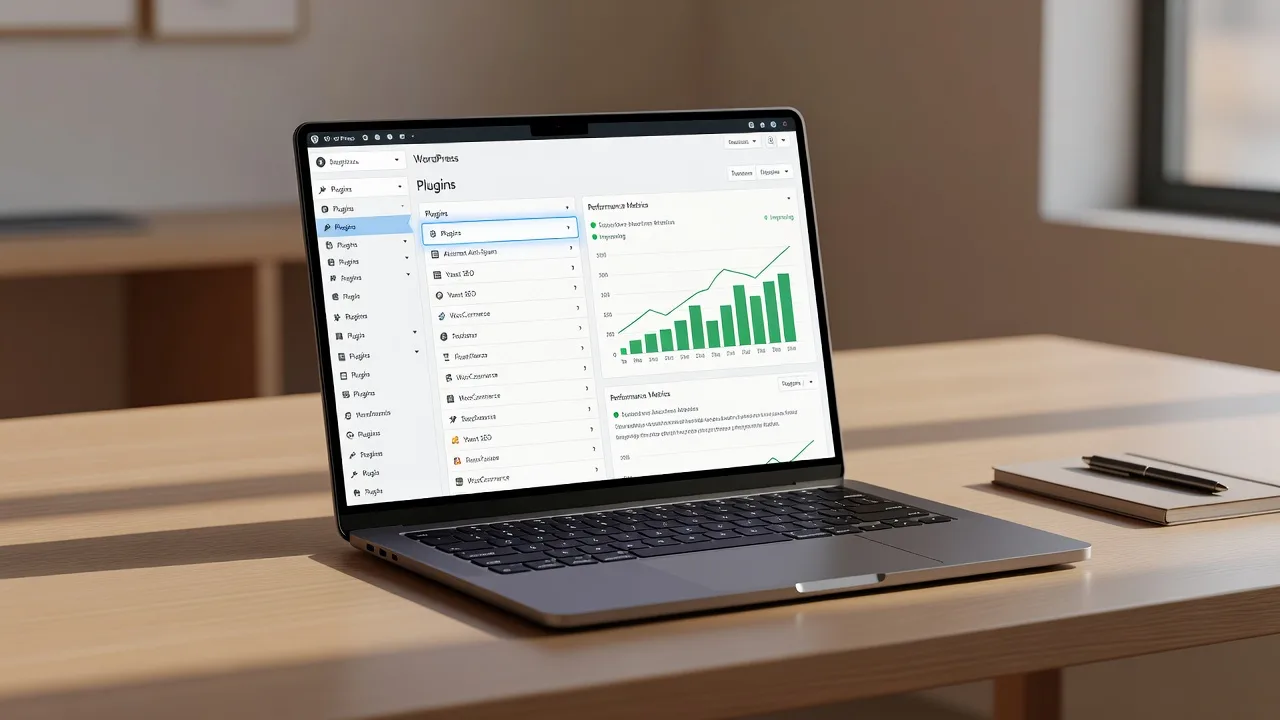
If your WordPress site feels sluggish, throws white screens after updates, or keeps dropping in Google, plugin bloat is often the real culprit—not your theme or host alone.
Australian homeowners, sole traders, and small businesses stack “just one more” plugin for forms, sliders, page builders, SEO gadgets, and security scanners until the site fights itself. This guide explains why that happens, how to diagnose it remotely, and how deleting abandoned plugins and replacing heavy visual widgets with a few lines of clean custom HTML and CSS cuts the stack down to essentials—faster rankings, fewer update crashes. Fixwebnode provides direct remote website support for this exact problem across Australia; start at website repair Australia when you want a specialist on the line.
Why plugin overload wrecks WordPress performance and stability
Every active plugin loads PHP on almost every request, registers scripts and styles, may hit the database, and can hook into admin-ajax or REST. Ten light plugins can be fine. Thirty mixed plugins—especially abandoned ones and full page-builder “widget packs”—mean duplicate jQuery, unused CSS megabytes, conflicting update hooks, and fatal errors when core or PHP versions move on.
Search engines reward Core Web Vitals. Bloated front-end assets push Largest Contentful Paint and Total Blocking Time past safe thresholds. On the back end, a single abandoned plugin can fatally error after a WordPress or PHP bump and take checkout, contact forms, or the whole admin with it. The fix path is not “install a speed plugin on top.” It is inventory, remove what you do not need, and replace heavy visual widgets with lean HTML and CSS you control.
Why does my WordPress site in Australia slow down or crash after plugin updates?
Most slowdowns and post-update crashes come from too many active plugins, abandoned code that no longer matches current WordPress or PHP, and heavy visual builders that inject large CSS/JS bundles on every page. Cutting unused and abandoned plugins, then swapping widget-heavy blocks for small custom HTML/CSS, usually restores speed and stops fatal update loops without adding yet another optimisation plugin.
| Symptom | Quick fix direction | When to call Fixwebnode |
|---|---|---|
| Pages take 4+ seconds; high TBT | Disable non-essential plugins; measure again | Still slow after a lean stack or unsure what is safe |
| White screen or critical error after update | Rename plugin folders via SFTP or WP-CLI | Site stays down or you lack host access confidence |
| Builder widgets load huge CSS/JS | Replace with custom HTML block + theme CSS | Layout breaks across templates or WooCommerce |
Common issues caused by too many WordPress plugins
These problems show up repeatedly on Australian small-business and brochure sites. Each has a different root cause—treat them separately.
1. Front-end bloat from stacked “feature” and builder plugins
Symptoms: homepage weight over 3–5 MB, dozens of CSS/JS files, poor mobile scores, delayed first paint. Root cause: multiple plugins each enqueueing assets site-wide, plus a visual builder packing unused widget libraries.
2. Fatal errors and update crashes from abandoned plugins
Symptoms: “There has been a critical error on this website,” wp-admin locked, email from WordPress about a fatal error in a plugin path. Root cause: plugins not updated for current WordPress/PHP, or authors who vanished years ago.
3. Database and cron drag from leftover plugin options and scheduled tasks
Symptoms: slow admin, long backups, odd scheduled emails or cleanup jobs after you “thought” you removed a plugin. Root cause: deactivate-only cleanup; options, custom tables, and cron hooks left behind.
4. Conflict loops between security, cache, and optimisation plugins
Symptoms: intermittent 500s, cached broken CSS, login redirects failing, “too many redirects.” Root cause: two or more plugins rewriting the same output buffers, headers, or .htaccess/nginx rules.
How to fix front-end bloat (stacked feature and builder plugins)
Goal: prove which plugins cost the most, then replace heavy visual widgets with clean HTML/CSS so you can delete the pack.
Step 1 — Baseline the live site
From your machine, note TTFB and full load (browser Network tab or PageSpeed). In WordPress admin, open Plugins and export a simple list (name, version, last updated). On hosts with SSH and WP-CLI:
wp plugin list --status=active --fields=name,version,update
wp plugin list --status=inactive
That shows active vs idle plugins and which claim an update is available.
Step 2 — Safe staging disable test
Work on staging if you have it. Otherwise pick a low-traffic window and disable non-critical plugins in batches (marketing pixels, sliders, extra form builders, “coming soon,” unused SEO add-ons). After each batch, hard-refresh key pages. If speed jumps after one batch, you found a heavy group.
Step 3 — Replace one heavy visual widget with HTML/CSS
Classic example: a pricing table or icon row from a mega widget plugin. In the block editor, add a Custom HTML block:
<div class="fw-price-grid">
 <article class="fw-price-card">
 <h3>Starter</h3>
 <p class="fw-price">Contact us</p>
 <ul><li>Feature one</li><li>Feature two</li></ul>
 <a class="fw-btn" href="/contact/">Enquire</a>
 </article>
</div>
In Appearance → Customize → Additional CSS (or your child theme stylesheet):
.fw-price-grid { display: grid; gap: 1.25rem; grid-template-columns: repeat(auto-fit, minmax(220px, 1fr)); }
.fw-price-card { border: 1px solid #ddd; padding: 1.25rem; border-radius: 8px; }
.fw-btn { display: inline-block; padding: .6rem 1rem; text-decoration: none; }
Verify the section matches your brand, then remove the widget that required the whole addon plugin.
Step 4 — Delete, do not only deactivate
Once the page no longer needs the plugin:
wp plugin deactivate plugin-folder-name
wp plugin delete plugin-folder-name
Or use Plugins → Delete in admin. Re-check front-end weight and admin load.
When to call Fixwebnode: if the builder is wired through dozens of templates, WooCommerce single product layouts, or you cannot isolate which enqueue is global, book remote repair so a specialist can strip safely without breaking design.
How to fix fatal errors from abandoned plugins
Goal: regain admin access, identify the bad plugin, remove it, and avoid reinstalling dead code.
Step 1 — Read the recovery email or debug log
WordPress recovery mode emails often name the file. On the server (SSH or file manager), check:
tail -n 100 wp-content/debug.log
# or web server / PHP-FPM logs, paths vary by host:
sudo tail -n 80 /var/log/nginx/error.log
sudo tail -n 80 /var/log/php*-fpm.log
Look for PHP Fatal error and a path under wp-content/plugins/....
Step 2 — Disable the offender without admin
Via SFTP/SSH, rename the plugin directory:
cd wp-content/plugins
mv suspect-plugin suspect-plugin.off
Or with WP-CLI when WordPress still bootstraps enough:
wp plugin deactivate suspect-plugin --skip-plugins
wp plugin delete suspect-plugin
Reload the site. If it recovers, you confirmed the cause.
Step 3 — Turn on disciplined debugging only while fixing
In wp-config.php (above “That’s all, stop editing!”):
define('WP_DEBUG', true);
define('WP_DEBUG_LOG', true);
define('WP_DEBUG_DISPLAY', false);
Reproduce once, read debug.log, then set WP_DEBUG back to false on production.
Step 4 — Replace function, do not resurrect abandoned code
If the abandoned plugin only added a contact form, simple gallery, or social icons, use core blocks, a maintained lightweight plugin, or static HTML/CSS. Do not hunt for “nulled” or five-year-old forks.
When to call Fixwebnode: white screen with no recovery email, no SSH, or multiple fatals chained across mu-plugins and drop-ins—remote specialists restore access and clean the stack.
How to fix leftover database and cron drag
Goal: after deletions, remove orphaned options and schedules that keep burning PHP workers.
Step 1 — List cron events
wp cron event listNote hooks belonging to removed plugins (odd vendor prefixes).
Step 2 — Delete stray events
wp cron event delete hook_name_hereRepeat for each abandoned hook. Avoid deleting core hooks you do not recognise.
Step 3 — Audit oversized options (careful)
wp db query "SELECT option_name, LENGTH(option_value) AS len FROM wp_options WHERE autoload='yes' ORDER BY len DESC LIMIT 20;"Very large autoloaded rows from old page builders or backup plugins are common. Export a database backup first. Only delete options you can prove belong to removed plugins:
wp option delete leftover_option_nameStep 4 — Verify
Reload wp-admin twice, re-run wp cron event list, and confirm page generation time improved (host metrics or a simple timing plugin used temporarily then removed).
When to call Fixwebnode: custom tables you cannot map, multisite, or autoload tables in the multi-megabyte range—incorrect deletes break serialised settings.
How to fix security, cache, and optimisation conflict loops
Goal: one clear caching path, one security approach, no duelling “speed” plugins.
Step 1 — Reduce to a single layer
Temporarily disable all cache/minify/security plugins except what your host already provides at the edge. Clear host cache from the panel. Test login, a form submit, and a logged-in page.
Step 2 — Check rewrite and PHP service health
If pages 500 after enabling a cache plugin again:
sudo nginx -t
sudo systemctl status php8.2-fpm
# adjust version to your host’s PHP
sudo systemctl restart php8.2-fpm
On Apache-only shared hosting, use the host “Restart PHP” control instead of shell. Review error.log for permission or rewrite clashes.
Step 3 — Prefer fewer plugins over stacked optimisers
After you have removed abandoned and duplicate tools, one maintained cache solution (or host full-page cache) plus clean theme CSS beats three overlapping optimisation plugins. Re-test Core Web Vitals on mobile.
When to call Fixwebnode: redirect loops on HTTPS, object-cache drop-ins you did not install, or WooCommerce session breakage after minify—needs careful remote config, not more plugins.
When DIY is enough vs when to book Fixwebnode
DIY is enough when you still have wp-admin or SFTP, can name the heavy plugins, the site is brochure-level, and you are comfortable deleting after a backup. Follow the numbered steps above: inventory, batch disable, HTML/CSS replacements, delete abandoned code, clean cron/options, simplify cache/security.
Book Fixwebnode when the site is down for sales or bookings, you lack safe staging, builders control global templates, PHP fatals cascade, or you need a lean production stack without trial-and-error on live traffic. Fixwebnode is a direct specialist provider for remote WordPress repair and ongoing website support—not a freelance marketplace. Work covers clients across Australia; see where support is offered on the service areas page. Remote sessions typically use secure access you approve, backups first, then plugin rationalisation and front-end cleanup aligned with this guide.
Talk to Fixwebnode about plugin bloat and WordPress repair
Too many plugins slow pages, break updates, and bury good content under unused CSS and abandoned PHP. Deleting what you do not need and replacing heavy visual widgets with a few lines of clean custom HTML and CSS is the durable path to faster rankings and calmer maintenance.
If you want that done carefully on a live Australian business site—or you are already staring at a critical error—start a conversation with Fixwebnode via https://fixwebnode.com.au/website-repair-australia. Describe the symptoms (slow mobile load, post-update crash, builder lock-in), and we will map a remote repair path that keeps the essentials and drops the rest.