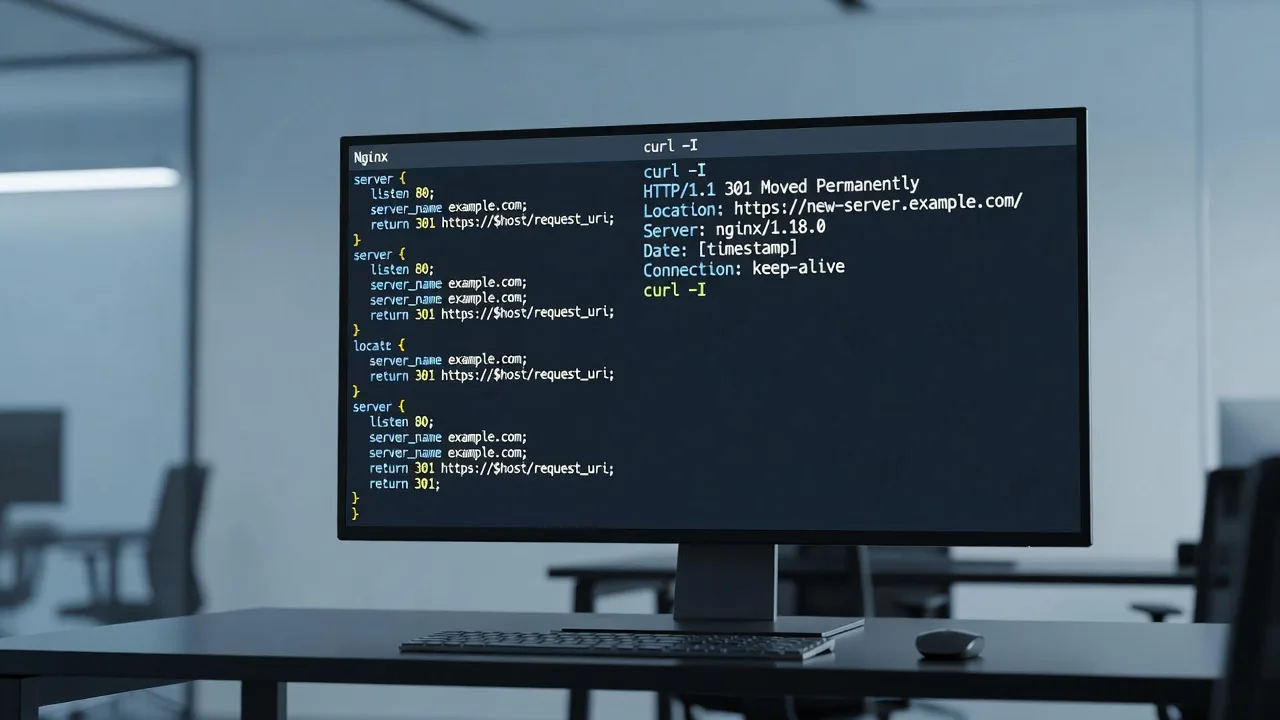
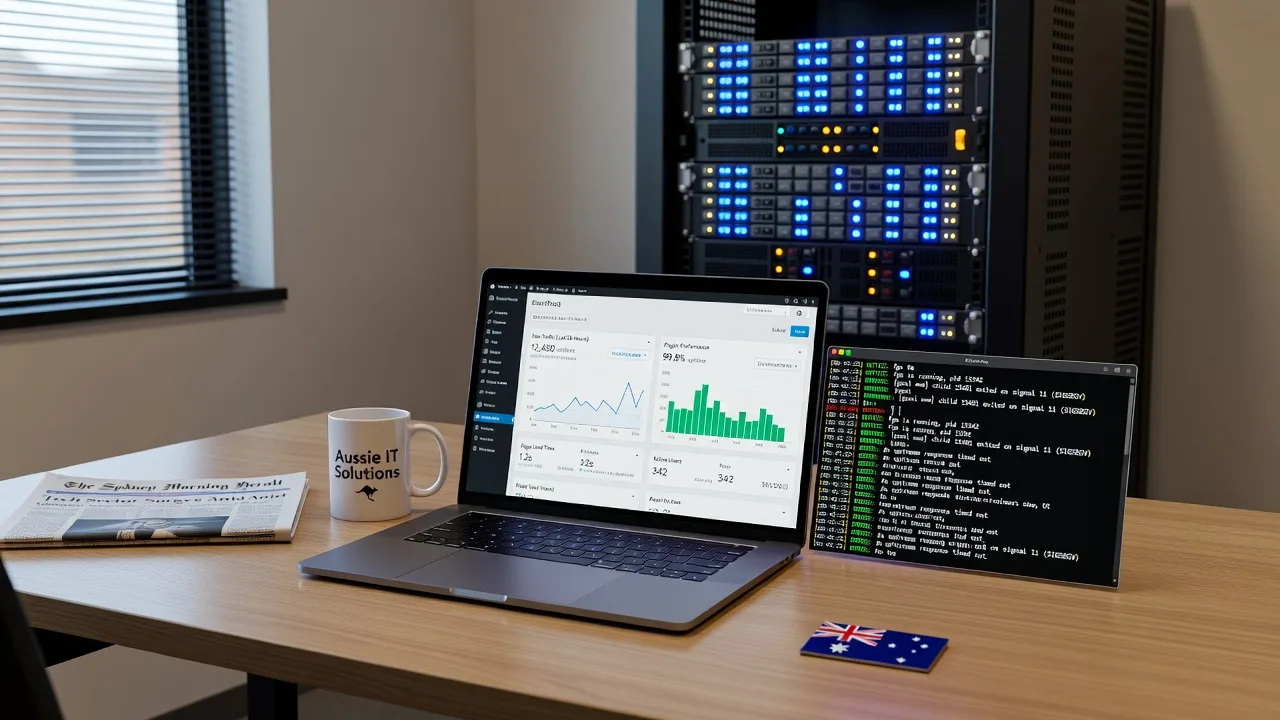
Multi-Vendor & Complex SaaS Marketplaces
 Modern Headless & Jamstack Web Development
 High-End Corporate & Specialized Business Websites
 Advanced API, Checkout & Database Troubleshooting
Website Isn’t Slow — Deleted Apps Still Run in Background
Your site feels sluggish because leftover apps never fully left. Spot clean-code bloat, remove ghost scripts safely, and know when Fixwebnode should inspect on-site in Australia.
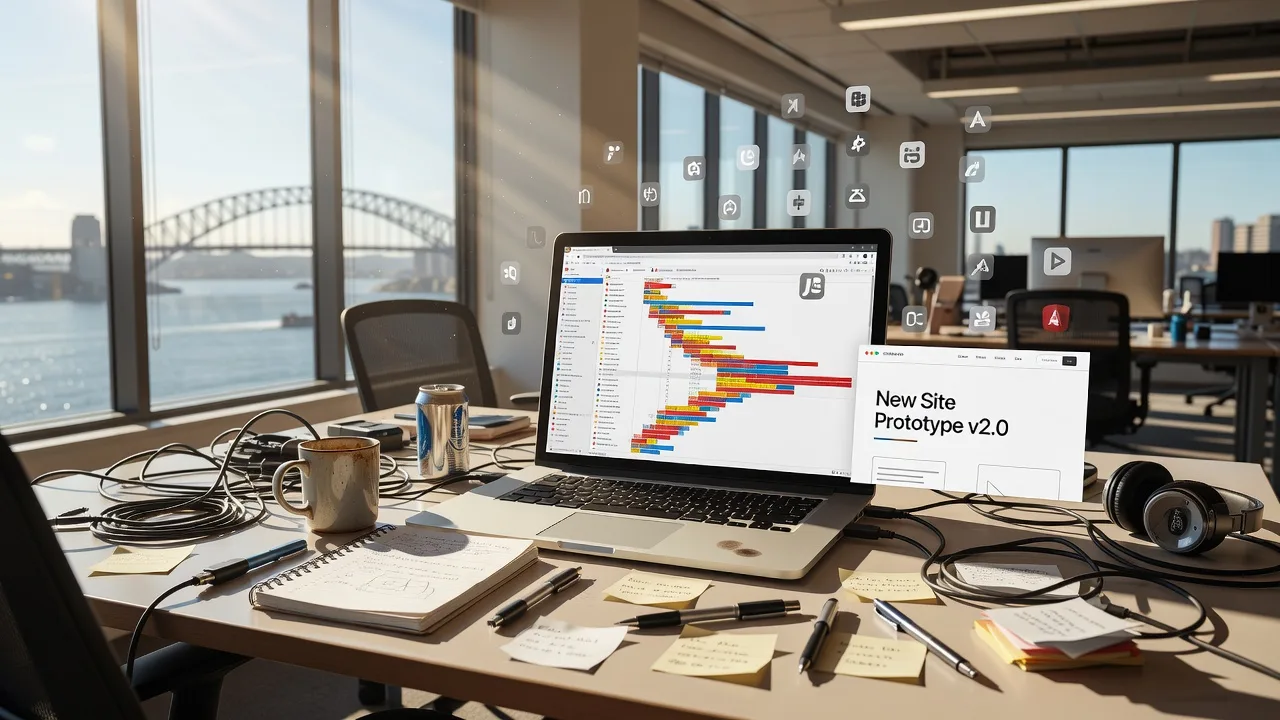
If pages crawl, checkouts stutter, or the admin dashboard freezes, the problem is often not “the internet”—it is clean code bloat: apps your developer removed from the menu but left half-alive in the theme, database, browser, or office machine.
This guide is for homeowners and small businesses in Australia who manage a site themselves or inherited one after a rushed handoff. You will learn the unique symptoms of leftover apps, safe DIY checks you can do without server logins, and when to book hands-on help from Fixwebnode website repair in Australia—a direct specialist for local and remote website support, not a freelance marketplace.
Why leftover “deleted” apps make a site feel broken
Modern sites load dozens of small programs: plugins, chat widgets, booking tools, pixels, A/B scripts, and local helpers on the PC you use to edit content. When someone “deletes” an app, they often only remove the visible control. Background jobs, script tags, database options, and cached files keep running. Visitors still download dead code. Your office computer still burns CPU on tools nobody uses. The result looks like a slow website even when hosting is fine.
Clean code bloat is especially common after redesigns, app trials, and developer changeovers. Fixwebnode focuses on this exact mess: finding what still loads, what still runs locally, and what is safe to retire so the live site and the machine you work on both feel responsive again.
Why does my website still feel slow in Australia after apps were deleted?
Because deletion rarely means full removal. Ghost plugins, abandoned embed scripts, and leftover local tools keep consuming page weight and PC resources, so the site and admin feel slow even on a decent connection. A short inspection of the page source, plugin leftovers, and your workstation usually reveals the bloat before you change hosts or themes.
| Symptom | Quick check | When to book Fixwebnode |
|---|---|---|
| Page weight high after “removing” tools | View page source / Network waterfalls for old script names | Scripts return after every edit or theme update |
| Admin or browser crawls only on your PC | Note fans, Dock/taskbar apps, extra local servers | You cannot tell site issues from workstation load |
| Checkout or forms lag with old widgets | Disable one embed at a time on a staging copy | Payments, bookings, or SEO tags break when you touch code |
Common clean-code bloat issues (unique causes)
These problems look similar in the browser but come from different roots. Treat them separately so you do not delete the wrong thing.
1. Ghost plugins and “removed” apps still injecting assets
Symptoms: Plugin is gone from the list, yet the homepage HTML still mentions its folder or handle; CSS/JS 404s appear in the browser Network panel; admin notices refer to a product you uninstalled months ago.
2. Abandoned third-party embeds left in the theme header or footer
Symptoms: Old live-chat bubbles, review popups, heatmap scripts, or discontinued booking iframes still appear; mobile score drops because third-party domains keep connecting; cookie banners list vendors you no longer use.
3. Local leftover stacks making the site “feel” slow on your office hardware
Symptoms: Only your workstation is sluggish while phones on mobile data are fine; fans spin when you open the CMS; Docker, old local servers, node helpers, or staging browsers sit in the menu bar long after the project ended.
4. Orphan database options, cron pings, and mu-plugin scraps
Symptoms: Scheduled tasks still call dead endpoints; unexplained admin AJAX calls; must-use or drop-in files remain after a “clean” plugin delete; sitemap or cache plugins rebuild endlessly.
5. Stale caches and service workers serving deleted app files
Symptoms: You removed a widget but regular visitors still see it; hard refresh on your machine looks clean while clients on other devices do not; PWA or offline caches keep old bundles.
How to fix ghost plugins still loading assets
Goal: confirm the product is truly gone from front-end output, not only from the plugins menu.
- Inventory what the page still requests. Open the slow page in a private window. Use the browser developer tools Network panel and filter by JS and CSS. Write down file names or folder paths that match old app brands.
- Search the site admin for leftovers. In your CMS plugin/theme screens, look for deactivated companions, “add-ons,” or mu-plugin notes. Check Appearance → Theme File editor only if you already know the theme (or use the host file manager read-only view) for wp_enqueue-style references and hard-coded script tags—do not edit live without a backup.
- Clear all layers of cache once. Purge the site cache plugin, any host-panel cache button, and the CDN cache if you use one. Then retest the Network panel.
- Remove the leftover the safe way. Prefer the official uninstall routine or the host file manager to delete only the orphaned plugin folder after a full backup. Avoid mass-deleting unknown directories.
- Verify. Load the page again. The old script names should be absent, and the document request should finish with fewer third-party calls.
When to call Fixwebnode: If deleting the folder breaks the theme, if you lack a backup, or if the same handles reappear after updates, stop. Book a specialist cleanup so active checkout and forms stay intact.
How to fix abandoned embeds in header, footer, or tag managers
Goal: stop dead vendors from connecting on every visit.
- List visible and invisible vendors. Note chat icons, floating buttons, and any tag-manager container IDs in page source (search for gtm, script src, and brand names you retired).
- Check the places embeds usually hide. Theme customizer “additional scripts,” header/footer widget text, marketing “pixel” plugins, and tag-manager web UI. Small businesses in Australia often inherit three generations of tracking after agency changes.
- Disable one embed at a time on a copy if you have staging; otherwise schedule a quiet hour and disable the likeliest unused snippet first.
- Retest critical paths. Home, contact, booking or cart, and a blog post. Confirm the removed vendor no longer appears in Network domain lists.
- Update privacy/cookie copy so you do not claim tools you no longer run.
When to call Fixwebnode: Payment pixels, consent tools, or SEO markup are intertwined and you are unsure what is required for ads or bookkeeping. On-site or remote review prevents cutting a live conversion tag by mistake.
How to fix local leftover apps that throttle your workstation
Goal: separate “website is slow for everyone” from “my PC is overloaded while I manage the site.” This is the hardware-side half of clean code bloat and suits local inspection or drop-off.
- Reproduce on a second device. Open the same URLs on a phone using mobile data. If only the office PC is painful, prioritise local cleanup before changing hosts.
- Inspect running tools. On the computer you use for the site, check the menu bar / system tray for Docker, local web stacks, old node helpers, remote-desktop leftovers, and staging browsers left open for weeks.
- Quit and uninstall with intent. Quit the tool, confirm the site admin still works via the live URL, then uninstall through the OS app list. Empty trash/recycle bin afterward.
- Trim browser profile bloat. Disable extensions you installed for a one-off developer task (react scanners, fake-location tools, abandoned SEO overlays). Clear cache for your domain only if you understand you may need to log in again.
- Bring the right kit if you book in-person help. Laptop or mini-PC used for site work, charger, CMS login available (do not email passwords), and a reminder that you have a current backup of important local project folders. Say which apps were “deleted” and still suspected.
When to call Fixwebnode: Fans run constantly, disks are full of old site copies, or you cannot tell whether slowness is local hardware versus live code. Fixwebnode can inspect the workstation and the site together across Australia service areas and coordinate on-site or drop-off style review when that fits your setup.
How to fix orphan options, cron noise, and mu-plugin scraps
Goal: stop background pings to apps that no longer exist.
- Watch the admin while idle. With developer tools open on the Network panel, leave the dashboard still for a minute. Note repeating calls to unfamiliar plugin paths.
- Review scheduled tasks UIs if your host or CMS offers a cron/events screen. Disable events clearly named after retired products—only those you recognise.
- Ask hosting support for a file list of mu-plugins and drop-ins if you cannot see them in the normal plugin page. Do not delete unknown object-cache or security drop-ins without guidance.
- Re-test front-end timing after each cautious change and keep a written undo note.
When to call Fixwebnode: Events repopulate themselves, or mu-plugins are tied to caching/security. That is specialist territory.
How to fix stale caches and service workers
Goal: make sure the public web matches what you just cleaned.
- Purge site, host, and CDN caches in that order after code or embed removals.
- In Chrome/Edge application tools, check Service Workers and Cache Storage for your domain. Unregister workers for your site if an old PWA still serves deleted bundles—only for your domain.
- Ask two people on different networks to load the page without using your office Wi‑Fi so you are not fooled by a single warm cache.
- Re-check Core-style field symptoms: time to first interaction on mobile, and whether old chat divs still flash.
When to call Fixwebnode: Service workers were custom-built, or a CDN rule keeps resurrecting an old asset path.
When DIY is enough vs when to book Fixwebnode
DIY is enough when you have a fresh backup, you can name the retired apps, changes are reversible from the CMS or host panel, and phone tests prove the live site is healthy for everyone else. Stick to one change at a time and write what you did.
Book Fixwebnode when leftovers sit in must-use files, payment or booking flows, or when your office hardware and the live site are both degraded and you need a single owner to untangle them. As a direct provider—not a bid board—Fixwebnode works with individuals, sole traders, and local operators on clean-code bloat, plugin ghosts, and practical performance repair. Coverage details live on the all service areas hub and the Australia page linked above. Soft scheduling only: on-site or hands-on slots are often easier when you book earlier in the day, without promised travel times.
Skip DIY if you have no backup, cannot log into hosting, or the site is mid-campaign with paid ads riding on specific pixels.
Talk through your leftover-app mess with Fixwebnode
If your developer “removed” fifty tools and the site still drags, you do not need another generic speed plugin—you need a clean inventory of what still runs in code, in caches, and on the machine you use every day. Bring your symptoms, a backup mindset, and the device you actually work on.
Start a conversation or booking for practical website support via https://fixwebnode.com.au/website-repair-australia. Fixwebnode will help you retire true bloat, keep the apps you still rely on, and leave both the public site and your workspace lighter.