Multi-Vendor & Complex SaaS Marketplaces
 Modern Headless & Jamstack Web Development
 High-End Corporate & Specialized Business Websites
 Advanced API, Checkout & Database Troubleshooting
Website Blacklisted by McAfee or Sucuri? Clean-up Steps
McAfee or Sucuri flagged your site? Learn the unique causes, DIY clean-up steps, and when Fixwebnode should finish the removal so visitors stop seeing scary warnings.
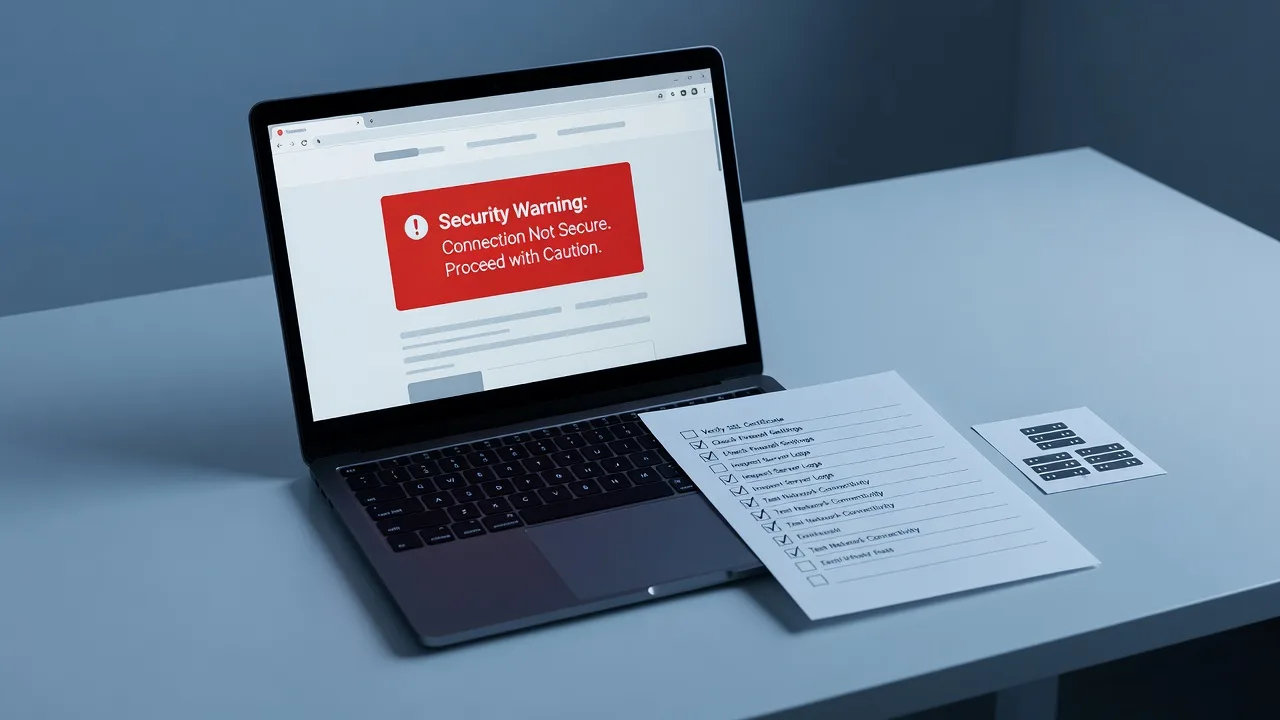
If browsers or security bars suddenly warn that your site is dangerous, you are dealing with a blacklist—not a marketing glitch. McAfee SiteAdvisor, Sucuri SiteCheck, and similar scanners flag malware, phishing, spam injections, or residual infection signatures. Until the root cause is gone and the vendors re-scan clean, traffic drops, email deliverability suffers, and customers lose trust. This guide walks homeowners and small-business owners through practical diagnosis and clean-up for a site blacklisted by McAfee or Sucuri, then shows when to hand the job to specialists at Fixwebnode website support.
We work with sites across Geelong and greater Melbourne every week on exactly this problem: find what the scanner hates, remove it completely, harden the stack, and request delisting the right way—without leaving backdoors behind.
Why a McAfee or Sucuri blacklist matters
Blacklists are public trust signals. Chrome, Edge, mail filters, and partner sites often inherit those verdicts. A partial “delete the weird file” fix usually fails the next automated scan because scanners look for known malware hashes, obfuscated PHP, spam doorway pages, malicious redirects, and mixed-content payloads. You need a methodical clean-up, not a cosmetic edit.
Below are the issues we see most often on WordPress, static, and small custom sites—each with different symptoms and different DIY steps.
Common issues that trigger McAfee or Sucuri blacklists
1. PHP backdoors and webshells in uploads or theme folders
Symptoms: Sucuri reports “malware found” or “backdoor”; McAfee shows a red “dangerous” rating; odd files appear under wp-content/uploads, random theme subfolders, or wp-includes with names like wp-tmp.php, radio.php, or double extensions (image.jpg.php). Site may still “look fine” to you while scanners scream.
2. Spam SEO injections and hidden doorway pages
Symptoms: Google or Sucuri flags “spam,” “hacked,” or pharmaceutical/casino keywords; view-source shows hidden links or base64 blobs; new unknown pages rank for unrelated queries; .htaccess has rewrite rules you did not write.
3. Compromised admin accounts and malicious plugins or mu-plugins
Symptoms: Unknown admin users; plugins you never installed; must-use plugins under wp-content/mu-plugins; scheduled tasks posting spam; outbound phishing forms that McAfee labels as credential theft.
4. Persistent reinfection after a “one-file” clean
Symptoms: You deleted one suspicious file, requested a rescan, looked clean for a day, then McAfee/Sucuri flagged you again. Classic sign of a remaining cron, database option, or stolen FTP/SFTP/cPanel password.
5. Mixed malware plus outdated CMS core/plugins (attack surface left open)
Symptoms: Scanner cites known vulnerable plugin hashes alongside malware; core files differ from official checksums; auto-updates were off for months.
How to fix each issue (DIY first)
Issue 1 — Find and remove PHP backdoors safely
Work on a full backup first. Prefer SSH or SFTP over the theme editor so you can search the whole tree.
Step 1 — Snapshot everything
Export a full file backup and a database dump from your host panel before changing anything.
Step 2 — Search for common webshell patterns
cd /path/to/your/site
grep -R --include='*.php' -nE 'eval\s*\(\s*base64_decode|gzinflate\s*\(|str_rot13\s*\(|assert\s*\(|preg_replace\s*\(.*/e' .
find . -type f \( -name '*.php' -o -name '*.phtml' \) -path '*/uploads/*'
find . -type f -name '*.php.*' -o -name '*..php'
Review every hit. Legitimate plugins rarely hide executable PHP inside uploads.
Step 3 — Compare core and default themes to clean copies
For WordPress, replace core with a fresh package (keep wp-config.php and wp-content), then diff custom themes.
wp core download --force --skip-content
wp core verify-checksums
Step 4 — Quarantine, do not only “edit”
Move unknown PHP out of the web root (or delete after backup). Clear opcode caches if your host uses them.
Step 5 — Rescan
Run Sucuri SiteCheck and your host malware scanner again. Only then start a McAfee false-positive / delist workflow if still listed.
Call Fixwebnode when: grep returns hundreds of hits, core verify fails across many files, or you lack SSH and are unsure what is safe to delete.
Issue 2 — Clean spam injections and hostile .htaccess rules
Step 1 — Inspect document root and .htaccess
cd /path/to/your/site
cp .htaccess .htaccess.bak.$(date +%F)
cat .htaccess
Remove rewrite rules that force strange query-string redirects, auto_prepend_file tricks, or off-site Location headers you did not add. Restore a known-good WordPress default .htaccess if needed, then re-save permalinks later.
Step 2 — Hunt injected spam in the database
wp db query "SELECT option_name FROM wp_options WHERE option_value LIKE '%casino%' OR option_value LIKE '%ciagra%' OR option_value LIKE '%<script%' LIMIT 50;"
wp post list --post_type=any --fields=ID,post_title,post_status --format=table | head
Search posts/options for hidden HTML, iframes, and spam user content. Remove unknown posts and clean siteurl/home if they were altered.
Step 3 — Strip theme/plugin footer injections
grep -R --include='*.php' -nE 'base64_decode\s*\(|edoced_46esab|\\x[0-9a-fA-F]{2}' wp-content/themes wp-content/pluginsReplace infected themes/plugins with fresh copies from wordpress.org or the vendor—do not hand-edit obfuscated blobs unless you fully understand them.
Step 4 — Request rechecks
After files and DB are clean, clear CDN/cache, then resubmit to Sucuri SiteCheck. For McAfee, use their site reporting / review channels once you can prove a clean scan.
Call Fixwebnode when: spam is regenerated daily, database serialization breaks after edits, or doorway pages keep reappearing from a second site on the same account.
Issue 3 — Lock out rogue admins and malicious plugins
Step 1 — List users and demote unknowns
wp user list --fields=ID,user_login,user_email,roles
wp user delete <rogue-id> --reassign=<your-admin-id>
Or change their role to subscriber and force password resets for every administrator.
Step 2 — Audit plugins, especially must-use and drop-ins
wp plugin list
ls -la wp-content/mu-plugins
ls -la wp-content/ | grep -E 'advanced-cache|object-cache|db.php'
Remove plugins you did not install. Treat unfamiliar mu-plugins as hostile until proven otherwise. Replace drop-ins only if you know your caching stack needs them.
Step 3 — Rotate every secret
Change cPanel/FTP/SFTP, database, WordPress salts, host panel, and DNS registrar passwords. Update wp-config.php salts (WordPress secret-key service) and invalidate all sessions.
wp config shuffle-salts
wp cache flush
Step 4 — Kill bad schedules
wp cron event list
wp cron event delete <hook-name>
Call Fixwebnode when: new admins reappear after deletion (persistence via hidden code), or you cannot access WP-CLI and the dashboard is locked by the attacker.
Issue 4 — Stop reinfection loops
Step 1 — Assume credentials and scheduled tasks are still compromised
Rotate all access again. Review host cron and user crontab:
crontab -l
ls -la /etc/cron.* 2>/dev/null
wp cron event list
Step 2 — Check for file-write persistence
find . -type f -name '*.php' -mtime -3 -ls
find . -type d -perm -0002 -ls
World-writable directories let malware rewrite itself after your clean-up.
Step 3 — Harden uploads
Block PHP execution in upload directories with server rules (example Apache snippet in a dedicated uploads .htaccess):
<FilesMatch "\.(php|phtml|php5)$">
Require all denied
</FilesMatch>
Step 4 — Only request delisting after 24–48 hours clean
Scanners cache results. Reinfection during the review window often extends the blacklist.
Call Fixwebnode when: timestamps show files changing while you sleep, or multiple sites on one hosting account keep cross-infecting.
Issue 5 — Patch the CMS so the next probe fails
Step 1 — Update core, themes, and plugins from trusted sources
wp core update
wp plugin update --all
wp theme update --all
wp core verify-checksums
Step 2 — Remove abandoned extensions
Delete unused plugins/themes entirely—disabled is not enough if PHP is still web-reachable.
Step 3 — Enable automatic updates for minor cores where appropriate and turn on host WAF if available
Confirm PHP version is supported (8.1+ for most modern WordPress stacks) with your host.
Step 4 — Final dual scan
Run Sucuri SiteCheck plus your host scanner; fix any remaining signatures before McAfee review.
Call Fixwebnode when: custom plugins cannot update without breaking checkout or bookings—you may need a controlled patch and regression check instead of a blind upgrade.
When DIY is enough vs when to book Fixwebnode
DIY is reasonable if: you have SSH/SFTP, a recent backup, a single small WordPress site, scanners point to a handful of files, and you can rotate passwords the same day. Follow the numbered steps above, verify with clean external scans, then submit delist/review requests.
Book a specialist if any of these are true:
- Customer-facing site for a Geelong or Melbourne business where every hour offline costs appointments or sales
- Malware returns after two clean attempts
- Database spam is widespread or serialization is damaged
- You share hosting with other infected properties
- You need coordinated clean-up, hardening, and blacklist follow-up without guessing
Fixwebnode provides direct website support—not a bid board—so you speak with people who actually remediate McAfee and Sucuri flags. If the site also needs structural work after a bad compromise, related help includes professional website redesign for Melbourne VIC businesses and portfolio website development in Melbourne. See where we work on the service areas page.
Get the blacklist lifted and keep it lifted
A McAfee or Sucuri blacklist is a technical trust failure: remove webshells, spam, rogue admins, and reinfection paths; patch the CMS; prove a clean scan; then request removal. Use the steps above on a maintenance window with backups. If you want that handled end-to-end for your small business site, start a conversation with Fixwebnode website support in Geelong—we will review your scanner reports, outline the clean-up plan, and help you get visitors past the warning page again.