Multi-Vendor & Complex SaaS Marketplaces
 Modern Headless & Jamstack Web Development
 High-End Corporate & Specialized Business Websites
 Advanced API, Checkout & Database Troubleshooting
TutorLMS on WordPress: Course Platform Setup for Geelong Educators
Build a stable TutorLMS course site on WordPress without endless plugin conflicts. This guide covers real setup failures educators hit, DIY fixes with logs and WP-CLI, and when remote WordPress support from Fixwebnode is the safer path.
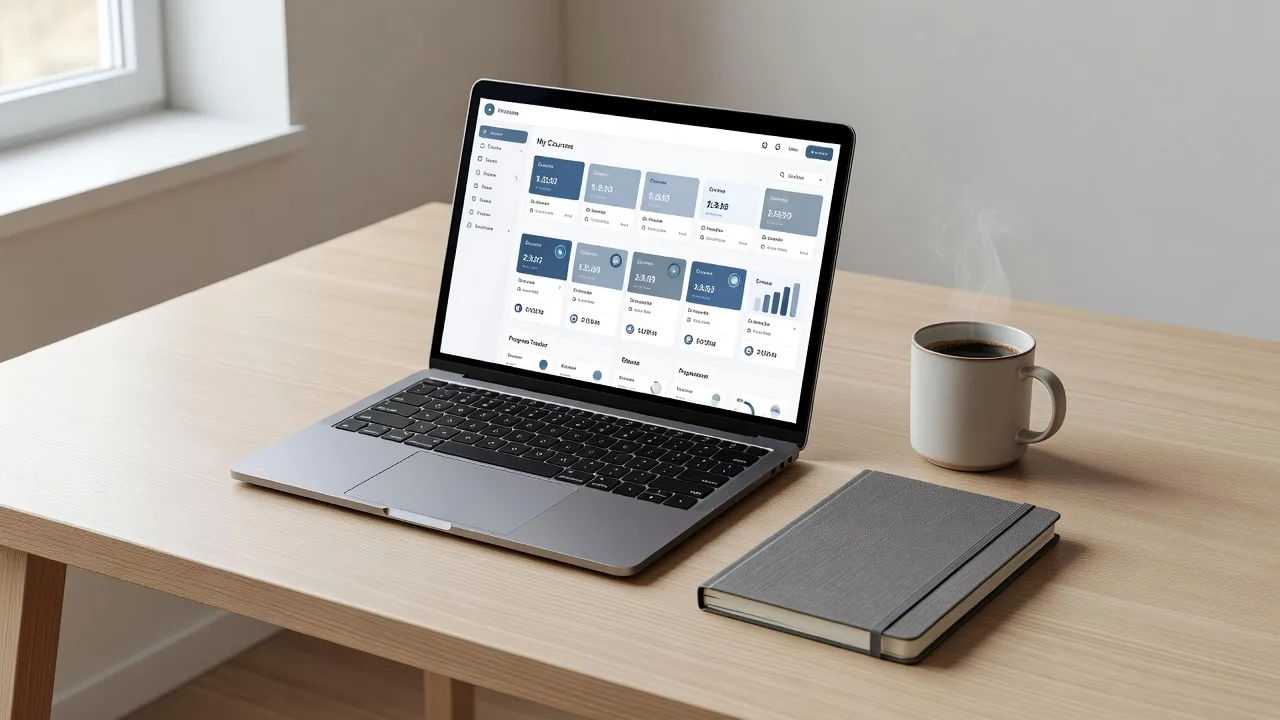
If you teach in Geelong or run a small training business online, a half-working TutorLMS site costs enrolments fast—blank lessons, failed checkouts, and students stuck in login loops.
This practical guide walks through setting up and stabilising an Online Learning Management System with TutorLMS on WordPress: common failure modes, numbered DIY checks you can run remotely, and when to book direct specialist help. Fixwebnode provides remote WordPress support for course platforms like yours—see WordPress Support when you need hands-on recovery rather than guesswork.
We work with site owners across our service areas, including remote support for educators building course platforms in your area. The focus here stays on TutorLMS configuration, server health, and student-facing reliability—not generic “grow your brand” tips.
Why a solid TutorLMS setup matters for Geelong educators
TutorLMS turns WordPress into a full LMS: courses, lessons, quizzes, certificates, and often WooCommerce for paid enrolments. For local tutors, RTOs-style short courses, and coaching businesses, the stack must stay fast, secure, and predictable under concurrent student logins.
Most failures are not “WordPress is broken.” They are PHP limits, conflicting page builders, miswired permalinks, mail delivery gaps, or caching that serves stale course pages. Fix those early and your platform stays teachable. Leave them and you get refunds, support tickets, and incomplete progress tracking.
Why won’t my TutorLMS lessons save or play correctly on WordPress?
When TutorLMS lessons go blank, refuse to save, or videos fail to load, the usual causes are PHP memory exhaustion, REST API or nonce failures, aggressive page cache on logged-in students, or mixed HTTP/HTTPS assets blocking media. Confirm the server error log and browser Network tab first, then raise PHP limits and exclude LMS routes from full-page cache before reinstalling plugins.
| Symptom | Quick check | Call Fixwebnode when |
|---|---|---|
| Lesson editor blank / save fails | PHP memory, browser console, disable builder conflict | Fatal errors persist after limit raise |
| Checkout or enrolment stuck | WooCommerce webhooks, SSL, cron | Payments take money but no access |
| Students can’t log in / loop | Permalinks, cookies, cache exclusions | Role/capability corruption or malware |
Common TutorLMS issues on WordPress course sites
These problems show up repeatedly when educators launch or expand an LMS. Each has a different root cause—treat them separately.
1. Lesson editor blank, autosave fails, or “Updating failed”
You open a lesson, the block editor is empty or spins, and Save returns a REST error. Students may still see an older published version. Often PHP memory_limit or max_execution_time is too low, or a page builder/security plugin blocks /wp-json/.
2. Paid enrolment completes but the student never gets course access
WooCommerce shows “Processing” or “Completed,” the card is charged, yet TutorLMS does not attach the course, or the order note shows a failed enrolment action. Typical causes: disabled WP-Cron, broken webhooks, object cache desync, or TutorLMS–WooCommerce product mapping left on the wrong product type.
3. Student login redirect loop or “cookie check failed”
After login, the browser bounces between /dashboard/, /courses/, and wp-login.php. HTTPS mismatch (WP_HOME/WP_SITEURL), reverse-proxy headers, or full-page cache caching authenticated HTML are common on remote VPS and shared hosts.
4. Course import or bulk quiz upload dies halfway
Large curriculum imports time out; only partial lessons appear. Disk inode pressure, low upload_max_filesize, or PHP-FPM killing long workers is the usual stack—not a “bad ZIP” alone.
How to fix each issue (DIY runbook)
Fix 1 — Blank lesson editor and failed saves
Work on a staging copy if you can. Keep a full backup before changing PHP or plugins.
Step 1 — Confirm the failure in logs
On the server (SSH), inspect the web and PHP error logs for fatal memory or timeout lines tied to tutor or rest-api:
sudo tail -n 100 /var/log/nginx/error.log
sudo tail -n 100 /var/log/php*-fpm.log
# Debian/Ubuntu alternate path example:
sudo tail -n 100 /var/log/apache2/error.log
In WordPress, enable temporary logging if needed via wp-config.php (remove after diagnosis):
define('WP_DEBUG', true);
define('WP_DEBUG_LOG', true);
define('WP_DEBUG_DISPLAY', false);
Then review:
tail -n 80 wp-content/debug.logStep 2 — Raise PHP limits for LMS workloads
TutorLMS with a builder and media-heavy lessons often needs more than default shared-host values. In the PHP pool or hosting panel, set at least:
memory_limit = 256M
max_execution_time = 120
upload_max_filesize = 64M
post_max_size = 64M
max_input_vars = 3000
Reload PHP-FPM after pool changes:
sudo systemctl reload php8.2-fpm
# adjust version: php8.1-fpm / php8.3-fpm as installed
sudo systemctl status php8.2-fpm --no-pager
Step 3 — Rule out REST and plugin conflicts
From the site root with WP-CLI:
wp plugin list --status=active
wp plugin deactivate elementor-pro --dry-run
# Real conflict test: deactivate non-essential builders/security one at a time
wp plugin deactivate cache-plugin-name
wp rewrite flush
wp option get permalink_structure
In the browser (logged in as admin), open DevTools → Network, save a lesson, and confirm /wp-json/wp/v2/ or TutorLMS REST routes return 200, not 401/403/500.
Step 4 — Verify
Create a short test lesson with one video embed and one quiz question, update, view as a test student role, and confirm progress saves.
When to call Fixwebnode: fatals continue after limits and a clean plugin set, or the editor only fails for specific roles—capability or malware issues need a specialist pass via WordPress Support.
Fix 2 — Payment succeeds but course access is missing
Step 1 — Confirm product linkage
In wp-admin: Tutor LMS → Tools / WooCommerce product linked as a Tutor course product (not a plain simple product without the course flag). Re-save the product and the course enrolment settings.
Step 2 — Prove WP-Cron and Action Scheduler are running
wp cron event list
wp action-scheduler run
wp wc webhook list
wp option get siteurl
wp option get home
If the host disables real cron, add a system cron hitting wp-cron.php over HTTPS, and set DISABLE_WP_CRON only after that external trigger exists.
Step 3 — Check SSL and callback URLs
Mixed content or HTTP siteurl breaks gateway return URLs:
wp search-replace 'http://example.com' 'https://example.com' --all-tables --dry-run
# Remove --dry-run only after reviewing the report
curl -I https://your-domain.example
Confirm the certificate chain is valid and not expired on the reverse proxy.
Step 4 — Manual repair for a stuck order
For one affected order: set status to Completed again, or use TutorLMS enrolment tools to attach the student, then have them log out/in and open the course URL directly.
Step 5 — Verify
Place a $0 coupon or sandbox order with a test student account. Confirm: order completed → student appears under course enrolments → lesson content unlocks → email receipt arrives.
When to call Fixwebnode: money is captured repeatedly without enrolment, webhooks fail only in production, or you need safe live payment debugging without breaking current students.
Fix 3 — Login redirect loops and cookie failures
Step 1 — Align URLs and HTTPS
wp option get home
wp option get siteurl
# Both must match the canonical https:// URL students use
Behind nginx or a reverse proxy, ensure real HTTPS is passed to PHP (example nginx snippets vary by host; wrong X-Forwarded-Proto handling causes cookie secure-flag loops).
Step 2 — Flush rewrite rules and clear LMS caches
wp rewrite structure '/%postname%/' --hard
wp rewrite flush --hard
wp cache flush
wp transient delete --all
Step 3 — Exclude authenticated LMS paths from full-page cache
In your cache plugin or nginx fastcgi cache rules, never cache HTML for logged-in users or paths such as /dashboard/, /profile/, /courses/, /lesson/, /quiz/, and /wp-admin/. Purge all caches after the change.
Step 4 — Cookie and session sanity check
Try a private browser window. If only one browser fails, clear cookies for the domain. If all browsers loop, re-check COOKIE_DOMAIN custom defines in wp-config.php (remove experimental cookie constants unless you know why they exist).
Step 5 — Verify
Log in as a student, open a drip-locked lesson, complete a quiz, log out, log in again—landing should be the student dashboard without bouncing to wp-login.php.
When to call Fixwebnode: loops survive correct siteurl and cache exclusions, or only certain membership roles break—often a theme login template conflict or compromised wp-login flow.
Fix 4 — Imports timing out or partial curriculum
Step 1 — Check disk and PHP-FPM before re-uploading
df -h
df -i
free -m
sudo systemctl status php8.2-fpm --no-pager
sudo journalctl -u php8.2-fpm -n 50 --no-pager
Step 2 — Raise upload and input limits (same PHP directives as Fix 1), then restart or reload PHP-FPM.
Step 3 — Import in smaller batches
Split large course ZIPs or quiz CSVs. After each batch:
wp media regenerate --yes
wp cache flush
Step 4 — Verify
Count lessons in the admin course outline against your source outline; open the last imported lesson as a student.
When to call Fixwebnode: the VPS runs out of inodes, PHP-FPM workers are stuck, or imports corrupt nested quiz data—server-level tuning and data repair belong with a specialist. Related Linux administration depth is also covered on our Expert Linux Administration & Support service page when the bottleneck is the host OS rather than the plugin UI. If package sources on a Debian/Ubuntu host were damaged during a rushed PHP upgrade, use proper repair procedures such as those outlined for fixing corrupted APT sources.list rather than blind apt pinning.
When DIY is enough vs when to book Fixwebnode
DIY is enough when you can reproduce the bug, read a clear log line, raise PHP limits, flush rewrites, exclude LMS routes from cache, and verify with a test student—without touching live payment credentials carelessly.
Book Fixwebnode when any of these are true: students are actively blocked from paid content; checkout charges without enrolment; fatal errors remain after limit changes; you suspect malware or rogue admin users; you need coordinated nginx/PHP-FPM/WordPress changes on production with minimal downtime; or you simply cannot afford trial-and-error during term start.
Fixwebnode is a direct specialist provider for remote WordPress support—not a freelance marketplace. You work with the same technical team on diagnostics, hardening, and LMS stabilisation. Soft scheduling only: remote sessions are often available same-day when booked early, depending on queue and severity.
Production checklist before you invite real students
- Full backup (files + database) and a known restore path
- HTTPS everywhere;
homeandsiteurlmatch - TutorLMS, WordPress core, and WooCommerce on compatible versions
- Transactional email delivering (order, enrolment, password reset)
- Cache exclusions for logged-in LMS routes
- Test student path: browse → purchase/enrol → lesson → quiz → certificate
- Error logging off for display, on for private log review
Talk to Fixwebnode about your course platform
If your Geelong teaching practice—or any small education business in your area—needs a TutorLMS site that saves lessons reliably, enrols paying students automatically, and survives real traffic, get a direct remote session instead of stacking more plugins.
Start a conversation or book WordPress support through the landing page: WordPress Support with Fixwebnode. Bring your symptoms, hosting type, and whether WooCommerce is in the mix—we will prioritise student access, data safety, and a stable LMS configuration you can actually teach on.