Multi-Vendor & Complex SaaS Marketplaces
 Modern Headless & Jamstack Web Development
 High-End Corporate & Specialized Business Websites
 Advanced API, Checkout & Database Troubleshooting
Figma to WordPress or Shopify: Fix Broken Builds Fast
Design looks perfect in Figma—site does not. Diagnose spacing, responsive, and asset failures on WordPress or Shopify, apply DIY fixes, and know when Fixwebnode should finish the build in Australia.
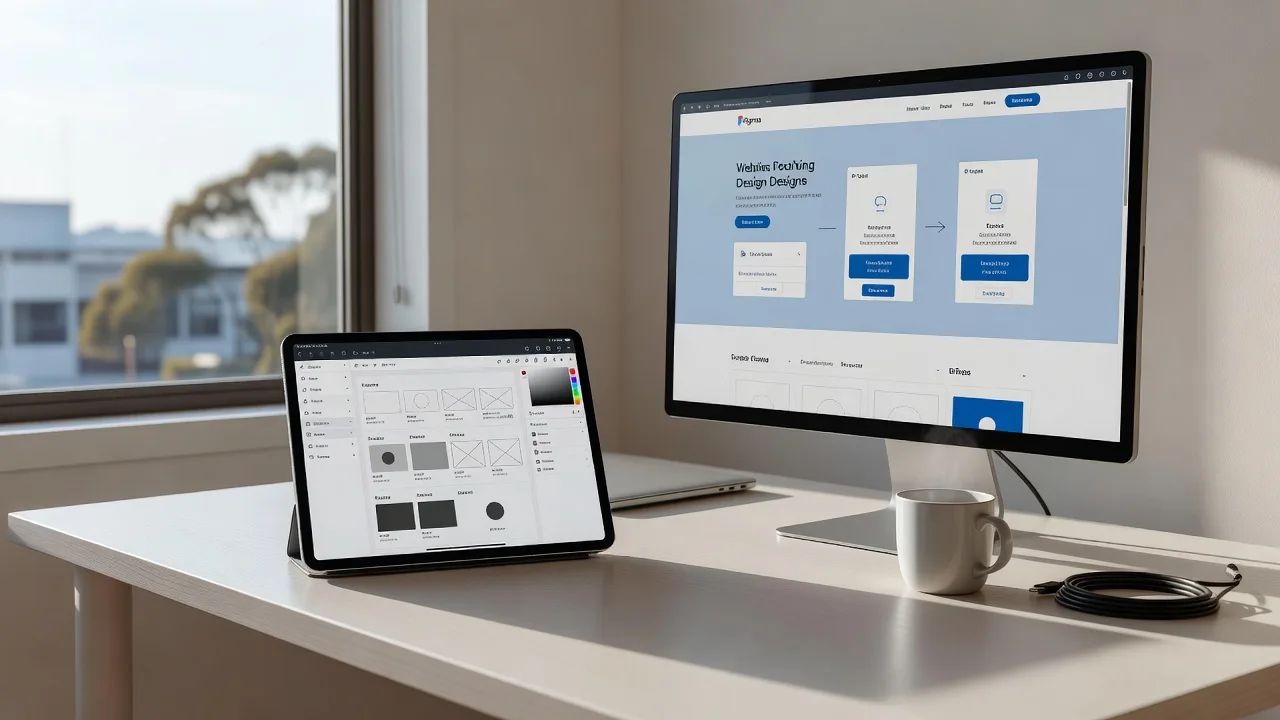
You exported a polished Figma file and expected a live WordPress or Shopify storefront in minutes—instead you got broken spacing, missing fonts, and mobile layouts that collapse. This guide is for Australian homeowners and small businesses who need a working site from that design, not another round of guesswork. It covers the failure modes that show up after a rushed Figma-to-CMS handoff, the checks you can run yourself, and when remote specialists at Fixwebnode website repair Australia should take over the conversion cleanly.
Whether the target is native Gutenberg blocks, Elementor, or a Shopify Online Store 2.0 theme, the goal is the same: pixel-faithful structure, working commerce flows, and stable performance—not a screenshot glued into a page builder.
Why a “seconds” Figma conversion still fails on real sites
Auto-export plugins and one-click importers promise a full website from Figma almost instantly. In production they often produce nested containers, absolute positioning that ignores your theme grid, hard-coded desktop widths, and assets still pointing at Figma CDN URLs that expire. On WordPress that collides with themes, page builders, and caching. On Shopify it collides with Liquid sections, JSON templates, and theme settings. Australian teams feel this when a campaign landing page must go live across time zones and the staging site already looks nothing like the approved frame.
Why does my Figma-to-WordPress or Shopify build look broken in Australia?
Most “instant” Figma conversions fail because layout tokens, breakpoints, and asset URLs do not map 1:1 into WordPress blocks or Shopify Liquid sections. The design file is fine; the CMS theme, fonts, and responsive CSS are not. Fix spacing, export settings, and server-side caches first—then rebuild only the sections that still diverge.
| Symptom | Quick fix | When to call Fixwebnode |
|---|---|---|
| Desktop matches Figma; mobile stacks wrong | Rebuild section with theme breakpoints; drop absolute px locks | Multi-section templates still drift after CSS cleanup |
| Fonts or icons 404 / flash wrong family | Self-host licensed files; purge CDN and object cache | Brand kit spans WP + Shopify and keeps regressing |
| Imported page is slow or CLS jumps | Strip nested wrappers; lazy-load; check TTFB logs | Core Web Vitals fail after honest optimisation passes |
Common issues when turning Figma into WordPress or Shopify
These problems are distinct. Each has a different root cause, so treat them separately instead of re-exporting the whole file every time something looks off.
1. Pixel spacing and type scale drift from the Figma frame
Symptoms: Headings sit too high, card gaps are uneven, buttons are the wrong height, and “almost right” sections fail a side-by-side compare with the design. Inspectors show mixed rem, px, and builder default margins fighting each other.
2. Breakpoints ignore Figma’s mobile and tablet frames
Symptoms: Desktop looks close; at 768px and 390px columns crush, sticky headers overlap heroes, and Shopify sections stack in the wrong order. Media queries from the importer use custom widths your theme never defined.
3. Fonts, SVGs, and image assets 404 or flash unstyled
Symptoms: Text reflows after load, icon rows show empty boxes, and the network panel lists failed requests to figma.com or expired plugin CDNs. Shopify theme editor previews look fine until you publish.
4. Builder or Liquid markup is too deep for performance
Symptoms: Lighthouse flags huge DOM size, cumulative layout shift on hero images, and slow Interaction to Next Paint. WordPress shows long Time to First Byte after the import; Shopify’s profiler blames section rendering.
How to fix spacing and type scale drift
Start by measuring, not by nudging random padding in the builder. You need a single source of spacing tokens that match the Figma styles panel.
- Export design tokens deliberately. In Figma, note exact font families, weights, line-heights, and spacing values for text styles and layout grids. Prefer variables or a simple spacing scale (4/8/16/24/32/48) over one-off pixel guesses.
- Map tokens into the CMS once. On WordPress, set theme.json styles (Gutenberg) or global Elementor kit values for H1–H6, body, buttons, and container gaps. On Shopify, set theme settings and CSS variables in
base.cssor your stylesheet section—not per-block inline styles. - Strip importer wrappers. Delete empty nested groups the plugin created. One section → one container → content. Nested 6-deep divs are why margins compound away from the design.
- Verify with a controlled compare. Open the Figma frame and the staging URL at the same viewport width. Check hero, card grid, and footer only. If three components match, propagate those tokens site-wide before rebuilding outliers.
If you maintain the server yourself, confirm the CSS you edited is the CSS being served:
# WordPress on a typical VPS — confirm which theme CSS is live
wp theme list --status=active
curl -sI https://your-site.example/wp-content/themes/your-theme/style.css | head -n 20

# After editing: flush common caches
wp cache flush
wp elementor flush-css 2>/dev/null || true
sudo systemctl reload nginx
# PHP-FPM name varies by version/distro
sudo systemctl reload php8.2-fpm || sudo systemctl reload php-fpm
When to call Fixwebnode: If global tokens still cannot reconcile multi-page templates, or Elementor and the theme both override each other, book a structured rebuild rather than more manual nudges. Pixel-faithful landing work is covered under services such as WordPress Elementor Pro specialist pixel-perfect landing pages.
How to fix broken responsive breakpoints
Importers often freeze desktop absolute layouts. Real WordPress and Shopify themes expect fluid grids and a small set of breakpoints.
- List the theme’s real breakpoints. Check the active theme docs or CSS for values such as 781px / 600px (common in WP admin patterns) or the theme’s own 990 / 749 / 480 set. Do not invent a fifth breakpoint only because Figma had an extra frame.
- Rebuild problem sections in native structures. WordPress: prefer block Group / Columns or Elementor containers with percentage or
frwidths, not fixed 1440px wrappers. Shopify: use section blocks and {% raw %}{% render %}{% endraw %} snippets so the theme editor can reorder mobile content without custom absolute CSS. - Replace absolute positioning. Search imported CSS for
position: absoluteand fixed top/left pairs used for routine layout. Keep absolute only for true overlays (badges, close icons). - Test the exact device widths you sell on. Use browser device mode at 390, 768, and 1280, plus one landscape tablet pass. Click through header, menus, product forms, and checkout steps—not just the hero screenshot.
# Quick sanity: pull rendered HTML and check for giant fixed widths
curl -s https://your-site.example/ | grep -oE 'width:\s*[0-9]{3,4}px' | sort | uniq -c | sort -nr | head

# Shopify CLI theme check (from your theme project directory)
shopify theme check
shopify theme dev --store your-store.myshopify.com
When to call Fixwebnode: When navigation, megamenus, or cart drawers still fail at mobile widths after a clean section rebuild, especially on mixed WordPress marketing sites plus Shopify checkout. Native block conversion work is detailed at Figma to native WordPress Gutenberg blocks.
How to fix fonts, SVGs, and asset 404s
If the browser still requests Figma or plugin CDN URLs, the site will never match the design once those links expire.
- Audit the network panel. Filter for Font, Img, and failed requests. Note every host that is not your domain or your approved CDN.
- Self-host licensed webfonts. Upload
woff2files to the theme or a fonts plugin, declare@font-facewithfont-display: swap, and remove kit scripts you do not control. Match the exact weights used in Figma—synthetic bold will shift layout. - Re-export icons and images correctly. SVGs as clean paths (no editor bloat); raster heroes as appropriately sized WebP/AVIF with width/height attributes to limit CLS. On WordPress, run media regeneration if thumbnails were half-imported. On Shopify, use the Files API / admin Files and reference them from sections—not pasted external URLs.
- Purge every cache layer. Page cache, object cache, CDN, and browser. Then re-test logged-out in a private window.
# Find stray Figma or plugin hosts in a WP database (read-only first)
wp db query "SELECT option_name FROM wp_options WHERE option_value LIKE '%figma.com%' LIMIT 20;"
wp db search "figma.com" --all-tables-with-prefix | head

# Nginx error log — asset path mistakes often show here
sudo tail -n 100 /var/log/nginx/error.log

# Confirm SSL is healthy so mixed-content does not block fonts
sudo certbot certificates
curl -sI https://your-site.example | grep -i strict-transport
When to call Fixwebnode: Brand fonts licensed across several properties, or SVG icon systems that must stay identical on WordPress and Shopify, benefit from a single remote pass so asset pipelines stop regressing after each publish.
How to fix heavy markup and poor performance after import
A design-faithful site that takes five seconds to become usable still fails the brief. Cut structure first; optimise images second.
- Measure before changing visuals. Run Lighthouse or WebPageTest on staging. Note LCP element, CLS sources, and server TTFB separately from front-end bloat.
- Delete unused builder sections and widgets. Each imported decorative group may load its own CSS/JS. Disable page-builder modules you are not using site-wide.
- Optimise the LCP image and fonts. Preload only the hero image and one primary font weight. Lazy-load below-the-fold media. Avoid full-page background videos unless the brief truly requires them.
- Check server basics on WordPress hosts you control. Persistent object cache, OPcache, and PHP-FPM pool health matter when an import balloons PHP work per request.
# WordPress: drop in-flight transients and rewrite flush after big imports
wp transient delete --all
wp rewrite flush

# PHP and web server health snapshots
sudo systemctl status php8.2-fpm --no-pager
sudo tail -n 50 /var/log/nginx/access.log
# Optional: quick TTFB signal
curl -o /dev/null -s -w 'TTFB %{time_starttransfer}s\nTotal %{time_total}s\n' https://your-site.example/
When to call Fixwebnode: If TTFB stays high after cache and PHP tuning, or CLS remains after image dimensions are set, you likely need structural template work—not another optimisation plugin stacked on a bad import.
When DIY is enough vs when to book Fixwebnode
DIY is enough when a single landing section drifted, you still have clean Figma frames, staging is separate from production, and you can edit theme.json, Elementor kits, or Shopify section files safely. The steps above—token mapping, breakpoint rebuilds, asset self-hosting, and cache/php checks—resolve many “conversion in seconds” leftovers without a full rewrite.
Book a specialist when more than one template diverges, checkout or form flows were touched by the importer, both marketing WordPress and Shopify catalogue pages must stay brand-aligned, or you cannot tell which layer (theme, builder, CDN, host) is serving stale CSS. Fixwebnode works as a direct remote provider for website support across Australia—not a freelance marketplace—so you brief one team on the Figma source and the live CMS, then get production-minded fixes. Coverage and remote delivery options are listed on the service areas page for operators who need clear geographic context without on-site visits.
Choose DIY for isolated visual bugs you can diff against Figma in an afternoon. Choose Fixwebnode when launch dates, SEO URLs, and commerce paths cannot absorb another broken import cycle.
Talk through your Figma file and target CMS
If your Figma design should already be a stable WordPress or Shopify site—and instead you are chasing spacing, breakpoints, missing fonts, or heavy markup—bring the file, the staging URL, and the failure notes from this guide. Fixwebnode provides direct website support for individuals, sole traders, and local operators who want the conversion finished properly, remotely, with production checks rather than another auto-export.
Start a conversation or book remote help via https://fixwebnode.com.au/website-repair-australia. Share what broke after the import and which platform must ship; we will map the shortest path from approved frames to a fully working website.