Multi-Vendor & Complex SaaS Marketplaces
 Modern Headless & Jamstack Web Development
 High-End Corporate & Specialized Business Websites
 Advanced API, Checkout & Database Troubleshooting
Shopify Plus B2B Setup: Wholesale, Tiers & Portals in Melbourne
Configure native Shopify Plus B2B wholesale channels, tiered pricing, and corporate portals the right way. Practical DIY fixes for Melbourne operators—plus when to book Fixwebnode.
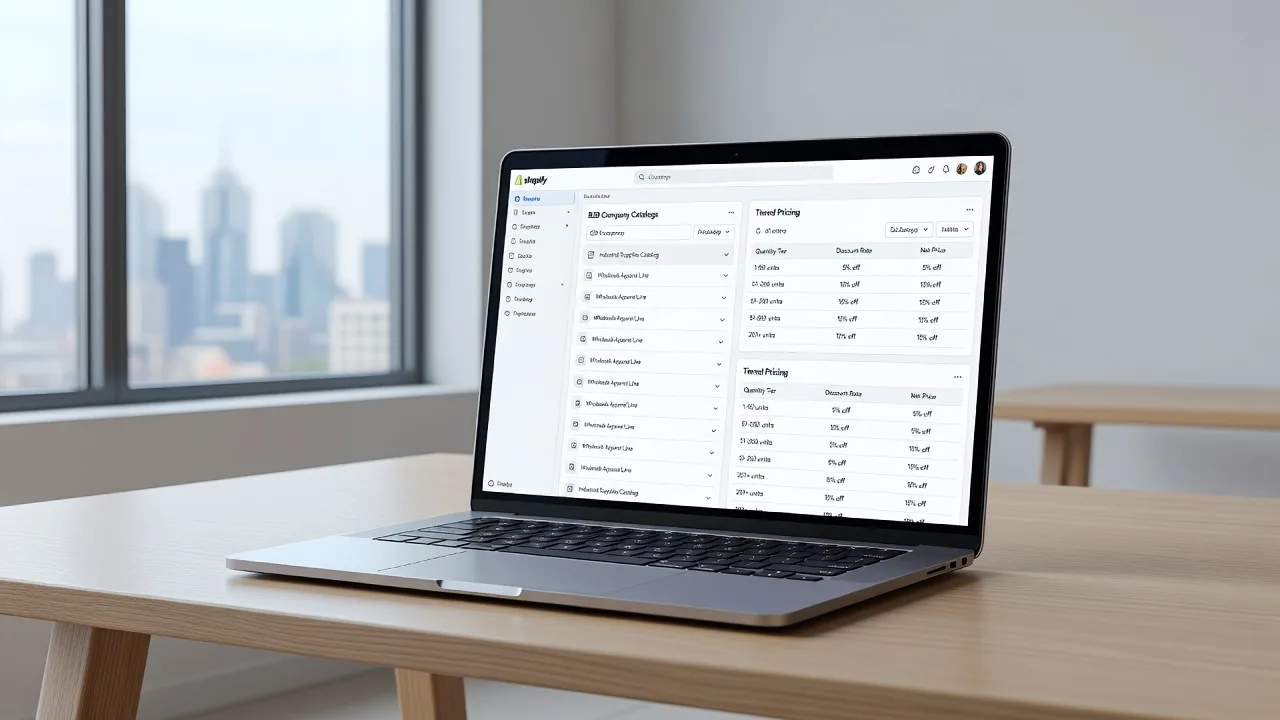
If you run wholesale or account-based selling on Shopify Plus in Melbourne and catalogs, price lists, or company logins still refuse to behave, this guide is for you. Native B2B on Plus can replace bolted-on wholesale apps—but only when channels, catalogs, quantity breaks, and company portals are wired correctly. Below is a practical walkthrough of the setup surface, three issues we see repeatedly on local B2B stores, step-by-step DIY fixes, and when it is smarter to book specialist help from Fixwebnode remote IT support in Melbourne.
This is written for sole traders, wholesalers, and small corporate sellers who already have (or are moving to) Shopify Plus and want native wholesale channels, tiered pricing, and customer company portals—not marketplace freelancing fluff.
Why native Shopify Plus B2B setup matters
Shopify Plus B2B centres on Companies, Company locations, Catalogs, Price lists, and optional quantity rules / volume pricing, exposed through a buyer experience that can include a logged-in corporate portal feel on your storefront theme. Done well, trade customers see only their assortment and net prices; retail stays clean on the same shop.
Done poorly, you get mixed retail/wholesale prices, catalogs that never attach to the right location, payment terms that never appear at checkout, or staff accounts that cannot approve drafts. Melbourne operators often juggle GST-inclusive retail alongside ex-GST trade lists, multi-location buying offices, and Net-30 terms—so small admin mistakes snowball into failed orders and angry account managers.
If your storefront work also touches specialised catalogue UX, related build patterns appear in work such as Melbourne kitchenware Shopify eCommerce design and heavier account experiences like high-performance web portals for Melbourne corporate services—but the core of this article stays on Plus-native B2B configuration.
Common issues with wholesale channels, tiered pricing, and portals
These problems are distinct: different root causes, different admin surfaces, different symptoms.
1. Wholesale catalog never reaches the buyer
Symptoms: Company users log in and still see full retail assortment or public prices. The B2B catalog exists in admin, yet the location shows “no catalog” or the wrong one. Draft orders look correct for staff but the storefront does not.
2. Tiered / volume prices ignore quantity breaks
Symptoms: Price list shows fixed SKU prices, but quantity rules or volume tiers never discount at 10 / 25 / 50 units. Cart shows the first-break price only, or tiers apply in admin previews and not on the live theme.
3. Corporate portal access breaks for multi-buyer companies
Symptoms: Primary contact can sign in; additional buyers get invited but land on retail, cannot create drafts, or bounce between locations. Payment terms and shipping addresses belong to the wrong company location. Staff cannot tell which location is active.
How to fix each issue (DIY steps)
Fix 1 — Attach catalogs and markets so wholesale actually shows
Root cause is almost always catalog ↔ company location assignment, published products, or a theme that never reads B2B context—not “Plus is broken.”
Step 1 — Confirm Plus B2B primitives
- In Shopify admin, open Customers → Companies and open the affected company.
- Verify at least one Company location exists with correct shipping/billing and tax settings for Australian GST treatment you intend.
- Under the location, note which Catalog is assigned (or that none is).
Step 2 — Build or repair the wholesale catalog
- Go to Products → Catalogs (B2B catalogs).
- Create or open the trade catalog; include only products/variants that wholesale may buy.
- Attach a Price list with net trade prices (fixed adjustments or per-variant prices).
- Publish the catalog and ensure included products are active and available to the sales channel your B2B buyers use (usually the Online Store).
Step 3 — Assign catalog to the company location
- Return to the company location and assign that catalog explicitly.
- If you use multiple locations (e.g. Melbourne warehouse vs Sydney office), assign per location—do not assume company-level inheritance covers every case.
- Add the buyer as a company contact with the right role (ordering / location admin as needed) and send/accept the invite.
Step 4 — Verify as the buyer
- Incognito-login as the contact; confirm the storefront session is in B2B context (company switcher / location if your theme exposes it).
- Open a SKU that exists only in the trade catalog and one excluded SKU—assortment should differ from a logged-out retail session.
- Check unit price against the price list, not the retail compare-at.
Step 5 — Theme check if admin is correct but storefront is wrong
- Ensure the theme uses B2B-aware price and catalog Liquid/Ajax paths (customer company context), not hard-coded retail price displays from outdated snippets.
- Disable conflicting wholesale apps that override cart pricing while you test native catalogs.
When DIY is not enough: complex multi-catalog matrices, custom theme price rendering, or ERP-fed price lists usually need a Plus-familiar specialist—book via Fixwebnode before you stack more apps on a broken assignment model.
Fix 2 — Make tiered and quantity-based pricing actually fire
Root cause is usually missing quantity rules, price lists that only store a single price, checkout scripts fighting native rules, or testing while not in the correct company location context.
Step 1 — Separate “list price” from “quantity rules”
- Open the B2B Price list linked to the catalog.
- Set the base wholesale price per variant (or percentage adjustment) first.
- Then configure quantity rules and/or quantity price breaks (minimums, increments, and tier prices) on the products/variants that need volume behaviour.
Step 2 — Define clear breaks
- Example pattern: min 1 increment 1 at price A; break at 10 for price B; break at 25 for price C—aligned to how Melbourne trade customers actually reorder.
- Avoid overlapping logic from old discount codes that also target the same B2B customers; codes can mask whether native tiers work.
- Save and re-open the variant to confirm tiers persisted.
Step 3 — Test in a true B2B cart
- Log in as the company contact attached to the catalog that owns those rules.
- Add 1 unit, note price; increase to the first break; confirm line price and line total update without a manual refresh glitch.
- Repeat at the second break; try an off-increment quantity if you set increments (cart should enforce or round per your rules).
Step 4 — Eliminate conflicts
- Temporarily disable third-party wholesale pricing, subscription, or custom discount scripts.
- Retest native tiers alone. If tiers work only with apps off, the app is intercepting cart pricing—remove or reconfigure rather than stacking another app.
- If you use Checkout Extensibility, confirm no custom UI extension rewrites line price display incorrectly (display bugs are often mistaken for pricing bugs).
Step 5 — Document the matrix
- Export or spreadsheet your SKU → base trade price → breaks so sales staff quote the same numbers buyers see online.
- Align printed price books to the Plus price list; mismatched PDFs are a common “Shopify is wrong” ticket that is really process drift.
Call a pro when tiers must sync from an external ERP/PIM every night, when mixed GST presentations differ by channel, or when a heavily customised theme still shows retail sale badges on B2B tiers—Fixwebnode can untangle native rules versus theme/app conflicts without a full replatform.
Fix 3 — Stabilise corporate customer portal access
Root cause is usually contact roles, unaccepted invites, location mismatch, or theme account templates that were built only for individual retail customers.
Step 1 — Clean company structure
- One legal buyer organisation = one Company.
- Each ordering site or bill-to = its own Company location with correct addresses and catalogs.
- Merge duplicate companies created by impatient imports; duplicates split order history and permissions.
Step 2 — Fix contacts and roles
- Under the company, list every human who must order.
- Assign roles deliberately (e.g. location admin vs ordering only); avoid giving every user full admin “just in case.”
- Resend invites; buyers must complete invite acceptance on the storefront identity you expect (same email domain policies help).
Step 3 — Location selection discipline
- When a contact belongs to multiple locations, train them to select the correct location before building the cart.
- If your theme lacks a clear location switcher, that is a theme gap—not something staff can fix with another catalog.
- Place a test order per location and confirm ship-to, tax, catalog, and payment terms match that location.
Step 4 — Payment terms and checkout permissions
- Set payment terms on the company/location as intended (e.g. Net terms vs credit card due on receipt).
- Confirm the contact’s permissions allow checkout with those terms.
- Walk a test buyer through draft order vs self-serve checkout paths you actually want them using.
Step 5 — Account area UX
- Review account and order history templates while logged in as a company contact.
- Replace retail-only messaging (“Your profile”) with copy that acknowledges company, location, and trade order status where the theme allows.
- Remove legacy wholesale login apps if you have fully moved to native companies—dual login paths confuse buyers and support staff.
Book help when you need SSO-style corporate access patterns, deep portal UX, or automated company provisioning from your CRM. Native Plus covers a lot; it does not automatically become a full intranet procurement portal without deliberate theme and process design.
When DIY is enough vs when to book Fixwebnode
DIY is enough when you have Plus admin access, a small set of companies, one or two catalogs, straightforward quantity breaks, and a theme that already surfaces B2B prices. Work through the three fixes above, document your price matrix, and run a pilot with one friendly trade account before rolling out to every Melbourne buyer.
Book Fixwebnode when any of the following are true: catalogs assign correctly in admin but the live theme lies; multiple apps still fight native price lists; you need governed multi-location portals for larger corporates; you are migrating off legacy wholesale apps mid-peak season; or internal staff have already “fixed” pricing three times and margins still look wrong.
Geography is simple: support is oriented to operators across the City of Melbourne service area and other listed regions on the full service areas hub. Conversations stay on your Plus B2B configuration—not generic marketplace bidding.
Talk through your Plus B2B setup
Wholesale channels, tiered price lists, and corporate buyer access only pay off when catalog assignment, quantity rules, and company permissions agree with what the storefront renders. Use the DIY checks above to isolate whether you have a data problem, a permissions problem, or a theme/app conflict.
If you want a specialist to review your Companies, catalogs, and portal path with you, start a conversation with Fixwebnode via the Melbourne remote IT support landing page. Bring a sample company login, one problem SKU, and your intended tier breaks—you will get further in one focused session than in another week of blind admin toggles.