Multi-Vendor & Complex SaaS Marketplaces
 Modern Headless & Jamstack Web Development
 High-End Corporate & Specialized Business Websites
 Advanced API, Checkout & Database Troubleshooting
Shopify App Bloat: Clean Unused Liquid Scripts (Noosa)
App leftovers slow Shopify stores. Learn how to find orphaned Liquid includes, strip unused script tags, and verify faster pages—plus when Fixwebnode should handle the cleanup remotely.
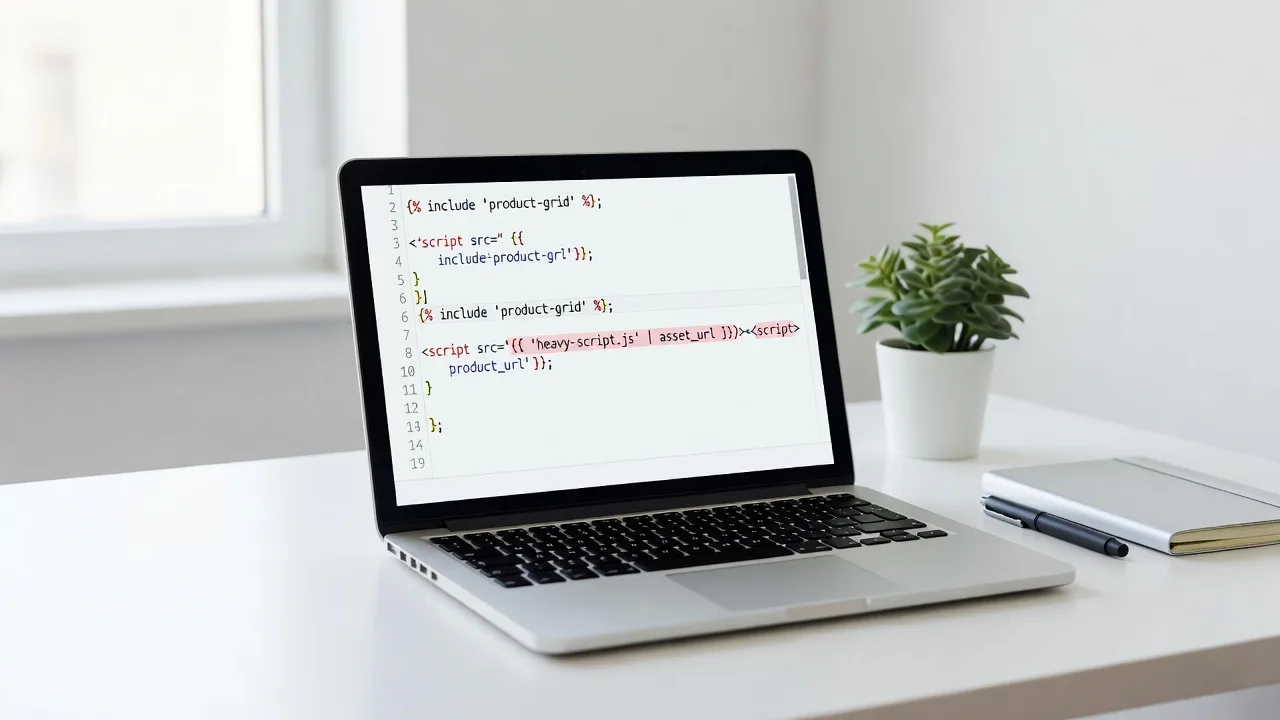
If your Noosa brand’s Shopify store feels heavier after every app install—even ones you removed—this guide shows how to clean unused Liquid scripts and app bloat without guessing.
Orphaned {% render %} calls, leftover <script> tags in theme.liquid, and third-party pixels that never got uninstalled quietly inflate Time to Interactive and Core Web Vitals. Fixwebnode provides direct Shopify support for this exact problem: remote app-script cleanup so your theme only loads what you still use. Start with the DIY checks below, or book a focused pass via the Shopify Developer landing page when the theme is too tangled to edit safely.
Why Shopify app script cleanup matters for store speed
Shopify apps often inject Liquid snippets, App Embed blocks, and script tags into the theme. Uninstalling the app from Admin does not always remove every include. For brands selling online from Noosa and shipping Australia-wide, that leftover JavaScript still downloads on mobile shoppers on variable coastal connections. The result is slower product pages, delayed add-to-cart, and harder-to-maintain theme code.
Cleanup is not “delete random lines.” It is inventory what loads, map each asset to a live app or feature, remove only dead references, then re-test checkout and key templates. That is the workflow Fixwebnode uses on remote Shopify speed engagements—and the same sequence you can follow carefully on a duplicate theme.
What causes unused Liquid scripts to keep loading on Shopify?
Unused Liquid and app scripts keep loading when the app was removed from Admin but theme files, App Embeds, or manual script tags still reference it. Shopify does not always purge every injection on uninstall. Duplicate the live theme, search for the old app’s keywords in Liquid and JSON templates, disable leftover App Embeds, remove orphan includes, then verify with the theme editor preview and a fresh page load before you publish.
| Symptom | Quick fix | When to call Fixwebnode |
|---|---|---|
| Scripts still fire after app uninstall | Disable App Embeds; search theme for app name | Many unknown includes across sections |
| Product page LCP / TTI worse after “cleanup” | Restore backup theme; remove one change at a time | Checkout or cart breaks after edits |
| Duplicate analytics or chat widgets | Keep one vendor; strip second script tags | Conflicting pixels hard to attribute |
Common Shopify app-bloat issues (with symptoms)
These problems show up repeatedly on stores that cycle through marketing, reviews, upsell, and chat apps. Each has a different root cause—treat them separately.
1. Orphaned script tags after app uninstall
Symptoms: Browser Network tab still requests domains for an app you removed; console shows 404s or timeouts to old CDNs; Theme Editor “App embeds” list is empty for that app but theme.liquid still has hard-coded <script src=...> lines.
2. Dead Liquid snippets and section renders
Symptoms: {% section 'app-whatever' %} or {% render 'app-snippet' %} remains in layout or templates; theme check or editor reports missing snippet; HTML source contains empty wrappers or comment markers left by the app.
3. Duplicate third-party libraries on every template
Symptoms: jQuery, Swiper, or tracking libraries load twice; Performance waterfall shows parallel same-name files; mobile CPU time spikes on collection and product templates even with few visible apps.
4. App Embed / block still enabled with no storefront UI
Symptoms: Online Store → Themes → Customize → App embeds shows toggles on for tools you no longer use; scripts inject in <head> with no matching on-page widget; “unused JavaScript” in Lighthouse points at those vendors.
How to fix each issue (DIY, remote-safe steps)
Work only on a duplicate theme. Never edit the published theme first. You need Admin access, theme code edit permission, and a browser with DevTools. Shopify CLI is optional but useful for local search.
Fix 1 — Remove orphaned script tags left after uninstall
Goal: stop network calls to dead app hosts without breaking live features.
Step 1 — Inventory what the live page still loads
Open a product URL in an incognito window, open DevTools → Network, reload, and filter by JS. Note third-party hosts that do not match Shopify, Google Fonts you intentionally use, or your own CDN.
# Optional: fetch homepage HTML and list external script src values
curl -sL "https://YOUR-STORE.myshopify.com" | grep -oE 'src="https?://[^"]+"' | sort -u
Compare that list to Apps in Admin. Anything that belongs to a removed app is a cleanup candidate.
Step 2 — Duplicate the theme
Online Store → Themes → … on the live theme → Duplicate. Rename it clearly (for example, cleanup-app-scripts-YYYYMMDD). All edits happen here.
Step 3 — Search theme code for the app name and host
In Admin: Themes → … → Edit code. Use the theme search box for the app’s name, vendor domain, and distinctive snippet names (for example smile-, gorgias, privy, loox). Also open layout/theme.liquid and check above </head> and before </body>.
# If you use Shopify CLI with a pulled theme
shopify theme pull --store YOUR-STORE.myshopify.com --path ./theme-cleanup
cd ./theme-cleanup
grep -RniE 'old-app-name|cdn\.oldvendor\.com|app-snippet-prefix' --include='*.liquid' --include='*.json' .
Step 4 — Delete only confirmed dead tags
Remove hard-coded <script>, <link rel="preload">, and inline bootstraps that reference the retired app. Do not remove Shopify’s own content_for_header output—that is how legitimate App Embeds inject. If the only reference is inside a comment block left by an app, delete the whole dead block.
Step 5 — Verify
Preview the duplicate theme on a product, collection, cart, and checkout entry page. In Network, confirm the old host is gone. Add to cart once. If anything breaks, revert that file from the theme’s older copy.
When to call Fixwebnode: scripts are minified inline inside large Liquid files you did not author, or removal breaks a live upsell you still need mapped to a different app.
Fix 2 — Clean dead Liquid snippets and section renders
Goal: stop the theme from calling files that no longer exist or that render empty markup.
Step 1 — Find broken renders
# From a pulled theme directory
grep -RniE '\{%\s*(render|section|include)\s' --include='*.liquid' . | head -n 200
# List snippet filenames you actually have
find ./snippets -type f -name '*.liquid' | sort
Cross-check every render / section name against files under snippets/ and sections/.
Step 2 — Inspect JSON templates for leftover app blocks
Open templates/*.json and sections/* group JSON. Search for block types that start with shopify://apps/ or vendor-specific type strings for apps you uninstalled.
grep -Rni 'shopify://apps/' --include='*.json' .Step 3 — Remove or replace safely
- If the snippet file is missing and the feature is gone, delete the
{% render %}/{% section %}call. - If the snippet exists but only outputs app markup you no longer use, remove the call first; delete the snippet file only after preview proves nothing else references it.
- For JSON templates, remove the unused block object and re-save so the theme editor stays valid.
Step 4 — Run a sanity pass
# Optional local check if theme-check is installed
theme-check .
# Or Shopify CLI
shopify theme check
Fix reported missing assets before publish. Preview homepage, product, collection, blog, and cart.
When to call Fixwebnode: multiple templates share nested sections and you are unsure which block still drives a live campaign banner or reviews row.
Fix 3 — Eliminate duplicate third-party libraries
Goal: one copy of each library, loaded only where needed.
Step 1 — Detect duplicates in the waterfall
In DevTools Network, sort by name. Note two jQuery builds, two slider libraries, or the same analytics JS with different query strings. View page source and search for the library filename.
Step 2 — Decide the single source of truth
Prefer the version bundled by your active theme or the one app you still pay for. Document which feature needs it (for example, only product gallery).
Step 3 — Scope scripts to templates
Move non-global scripts out of layout/theme.liquid into the section that needs them, or wrap with Liquid so they load only on required templates:
{% if template.name == 'product' %}
 {{ 'vendor-gallery.js' | asset_url | script_tag }}
{% endif %}
Remove the second hard-coded include from the layout once the section-level load works in preview.
Step 4 — Verify no double initialization
Console should not show “already defined” or double tracker page-views. Network should show a single 200 for that file per page view (not counting prefetch).
When to call Fixwebnode: two live apps both require incompatible library versions and storefront features conflict.
Fix 4 — Turn off leftover App Embeds and unused app blocks
Goal: stop automatic injection through content_for_header for tools you abandoned.
Step 1 — Review App embeds in the theme editor
Customize the duplicate theme → App embeds. Disable every embed tied to churned tools (old chat, popup, loyalty, or pixel helpers).
Step 2 — Remove storefront app blocks from sections
In the same editor, open header, footer, product main, and cart sections. Delete app blocks that show as invalid or that belong to uninstalled apps.
Step 3 — Confirm Admin apps list
Settings → Apps and sales channels: uninstall truly unused apps so they cannot re-inject on next theme touch. Keep only apps you can name a business reason for.
Step 4 — Re-measure
# Rough remote timing sample (look at total time and size)
curl -sL -o /dev/null -w 'http_code=%{http_code} time_total=%{time_total} size_download=%{size_download}\n' \
 "https://YOUR-STORE.myshopify.com/products/YOUR-HANDLE"
Compare before/after on the preview theme URL where possible, and re-check Network for vanished third-party hosts.
When to call Fixwebnode: embeds reappear after publish, or marketing needs a controlled re-install plan so pixels are not double-counted.
When DIY is enough vs when to book Fixwebnode
DIY is enough when you can name each third-party host, the theme is close to stock or well documented, you have a recent duplicate theme, and checkout still works after small, reversible edits. Stick to one change set at a time and keep the old theme unpublished as a rollback.
Book Fixwebnode when several apps were stacked for years, Liquid is heavily customized, staff are afraid to touch theme.liquid, cart or customer accounts misbehave after a partial cleanup, or you need a coordinated remote pass: inventory → safe removals → Core Web Vitals spot-check → publish plan. Support is direct specialist work—not a freelance marketplace—and is delivered remotely for Shopify stores, including brands operating around Noosa, QLD, and other areas listed on our All service areas page.
Skip DIY surgery on the live theme during peak campaigns. A bad script removal that breaks add-to-cart costs more than a scheduled cleanup window.
Book a remote Shopify app-script cleanup
If your storefront still loads scripts from apps you already cancelled, or Liquid renders you cannot map to a live feature, talk through the backlog with Fixwebnode. We focus on Shopify speed through app script cleanup: orphan tags, dead snippets, duplicate libraries, and leftover embeds—handled on a duplicate theme with verification before publish.
Start the conversation on the Shopify Developer page and outline which apps you removed and what still feels slow. Bring Admin access and a short list of must-keep tools (reviews, subscriptions, support chat). From there we can agree a remote cleanup sequence that keeps Noosa-based catalogues fast for real customers—not bloated by abandoned Liquid.