Multi-Vendor & Complex SaaS Marketplaces
 Modern Headless & Jamstack Web Development
 High-End Corporate & Specialized Business Websites
 Advanced API, Checkout & Database Troubleshooting
How Google’s INP Update Is Silently Tanking Your Store SEO
Google’s Interaction to Next Paint (INP) update is quietly cutting Australian store visibility. Learn the common lag symptoms, DIY checks on your own devices, and when to book Fixwebnode for on-site help.
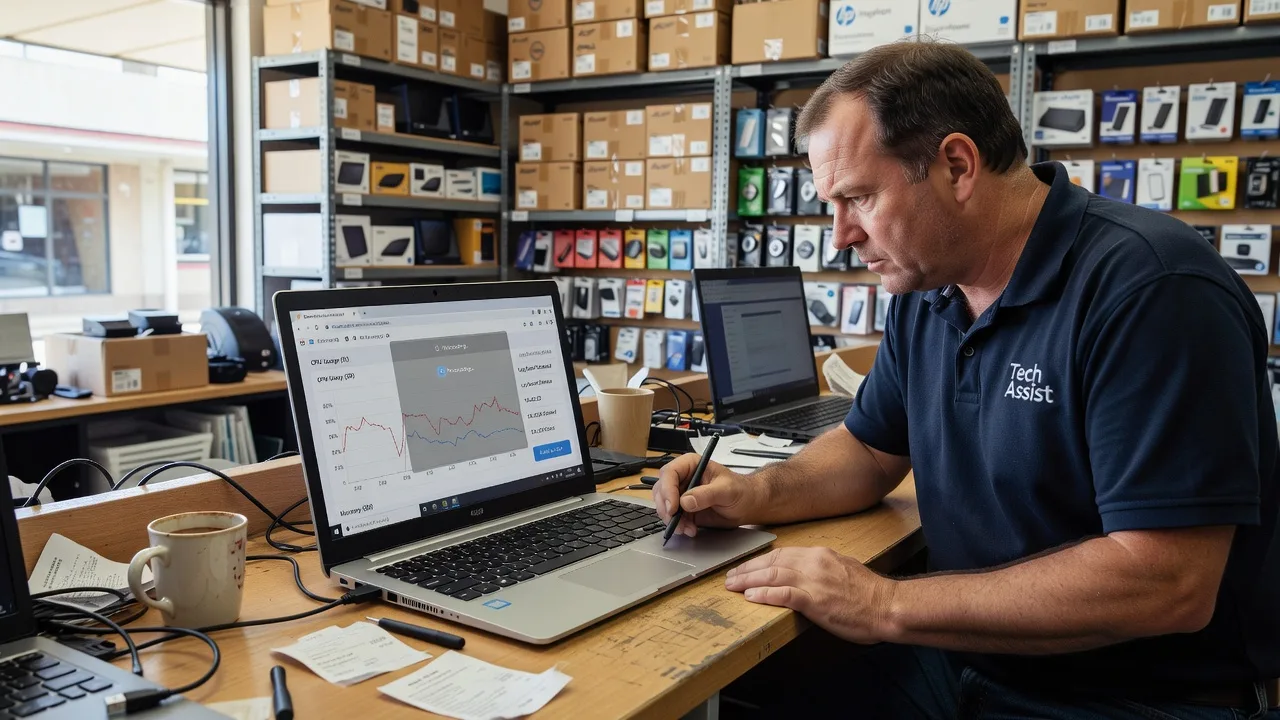
If your Australian online store still ranks on paper but enquiries and sales feel thinner, Google’s Interaction to Next Paint (INP) update may be the quiet culprit. INP measures how fast your site responds after a tap, click, or key press. When product filters, add-to-cart buttons, or checkout fields feel sticky, search can deprioritise those pages—even if Largest Contentful Paint still looks fine.
This guide stays on that problem: how INP is tanking SEO store traffic, what unique issues we see on real shop sites, and practical DIY steps you can run on a laptop or store tablet before you book hands-on help. Fixwebnode works directly with individuals, sole traders, and local operators across Australia on website repair and Core Web Vitals fixes—not as a freelance marketplace—so you get a straight path from diagnosis to a smoother storefront.
Can a slow store laptop or tablet make my Google INP score worse in Australia?
Yes. INP is measured from real user interactions. An ageing counter tablet, a cracked touchscreen that mis-registers taps, a swollen battery causing thermal throttling, or a browser packed with extensions can all stretch the delay between input and the next paint. Fix the device and the heaviest page scripts together; otherwise lab scores and Search Console field data will keep disagreeing.
| Symptom | Quick check | When to call Fixwebnode |
|---|---|---|
| Tap on Add to cart feels dead for a second | Test the same page on a second device and in a clean browser profile | Lag remains on a healthy device or only on key money pages |
| Filters and menus stutter only on the shop floor tablet | Inspect screen, charge health, storage free space, and browser version | Hardware is failing or you need on-site script and theme repair |
| Search Console shows poor INP on mobile | Note which URLs and device classes are failing | You need a structured fix across theme, apps, and tracking tags |
Why this Google INP update matters for store traffic
INP replaced First Input Delay as a Core Web Vital. Google cares about the full interaction lifecycle: input delay, processing time, and presentation delay until the next frame paints. For ecommerce, the worst hits usually sit on category filters, variant pickers, sticky headers, cart drawers, and checkout fields—exactly where shoppers decide to stay or leave.
Australian retailers often run the same stack of chat widgets, ads pixels, reviews apps, and heavy themes. On mobile networks and mid-range phones common in local traffic, those extras stack up. Ranking does not always collapse overnight; traffic erodes as competitors with snappier interactions win more of the same queries. If you manage the site from a back-office PC or a POS-adjacent tablet, you may never feel the lag your customers report.
Fixwebnode’s website repair work for this topic focuses on finding which interaction is slow, what script or layout thrash causes it, and whether your local hardware is masking or magnifying the problem. Service coverage is listed for Australia; wider coverage is summarised on the all service areas hub.
Common INP issues quietly hurting Australian store SEO
These problems are distinct. Each has different symptoms and a different first fix.
1. Third-party tags hijacking the main thread on product and cart pages
Symptom: The page looks loaded, but the first tap on colour swatches, quantity steppers, or “Add to cart” freezes the UI. Chat bubbles, heatmaps, upsell popups, and multiple marketing pixels often compete for the same main thread right when the shopper interacts.
2. Product galleries and filter UIs forcing layout thrash
Symptom: Opening a size guide, switching image thumbnails, or applying two filters makes the page jump and repaint late. Oversized images, unlazy-loaded carousels, and filter scripts that rewrite large DOM trees drive long presentation delays—bad INP even when the network is fine.
3. Theme and app JavaScript bloat on checkout and account forms
Symptom: Typing into email, address, or discount fields feels sticky; autofill stutters; the “Place order” button ignores the first tap. Unused app scripts loaded site-wide keep running listeners on every keypress.
4. Store-floor hardware making field data look worse than lab tests
Symptom: PageSpeed on your home office laptop is “OK”, but Search Console mobile INP fails. A scratched digitiser, low storage, outdated WebView/browser, or thermal throttling on the device staff use for demos can contribute poor real-user samples if customers use similar mid-tier phones.
How to fix each INP issue (DIY first)
Fix 1 — Rein in third-party tags on money pages
Goal: stop non-essential scripts from owning the main thread during cart and product interactions.
- Step 1 — Capture the slow interaction. On the device you use for store admin, open the product or cart URL in Chrome. Use a clean profile with extensions disabled so you are not measuring your password manager.
- Step 2 — Record Performance. Open DevTools → Performance. Start recording, click Add to cart or a variant control once, wait for the UI to settle, stop recording. Note long tasks (often shown as solid red/grey bars) aligned with that click.
- Step 3 — Audit scripts on that page only. In DevTools → Network, filter by JS. Reload, then trigger the same interaction. List third-party hosts (chat, reviews, ads, loyalty). Write down anything that is not required to complete the purchase.
- Step 4 — Disable non-essentials safely. In your theme/app settings or tag manager, turn off chat, popups, and secondary pixels on cart and checkout templates first. Keep payment and fraud tools. Publish to a staging theme if you have one.
- Step 5 — Re-test the same tap. Repeat the Performance recording. You want a shorter delay from input to the next visible change (button state, drawer open, price update).
- Step 6 — Confirm in Search Console later. Field INP moves over days or weeks. Note the URL group you changed so you can judge impact.
When to call Fixwebnode: if you cannot tell which tag owns the long task, if the tag manager is locked by an agency login you do not control, or if removing one pixel breaks analytics you still need structured. Book a specialist session rather than guessing live on a trading store.
Fix 2 — Calm galleries, filters, and layout thrash
Goal: reduce work the browser must do between the tap and the next paint.
- Step 1 — Inspect the interaction visually. On mobile width (DevTools device toolbar is fine for a first pass), tap thumbnails, open filters, expand accordions. Watch for whole-page jumps, sticky headers fighting the scroll, or images popping size after load.
- Step 2 — Check image weight on the product template. In Network → Img, sort by size. Product zooms and hidden gallery slides often load multi‑megabyte files. Replace with properly sized derivatives and modern formats your platform already supports. Always keep originals backed up before bulk compress.
- Step 3 — Turn off decorative motion on shop templates. Disable auto-rotating carousels, parallax headers, and “attention” animations on category and product templates. Motion that runs during input competes with painting the response.
- Step 4 — Simplify filter behaviour. If your theme offers “apply filters instantly via AJAX”, test the alternative of a single Apply button. Fewer mid-tap DOM rewrites usually improve INP on large catalogues.
- Step 5 — Reserve space for UI chrome. Give the cart drawer, sticky add-to-cart bar, and image frame stable dimensions in the theme settings or custom CSS so the tap does not trigger a layout reshuffle.
- Step 6 — Re-measure on a phone you own. Lab tools help, but a real mid-range Android handset on Wi‑Fi is closer to Australian mobile field data than a desktop-only test.
When to call Fixwebnode: when the gallery is baked into a page builder section you cannot edit cleanly, or filter apps are closed-source and still thrash the DOM after settings tweaks. That is normal specialist territory for theme-level repair.
Fix 3 — Cut theme and app bloat on forms and checkout
Goal: make typing and the final purchase tap feel immediate.
- Step 1 — Inventory apps and theme features. List every app that injects scripts site-wide (upsell, reviews, wishlists, launch popups). Mark which ones are required on checkout versus only on blog or home.
- Step 2 — Restrict script scope. Most platforms let you limit an app to certain templates. Keep checkout and account pages minimal: payments, shipping calculators, essential validation only.
- Step 3 — Test keypress cost. In DevTools Performance, type six characters into the email field while recording. Long tasks on each keypress mean listeners or validation libraries are too heavy.
- Step 4 — Reduce competing UI on the payment step. Hide non-purchase sidebars, exit-intent modals, and live-chat auto-pop on checkout. One focused paint path beats a “helpful” stack of overlays.
- Step 5 — Update the theme and critical apps. Outdated themes often ship older JavaScript patterns. Update on staging first; place a full backup and a note of app versions before you touch production.
- Step 6 — Verify the Place order path. Use a real test order flow in a clean browser. The button should acknowledge the first tap quickly even if the payment provider still needs a moment to confirm.
When to call Fixwebnode: if checkout is customised beyond standard theme settings, if a required app cannot be scoped, or if you are mid-sale and cannot risk DIY deploys. Direct repair is safer than stacking more apps to “fix” lag.
Fix 4 — Inspect local hardware that skews how you test (and sometimes what Google sees)
Goal: separate a broken device from a broken page—especially for local / on-site store setups in Australia.
- Step 1 — Physical inspection. Look for a cracked or bubbling screen, unresponsive touch zones, a chassis that is unusually hot at idle, or a battery that swells the case. Stop using a swollen-battery device; power down and book hardware service.
- Step 2 — Storage and browser health. Free substantial storage, update the browser or WebView, and remove unused extensions. Full disks and ancient browsers inflate interaction delay.
- Step 3 — A/B the same URL on two devices. If INP-like lag only exists on the shop tablet, prioritise device repair or replacement for staff tools. If lag follows the URL onto a healthy phone, prioritise the website.
- Step 4 — Prepare for an on-site or drop-off visit. Bring the primary laptop or tablet you use to manage the store, charger, and admin login ownership. Back up exports (products, theme files, or a full store backup your platform provides) before any hands-on work. Note the exact URLs that feel worst.
- Step 5 — Expect a dual check. A proper local visit should confirm whether the bottleneck is device, network on the premises, or page scripts—then fix the website side without turning your counter into a science experiment during peak hours.
When to call Fixwebnode: when staff hardware is failing and your live theme still needs INP repair, or when you want one specialist to coordinate device checks with storefront script cleanup. Soft scheduling only—early bookings are often easier to place same day in many areas, without guarantees.
When DIY is enough vs when to book Fixwebnode
DIY is enough when you can name the slow control, disable a non-essential app on cart/checkout, compress obvious gallery giants, and re-test on a healthy phone with a clean browser. Give Search Console time to reflect field INP after meaningful template changes.
Book Fixwebnode when long tasks point at minified third-party bundles you cannot edit, when page-builder sections break as soon as you touch them, when checkout customisations are fragile, or when store hardware and site scripts are both suspect. We are a direct specialist provider for website repair—not a board where you post jobs or collect bids.
For individuals, sole traders, and local operators who need this INP work handled end to end, start via the landing page: https://fixwebnode.com.au/website-repair-australia. Geography and availability are outlined under Australia service areas.
Talk through your store’s INP problem
Google’s INP update does not announce itself with a dramatic penalty notice. It shows up as sluggish taps on the pages that should convert, softer mobile visibility, and a growing gap between “the site looks fine to me” and what shoppers feel. You now have four distinct issue patterns, numbered DIY paths, and clear lines for when a specialist should take over.
If you want a practical conversation about fixing Interaction to Next Paint on your storefront—including on-site or drop-off checks of the devices you actually run the business from—reach out through Fixwebnode website repair in Australia. Bring your worst URLs, a recent backup, and the laptop or tablet you use daily; we will focus on the interactions that are silently costing you traffic.