Multi-Vendor & Complex SaaS Marketplaces
 Modern Headless & Jamstack Web Development
 High-End Corporate & Specialized Business Websites
 Advanced API, Checkout & Database Troubleshooting
Fix WordPress White Screen of Death Without Losing Data
Blank WordPress admin or front end? Learn the real causes of the White Screen of Death, safe DIY recovery steps that protect your database and media, and when to book Fixwebnode WordPress support.
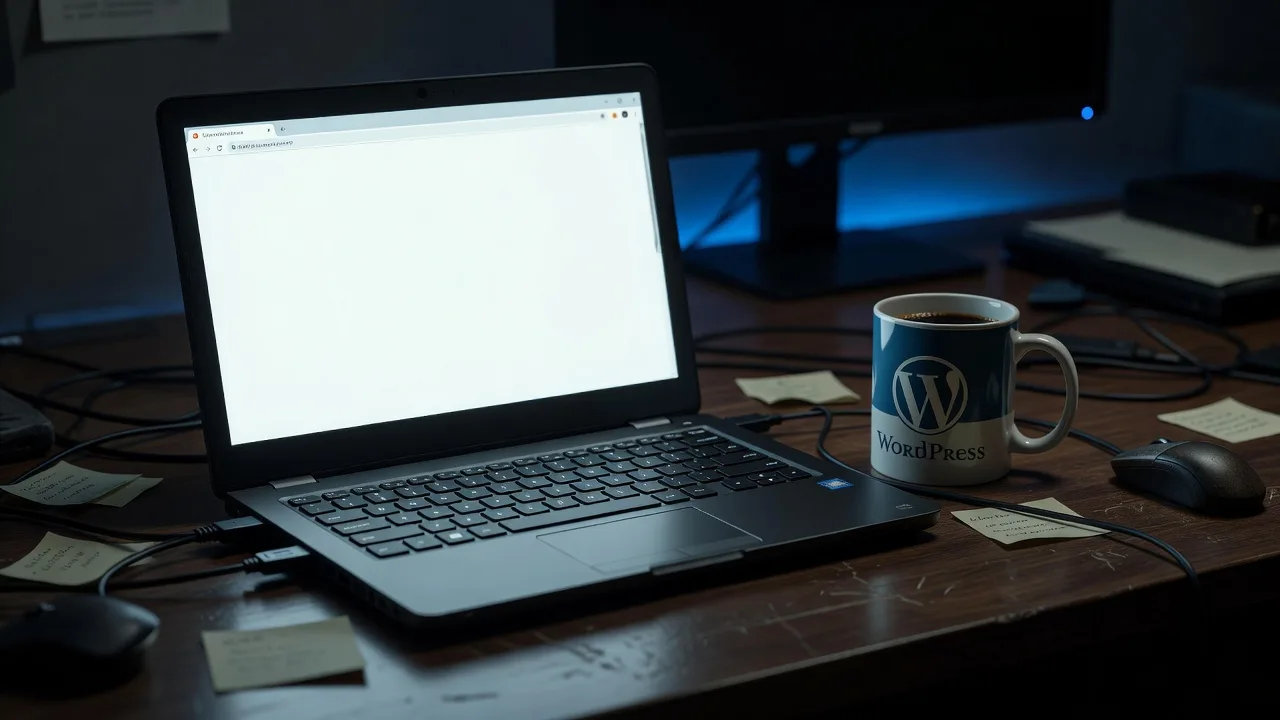
If your WordPress site suddenly shows a blank white page—no error message, no login form, nothing—you are dealing with the White Screen of Death (WSOD). This guide walks homeowners and small-business owners through safe, data-preserving fixes you can run yourself, plus clear signals that it is time to book specialist help.
A white screen almost always means PHP fatally crashed before WordPress could render HTML. The good news: your posts, pages, media, and database are usually still on the server. Rushing into random plugin deletes or full reinstalls is how people lose content. Work methodically, enable logging first, and keep backups before every change. If you need hands-on recovery, Fixwebnode WordPress Support handles WSOD cases without wiping live data. Fixwebnode works across service areas listed on the all service areas page, including Melbourne suburbs such as Footscray and Toorak.
Why the White Screen of Death matters—and how to protect your data
WSOD is not a single bug. It is a symptom of exhausted memory, a broken plugin or theme, a bad wp-config.php or .htaccess rule, corrupted core files, or a database that WordPress cannot reach. Visitors see nothing; search engines may drop rankings if the outage lasts; checkout and lead forms stop cold. Your priority order should always be: (1) snapshot or export what you can, (2) turn on error visibility, (3) isolate the faulty component, (4) restore only what broke—not the whole site from an old backup unless you must.
Before any DIY step below, download a full backup of wp-content (especially uploads) and export the database if phpMyAdmin or your host panel still works. Prefer host snapshots or off-site copies such as those covered under WordPress Automated Backups & AWS/DigitalOcean Migration Footscray so you never “fix” a white screen by overwriting good content.
Common White Screen issues (unique symptoms)
These are distinct failure modes small sites hit most often. Match your symptoms before jumping to fixes.
- Plugin collision after an update — Front end and/or
/wp-admingo fully blank right after updating or installing a plugin; sometimes only admin dies while the public site still loads. - PHP memory exhaustion or heavy theme code — White screen on large pages, product archives, or the Customizer; host logs show
Allowed memory size of … exhaustedor timeouts; lighter pages may still work. - Broken
.htaccessor fatal rewrite rules — Entire site blank or 500-class behaviour after saving permalinks, installing security rules, or editing redirects; static files in/wp-content/uploadsmay still open directly. - Corrupted core file or bad drop-in — WSOD after a partial update, failed copy, or malware cleanup; enabling
WP_DEBUGpoints at missing functions inwp-includesor a brokenobject-cache.php/advanced-cache.php. - Database connection or crashed tables — Intermittent or total white screen with
Error establishing a database connectionwhen debug is on; site worked until host maintenance, disk full, or a plugin ran heavy ALTER queries.
Preparation: enable logging without exposing secrets publicly
Guessing wastes time. Make PHP tell you the fatal error while keeping display off for visitors if the site partially loads.
Step 1 — Back up first
From SSH in the WordPress root (adjust user and path for your host):
cd ~/public_html
tar -czf ~/wp-content-backup-$(date +%F).tar.gz wp-content
wp db export ~/db-backup-$(date +%F).sql --add-drop-table
If WP-CLI is unavailable, use your host’s file manager to zip wp-content and phpMyAdmin to export the database. Do not skip this.
Step 2 — Turn on debug logging in wp-config.php
Above the line /* That's all, stop editing! */ add or set:
define('WP_DEBUG', true);
define('WP_DEBUG_LOG', true);
define('WP_DEBUG_DISPLAY', false);
@ini_set('display_errors', 0);
Reproduce the white screen once, then inspect wp-content/debug.log. That path names the plugin, theme file, or core function that fatals. Set WP_DEBUG back to false when you finish so logs and paths are not left noisy on production.
Step 3 — Raise memory temporarily (safe ceiling)
Still in wp-config.php:
define('WP_MEMORY_LIMIT', '256M');
define('WP_MAX_MEMORY_LIMIT', '256M');
Also confirm PHP’s limit in the panel or via:
php -i | grep memory_limitIf the host caps you at 128M and logs still show exhaustion, you need a code fix or plan upgrade—not endless limit bumps.
How to fix plugin collision after an update
When admin or the whole site blanks immediately after a plugin change, isolate plugins without deleting their options from the database (so you do not lose settings).
Step 1 — Rename the plugins directory via SFTP or SSH
cd ~/public_html/wp-content
mv plugins plugins-disabled
mkdir plugins
Reload the site. If it returns, a plugin was the cause. WordPress will act as if no plugins are active; data in the database remains intact.
Step 2 — Re-enable plugins one folder at a time
mv plugins-disabled/some-plugin plugins/
# refresh site after each move
When the white screen returns, that plugin (or its latest update) is guilty. Leave it out of plugins, restore the rest:
mv plugins-disabled/* plugins/
rmdir plugins-disabled
Step 3 — Recover admin if only /wp-admin is white
Use WP-CLI to deactivate without the UI:
wp plugin list
wp plugin deactivate --all
wp plugin activate hello
Then activate critical plugins individually. Prefer updating or replacing the broken plugin from a known-good zip rather than editing its PHP on production.
When to call Fixwebnode: if deactivating plugins does not restore the site, if the faulty plugin is required for checkout or memberships, or if debug.log shows malware-like obfuscated code inside plugin files—stop DIY and book WordPress Support.
How to fix memory exhaustion and theme fatals
Symptoms: white screen on heavy templates; log lines naming theme files or Allowed memory size.
Step 1 — Switch to a default theme without using admin
cd ~/public_html/wp-content/themes
wp theme list
wp theme activate twentytwentyfour
Or rename the active theme folder so WordPress falls back:
mv my-theme my-theme-broken
# ensure twentytwentyfour (or another complete default) exists
Step 2 — Confirm memory and opcode issues
wp eval 'echo WP_MEMORY_LIMIT, "\n";'
tail -n 100 wp-content/debug.log
If only the custom theme fatals, restore it from a clean copy of the same version; do not copy over uploads. Remove abandoned page builders’ orphan shortcodes only after a content backup.
Step 3 — Strip must-use and drop-in overload
Check wp-content/mu-plugins, object-cache.php, and advanced-cache.php. Temporarily move drop-ins:
cd ~/public_html/wp-content
[ -f object-cache.php ] && mv object-cache.php object-cache.php.off
[ -f advanced-cache.php ] && mv advanced-cache.php advanced-cache.php.off
Clear any host full-page cache from the panel, then retest. Re-enable drop-ins only after Redis/Memcached credentials and plugin versions match.
When to call Fixwebnode: theme is commercial, heavily customized, or tied to a page builder with serialized layout data you cannot risk breaking. Specialists can patch the fatal path without a full redesign.
How to fix broken .htaccess and rewrite rules
Typical after permalink saves or manual security hardening. Static URLs might work while pretty permalinks white-screen or loop.
Step 1 — Move the current rules aside
cd ~/public_html
mv .htaccess .htaccess.broken.$(date +%F)
Reload the homepage. If the site returns (often with plain ?p=123 links), the rules file was the problem.
Step 2 — Drop in default WordPress rules
cat > .htaccess <<'EOF'
# BEGIN WordPress
<IfModule mod_rewrite.c>
RewriteEngine On
RewriteRule .* - [E=HTTP_AUTHORIZATION:%{HTTP:Authorization}]
RewriteBase /
RewriteRule ^index\.php$ - [L]
RewriteCond %{REQUEST_FILENAME} !-f
RewriteCond %{REQUEST_FILENAME} !-d
RewriteRule . /index.php [L]
</IfModule>
# END WordPress
EOF
Then flush permalinks when admin is reachable: Settings → Permalinks → Save, or:
wp rewrite flush --hardStep 3 — Re-apply custom rules carefully
Copy security or redirect blocks back from .htaccess.broken.* one section at a time. Avoid blanket php_value directives on hosts that run PHP-FPM (they can white-screen the whole vhost).
When to call Fixwebnode: you are on Nginx (no .htaccess), behind a reverse proxy, or custom redirects are business-critical and intertwined with caching layers.
How to fix corrupted core files or bad drop-ins
Partial updates and botched manual uploads leave missing classes and instant fatals.
Step 1 — Verify checksums with WP-CLI
wp core verify-checksumsAny modified or missing core file will list. Do not “repair” by deleting wp-content.
Step 2 — Reinstall core only (content stays)
wp core download --force --skip-content
wp core update-db
This replaces wp-admin and wp-includes and root core PHP files without touching themes, plugins, or uploads. Keep your existing wp-config.php.
Step 3 — Remove unexpected root PHP
ls -la ~/public_html/*.php
# expect mainly index.php, wp-config.php, wp-login.php, xmlrpc.php, etc.
Unknown wp-*.php drop-ins in the root or wp-content deserve quarantine, not blind execution. If checksums fail repeatedly after a clean download, treat it as a compromise and escalate.
When to call Fixwebnode: checksums fail across many files, you find webshells, or WSOD started after a defacement. Data-safe malware cleanup is specialist work—not a generic reinstall.
How to fix database connection and crashed tables
When debug shows database errors, protect data first; do not run random “repair” plugins that rewrite schema without a dump.
Step 1 — Confirm credentials match the live database
In wp-config.php, verify DB_NAME, DB_USER, DB_PASSWORD, and DB_HOST. Test from SSH:
wp db check
mysql -u DB_USER -p -h DB_HOST DB_NAME -e 'SHOW TABLES;'
Wrong password after a host migration is a common silent WSOD trigger once PHP errors are hidden.
Step 2 — Export, then repair only damaged tables
wp db export ~/pre-repair-$(date +%F).sql
wp db repair
wp db optimize
Or in MySQL:
mysqlcheck -u DB_USER -p --repair --databases DB_NAMEStep 3 — If the database is unreachable
Check disk space and MySQL service with the host. Restore the newest good SQL dump into a new database first, point a staging wp-config.php at it, and verify content before cutting DNS or production config over. Never import an old dump over a newer database until you have compared post dates and upload counts.
When to call Fixwebnode: tables are InnoDB-corrupted beyond repair, the dump is partial, or you need migration onto AWS or DigitalOcean with verified backups—see automated backups and migration in Footscray.
When DIY is enough vs when to book Fixwebnode
DIY is enough when debug.log names one plugin or theme file, renaming that component restores the site, core checksums pass, and you still have a fresh database export. Stay disciplined: one change at a time, backup before each change, turn display of errors off when done.
Book a specialist when any of these apply: both front end and admin stay white after plugin/theme isolation; you suspect hacks; WooCommerce or membership data is at risk; the host environment (object cache, reverse proxy, PHP version mismatch) is unclear; or you cannot obtain SSH/backups safely. Fixwebnode is a direct WordPress support specialist—not a bid marketplace—so you get a focused recovery path aimed at keeping posts, media, and customer records intact. After the site is stable, a separate pass such as a WordPress SEO Audit & Schema Markup for Toorak Businesses can address ranking damage from downtime, but recovery and data integrity come first.
Geography-wise, support is coordinated through the regions on the service areas list; Melbourne-side businesses in places like Footscray and Toorak often need the same SSH-level discipline as remote hosts—process matters more than postcode.
Get the white screen fixed—without gambling your content
The White Screen of Death feels catastrophic, but it is usually a single fatal error standing in front of an otherwise intact WordPress install. Enable logging, quarantine plugins and drop-ins, reset .htaccess, reinstall core with --skip-content, and repair the database only from a known export. Skip shotgun “reset everything” tutorials that discard uploads and custom tables.
If you want a specialist to take it from here—preserve data, restore admin, and harden the stack so the next update does not blank the site again—start a conversation with Fixwebnode via WordPress Support. Bring host access, any debug.log snippets, and your latest backup notes so recovery stays fast and non-destructive.