Multi-Vendor & Complex SaaS Marketplaces
 Modern Headless & Jamstack Web Development
 High-End Corporate & Specialized Business Websites
 Advanced API, Checkout & Database Troubleshooting
Fix WordPress Fatal Error: Allowed Memory Size Exhausted
Stop the white screen and PHP memory fatal errors with practical DIY steps—raise limits safely, isolate heavy plugins, and know when Fixwebnode should take over.
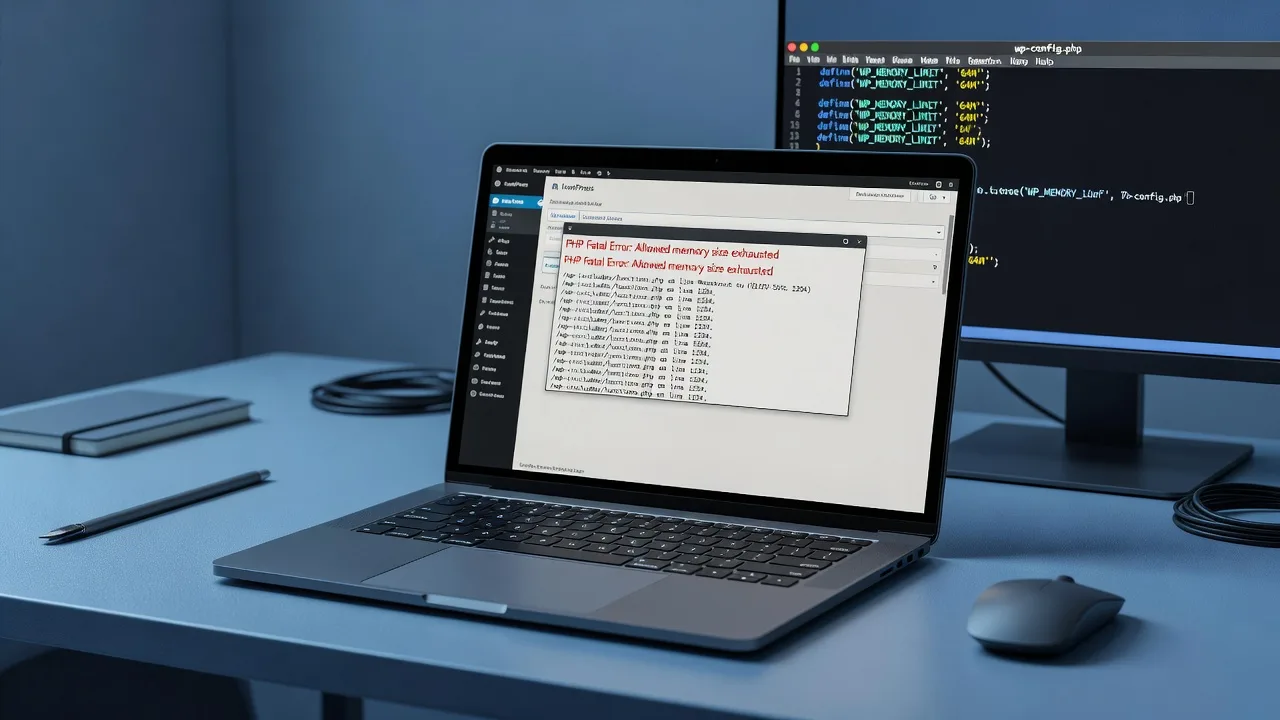
If your WordPress site suddenly shows a blank page or “Fatal error: Allowed memory size of X bytes exhausted,” this guide walks you through real fixes you can run yourself—and when to bring in Fixwebnode for WordPress support.
Homeowners and small businesses hit this error when PHP runs out of RAM while loading a page, processing media, or running a plugin. Below you will raise memory limits correctly, find the plugin or process that is leaking memory, and verify the fix. For deeper recovery—especially after a crash or suspected malware—Fixwebnode’s WordPress Support team can step in. We work with site owners across our service areas, including clients who need hands-on PHP and WordPress setup help in places like Juneau and beyond.
Why the “Allowed Memory Size Exhausted” error matters
PHP assigns each request a hard memory ceiling (often 128M or 256M on shared hosting). When WordPress, a theme, or a plugin needs more, PHP stops cold. You may see:
- A white screen of death with no admin access
- A fatal error line naming a plugin or
wp-includesfile - Checkout, media upload, or bulk-edit failures while the front page still loads
Leaving the limit too low or “fixing” it with a huge number without finding the real consumer leads to repeat outages and slow hosts. The goal is a stable, justified limit plus a clean plugin stack—not an unlimited memory band-aid.
Common issues that trigger PHP memory exhaustion in WordPress
These problems look similar on the surface but have different root causes. Match your symptoms before you change configs.
1. Default or host PHP memory_limit is too low
Symptoms: Fatal error on almost every heavy admin screen (Plugins, Themes, Site Health). Error text shows a small ceiling such as 134217728 bytes (128M). Front-end may work until you open wp-admin.
2. One plugin or theme spikes memory on specific screens
Symptoms: Site is fine until you open WooCommerce orders, a page builder, a backup plugin, or a security scanner. Disabling that one extension (or loading a default theme) makes the error disappear.
3. Media, image regeneration, or bulk import jobs
Symptoms: Uploading large images, running “Regenerate Thumbnails,” importing a CSV/XML, or bulk-editing products triggers the fatal error. Normal browsing is stable.
4. Config changes never apply (php.ini / .htaccess ignored)
Symptoms: You set 512M in wp-config.php or a local php.ini, but Site Health or phpinfo() still reports 128M. Shared hosts often lock memory_limit at the pool or panel level.
How to fix each memory exhaustion issue
Work in order: raise the limit modestly, confirm PHP actually received the new value, then isolate the consumer. Keep SSH or hosting file manager access ready. Back up wp-config.php and any .htaccess before editing.
Fix 1 — Raise WordPress and PHP memory limits safely
Use this when every heavy admin page fails and logs show a low byte ceiling.
Step 1 — Confirm the current limit
In wp-admin go to Tools → Site Health → Info → Server and note PHP memory limit. Or drop a temporary probe (remove it after):
echo <?php
// save as memory-check.php in the site root, then visit it once
phpinfo();
Search the page for memory_limit. Delete the file when finished.
Step 2 — Set WordPress constants in wp-config.php
Above the line /* That's all, stop editing! */ add:
define('WP_MEMORY_LIMIT', '256M');
define('WP_MAX_MEMORY_LIMIT', '512M');
WP_MEMORY_LIMIT covers front-end requests; WP_MAX_MEMORY_LIMIT covers wp-admin and cron. Prefer 256M/512M first—jumping straight to 1024M hides leaks.
Step 3 — Raise PHP via .user.ini or php.ini when you control the pool
On many shared hosts, create or edit .user.ini in the WordPress root (or the directory your host documents):
memory_limit = 256M
max_execution_time = 300
If you have a full php.ini for the vhost:
memory_limit = 256MRestart PHP-FPM if you manage the server:
sudo systemctl restart php8.2-fpm
# adjust version: php8.1-fpm, php8.3-fpm, etc.
Step 4 — Apache .htaccess only when AllowOverride permits it
php_value memory_limit 256MIf the site returns 500 after this line, remove it—your host disallows php_value. Use the panel’s “Select PHP Version → Options” instead.
Step 5 — Verify
Reload Site Health or your temporary phpinfo page. Confirm memory_limit shows 256M (or the value you set). Retry the page that failed.
When to call Fixwebnode: If the panel locks memory under 256M, PHP-FPM won’t restart cleanly, or raising the limit still fatals immediately, you need host-level or stack-level changes—not another define.
Fix 2 — Isolate the plugin or theme that is exhausting memory
Use this when only certain admin URLs die.
Step 1 — Enable logging so you see the guilty file
In wp-config.php:
define('WP_DEBUG', true);
define('WP_DEBUG_LOG', true);
define('WP_DEBUG_DISPLAY', false);
@ini_set('display_errors', 0);
Reproduce the error, then read the log:
tail -n 80 wp-content/debug.logNote the plugin path under wp-content/plugins/... named in the fatal line.
Step 2 — Disable plugins via WP-CLI (safest when wp-admin is down)
cd /path/to/wordpress
wp plugin list
wp plugin deactivate --all
Test the failing screen. If it loads, reactivate in batches:
wp plugin activate plugin-folder-name
Or restore half your plugins at a time until the fatal returns—then narrow to one extension.
Step 3 — Rule out the theme
wp theme list
wp theme activate twentytwentyfour
If a default theme fixes it, the custom theme (or a parent/child pair) is allocating too much on that route—often page builders loading every asset in admin.
Step 4 — File-manager fallback without CLI
Rename wp-content/plugins to plugins.off, reload, then create a fresh empty plugins folder and move extensions back one by one. Same idea for the active theme folder under wp-content/themes.
Step 5 — Fix or replace the offender
Update the plugin, raise memory only for admin if the vendor requires it, or replace heavy scanners/backups with leaner tools scheduled off-peak. Clear object caches after changes:
wp cache flush
wp transient delete --all
When to call Fixwebnode: If deactivating everything still fatals, or the stack trace points at mu-plugins, must-use security agents, or encoded ionCube plugins you cannot edit, specialist debugging is faster than guessing.
Fix 3 — Media, thumbnails, and bulk imports without blowing RAM
Use this when uploads, regenerate-thumbnails jobs, or product/XML imports crash.
Step 1 — Raise limits for CLI and cron separately
WP-Cron and WP-CLI often use a different php.ini than the web pool. Run imports over CLI with an explicit limit:
php -d memory_limit=512M $(which wp) media regenerate --yes
# or for a specific attachment ID
php -d memory_limit=512M $(which wp) media regenerate 1234 --yes
Step 2 — Process smaller batches
For CSV/XML importers, cut files into chunks (e.g., 50–100 rows). Disable concurrent image sizes you do not need during the job (extra registered sizes multiply memory per upload).
Step 3 — Check upload size vs memory
A single uncompressed 40MP photo can exhaust 256M while generating WebP + multiple crops. Resize before upload or use a host that offloads image processing. Confirm PHP settings:
php -i | grep -E 'memory_limit|upload_max_filesize|post_max_size'
Ensure post_max_size and upload_max_filesize are coherent (post_max_size ≥ upload_max_filesize) but remember memory_limit must still cover decompression and GD/Imagick.
Step 4 — Verify Imagick vs GD
Imagick is often more memory-efficient for large photos. In Site Health, confirm which editor is active. Switching libraries is host-specific; do not force a module you have not installed.
Step 5 — Re-test a single large upload and one bulk job
Watch debug.log during the test. Success means no fatal and thumbnails appear in the Media library.
When to call Fixwebnode: Recurring import failures on production catalogs, broken intermediate sizes across thousands of attachments, or needs for server-side image workers belong with a specialist rather than endless limit bumps.
Fix 4 — When your memory settings are ignored by the host
Use this when Site Health never reflects your edits.
Step 1 — Identify SAPI and user ini path
php -i | grep -E 'Loaded Configuration File|user_ini.filename|memory_limit|Server API'
PHP-FPM + “user_ini.filename = .user.ini” means root .user.ini should work after a short cache delay (often 300 seconds).
Step 2 — Set the value in the hosting panel
cPanel MultiPHP INI Editor, Plesk PHP settings, or Cloudways/RunCloud pool sliders override file-based values. Set memory_limit there to 256M or 512M, save, and wait for the pool reload.
Step 3 — Confirm the web SAPI, not only CLI
CLI php -i can lie relative to Apache/php-fpm. Prefer Site Health or a one-request phpinfo over HTTPS.
Step 4 — Remove conflicting directives
Duplicate memory_limit in .htaccess, php.ini, and a parent .user.ini can cancel each other. Keep one authoritative source.
Step 5 — Document the effective limit
Record the working value in your runbook so the next deploy does not reset it.
When to call Fixwebnode: Managed WordPress plans that forbid custom ini values, open_basedir restrictions, or multi-site networks with per-blog quirks need coordinated changes. Our install and PHP setup specialists can align the pool with WordPress—see Idaho Software Installation Experts | PHP & WordPress Setup and Software Installation Experts in Kentucky for regional PHP/WordPress setup coverage tied to the same Fixwebnode practice.
When DIY is enough vs when to book Fixwebnode
DIY is enough when: you can edit wp-config.php, the new limit appears in Site Health, deactivating one plugin stops the fatal error, and the site stays stable after a day of normal editing and uploads.
Book Fixwebnode when:
- wp-admin is fully unreachable and CLI/SFTP changes do not restore it
- memory fatals continue at 512M+ (likely a loop, leak, or malware bootstrap)
- only production fails while staging is fine (config drift, object cache, or host pool differences)
- you need php-fpm pool tuning, opcode cache review, or cleanup after a crash
- you suspect the fatal error is masking a hacked site or backdoor loader
Fixwebnode is a direct WordPress support specialist—not a bid board. We focus on getting PHP memory behavior sane, removing the real consumer of RAM, and leaving you with verified limits. Geography spans our published service areas; remote diagnostics cover most small-business stacks, with local context when you are coordinating work around Juneau or other listed regions.
Get help fixing WordPress memory fatal errors
If you have tried a sensible 256M/512M ceiling, isolated plugins, and still see “Allowed memory size exhausted,” stop raising numbers blindly. A short conversation with Fixwebnode can pinpoint whether you need a config fix, a plugin replacement, or a deeper recovery.
Start here: WordPress Support. Tell us the exact fatal line from debug.log, your current memory_limit, and whether the failure is admin-only, media-only, or site-wide—we will map the next safe step for your WordPress/PHP stack.