Multi-Vendor & Complex SaaS Marketplaces
 Modern Headless & Jamstack Web Development
 High-End Corporate & Specialized Business Websites
 Advanced API, Checkout & Database Troubleshooting
Fix Broken Shopify Variants & Missing Images in Cairns
Variant images blank, dropdowns stuck, wrong SKUs? A practical remote guide for Cairns Shopify stores: diagnose missing media, broken option drops, and mismatched combinations—then know when to book Fixwebnode.
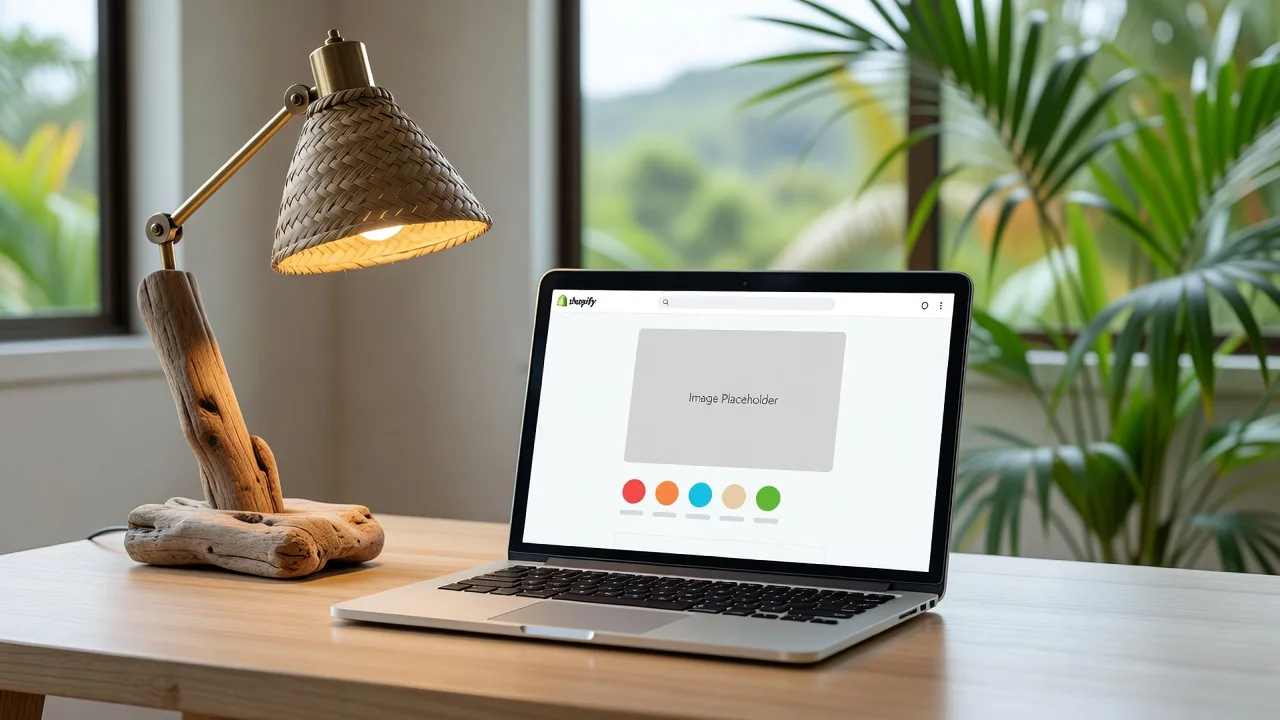
If shoppers in your Shopify store pick a size or colour and the image vanishes, the dropdown freezes, or the wrong SKU appears, you are losing sales on every product page. This guide is for Cairns, QLD store owners and small teams who need a clear remote path to fix broken product variations—missing images, dead option selectors, and mismatched variant data—without guessing in the theme editor.
Fixwebnode works as a direct Shopify support specialist (not a freelance marketplace). We diagnose and repair variation logic, media mapping, and theme JavaScript remotely for stores across your area. Start with the DIY checks below, or book focused help via our Shopify Developer landing page when the storefront still fails after admin fixes.
Why broken product variations hurt Shopify stores in Cairns
Tourism retail, outdoor gear, apparel, and local makers around Cairns often run multi-option catalogues: colour, size, pack size, finish. Shopify stores each sellable combination as a variant. When images are not linked to those variants, when option dropdowns stop firing change events, or when the theme shows the wrong price and availability, customers abandon the cart. Mobile shoppers notice first—blank galleries and unresponsive selects look like a broken site, not a data glitch.
Remote diagnosis is enough for most cases: you can inspect the product JSON, theme option scripts, and media assignments from admin and the browser without a store visit. Fixwebnode covers this class of work for merchants who need a specialist after DIY steps stall. See where we operate on All service areas.
Why do Shopify variant images disappear when I change options?
Most missing-image failures happen because the variant has no featured media assigned, the theme expects a different media alt or position pattern, or a custom options script never updates the gallery after the option change. Broken dropdowns are usually a separate fault: theme JavaScript errors, app conflicts, or option values that no longer match the product’s variant matrix.
| Symptom | Quick check | When to call Fixwebnode |
|---|---|---|
| Image blank after colour/size change | Confirm each variant has media in Admin → Products | Media is assigned but theme still shows placeholders |
| Dropdown stuck or empty | Browser console errors; disable recent apps | Errors point at theme.js / custom options code |
| Price/SKU wrong for selection | Compare storefront to product.js JSON | Matrix, metafields, or liquid logic is out of sync |
Common issues with broken Shopify product variations
These problems show up repeatedly on multi-variant catalogues. Each has a different root cause—treat them separately rather than re-uploading the whole product.
- Missing or placeholder images after option change — Default image stays put, grey box appears, or gallery jumps to the wrong photo when colour or size changes.
- Broken or unresponsive variant dropdowns — Selects do not open, second option never populates, or choosing an option does nothing on mobile.
- Wrong price, SKU, or “unavailable” state for a valid combo — UI shows a combination that should sell, but price/SKU/inventory do not match Admin.
- Option values drift from the variant matrix — Renamed options, deleted variants, or bulk CSV imports leave orphan labels the theme still renders.
Issue 1 — Missing images when a variant is selected
Shopify only swaps the featured image if that variant has media attached (or the theme maps gallery images by alt text / filename conventions). Apps that inject custom galleries can also ignore native variant media.
DIY resolution steps
- In Shopify Admin, open Products → the affected product → scroll to Variants.
- For each variant row, open the variant and confirm a unique image (or shared correct image) is set. Save.
- On the product media grid, ensure images are not drafts and are attached to the product, not only sitting in Files.
- On the live product page, hard-refresh (Ctrl+Shift+R / Cmd+Shift+R). Select each option path and watch whether the main image URL changes in the browser Network tab (filter by image).
- If you use a third-party options or gallery app, temporarily disable it and retest with the theme’s native picker only.
Remote diagnostic — inspect the product JSON Shopify serves to the theme
Replace the store and handle, then confirm each variant includes a featured_image (or media id) where you expect one:
curl -sL "https://YOUR-STORE.myshopify.com/products/PRODUCT-HANDLE.js" | python3 -m json.tool | lessLook under variants for featured_image / image ids. Empty image objects with populated options almost always mean Admin media mapping, not “CDN failure.”
When to book Fixwebnode: Media is correctly assigned in Admin and present in the JSON, but the storefront gallery still ignores changes—usually theme Liquid, section settings, or custom JS. Use Fix Broken Shopify Product Variations & Missing Images | Remote for that repair path.
Issue 2 — Broken variant dropdowns and dead option changes
Symptoms: colour select works once then freezes; size list is empty until refresh; taps on iOS do nothing; choosing an option never updates price or add-to-cart. Root causes differ from missing images: JavaScript errors, two scripts fighting for the same change listener, sold-out logic hiding options incorrectly, or a theme update that renamed selectors your customisation still targets.
DIY resolution steps
- Open the product page in Chrome or Edge → right-click → Inspect → Console. Reload and interact with each dropdown. Note any red errors naming
theme.js,product-form, jQuery, or an app. - In Admin → Online Store → Themes, click Preview on a stock theme (or unpublished Dawn copy) with the same product. If dropdowns work there, the fault is in your live theme customisations or apps—not product data.
- Admin → Apps: disable recently installed option pickers, swatch apps, bundle builders, or upsell scripts one at a time; retest the product page after each disable.
- Confirm the product still has a full variant matrix: every combination you show in the UI must exist as a variant (Shopify does not invent missing combos). Remove orphan option values left after CSV edits.
- If you edited theme code, restore the product section from the theme’s original template backup or duplicate the theme and revert the product form section only.
Console check storefront owners can run (paste in the browser console on the product page):
document.querySelectorAll('select, variant-selects, [name^="options"]');
window.Shopify && console.log('Shopify ok', Shopify.theme);
fetch(window.location.pathname + '.js').then(r => r.json()).then(p => {
 console.log('variants', p.variants.length, p.variants.map(v => v.title));
});
If the fetch lists variants but the DOM has no working selects, the theme markup or JS binding is broken. If the fetch fails or returns zero variants, fix the product in Admin first.
When to book Fixwebnode: Console errors point at minified theme bundles, custom option UX, or app scripts you cannot safely remove during trading hours. Remote session work restores selectors without a full theme rebuild.
Issue 3 — Price, SKU, or availability wrong for the selected combination
The dropdown appears to work, but the price stays on the default variant, the SKU in the UI never changes, or “Sold out” shows on stock you can see in Admin. Causes include stale section caching, themes that hard-code the first variant, inventory tracked on the wrong location, or liquid that reads metafields instead of the selected variant object.
DIY resolution steps
- Admin → product → open each variant: verify price, compare-at, SKU, barcode, and inventory per location. Save any corrections.
- Compare storefront behaviour to the JSON endpoint:
curl -sL "https://YOUR-STORE.myshopify.com/products/PRODUCT-HANDLE.js" \
 | python3 -c "import sys,json; p=json.load(sys.stdin);
[print(v['title'], v['price'], v['sku'], v['available']) for v in p['variants']]"- If JSON prices/availability are correct but the page is wrong, the theme is not binding to the selected variant id. In the theme editor, open the product template and check the main product section: ensure it uses the native product form / variant picker blocks, not a leftover custom HTML price.
- Clear the storefront cache path you control: in Admin, toggle the product to draft and back to active once (forces storefront refresh for many setups), then hard-refresh the browser. Avoid relying on “wait overnight.”
- Check Settings → Shipping and delivery / Markets only if prices differ by market; a market-specific price can look like a “broken variant” when it is intentional configuration.
When to book Fixwebnode: JSON matches Admin but the live form still posts the wrong variant id, or you also run WooCommerce elsewhere and see similar display bugs on that stack—see our related remote work on WooCommerce Variable Product & Pricing Display Bug Fix | Remote if you maintain both platforms.
Issue 4 — Option labels out of sync after imports or bulk edits
After a CSV import or bulk SKU update, customers still see old colour names, duplicate sizes, or combinations that 404 on add-to-cart. The theme is rendering option names that no longer map to variant ids.
DIY resolution steps
- Export the product (or use bulk editor) and list every option1/option2/option3 value actually stored on variants.
- In the product editor, delete unused option values and recreate only the live matrix. Avoid leaving “Red / Red” style duplicates.
- Re-attach images and re-check inventory after matrix edits—Shopify can drop media links when variants are recreated.
- Retest add-to-cart for every combination you sell; confirm the cart line shows the expected variant title and SKU.
When to book Fixwebnode: Large catalogues where manual matrix rebuild is unsafe during peak season, or theme code still hard-codes old option strings.
When DIY is enough vs when to book Fixwebnode
DIY is enough when Admin media mapping, a single conflicting app, or obvious CSV option drift explains the fault—and the stock theme preview already behaves correctly. Document what you changed (app name, variant ids, screenshot of console errors) so you can roll back.
Book Fixwebnode when: images and JSON are correct but the gallery ignores selection; dropdowns throw theme or app script errors; variant id submitted to cart does not match the UI; or multiple templates (mobile drawer, quick view, bundled PDP) each break differently. We work as a direct remote Shopify support provider for merchants in Cairns and other regions listed on our service-areas page—no bidding boards, no marketplace middle layer.
Typical remote workflow: reproduce on a theme duplicate, pin the failing selector or Liquid block, restore native variant events, re-map media if needed, and verify every option path plus add-to-cart before you publish.
Book remote help for broken Shopify variations
If your storefront still shows blank variant images, frozen option drops, or mismatched prices after the checks above, talk to Fixwebnode. Bring the product URL, a short screen recording of the failing selection path, and any console errors you captured—that shortens diagnosis.
Start the conversation on our Shopify Developer page, or go straight to Fix Broken Shopify Product Variations & Missing Images | Remote when missing images and broken variant drops are the confirmed issue. We will confirm scope, work on a safe theme copy where needed, and return a storefront where every option path shows the right media, price, and availability.