Multi-Vendor & Complex SaaS Marketplaces
 Modern Headless & Jamstack Web Development
 High-End Corporate & Specialized Business Websites
 Advanced API, Checkout & Database Troubleshooting
Shopify Add to Cart Broken After App Update: Ajax Cart Fix
Add to Cart clicks do nothing on your Shopify store? A recent app update often breaks the theme’s Ajax cart drawer. This guide covers common causes, DIY Liquid and script checks, and when Fixwebnode should rewrite the cart code for Australian stores.
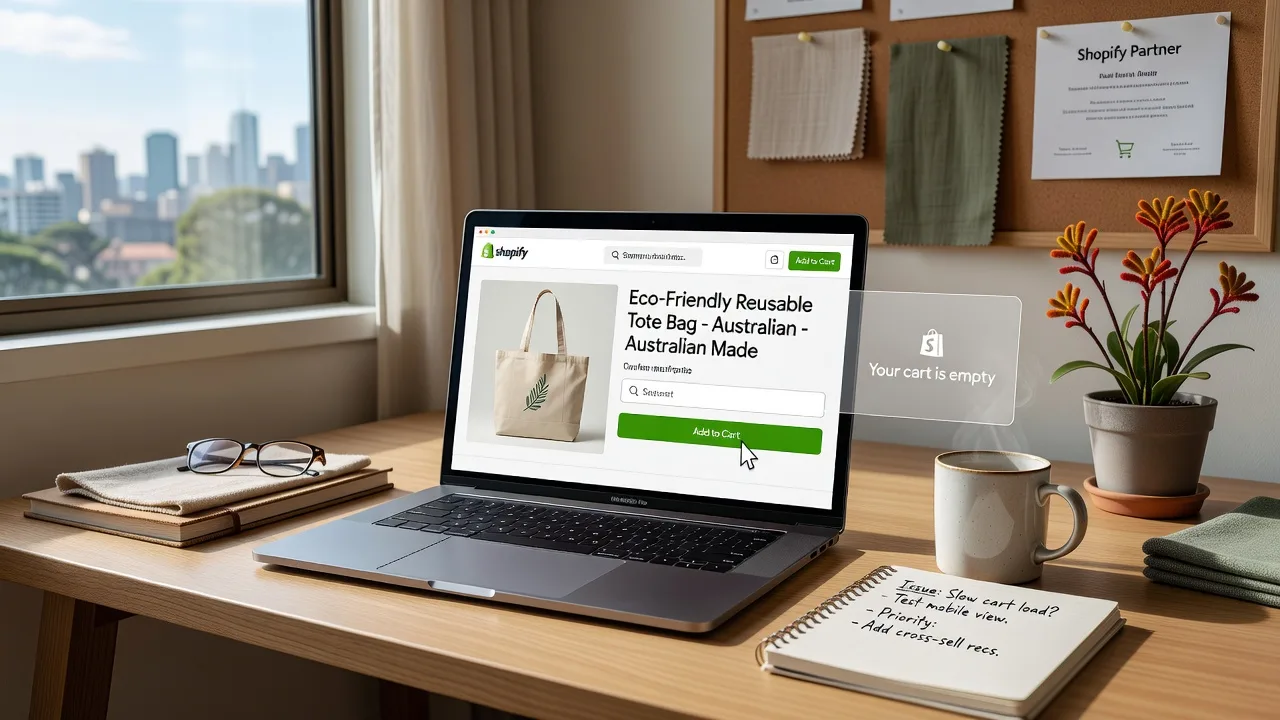
If shoppers in Australia tap Add to Cart and the page freezes, the drawer never opens, or the button simply does nothing, you are losing sales in real time. That symptom almost always points to broken Ajax cart drawer code after an app install or update—not a payment gateway failure. Fixwebnode works directly with individuals, sole traders, and local operators on this exact problem: we inspect the theme’s Liquid cart snippets, restore the fetch/XHR flow, and get the drawer responding again. Start with the checks below, or book help via Fixwebnode website repair Australia when the theme and apps are tangled.
Why a dead Add to Cart button matters for your Shopify store
On modern Shopify themes the product form rarely does a full page reload. JavaScript intercepts the click, posts to /cart/add.js, then opens a side drawer or mini-cart with Liquid-rendered line items. When an app injects its own cart script, renames a section ID, or loads jQuery twice, that chain breaks. Customers see no spinner, no error, and no cart update—so they leave. Australian retailers feel this hardest during peak local shopping hours when support queues are already long. Fixing the Ajax drawer is not cosmetic; it is checkout continuity.
Why does Add to Cart do nothing after a Shopify app update in Australia?
Most of the time a newly updated cart, upsell, or wishlist app overwrote or conflicted with your theme’s Ajax cart drawer script, so the click handler never fires or the Liquid section that draws the drawer fails to re-render. You can often confirm this by testing in a private browser window with apps temporarily disabled, then restoring a clean cart snippet if the theme still ships one. If the drawer markup, section IDs, and fetch calls no longer match, it is safer to have the Liquid and JS rewritten properly than to keep stacking temporary patches.
| Symptom | Quick check | When to call Fixwebnode |
|---|---|---|
| Button click does nothing | Browser console for JS errors on add.js | Errors point at app + theme scripts together |
| Drawer opens empty / stuck | Compare cart drawer section ID in Liquid | Section render or line-item loop is broken |
| Works only after full refresh | Disable recent cart-related apps | Conflict returns as soon as apps go back on |
| Mobile works, desktop fails (or reverse) | Test theme breakpoints and sticky header JS | Multiple cart entry points need a unified fix |
Common issues when Add to Cart stops working
These problems are distinct. Match your store’s behaviour before you change code.
1. App script collision kills the theme click handler
Symptom: Clicking Add to Cart produces no network request to /cart/add.js. The console shows $ is not defined, addEventListener on null, or a minified app bundle error. Another cart app loaded after your theme and unbound or replaced the original listener.
2. Cart drawer section ID or Liquid snippet no longer matches
Symptom: The add request succeeds (201 in the Network tab) but the drawer stays closed or opens blank. The theme expects a section like cart-drawer or a snippet name the app renamed, so sections.js cannot refresh the HTML.
3. Product form missing Ajax attributes after a theme or app edit
Symptom: Some products add fine; others force a full page reload or do nothing. Variant pickers, sticky add bars, or quick-view modals ship a second form without data-product-form, the correct form action, or the theme’s required hidden inputs.
4. Stale app embed or duplicate cart libraries on the storefront
Symptom: Intermittent failure—works once, then fails until hard refresh. Two copies of a cart drawer library, an outdated app embed still enabled in the theme editor, or a service worker caching an old bundle.
How to fix each issue (DIY steps)
Fix 1 — Stop app script collision and restore the click handler
Work in a duplicate theme so the live storefront stays untouched.
- In Shopify admin, open Online Store → Themes, duplicate the live theme, and preview the copy.
- In the theme editor, open App embeds and disable every cart, upsell, drawer, or “AJAX cart” embed one at a time. After each toggle, preview a product and click Add to Cart.
- On the product page, open the browser developer tools (F12) → Network. Filter for
add.js. A healthy click should POST to/cart/add.jsand return JSON. - Open the Console tab. Note any red errors naming an app’s
.jsfile or complaining that a cart button node is null. - If disabling one embed restores the button, leave it off and check whether that app offers a “use theme cart” or “disable drawer” setting before you re-enable it.
- If the theme still fails with all cart embeds off, open Edit code on the duplicate theme and search for
cart/add,cart-drawer, andproduct-formunderassetsandsections. Confirm the main product form still binds to the theme’s own cart JS, not a deleted app hook. - Publish only after a full test: simple product, variant product, and a second add that should update quantity in the drawer.
When console errors name both your theme file and an app bundle, or the handler only works with half your stack disabled, stop patching and let Fixwebnode rewrite the cart binding cleanly.
Fix 2 — Repair the Ajax cart drawer Liquid section
Use this when Network shows a successful add but the UI never updates.
- In the duplicate theme code editor, open the cart drawer section (common names:
cart-drawer.liquid,cart-drawer.liquidinsidesections, or a snippet included from the header). - At the top of the section file, note the schema preset name and the section’s public ID as referenced in JS (for example
cart-drawerorCartDrawer). Write it down. - Search theme JS for
sections,section_id, orcart-drawer. The fetch that re-renders the drawer must request the same section ID the Liquid file registers. - Inside the drawer markup, confirm the line-item loop still exists (for example iterating
cart.items) and that money outputs use the theme’s money filter. Empty loops or leftover app placeholders produce a blank drawer. - Check the header or layout file still renders the drawer section once (for example via a
sectionsrender or{% section %}/ app block equivalent). Duplicate renders cause race conditions. - In preview, add a product, then in Console run a hard refresh of the drawer if your theme exposes a public method; otherwise re-open the drawer from the cart icon and confirm line items appear without a full page reload.
- If the original section was overwritten by an app, restore the drawer section from the theme’s original ZIP (Themes → … → Download) into the duplicate theme and reconnect the header cart icon.
Call a specialist when the section ID, JS fetch path, and line-item Liquid no longer share one clear contract—that is the rewrite job described in the expert diagnosis, not a one-line tweak.
Fix 3 — Correct product forms that never trigger Ajax
- View source on a failing product. Locate the main
form[action*="/cart/add"]. Note whether it carries the theme’s expected classes ordata-attributes (themes vary:data-type="add-to-cart-form",product-form, etc.). - Compare with a working product template. Quick-view, featured-product, and sticky-ATC blocks often ship a second form missing the variant
name="id"input. - In the theme editor, open the product template and any app blocks sitting above the buy buttons. Remove or re-order blocks that inject a second ATC control.
- For custom Liquid, ensure the form includes the selected variant ID input and that the submit control is a
button type="submit"(or the element your theme’s JS selects). A plain linked button with no form association will “do nothing” under Ajax themes. - Test each entry point: product page, collection quick-add, and home-page featured product. Fix forms one template at a time in the duplicate theme.
Book Fixwebnode when several templates and app blocks each ship their own ATC markup—the durable fix is one shared product-form pattern wired to the restored drawer.
Fix 4 — Clear duplicate embeds, caches, and stale storefront assets
- Theme editor → App embeds: disable unused cart-related embeds; save.
- Settings → Apps and sales channels: check for two cart apps doing the same job; remove or fully configure the one you keep.
- If you use a storefront password page or a third-party speed app, bypass it on the preview theme so you are not testing a cached bundle.
- On your machine, hard-refresh the product page (Ctrl+Shift+R / Cmd+Shift+R) and retest in a private window on both desktop and mobile widths.
- Shopify admin → Online Store → Themes → preview on a phone: mobile headers sometimes load a different cart icon script; confirm both viewports POST to
/cart/add.js. - After changes, re-enable only the apps you need, testing ATC after each one.
If the failure returns the moment a required app is on, the theme needs a compatibility rewrite rather than another disable/enable cycle.
When DIY is enough vs when to book Fixwebnode
DIY is enough when a single app embed was the culprit, the drawer section still matches the theme JS, and Add to Cart works across product templates after your tests. Document which embed you left off so a future app update does not surprise you.
Book Fixwebnode when any of the following are true:
- The add request never fires and errors span theme plus app files.
- Cart JSON updates but the drawer Liquid will not re-render.
- Only some templates or devices fail after you “fixed” the main product page.
- You depend on a cart app for upsells and cannot leave it disabled.
- You are not comfortable editing Liquid/JS on a duplicate theme.
Fixwebnode is a direct specialist provider for storefront repair—not a freelance marketplace. For geography and coverage see the Australia service area and the full service areas hub. Work is handled locally or remotely against your Shopify theme so the Ajax cart drawer and Liquid scripts match again. Have your store admin access ready, note the app that updated just before the break, and keep a theme backup (download the current theme ZIP) before any code session. On-site or scheduled screen-share sessions can walk through the live theme editor with you when that is easier than sending credentials alone; bring a list of failing product URLs and whether the issue is desktop, mobile, or both.
Get the cart drawer working again
A silent Add to Cart button is almost never “Shopify being down.” It is a broken hand-off between your theme’s Ajax cart drawer and whatever an app last changed. Use the numbered checks above to isolate collisions, section mismatches, bad forms, and stale embeds. When you need the Liquid and cart script rewritten so checkout feels instant again, talk to Fixwebnode—direct help for Australian store owners who need this fixed properly.
Ready to restore Add to Cart? Start a conversation or book a session through the landing page: https://fixwebnode.com.au/website-repair-australia. Have your theme name, the recent app update, and a product URL that fails ready—we will take it from diagnosis through a stable drawer fix.