Multi-Vendor & Complex SaaS Marketplaces
 Modern Headless & Jamstack Web Development
 High-End Corporate & Specialized Business Websites
 Advanced API, Checkout & Database Troubleshooting
Invisible Shopify Error Double-Charging Checkout in Australia
Customers charged twice at Shopify checkout? Spot the silent code, app, and POS causes, follow DIY checks, and know when Fixwebnode should step in across Australia.
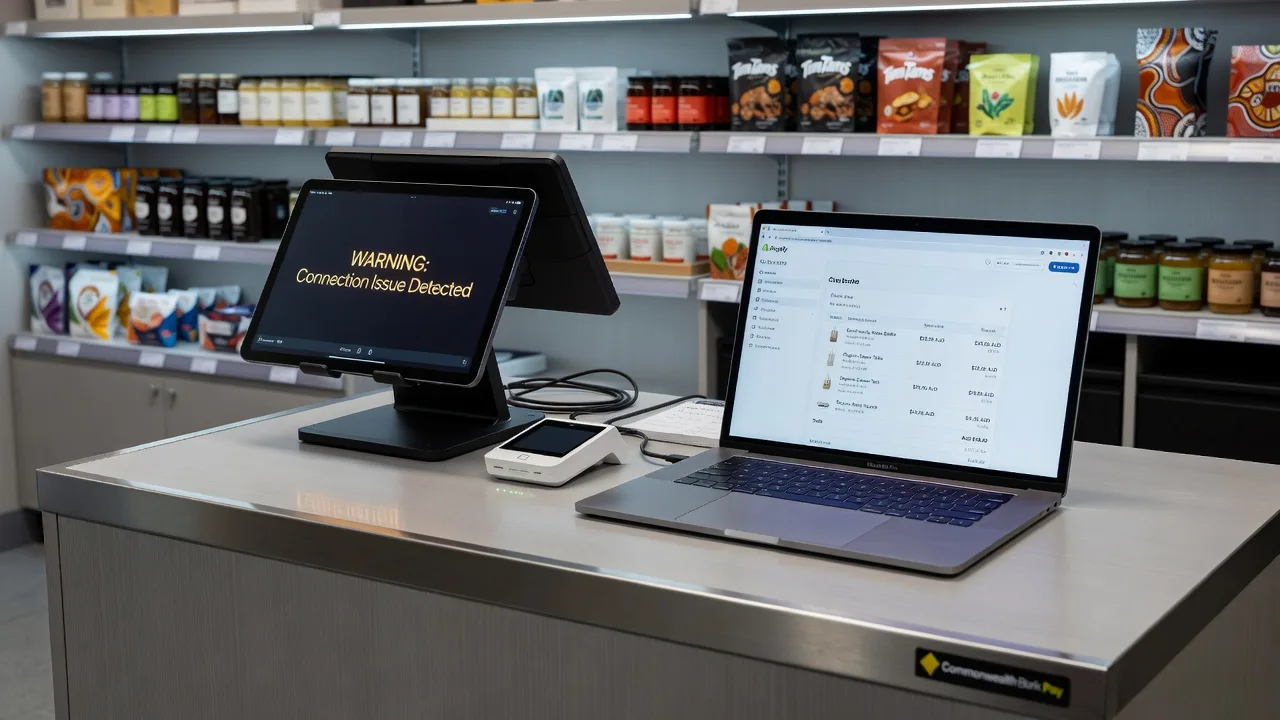
If your Australian Shopify store is quietly charging people twice at checkout, you need a clear diagnosis—not another generic “clear your cache” tip. This guide walks merchants and small operators through the invisible double-charge patterns we see in theme code, payment apps, and on-site POS hardware, with practical steps you can run yourself before booking specialist help.
Double charges erode trust fast: chargebacks, angry emails, and payment-provider reviews. Fixwebnode works directly with individuals, sole traders, and local operators on Shopify website repair across Australia—including storefront code, checkout scripts, and on-site device checks—so you are not left guessing which layer fired twice.
Why this invisible Shopify checkout charge matters
Shopify’s checkout is meant to create one order and one authorised payment. When a second charge appears, the storefront often still “looks fine.” The failure is usually a second submit, a duplicate webhook, a conflicting app, or a POS/card-reader retry after a flaky network hop. Customers in Australia notice immediately on bank apps; you may only see it days later in payouts or dispute mail.
Left alone, the same root cause can hit every high-intent buyer. The goal of this post is to separate safe DIY inspection from work that needs a specialist on your theme, apps, or local hardware.
Can a POS tablet or card reader cause Shopify to charge customers twice in Australia?
Yes. A sticky checkout button in the theme, a payment app that posts the same capture twice, or a POS tablet and card reader that retry after a dropped Wi‑Fi packet can all create a second charge while the order admin still shows a single cart. Start by matching the bank timestamp to the order timeline, then inspect theme scripts, payment apps, and the physical reader or tablet before you refund blindly.
| Symptom | Quick check | When to call Fixwebnode |
|---|---|---|
| Two bank debits, one order | Compare order timeline, payment apps, and gateway logs | Logs disagree or refunds keep recurring |
| Double charge only on POS | Test reader, cable, and stable network; one tap only | Hardware or store network still retries captures |
| Double charge on online checkout | Disable extra checkout scripts; test clean theme | Custom liquid/JS or app stack needs a controlled fix |
Common issues that silently double-charge at checkout
These problems look different in admin and on the customer’s statement. Treat them as separate root causes.
1. Checkout button or theme script fires the payment twice
Symptoms: Online buyers report two identical charges minutes apart; the order exists once; thank-you page sometimes loads slowly or after a double-click. Often worse on mobile or after a theme customisation near the pay button.
2. Two payment channels both capture the same checkout
Symptoms: Shopify Payments (or your primary gateway) and a second app—buy-now-pay-later, alternative wallet, or old gateway left enabled—both show an authorisation. Payouts and app dashboards disagree; customers see two merchant descriptors.
3. Webhook or automation posts a duplicate capture
Symptoms: One clean checkout in the browser, then a second capture when fulfilment, subscription, or “order paid” automation runs. More common after installing flow tools, ERP connectors, or custom app endpoints that call payment APIs again.
4. POS tablet, card reader, or store network retries the tap
Symptoms: Double charges only in-person; staff say the reader “spun” then asked to tap again; Wi‑Fi drops or a USB/Lightning cable is loose. Online checkout may be clean while the counter keeps generating disputes.
How to fix each issue (DIY first)
Fix 1 — Stop double-submit on the online checkout / theme
Work on a duplicate theme. Do not edit the live theme without a backup copy you can publish back.
- In Shopify admin, open Online Store → Themes, duplicate the live theme, and note the theme name.
- Place a small test order in an incognito window. Watch whether one click on Pay produces a long spinner, a second click opportunity, or two browser network posts to checkout/payment endpoints (browser developer tools → Network).
- In the duplicate theme, search theme files and checkout-related assets for custom JavaScript bound to checkout buttons,
additional scripts, or apps injecting cart/checkout listeners. Look for handlers that call submit more than once, missing “disable button after first click” logic, or duplicated app embeds. - Temporarily remove or comment out non-essential checkout scripts in the duplicate only (speed trackers, extra upsell popups, old payment helper snippets). Publish the duplicate to a password-protected storefront or use theme preview and retest one payment with a real small amount you can refund.
- If the double charge disappears on the cleaned theme, re-enable scripts one at a time until the second charge returns—that script or app is your culprit.
- Refund the genuine duplicate charge in admin and in the gateway so the customer is whole, and document the order IDs.
If you cannot isolate the script, the theme was heavily customised by a past developer, or checkout extensibility / Plus scripts are involved, stop DIY guessing and book a specialist review.
Fix 2 — Remove competing payment captures
- Go to Settings → Payments. List every active provider: Shopify Payments, third-party cards, wallets, and BNPL.
- Open Settings → Apps and sales channels. Note any payment, currency, or “one-click” apps still installed after a redesign.
- For a controlled test, disable non-essential payment methods one at a time (outside peak trading if you can). Run a single live checkout per configuration.
- In each payment app’s own dashboard, search the same order number / approximate timestamp. Confirm whether two systems captured or only one authorised and one void failed.
- Remove or properly uninstall abandoned gateways instead of leaving them “half configured.” Confirm uninstall removes checkout scripts, not only the admin icon.
- Align staff instructions: only one tender path per sale online; no manual “charge again” in an external virtual terminal for the same Shopify order.
Call Fixwebnode when gateways disagree, partial captures need coordinated voids, or you sell across channels and cannot take payments offline long enough to test safely.
Fix 3 — Duplicate webhooks, flows, and API captures
- Open Settings → Notifications and any Flow / automation tools. Look for multiple workflows on Order paid, Payment captured, or fulfilment events that might call a payment or subscription API again.
- Under Settings → Apps, open each custom or private app and review webhook subscriptions. Duplicate endpoints for the same topic (for example two URLs both listening for payment-related events) are a red flag.
- In recent double-charge orders, open the order timeline. Note whether a second capture lines up with an app note, flow run, or external ERP sync—not with the customer’s button click.
- Disable the suspect automation, place one low-value test order, and confirm only a single capture appears in Shopify and the gateway.
- If you use custom app code, ensure capture/sale calls are idempotent (same checkout token must not create a second capture). That change belongs in the app, not in random theme edits.
When webhooks span multiple systems or you do not own the app code, DIY can break fulfilment. That is specialist territory.
Fix 4 — On-site POS, card reader, and network checks (local hardware)
This path is for retail counters and pop-ups in Australia where the double charge only happens in person.
- What to have ready: the POS tablet or phone, the card reader and its cable/cradle, Shopify POS login, a spare known-good cable if you have one, and a brief note of the last three disputed order numbers. Back up or note any offline sales first; do not factory-reset devices until you have order evidence screenshots.
- Update Shopify POS and the reader firmware from the official app/settings paths your hardware vendor documents. Restart tablet and reader once.
- Test on a stable connection: prefer a known-good ethernet-connected router or a clean 5 GHz Wi‑Fi SSID without captive portals. Avoid staff hotspots that drop mid-auth.
- Run one low-value sale. Staff must tap or insert once and wait for a final success or failure—no second tap “to be sure” while the first spinner is still visible.
- If the reader fails, cancel cleanly in POS, confirm no pending authorisation in the order/gateway, then retry. A second tap on a still-open authorisation is a classic double-charge path.
- Inspect physical points: cracked reader glass, bent pins, intermittent USB/Lightning power-loss mid-capture, overheating tablet that reloads the POS mid-payment. Swap cable and power path before replacing hardware.
- If only one register misbehaves, quarantine that tablet/reader pair and process sales on a second device while you arrange repair or configuration help.
Book an on-site or drop-off style session when the reader still double-posts on a stable network, multiple registers are affected, or you need coordinated theme, app, and counter hardware diagnosis in one pass. Fixwebnode supports merchants across the Australia service area as a direct specialist provider—not a bid board—so you speak with the people doing the work.
When DIY is enough vs when to book Fixwebnode
DIY is enough when you can reproduce a single clean charge after removing one script, one extra payment app, or fixing an obvious double-tap / flaky cable, and disputes stop.
Book Fixwebnode when any of the following are true:
- Customers keep receiving two debits after your theme and app tests.
- Gateway logs, Shopify timelines, and POS reports disagree.
- Custom checkout liquid, app blocks, or private API apps are beyond your comfort zone.
- In-store hardware still retries captures on stable power and network.
- You need a controlled fix window so trading in Australia is not paused longer than necessary.
We focus on this class of Shopify checkout and integration failure end to end: code paths, payment configuration, and local device behaviour. Soft scheduling only—early bookings are often handled the same day when capacity allows; we do not promise travel times.
For geography and coverage detail see the full service areas hub and the Australia page linked above. Bring or have ready: admin access, the affected POS tablet/reader if hardware is involved, theme backup awareness, and sample order IDs with bank timestamps.
Talk through your double-charge cases with Fixwebnode
If an invisible Shopify checkout error is charging Australian customers twice, do not wait for the next chargeback wave. Gather two or three example orders, note whether they were online or POS, and start a direct conversation with Fixwebnode about a focused repair.
Next step: use the landing page for individuals, sole traders, and local operators at https://fixwebnode.com.au/website-repair-australia to book a conversation. We will help you confirm whether the second charge is theme script, payment stack, automation, or counter hardware—and fix the path that is actually firing twice.