Multi-Vendor & Complex SaaS Marketplaces
 Modern Headless & Jamstack Web Development
 High-End Corporate & Specialized Business Websites
 Advanced API, Checkout & Database Troubleshooting
Fix 500 DB Errors & 502/504 Bad Gateway on Melbourne Servers
Database connection failures and Bad Gateway timeouts take Melbourne sites offline fast. This guide covers unique causes, copy-paste checks, and when Fixwebnode should take over.

If your Melbourne site is throwing Database Connection Error, HTTP 500, or 502/504 Bad Gateway pages, this runbook is for you. Homeowners running WordPress, sole traders on VPS stacks, and small operators in the City of Melbourne can use the steps below to isolate whether the failure is MySQL/MariaDB, PHP-FPM, or the reverse proxy—and restore service safely.
Fixwebnode provides direct server support for exactly this class of outage. Start with the DIY checks; if the stack will not stay up, book remote help via remote IT support for Melbourne individuals and local operators.
Why database connection and Bad Gateway failures matter
A true database connection error often surfaces as a white screen, a WordPress “Error establishing a database connection” banner, or a generic 500 Internal Server Error. Separately, when nginx or Apache cannot get a timely answer from PHP-FPM, Tomcat, or another upstream, visitors see 502 Bad Gateway or 504 Gateway Timeout. Both look like “the website is down,” but the root causes and fixes differ.
In Melbourne hosting setups—shared cPanel, cloud VPS, and small Docker hosts—these faults cluster around exhausted DB connections, dead upstream sockets, credential drift after migrations, and disk or InnoDB pressure. Treating every outage as “restart Apache” wastes time and can mask data risk.
Common issues unique to this failure pattern
- MySQL/MariaDB rejects the app (connection refused or “Too many connections”) — PHP still runs, but every page that needs the DB returns 500 or the classic connection error. Symptoms:
mysqli_connect()failures in logs; site may load static assets. - PHP-FPM or upstream worker pool is dead or saturated (classic 502) — nginx answers, but
upstream: "fastcgi://unix:/run/php/..."fails. Symptoms: 502 on dynamic URLs only; static files still 200. - Proxy/read timeouts against a slow database (504 Gateway Timeout) — the DB accepts connections but queries hang (locks, missing indexes, full table scans). Symptoms: long TTFB, then 504; DB process list full of long-running queries.
- Wrong DB host, socket, or credentials after a host move — config still points at old IP,
localhostvs socket mismatch, or rotated passwords. Symptoms: instant connection errors after deploy or DNS cutover; no traffic spike required. - Disk full or InnoDB tablespace pressure blocking new connections — mysqld cannot write redo/undo or temp tables. Symptoms: sudden mass 500s;
disk fullor InnoDB errors in the DB error log.
Issue 1 — Repair MySQL/MariaDB connection refused and “Too many connections”
When the application cannot open a session to the database, WordPress and most PHP apps fail closed with 500 or an explicit DB error. Confirm the database is listening and accepting your app user before you touch web configs.
Step 1 — Check service state and listener
sudo systemctl status mysql --no-pager
# or: sudo systemctl status mariadb --no-pager
sudo ss -ltnp | grep -E ':3306|:5432'
sudo tail -n 80 /var/log/mysql/error.log
Expect active (running) and a listener on 3306 (MySQL/MariaDB) or 5432 (PostgreSQL). If the unit is failed, read the error log before a blind restart.
Step 2 — Test login as the application user
mysql -u YOUR_APP_USER -p -h 127.0.0.1 -e "SELECT 1; SHOW VARIABLES LIKE 'max_connections'; SHOW STATUS LIKE 'Threads_connected';"If socket auth is required instead of TCP:
mysql -u YOUR_APP_USER -p -e "SELECT 1;"
# socket path often /var/run/mysqld/mysqld.sock
Step 3 — Clear connection storms safely
mysql -u root -p -e "SHOW FULL PROCESSLIST;"
# Identify sleep/abandoned sessions from old app servers, then:
# mysql -u root -p -e "KILL <process_id>;"
sudo systemctl reload php8.2-fpm
# adjust version: php8.1-fpm, php8.3-fpm, etc.
Raise max_connections only after you confirm leaks (not as a permanent cover-up). Edit the server CNF, then restart the DB during a short window:
sudo grep -R "max_connections" /etc/mysql/ -n
# set max_connections = 200 (example — size to RAM)
sudo systemctl restart mysql
Step 4 — Verify from the web tier
php -r 'new mysqli("127.0.0.1","YOUR_APP_USER","YOUR_PASSWORD","YOUR_DB"); echo "ok\n";'
curl -sI https://YOUR_DOMAIN/ | head -n 5
When to call Fixwebnode: mysqld will not start, InnoDB recovery loops, or Threads_connected climbs again within minutes—connection leaks and storage engines need specialist tuning, including Melbourne CBD database architecture and MySQL/PostgreSQL tuning.
Issue 2 — Resuscitate 502 Bad Gateway from dead PHP-FPM / upstream
A 502 means the edge web server got an invalid response from its upstream. On typical Melbourne LEMP boxes that upstream is PHP-FPM over a Unix socket.
Step 1 — Confirm the 502 source in access/error logs
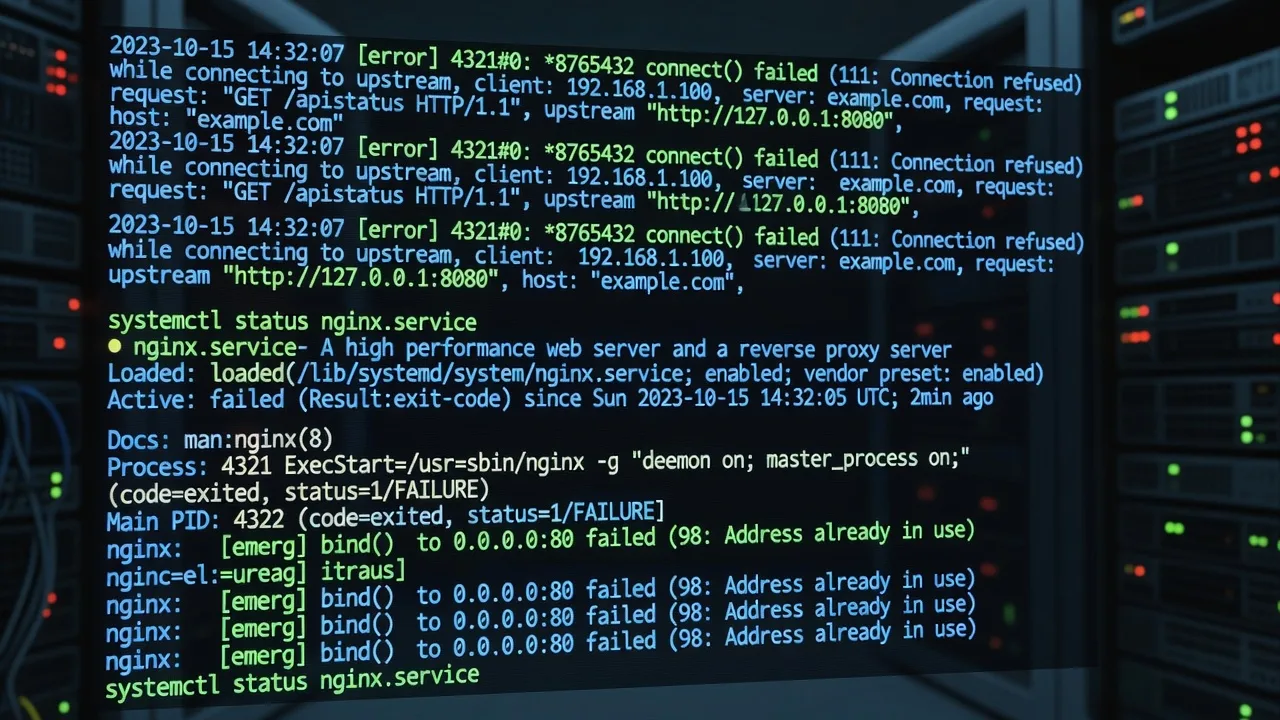
sudo tail -n 100 /var/log/nginx/error.log
sudo tail -n 50 /var/log/nginx/access.log | grep ' 502 '
Look for connect() to unix:/run/php/php8.x-fpm.sock failed or Connection refused.
Step 2 — Restore the FPM pool
ls /run/php/
sudo systemctl status php8.2-fpm --no-pager
sudo systemctl restart php8.2-fpm
sudo ss -ltnp | grep php-fpm
# socket should reappear, e.g. /run/php/php8.2-fpm.sock
Step 3 — Align nginx fastcgi_pass with the live socket
sudo grep -R "fastcgi_pass" /etc/nginx/ -n
# must match the socket or 127.0.0.1:9000 that FPM actually listens on
sudo nginx -t && sudo systemctl reload nginx
Step 4 — If the pool crashes again, inspect pool limits and OOM
sudo journalctl -u php8.2-fpm -n 100 --no-pager
free -h
dmesg -T | tail -n 50 | grep -i -E 'oom|killed'
sudo grep -E 'pm\.(max_children|start_servers)' /etc/php/*/fpm/pool.d/www.conf
Reduce abusive plugins or raise pm.max_children only with RAM headroom. Recheck:
curl -sI https://YOUR_DOMAIN/wp-login.php | head -n 8When to call Fixwebnode: FPM dies on every request burst, sockets mismatch across multiple vhosts, or you also need WordPress security hardening in Cremorne & Richmond after a malware-driven worker storm.
Issue 3 — Clear 504 Gateway Timeout from slow or locked database queries
504 means the upstream did not finish before proxy timeouts. The database is often “up” but stuck on locks, missing indexes, or a runaway cron.
Step 1 — Measure where time is spent
curl -o /dev/null -s -w "DNS:%{time_namelookup} Connect:%{time_connect} TTFB:%{time_starttransfer} Total:%{time_total}\n" https://YOUR_DOMAIN/High TTFB with a healthy FPM socket points at application/DB latency, not a dead worker.
Step 2 — Inspect running queries and locks (MySQL/MariaDB)
mysql -u root -p -e "SHOW FULL PROCESSLIST;"
mysql -u root -p -e "SELECT * FROM information_schema.innodb_trx\G"
# PostgreSQL alternative:
# sudo -u postgres psql -c "SELECT pid, state, wait_event_type, left(query,120) FROM pg_stat_activity;"
Step 3 — Kill the blocker only after you identify it
mysql -u root -p -e "KILL <id>;"
# PostgreSQL: SELECT pg_terminate_backend(<pid>);
Step 4 — Temporary gateway relief (do not hide a permanent DB problem)
sudo grep -R "proxy_read_timeout\|fastcgi_read_timeout" /etc/nginx/ -n
# Example inside the location ~ \.php$ block:
# fastcgi_read_timeout 120s;
sudo nginx -t && sudo systemctl reload nginx
Then fix the slow query path (indexes, object cache, disable the heavy plugin) so you can return timeouts to sane values.
When to call Fixwebnode: recurring lock waits, multi-GB tables without indexes, or replication lag—DIY kills are stopgaps, not architecture.
Issue 4 — Fix credential, host, and socket drift after moves
After a host migration or panel restore, apps often still point at the old DB host or use localhost when only TCP is allowed (or the reverse).
Step 1 — Read the app config without guessing
# WordPress
grep -E "DB_NAME|DB_USER|DB_PASSWORD|DB_HOST" /var/www/html/wp-config.php
# Laravel
grep -E "^DB_" /var/www/html/.env
Step 2 — Prove network path and auth
getent hosts YOUR_DB_HOST
nc -vz 127.0.0.1 3306
mysql -u YOUR_APP_USER -p -h 127.0.0.1 YOUR_DB -e "SELECT DATABASE();"
If TCP works but localhost fails, set DB_HOST to 127.0.0.1 (forces TCP) or to the correct socket path your platform documents.
Step 3 — Reset the app password in MySQL to match config (controlled change)
mysql -u root -p -e "ALTER USER 'YOUR_APP_USER'@'localhost' IDENTIFIED BY 'NEW_STRONG_PASSWORD'; FLUSH PRIVILEGES;"
# Also grant host variants if the app connects as 127.0.0.1:
# CREATE USER IF NOT EXISTS 'YOUR_APP_USER'@'127.0.0.1' IDENTIFIED BY 'NEW_STRONG_PASSWORD';
# GRANT ALL ON YOUR_DB.* TO 'YOUR_APP_USER'@'127.0.0.1'; FLUSH PRIVILEGES;
Update wp-config.php or .env to the same password, then reload PHP-FPM.
Step 4 — Verify end-to-end
sudo systemctl reload php8.2-fpm
curl -sI https://YOUR_DOMAIN/ | head -n 10
sudo tail -n 20 /var/log/nginx/error.log
When to call Fixwebnode: multiple environments (staging/prod) share confused grants, or you inherited a host with unknown root passwords and no documented socket layout.
Issue 5 — Recover when disk full or InnoDB blocks new sessions
A full disk turns healthy sites into sudden 500 storms because the DB cannot create temporary tables or write logs.
Step 1 — Confirm capacity and largest consumers
df -h
sudo du -xh /var/lib/mysql /var/log /tmp /var/www 2>/dev/null | sort -h | tail -n 30
sudo lsof +L1 | head
Step 2 — Free space without deleting live data files
sudo journalctl --vacuum-time=7d
sudo find /var/log -type f -name "*.gz" -mtime +14 -delete
# Rotate oversized logs carefully:
sudo truncate -s 0 /var/log/nginx/access.log
# DO NOT rm InnoDB tablespace files
Step 3 — Restart DB only after free space exists, then check error log
sudo systemctl restart mysql
sudo tail -n 100 /var/log/mysql/error.log
mysql -u root -p -e "SHOW ENGINE INNODB STATUS\G" | head -n 80
Step 4 — Confirm the site recovers
curl -sI https://YOUR_DOMAIN/ | head -n 8
php -r 'new mysqli("127.0.0.1","YOUR_APP_USER","YOUR_PASSWORD","YOUR_DB"); echo "db ok\n";'
When to call Fixwebnode: InnoDB reports corruption, forced recovery flags, or you are below 5% disk with multi-tenant data you cannot prune—do not run experimental innodb_force_recovery paths without a backup plan.
When DIY is enough vs when to book Fixwebnode
DIY is enough when: the DB service restarts cleanly, FPM sockets match nginx, a single runaway query caused the 504, or credentials were simply wrong after a move—and the site stays healthy under a few authenticating page loads.
Book a specialist when: outages return within the hour, mysqld fails recovery, you lack SSH/root confidence, multiple production databases share one undersized VPS, or checkout/payment paths are affected. Fixwebnode works as a direct repair agent for database connection errors and web-server resuscitation across Melbourne metro—not a freelance marketplace. See all coverage on the service areas hub, including the City of Melbourne footprint.
Get the stack back online with Fixwebnode
If you have worked through the checks above and still see Database Connection Error, HTTP 500, or 502/504 Bad Gateway, stop repeating restarts and get a structured remote session. Fixwebnode supports individuals, sole traders, and local operators who need the database and web tiers diagnosed together.
Start the conversation and book support here: https://fixwebnode.com.au/remote-it-support-melbourne-victoria. Bring SSH access, the approximate outage start time, and any recent deploy or host move notes so resuscitation can focus on the real fault path.