Multi-Vendor & Complex SaaS Marketplaces
 Modern Headless & Jamstack Web Development
 High-End Corporate & Specialized Business Websites
 Advanced API, Checkout & Database Troubleshooting
CF7 & Elementor Forms Not Reaching Your CRM: Fix API Failures
Leads stuck in the form, never hitting HubSpot, Salesforce, or your CRM? Learn the real API failure causes for Contact Form 7 and Elementor—and the DIY checks that restore the pipeline before you book a specialist.
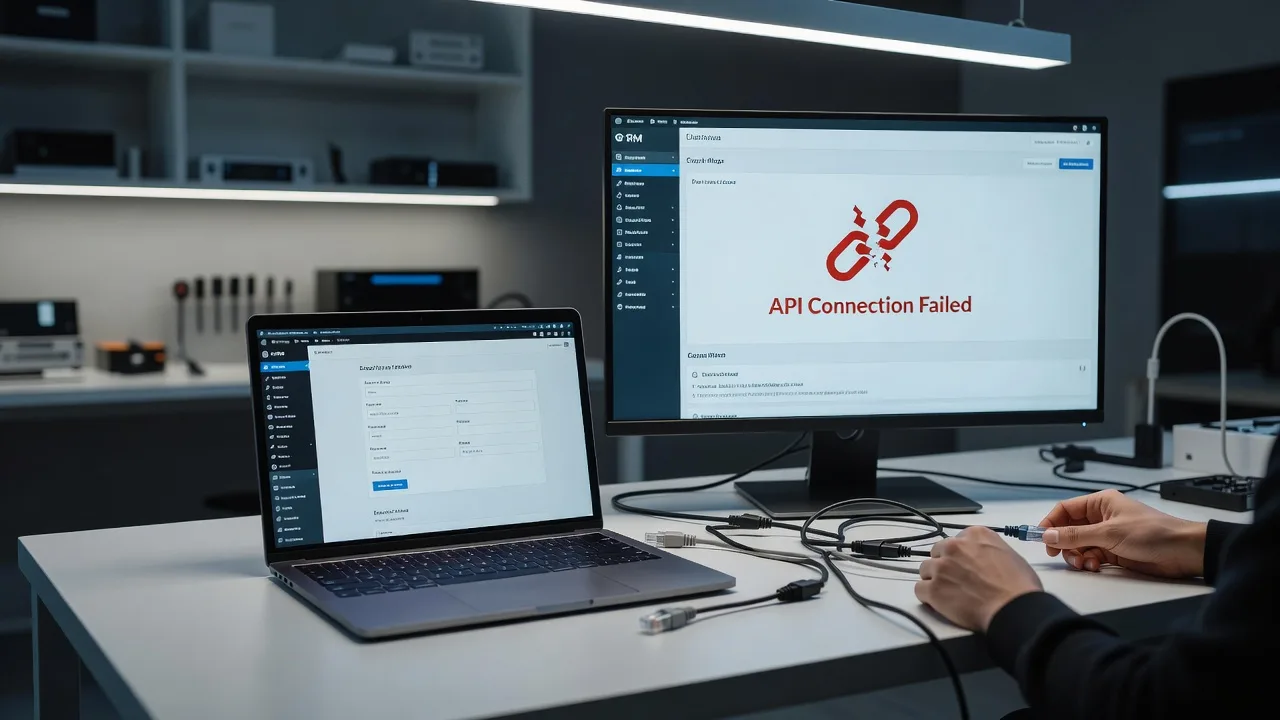
If Contact Form 7 or Elementor Forms submit successfully on the page but never create a contact, deal, or ticket in your CRM, you have an API or integration failure—not a “broken form.” This guide walks homeowners and small-business owners through the exact failure modes we see on WordPress sites, the checks you can run yourself, and when it is smarter to hand the stack to a specialist.
Fixwebnode treats Contact Form 7 / Elementor Forms not connecting to your CRM and fixing API failures as a production integration problem: credentials, payloads, TLS, webhooks, and plugin conflicts. We work across Australian metros and regional service areas—if you need coverage details, see our service areas. Builders and trades in Canberra often hit the same CRM pipeline issues on lead forms; the same patterns show up on Collingwood and inner-Melbourne WordPress installs.
Why CRM API failures matter more than a “form error”
Visitors still see the green success message. Your inbox may even get the CF7 or Elementor notification email. The CRM stays empty. Sales follow-up dies, ad spend is wasted, and you only notice days later when pipeline reports look thin. The root cause is almost always between WordPress and the CRM endpoint: auth, field mapping, blocked outbound HTTPS, or a middleware plugin that never fires.
Below are four distinct failure patterns. Each has different symptoms and a concrete DIY path before you escalate.
Common issues when CF7 or Elementor will not talk to the CRM
- Expired or mismatched API credentials — OAuth tokens, private app keys, or webhook secrets rotated in the CRM but still old in WordPress. Symptom: 401/403 in logs; form “succeeds” on-site.
- Payload field-mapping rejections — CRM requires fields (email, phone E.164, lifecycle stage, owner ID) that the form never sends or sends under the wrong key. Symptom: 400/422 responses; partial records or silent drops.
- Host or security stack blocking outbound API calls — firewall, ModSecurity, disabled
allow_url_fopen/curl, or a WAF rule killing POSTs to api.hubapi.com, *.salesforce.com, or your middleware. Symptom: timeouts, cURL error 7/28/35, empty CRM with no CRM-side log entry. - Wrong environment or webhook URL — sandbox vs production base URL, stale Zapier/Make hook, or CF7 “Additional Settings” / Elementor Actions still pointing at a deleted endpoint. Symptom: 404 on the hook; test submissions vanish.
Issue 1 — Expired or mismatched API credentials
CRMs rotate keys. Staff leave. Private apps get recreated. WordPress still holds the old secret in the integration plugin, wp-config constant, or Elementor Custom Action.
Step 1 — Confirm the live error, not the UI success message
Enable WordPress debug logging temporarily (remove when finished):
define('WP_DEBUG', true);
define('WP_DEBUG_LOG', true);
define('WP_DEBUG_DISPLAY', false);
Reproduce one form submit, then inspect:
tail -n 100 wp-content/debug.log
grep -iE '401|403|unauthorized|oauth|token|hubspot|salesforce|pipedrive' wp-content/debug.log
Step 2 — Re-issue credentials in the CRM
In HubSpot, Salesforce, Pipedrive, Zoho, or your stack: create a fresh private app / connected app with the minimum scopes (contacts write, leads write). Copy the new token once. Revoke the old one only after WordPress is updated.
Step 3 — Update WordPress in one place only
Prefer a single source of truth:
- Integration plugin settings screen, or
- Constants in
wp-config.php(never commit secrets to git):
define('CRM_API_BASE', 'https://api.example-crm.com/v1');
define('CRM_API_TOKEN', 'paste-new-token-here');
Step 4 — Verify with a direct API call from the server
curl -sS -o /tmp/crm-test.json -w "%{http_code}\n" \
 -H "Authorization: Bearer YOUR_TOKEN" \
 -H "Content-Type: application/json" \
 "https://api.example-crm.com/v1/contacts?limit=1"
cat /tmp/crm-test.json
Expect HTTP 200 and JSON. 401 means the token is still wrong; 200 with an empty form pipeline means auth is fixed and you should move to mapping (Issue 2).
When to call Fixwebnode: OAuth refresh flows, multi-site token vaults, or CRM apps that require signed JWTs and IP allowlists you cannot change from hosting panel alone.
Issue 2 — Payload field-mapping rejections
The CRM accepts the connection but rejects the body. Required properties missing, enums wrong (“Mobile” vs “mobile”), or phone not E.164. Elementor’s webhook action and CF7’s Flamingo/CRM bridges often send pretty labels instead of API property names.
Step 1 — Capture the exact payload WordPress sends
Temporarily log the outbound body in a staging copy, or use your middleware’s request history (Zapier Task History, Make scenario runs, native CRM “API call log”). Note every key name.
Step 2 — Diff against the CRM schema
curl -sS -H "Authorization: Bearer YOUR_TOKEN" \
 "https://api.example-crm.com/v1/properties/contacts" | head -c 4000
Match form fields to internal names (email, firstname, phone, custom utm_source), not the label shown on the form.
Step 3 — Fix mapping in the form tool
- Elementor Pro → form → Actions After Submit → Webhook or CRM action: set JSON keys to API property names.
- Contact Form 7: if using a CRM add-on, open its field map UI; if using a generic webhook, build explicit JSON in the template and pipe special mail tags.
- Add hidden fields for constants the CRM demands (pipeline ID, source, owner) so every submit is complete.
Step 4 — Validate with a minimal known-good body
curl -sS -X POST "https://api.example-crm.com/v1/contacts" \
 -H "Authorization: Bearer YOUR_TOKEN" \
 -H "Content-Type: application/json" \
 -d '{"email":"test+crm@yourdomain.com","firstname":"API","lastname":"Probe"}'
If this creates a contact but the form still does not, mapping—not auth—is the remaining gap. Align the form JSON to this working shape.
When to call Fixwebnode: multi-object creates (contact + deal + note in one submit), conditional pipelines, or CRMs that need idempotency keys to stop duplicate leads.
Issue 3 — Host or security stack blocking outbound API calls
Shared hosts, aggressive WAFs, and “security” plugins sometimes allow browser traffic but block PHP wp_remote_post() to third-party APIs. Symptom: no CRM log line at all; debug log shows cURL 7 (failed connect), 28 (timeout), or 35 (SSL).
Step 1 — Test DNS and TLS from the same server PHP uses
getent hosts api.hubapi.com
curl -vI --max-time 20 https://api.hubapi.com/ 2>&1 | head -n 40
php -r 'foreach(["curl","openssl","json"] as $e){echo $e,":",extension_loaded($e)?"yes":"NO","\n";}'
Step 2 — Reproduce with WordPress HTTP API
In a one-off MU-plugin or WP-CLI eval on staging:
wp eval 'print_r(wp_remote_get("https://api.hubapi.com/", ["timeout"=>20]));'Look for WP_Error messages mentioning SSL certificate problems, connection refused, or operation timed out.
Step 3 — Open the path safely
- Whitelist CRM API hostnames in the host firewall / Imunify / ModSecurity (do not disable the WAF globally).
- Exclude the form’s admin-ajax or REST route from rules that strip Authorization headers.
- If a security plugin “blocks external HTTP,” turn that option off or add the CRM domain to its allowlist.
- Confirm the server clock is correct (skew breaks TLS and OAuth):
date -u
Step 4 — Re-test a live form submit and confirm a new row appears in the CRM within a minute. Keep debug logging only until verified, then turn WP_DEBUG off.
When to call Fixwebnode: managed hosts that refuse outbound allowlists, corporate IP pinning on the CRM side, or mixed HTTP/HTTPS reverse-proxy setups that break certificate validation. Related mail delivery problems (form emails never leaving) often sit beside these blocks—see our Collingwood-focused WordPress contact form & SMTP fixes if notifications fail while the CRM path is being repaired.
Issue 4 — Wrong environment or stale webhook URL
Sandbox keys against production forms, old Zapier hooks after a rebuild, or Elementor still posting to a Make scenario you deleted. The form UI stays green because WordPress only cares that some HTTP response returned.
Step 1 — Inventory every destination
- Elementor → each form → Actions After Submit (CRM, Webhook, Webhook after submit).
- Contact Form 7 → additional settings and any CRM/webhook extension panels.
- Automation tools: Zapier/Make/n8n history for 404/410 on the catch hook.
Step 2 — Hit the hook yourself
curl -sS -X POST "https://hooks.zapier.com/hooks/catch/XXXX/YYYY/" \
 -H "Content-Type: application/json" \
 -d '{"email":"hook-test@yourdomain.com","source":"manual-curl"}' \
 -w "\nHTTP %{http_code}\n"
404/410 means recreate the hook and paste the new URL into Elementor/CF7. 200 with no CRM row means the automation steps after the catch are broken—open the scenario, not WordPress.
Step 3 — Lock environment labels
Name production vs sandbox explicitly in the form action labels. Store base URLs in wp-config.php constants so a staging clone cannot silently post test leads into the live CRM (or the reverse).
define('CRM_WEBHOOK_URL', 'https://hooks.example.com/prod/lead-intake');Step 4 — End-to-end proof
Submit the real form once with a unique email tag (e2e+timestamp@yourdomain.com). Confirm: WordPress success message → middleware run → CRM contact with that email → notification email if you still want it. Delete the test contact afterward.
When to call Fixwebnode: multi-brand sites sharing one CRM, builders’ estimate forms that must create jobs in industry CRMs, or Canberra construction sites running complex lead routing—our website solutions for Canberra builders & construction specialists cover those form-to-job pipelines when DIY mapping is not enough.
When DIY is enough vs when to book Fixwebnode
DIY is enough when you can obtain a fresh API token, a single form posts a minimal JSON body successfully via curl, field names match the CRM schema, and the host allows outbound HTTPS. One careful evening of log reading and mapping usually restores flow.
Book a specialist when any of these are true: OAuth refresh tokens keep expiring; multiple forms and CRMs must stay in sync; WAF/host support will not open required egress; you need contact + deal + task in one atomic call; or leads are revenue-critical and you cannot afford silent loss while experimenting on production.
Fixwebnode is a direct specialist practice—not a bid board. We diagnose the WordPress side, the server egress path, and the CRM contract together so the success message on the page finally matches a real record in the system your team uses every morning.
Talk through your form-to-CRM failures
If CF7 or Elementor still will not create CRM records after the checks above, bring your debug excerpts, one redacted payload, and the CRM error code. We will map the failure to auth, mapping, egress, or webhook routing and outline the fix path.
Start here: Contact Form 7 / Elementor Forms not connecting to your CRM — fixing API failures. For where we work across regions, browse all service areas. Book a conversation, share what the logs show, and get the lead pipe sealed end to end.