Multi-Vendor & Complex SaaS Marketplaces
 Modern Headless & Jamstack Web Development
 High-End Corporate & Specialized Business Websites
 Advanced API, Checkout & Database Troubleshooting
Booking Calendar Frozen? Fix Broken Third-Party Chat Widgets
Calendar clicks do nothing and the chat bubble steals the page? Learn the unique conflicts that freeze booking widgets, DIY checks that restore them, and when Fixwebnode should take over.
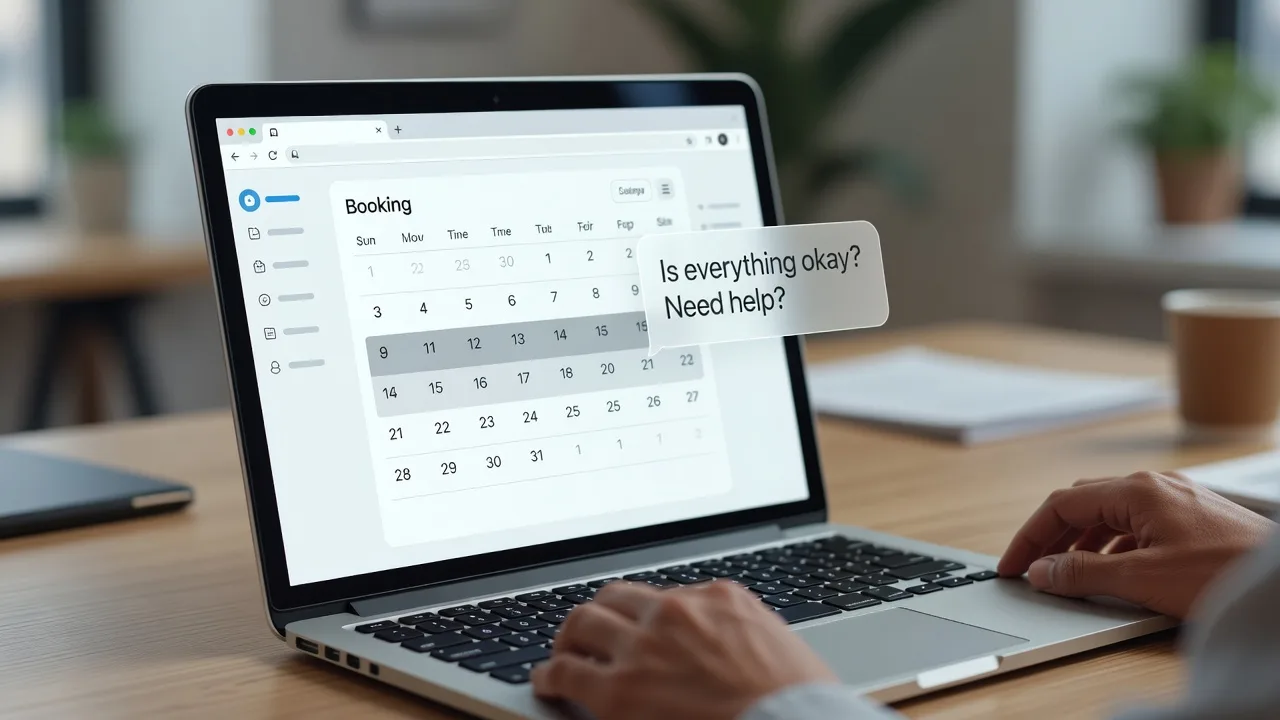
If your website booking calendar is frozen—dates greyed out, time slots unclickable, or the whole picker spinning while a third-party chat bubble sits in the corner—you are not imagining it. Chat widgets and booking calendars both inject heavy JavaScript, CSS, and iframes. When they fight over the same click events, z-index layers, or network budget, the calendar freezes and visitors bounce. This guide walks through the exact failure patterns small businesses and homeowners see, the DIY steps that often clear them, and when specialist Website support from Fixwebnode is the safer path.
Fixwebnode works on live production sites—WordPress, static builders, and custom stacks—so the calendar and chat keep working together instead of blocking each other. Whether you serve clients locally around Geelong or further afield, the troubleshooting pattern below stays the same: isolate the conflict, restore booking first, then harden the chat integration.
Why a frozen booking calendar matters more than a cosmetic glitch
A chat widget that misbehaves is annoying. A booking calendar that will not accept a date is lost revenue. On many service sites the calendar is the only conversion path: hair appointments, trades call-outs, clinic slots, venue hire. When a third-party chat script loads late, throws an uncaught error, or overlays an invisible layer on the date grid, users think the business is closed or the site is broken. Mobile traffic is hit hardest because chat “launcher” buttons often capture touch events meant for the picker.
Third-party chat is useful for questions, but it is rarely tested against every booking plugin update. After a theme change, a consent-banner rollout, or a chat vendor CDN hiccup, the calendar can freeze while the rest of the page still looks fine. That is the signature of a script conflict, not a “slow internet” problem.
Common issues that freeze booking calendars around chat widgets
These problems are distinct. Matching your symptoms to the right root cause saves hours of random plugin toggling.
- Invisible chat overlay blocks calendar clicks — The date grid renders, hover styles work on desktop, but clicks and taps do nothing. A full-width transparent layer from the chat launcher or pre-chat iframe sits above the calendar (high z-index, pointer-events still active).
- Chat script error aborts the booking initialiser — Browser console shows a red error from the chat vendor (undefined config, blocked beacon, or failed
postMessage). The booking library never finishesinit(), so the spinner never clears or months will not advance. - Consent / Content-Security-Policy stalls both embeds — Cookie banner holds scripts until “Accept.” Chat loads; booking stays pending—or CSP blocks the booking API host after chat’s inline script loosens or tightens headers inconsistently. Calendar freezes on “Loading availability…”
- Mobile touch capture by the chat bubble — Desktop booking works; phones and tablets do not. The floating chat button uses aggressive touch listeners or a large hit area that intercepts swipes on the date strip, especially in sticky footers or bottom-right layouts.
- Double-loaded booking assets after a chat “integration” snippet — A vendor’s “add booking to chat” snippet re-includes your calendar JS. Two instances fight over the same DOM node; the UI locks after the first interaction.
How to fix each issue (DIY first)
1. Invisible chat overlay blocking calendar clicks
Symptoms: Dates look active; DevTools “Inspect” on a cell highlights a different element (often a div from the chat iframe wrapper). Cursor may show default arrow instead of pointer.
Step 1 — Confirm the overlay
- Open the booking page in Chrome or Edge.
- Right-click a dead date cell → Inspect.
- In the Elements panel, note which node is actually highlighted. If it is outside your calendar container (chat launcher,
#hubspot-messages-iframe-container-style wrapper, Intercom/Drift shell, etc.), you have an overlay.
Step 2 — Temporary proof
- In the console, hide chat containers, for example by setting the chat root to
display: nonevia DevTools Styles (do not leave this as a permanent hack on production without testing). - Retry clicking dates. If booking works immediately, the chat layer was the blocker.
Step 3 — Durable CSS containment
- Give the calendar wrapper a stacking context: position relative and a sensible z-index above page content but coordinated with chat.
- Constrain the chat launcher size and ensure its iframe wrapper does not stretch full viewport width on the booking route.
- Prefer vendor settings that load chat in a compact bubble rather than an early expanded panel on pages that contain
#booking,.book-now, or your scheduler shortcode.
Step 4 — Verify
- Hard-refresh, test desktop and a real phone, and tab through dates with the keyboard to ensure focus is not trapped.
If the vendor injects inline styles that reset your z-index on every page load, stop fighting CSS alone—move to Fixwebnode for a route-specific load rule.
2. Chat script error aborting the booking initialiser
Symptoms: Calendar spinner never ends; month arrows missing; console error naming the chat domain or a shared global (for example a clash on $, jQuery, or a redefined window.booking).
Step 1 — Capture the failure cleanly
- Open DevTools → Console and Network.
- Disable extensions (ad blockers often break chat and muddy the log).
- Reload with “Disable cache” enabled.
Step 2 — Isolate scripts
- On a staging copy (or a maintenance window), remove only the chat embed snippet or disable only the chat plugin.
- Reload the booking page. If the calendar initialises, the chat script was throwing before or during booking boot.
Step 3 — Fix load order and globals
- Load booking libraries before third-party chat whenever your stack allows ordered enqueues (WordPress: explicit script dependencies; other CMS: put booking in head/footer before the chat tag).
- Ensure jQuery (if required by the calendar) runs in noConflict mode if the chat bundle ships its own copy.
- Replace outdated chat paste-snippets with the vendor’s current loader; expired workspace IDs throw early and halt subsequent widgets.
Step 4 — Verify
- Console should show zero errors from either vendor during a full book-and-confirm dry run (use a test slot you can cancel).
Uncaught errors inside minified vendor code are not something to “patch” by editing their CDN file. If isolation proves chat is at fault but the vendor has no setting to defer cleanly, book specialist help.
3. Consent banner and CSP leaving availability stuck on loading
Symptoms: Calendar waits forever on availability; Network tab shows booking API calls queued, cancelled, or blocked (CSP / CORS); chat may appear only after Accept while booking never retries.
Step 1 — Map who loads when
- Reproduce with cookies cleared.
- Before accepting consent, note which scripts are held.
- After Accept, confirm whether the booking script fires a second initialisation or stays dead.
Step 2 — Align categories in the consent tool
- Mark both the booking engine and its availability API host as the same functional category (usually “Functional” or “Strictly necessary” for the book flow—not Marketing-only).
- Mark chat as Marketing or Functional per your policy, but do not let chat’s Accept handler be the only resume trigger if booking was never registered for replay.
Step 3 — Fix CSP and allowed hosts
- In your CSP report or browser console, list blocked hosts.
- Allow the booking SaaS domain for
script-src,connect-src, and if neededframe-src. - Allow the chat vendor similarly, without using overly broad
unsafe-inlineas a permanent crutch. - Redeploy headers and retest in a private window.
Step 4 — Verify
- Cold load → Accept → pick date → see availability → hold slot. Repeat with Reject where policy requires and confirm the booking path still explains what is blocked instead of spinning forever.
CSP and consent misconfiguration can lock customers out site-wide. If you are unsure which header production actually serves (CDN vs origin), that is a prime moment to involve Fixwebnode rather than guess on live traffic.
4. Mobile touch capture by the chat bubble
Symptoms: Desktop fine; iOS/Android cannot change month or select a day; rubber-band scroll feels “stuck” near the bottom-right chat button.
Step 1 — Reproduce on hardware
- Do not trust desktop device mode alone. Use a real phone on cellular and Wi-Fi.
- Note whether the freeze happens only on the booking URL or on every page.
Step 2 — Reduce launcher aggression
- In the chat admin, switch to a smaller launcher, higher vertical offset, or “open on click only” (disable auto-open on mobile).
- Disable chat display on URLs that contain the booking path if the vendor supports per-URL rules.
Step 3 — Page-level layout guard
- Add bottom padding on the booking container so the last row of dates clears the launcher hit area.
- Avoid nested scroll areas inside the calendar on mobile; one scroll surface reduces touch fights.
Step 4 — Verify
- Test portrait and landscape, left- and right-handed reach, and both Safari and Chrome on mobile.
5. Double-loaded booking assets from a chat “integration” snippet
Symptoms: First click works oddly (duplicate modals, timezone twice, or immediate freeze); Network tab shows the same booking .js twice from different loaders.
Step 1 — Inventory embeds
- Search the theme, tag manager, and chat inbox “Integrations” for a second calendar snippet.
- Disable the chat-side booking integration; keep the native on-page calendar only.
Step 2 — Single owner for the book flow
- Choose one: on-page calendar or book-inside-chat—not both on the same URL.
- Remove duplicate shortcodes, GTM tags, and leftover HTML widgets.
Step 3 — Verify
- Network: one booking bootstrap. Console: one init. Complete a test reservation and cancel it in the backend.
API-level booking-inside-chat setups need careful auth and CORS design. For those, Fixwebnode’s integration work (including secure API patterns used on projects such as Secure API Development & Third-Party Integrations | Melbourne CBD) is more appropriate than stacking marketing snippets.
When DIY is enough vs when to book Fixwebnode
DIY is enough when: you can reproduce the freeze in one browser, chat disable instantly restores booking, the fix is load-order, a consent category tick, launcher position, or removing a duplicate snippet—and you have staging or a quiet window to verify a full test booking.
Book Fixwebnode when:
- The calendar still freezes after chat is fully removed (deeper theme, cache, or server issue).
- Errors point at minified vendor bundles you cannot legally or safely patch.
- CSP, CDN, and origin headers disagree and you risk locking the whole site.
- You need chat and booking both mandatory on the same funnel with clean mobile UX.
- WooCommerce, membership, or multi-location availability APIs are involved and downtime is costly.
Fixwebnode is a direct specialist for website repair and support—not a bid board. Geography spans multiple regions; see All service areas for coverage, including regional work such as Bunbury Website Repairs, Maintenance & Setup (6230). Homeowners running a single booking page and small teams with mixed chat-plus-scheduler stacks get the same methodical conflict isolation: protect revenue first, then reintroduce chat under control.
Get the calendar taking bookings again
A frozen booking calendar next to a lively chat widget is almost always a concrete conflict—overlay, script error, consent/CSP timing, mobile touch capture, or double init—not bad luck. Work through the matching section above, verify with a real test reservation, and keep chat from owning the page on booking URLs.
If you would rather not debug live customer traffic alone, start a conversation with Fixwebnode. Share the booking URL, chat vendor name, and what changed last (theme, plugin, consent tool, or CDN). Book practical Website support and get the scheduler and chat working as a pair again—so visitors can ask a question and still lock in a time.