Multi-Vendor & Complex SaaS Marketplaces
 Modern Headless & Jamstack Web Development
 High-End Corporate & Specialized Business Websites
 Advanced API, Checkout & Database Troubleshooting
WooCommerce Print-on-Demand Automation in Wollongong NSW
Automate WooCommerce print-on-demand without silent order failures. Diagnose webhooks, variant sync, and fulfilment status with practical DIY steps—or book Fixwebnode when the stack needs a specialist.
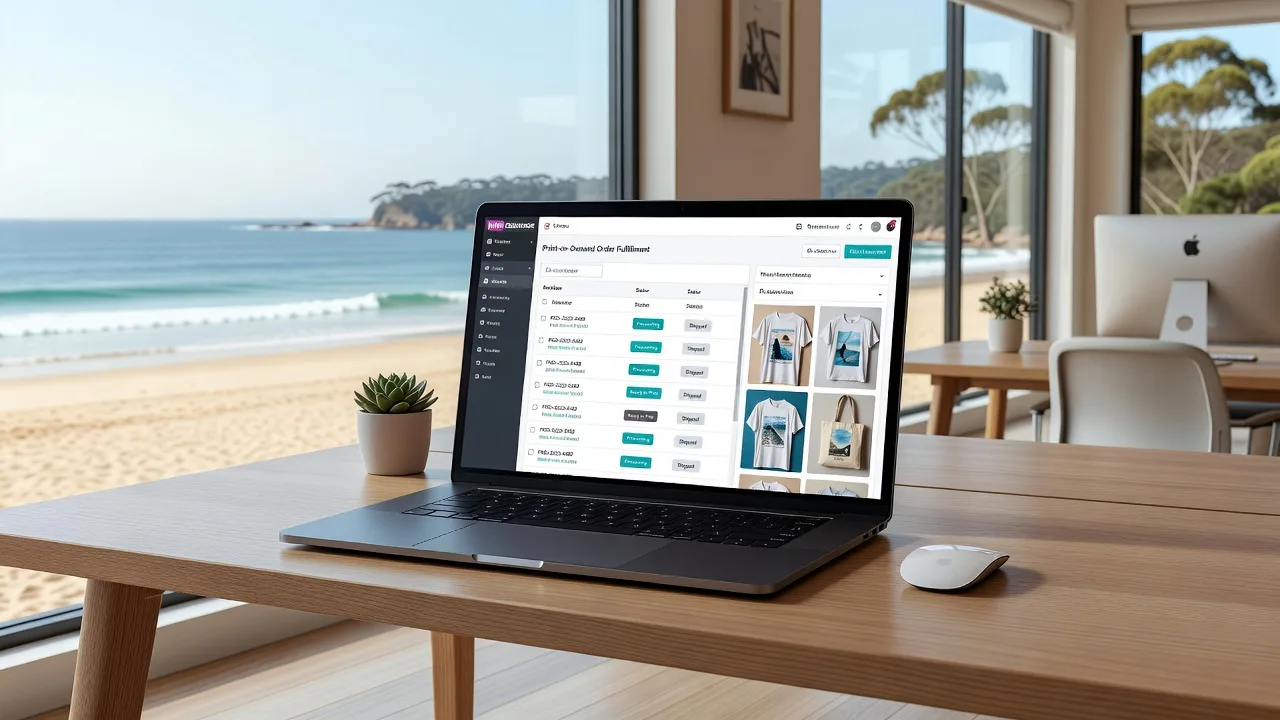
If you are building an automated WooCommerce print-on-demand business in Wollongong, NSW, the hard part is rarely the design mockups—it is keeping orders, stock, and fulfilment in lockstep when a customer pays.
Remote store owners often discover that a “successful” checkout still never reaches the print provider, that variant SKUs drift out of sync, or that tracking never writes back to WooCommerce. This guide stays on that problem: common failure modes, numbered DIY checks you can run from your hosting panel or SSH, and when to book a direct specialist. Fixwebnode works on WooCommerce print-on-demand stacks remotely for store owners in your area and across NSW, without marketplace bidding or middle layers.
Why reliable POD automation matters for a Wollongong store
Print-on-demand only works as a business when payment, order routing, production, and shipping status form one closed loop. A broken webhook or mismatched attribute can leave paid orders sitting in “Processing” while the printer never sees them. For local brands selling apparel, posters, or merch online, that means refunds, chargebacks, and lost trust—especially when customers expect Australia Post–style tracking updates.
Automation should cover: product catalogue sync (or stable manual catalogue rules), order push to the fulfilment API, inventory/backorder behaviour, GST-aware pricing, and status callbacks into WooCommerce order notes and email. The rest of this post is a practical runbook for the failures that break that loop.
Why is my WooCommerce POD order paid but never sent to the printer?
When a WooCommerce print-on-demand order shows Paid or Processing but the print provider never receives it, the usual causes are a failed or unauthenticated webhook, a plugin order-status filter that never fires “processing,” or the fulfilment app stuck on a stale API token. Confirm the order status transition, inspect webhook delivery logs, and re-authenticate the POD integration before republishing the order.
| Symptom | Quick check | Call Fixwebnode when |
|---|---|---|
| Paid order, no print job | Webhooks & order status hooks | Deliveries 4xx/5xx after token refresh |
| Wrong size/colour printed | Attribute ↔ provider SKU map | Bulk catalogue rewrite needed |
| Tracking never appears | Callback URL & cron health | Custom status mapping required |
Common issues with automated WooCommerce print-on-demand
These problems show up repeatedly on live POD stores. Each has a different root cause—do not treat them as one “plugin is broken” issue.
1. Orders stay in Processing and never hit the print queue
Symptoms: Customer is charged; WooCommerce order is Processing or Completed; print dashboard shows nothing; no fulfilment order ID in order notes; webhook or integration log shows timeouts, 401, or 422 responses.
2. Variant attributes map to the wrong print SKU
Symptoms: Customer ordered Large / Navy; printer produces Medium / Black; “personalisation” text is missing on the job ticket; variable product has orphaned variations or duplicate attribute slugs after a bulk import.
3. Fulfilment tracking and status never write back
Symptoms: Printer marks the job shipped; WooCommerce still says Processing; customer gets no tracking email; shipment plugins show empty tracking fields; Action Scheduler or WP-Cron shows pending/failed POD callback actions.
4. Checkout tax, shipping, or currency breaks AU orders
Symptoms: NSW customers see incorrect GST; flat shipping ignores print-provider rates; multi-currency plugins alter line totals the fulfilment API rejects; orders fail validation on the provider side with price mismatch errors.
How to fix each issue (DIY steps first)
Fix 1 — Paid orders not reaching the printer
Goal: prove whether WooCommerce emitted the event and whether the provider accepted it.
Step 1 — Confirm order status and notes
In wp-admin, open the order. Note the status timeline and any POD plugin notes (external ID, error strings). If status jumped straight to Completed via another plugin, fulfilment hooks that listen for processing may never run.
Step 2 — Inspect WooCommerce logs and server error logs
Enable WooCommerce > Status > Logs for your POD plugin source. On the server (SSH), check recent PHP and web server errors:
sudo tail -n 100 /var/log/nginx/error.log
sudo tail -n 100 /var/log/php*-fpm.log
# or on Apache environments:
sudo tail -n 100 /var/log/apache2/error.log
Look for timeouts, SSL verify failures, or fatal errors in the POD plugin namespace at the order timestamp.
Step 3 — Verify REST/webhooks and delivery history
WooCommerce > Settings > Advanced > Webhooks: open any POD-related webhook. Check delivery history for non-2xx responses. From WP-CLI (if available):
wp wc webhook list --user=1
wp option get woocommerce_webhook_ids
wp cron event list | head -n 40
If deliveries show 401/403, regenerate the API key or OAuth connection inside the POD plugin settings and save again.
Step 4 — Re-queue a single test order
Place a low-cost test product order (or duplicate a failed order in a staging clone). Force status to Processing if needed, then re-send from the plugin’s “submit to provider” action if it offers one. Confirm a new external job ID appears in order notes within a few minutes.
Step 5 — Restart PHP if the worker is wedged
After fatal errors or stuck queue workers:
sudo systemctl restart php8.2-fpm
# adjust version to your stack, e.g. php8.1-fpm
sudo systemctl status php8.2-fpm --no-pager
Re-check the test order. When to call Fixwebnode: repeated 4xx/5xx after fresh credentials, custom order-status workflows, or multi-plugin conflicts you cannot isolate safely on production.
Fix 2 — Wrong size, colour, or print file on the job
Goal: make each WooCommerce variation resolve to exactly one provider SKU and print file.
Step 1 — Export the variation matrix
Edit the variable product. For each variation, record: attribute values, SKU, enabled status, and any POD provider field (blueprint ID, print file URL, mockup ID). Delete draft/orphan variations that share the same attribute combination.
Step 2 — Normalise attributes
Use global attributes (Products > Attributes) with stable slugs (size, colour) rather than per-product free-text attributes that drift after CSV imports. Re-assign variations after renaming.
Step 3 — Validate the provider mapping
In the POD plugin product panel, open each variation and confirm the linked catalogue item matches size and colour. Save the product, clear object cache if you use Redis/Memcached:
wp cache flush
# if Redis object cache is in use:
redis-cli -n 0 PING
# optional: wp redis flush if the drop-in supports it
Step 4 — Place a matrix smoke test
Order two opposite corners of the matrix (e.g. S/White and XL/Black). Compare the printer’s job ticket to the WooCommerce order line attributes character-for-character, including personalisation meta.
When to call Fixwebnode: hundreds of SKUs, automated catalogue sync rewriting attributes nightly, or print files stored on external DAM/CDN paths that break signed URLs.
Fix 3 — Tracking and fulfilment status never return
Goal: ensure provider callbacks can reach your site and that scheduled actions run.
Step 1 — Confirm the callback URL is public HTTPS
From the POD app settings, copy the webhook/callback endpoint. Test from an external network perspective:
curl -sI https://YOUR-DOMAIN.example/wc-api/your-pod-callback
curl -sI https://YOUR-DOMAIN.example/?wc-api=your_pod_plugin
You want a reachable TLS response—not a firewall block, HTTP auth challenge, or stale certificate. Check certificate expiry:
echo | openssl s_client -servername YOUR-DOMAIN.example -connect YOUR-DOMAIN.example:443 2>/dev/null | openssl x509 -noout -datesStep 2 — Health-check WP-Cron / Action Scheduler
WooCommerce > Status > Scheduled Actions: filter for failed or pending POD-related actions. CLI:
wp action-scheduler run
wp cron test
wp option get timezone_string
wp option get gmt_offset
If the host disables real cron, add a system cron hitting wp-cron.php every five minutes instead of relying on site traffic alone.
Step 3 — Map provider statuses to WooCommerce
In the POD plugin, set: in-production → Processing (or a custom status), shipped → Completed, cancelled → Cancelled. Ensure order emails for customer notes/tracking are enabled under WooCommerce > Settings > Emails.
Step 4 — Replay one shipment event
Ask the provider dashboard to resend webhook events for a known shipped job (if available), or toggle a test shipment. Confirm tracking appears on the order and the customer email log (or transactional email plugin log) records a send.
When to call Fixwebnode: callbacks hit the site but status mapping is custom-coded, WAF rules drop provider IPs, or you need hardened endpoint authentication without breaking legitimate traffic.
Fix 4 — GST, shipping, and price validation failures
Goal: line totals WooCommerce calculates must match what the fulfilment API expects for Australian checkout.
Step 1 — Lock tax display and calculations
WooCommerce > Settings > General: store address in Australia. Tax: enable taxes; configure GST-inclusive display if that is how you market prices. Remove conflicting “price by country” rules that alter the unit price after the POD app snapshot the order.
Step 2 — Separate retail shipping from production shipping
If the printer bills production postage separately, do not let a cheap flat-rate method undercharge relative to provider labels. Either use the POD app’s live shipping rates at checkout or set flat rates that cover worst-case parcel sizes for your catalogue.
Step 3 — Reproduce a failing payload
Create a test order from a NSW address. Compare order item subtotal, tax, and shipping in WooCommerce with the provider’s rejected payload (from plugin logs). Fix mismatches before re-pushing.
When to call Fixwebnode: multi-currency plus GST plus live provider rates interacting badly, or headless/checkout customisations changing totals after payment intent creation.
When DIY is enough vs when to book Fixwebnode
DIY is enough when you can identify a single failed webhook delivery, refresh API credentials, fix a handful of variation mappings, or restore WP-Cron and see tracking write back on the next order.
Book a specialist when failures are intermittent across many SKUs, several fulfilment or shipping plugins hook the same order statuses, staging and production drift, or you need a durable automation design (status model, logging, retry policy, and catalogue rules) rather than a one-off click-fix. Fixwebnode is a direct remote provider for WooCommerce print-on-demand work—not a freelance marketplace—so you deal with one technical team on the store itself.
Remote delivery covers diagnostics, plugin/API configuration, log-driven fixes, and verification orders. Geography for on-site needs is summarised on the service areas page; most POD automation work is completed digitally on your hosting stack.
Talk through your POD automation with Fixwebnode
If paid orders are stalling, variants are misprinting, or tracking never returns, gather one failing order ID, your POD plugin name, and a recent log snippet, then start a conversation with the team. Book or enquire via the landing page: WooCommerce print-on-demand with Fixwebnode. We will help you stabilise the checkout-to-fulfilment loop so your Wollongong-based catalogue can run as a real automated business—not a manual inbox full of exceptions.