Multi-Vendor & Complex SaaS Marketplaces
 Modern Headless & Jamstack Web Development
 High-End Corporate & Specialized Business Websites
 Advanced API, Checkout & Database Troubleshooting
Watch a Bloated WordPress Site Climb from 21 to 98 Mobile
Mobile score stuck at 21? Learn the real Core Web Vitals fixes Australian site owners use—images, plugins, TTFB—and when remote WordPress support from Fixwebnode is the smarter path to 90+.
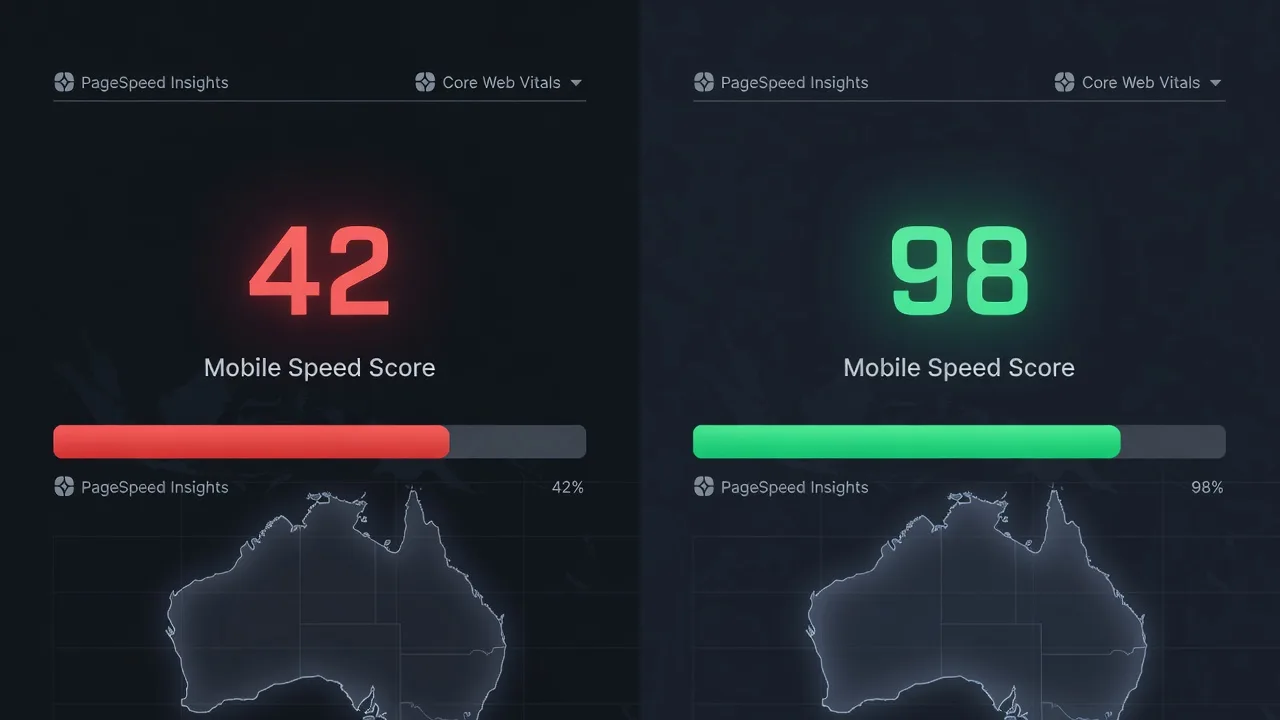
If your WordPress mobile PageSpeed sits in the low twenties, visitors bounce before the page finishes painting—and Google notices. This guide walks Australian homeowners and small businesses through the same remote diagnostics and fixes we use to lift bloated sites toward the high nineties on mobile Core Web Vitals, without marketplace noise or vague tips.
You will measure what is broken, apply safe DIY steps, and know exactly when to book direct specialist help from Fixwebnode WordPress support. Work is remote and digital across Australia; see where we cover on our service areas page.
Why a 21 mobile score hurts Australian WordPress sites
A score near 21 almost always means poor Largest Contentful Paint (LCP), high Cumulative Layout Shift (CLS), and a long Time to First Byte (TTFB). On mobile networks common across Australia, oversized hero images, render-blocking plugins, and cold PHP workers stack up until the main content appears after several seconds. Search visibility and paid-ad quality scores both suffer. The goal is not a vanity number—it is a stable LCP under roughly 2.5s, INP that feels instant, and CLS near zero so the layout does not jump while fonts and banners load.
Why is my WordPress mobile PageSpeed stuck around 21 in Australia?
Most sites stuck near 21 fail LCP because the largest image or text block is huge, uncached, or blocked by CSS and JavaScript, while TTFB stays high from unoptimised PHP and a heavy database. Fix the media weight, cut render-blocking assets, and harden server-side caching first; those three moves usually move the needle before any redesign. If LCP is still multi-second after that, the bottleneck is usually hosting PHP workers, object cache, or third-party tags—not “more plugins.”
| Symptom | Quick fix | When to call Fixwebnode |
|---|---|---|
| LCP 4s+ / giant hero | Compress, resize, modern formats, priority hints | Theme hard-codes full-size images or page builders fight you |
| Score tanks only on mobile | Defer non-critical JS/CSS; audit plugins | Critical CSS breaks layout or checkout |
| TTFB over 1–2s | Full-page cache, OPcache, DB cleanup | Host limits workers; Redis/object cache needs setup |
Common issues that keep mobile scores near 21
These problems show up repeatedly on bloated WordPress installs. Each has a different root cause—do not treat them as one “speed plugin” fix.
- Oversized, unconverted media killing LCP — Hero or product images ship as multi-megabyte JPEGs or PNGs at desktop width; mobile LCP waits on a 3000px file over a slower radio.
- Render-blocking CSS/JS and plugin pile-up — Ten or more front-end plugins inject styles and scripts in the head; First Contentful Paint and LCP stall until they download and parse.
- Slow TTFB from cold PHP, no page cache, and database bloat — Every visit rebuilds the page in PHP; autoloaded options and post revisions inflate queries; mobile users feel the full server wait.
- Layout shift from late fonts, ads, and unset image dimensions — CLS spikes when banners and webfonts reflow the page after first paint.
Issue 1 — Oversized media and weak LCP
Symptom: PageSpeed flags a huge LCP element; the network waterfall shows a 1–4 MB image as the largest contentful paint candidate.
Step 1 — Measure the live LCP resource
Run a field-style check from your machine against the public URL (replace with your domain):
curl -sI -o /dev/null -w "TTFB: %{time_starttransfer}s\nTotal: %{time_total}s\nHTTP: %{http_code}\n" https://www.example.com.au/
curl -sL "https://www.example.com.au/" | head -c 80000 | grep -oE 'https?://[^"'']+\.(jpg|jpeg|png|webp|avif)' | head -n 20
Note TTFB separately from download time. If TTFB is fine but the hero URL is a full-resolution upload, media is the bottleneck.
Step 2 — Resize and convert at the source
In WordPress admin, replace the featured/hero image with a version no wider than the largest display width you actually use (often 1200–1600px for full-bleed heroes). Prefer WebP or AVIF where the theme supports them. Strip EXIF if your optimiser offers it.
Step 3 — Add dimensions and fetch priority
Ensure width and height (or CSS aspect-ratio) are set so the browser reserves space. For the true LCP image, use a priority hint in the theme or via a reputable optimisation plugin that can output fetchpriority="high" on that single image only—not on every thumbnail.
Step 4 — Verify
Re-test mobile PageSpeed and confirm the LCP element byte size dropped and LCP time improved. Check the page on a real phone on cellular if you can.
When to call Fixwebnode: page builders or custom themes hard-code background images in CSS, generate dozens of unused srcset sizes, or break when you swap formats. Remote theme surgery is faster than fighting the builder alone.
Issue 2 — Render-blocking assets and plugin bloat
Symptom: Opportunities list names many CSS/JS files; “Reduce unused JavaScript/CSS” dominates; score is worse on mobile than desktop.
Step 1 — Inventory what loads on the home or key landing URL
curl -sL "https://www.example.com.au/" | grep -oE 'href="[^"]+\.css[^"]*"|src="[^"]+\.js[^"]*"' | sort | uniqCount third-party domains (tag managers, chat widgets, old sliders). Each extra origin adds DNS and connection cost on mobile.
Step 2 — Disable non-essential plugins on a staging copy
Clone to staging first. Deactivate sliders, pop-ups, unused page-builder add-ons, and duplicate SEO or form plugins one group at a time. Retest after each group. Keep security, backups, and checkout-critical extensions on.
Step 3 — Defer non-critical JavaScript safely
Use your caching/optimisation plugin to defer non-critical JS and delay third-party tags until interaction where the business allows. Do not defer scripts required for above-the-fold menus or cart fragments without testing.
Step 4 — Critical CSS with a rollback plan
Generate critical CSS only if you can purge cache and restore in one click. After enabling, click through header, mobile menu, and forms. If styles flash unstyled, roll back and leave critical CSS to a specialist.
Step 5 — Verify with a clean profile
Retest mobile lab data and watch the waterfall: head should no longer chain many blocking files before first paint.
When to call Fixwebnode: deferring scripts breaks WooCommerce checkout, membership gates, or booking calendars. We remotely profile the dependency graph and exclude the right handles instead of blanket “optimise everything.”
Issue 3 — Slow TTFB, PHP workers, and database bloat
Symptom: TTFB stays above ~0.8–1.5s even after image work; HTML document itself is slow; score collapses when cache is cold.
Step 1 — Confirm TTFB and cache headers
curl -sI -o /dev/null -w "DNS: %{time_namelookup}s\nConnect: %{time_connect}s\nTTFB: %{time_starttransfer}s\nTotal: %{time_total}s\n" https://www.example.com.au/
curl -sI https://www.example.com.au/ | grep -iE 'cache-control|x-cache|cf-cache|age:|server:'
If every request misses cache and TTFB is high, full-page caching is missing or bypassed (common with personalised cookies or misconfigured plugins).
Step 2 — Inspect WordPress and server error signals
On hosts with SSH (VPS or capable managed WordPress), check recent PHP and web errors (paths vary by stack):
# Nginx example — adjust path for your host
sudo tail -n 100 /var/log/nginx/error.log
# PHP-FPM slow or fatal errors (path may differ)
sudo tail -n 100 /var/log/php*-fpm.log
# If WP-CLI is available
wp option get siteurl
wp plugin list --status=active
wp db size --all-tables | sort -k2 -h | tail -n 20
Look for oversized wp_options autoload data, huge revision or action-scheduler tables, and fatals that force retries.
Step 3 — Enable full-page cache and OPcache
Turn on server-level or plugin full-page cache for anonymous visitors. Confirm HTML responses can be cached for the homepage and key landing pages. Ensure PHP OPcache is enabled on the host panel. Avoid stacking three competing “all-in-one” speed plugins.
Step 4 — Safe database hygiene
Backup first. Then purge post revisions, expired transients, and spam comments via a trusted maintenance tool or WP-CLI on staging:
wp db export ~/backup-before-cleanup.sql
wp post delete $(wp post list --post_type=revision --format=ids) --force
wp transient delete --expired
Do not drop tables you do not recognise. Autoloaded options that are megabytes large often need specialist cleanup.
Step 5 — Restart PHP workers after config changes
When your host allows (VPS/dedicated patterns):
sudo systemctl reload php8.2-fpm
# or
sudo systemctl reload nginx
Managed WordPress panels usually expose “Reload PHP” instead—use that rather than blind restarts.
Step 6 — Re-measure cold vs warm
Purge cache, hit the URL once to warm, then measure TTFB again with the same curl timing. Mobile lab tests should show a shorter server wait before content paints.
When to call Fixwebnode: shared plans throttle PHP workers, object cache (Redis/Memcached) is unavailable or miswired, or WooCommerce cart fragments bypass cache on every page. That needs host-level and application-level tuning together.
Issue 4 — CLS from fonts, embeds, and missing dimensions
Symptom: CLS is flagged even when LCP improved; text jumps when webfonts swap; embeds and late banners push content down.
Step 1 — Reserve space for media and embeds
Give images explicit dimensions. Wrap iframes and video embeds in containers with a fixed aspect-ratio so the layout does not collapse then expand.
Step 2 — Font loading discipline
Limit family/weight combinations. Prefer font-display: swap with metrics close to the fallback, or self-host a lean subset. Avoid loading an entire icon font for two glyphs.
Step 3 — Delay non-essential third parties
Chat widgets, review carousels, and heavy tag managers should not inject large boxes above the fold on first paint. Load them on interaction or after idle where the business allows.
When to call Fixwebnode: the theme injects fonts via multiple builders, or tag-manager containers are owned by a marketing vendor and break when altered. We coordinate safe loading rules remotely without gutting tracking you still need.
When DIY is enough vs when to book Fixwebnode
DIY is enough when you can replace oversized heroes, deactivate obvious unused plugins on staging, turn on one coherent caching layer, and watch mobile LCP and TTFB improve in retests. Stop and book a specialist if checkout, login, or bookings break after deferral; if TTFB stays high on a tuned cache; if the page builder regenerates bloated CSS on every save; or if you need object cache, critical CSS, and host PHP limits handled as one remote job.
Fixwebnode is a direct WordPress support provider for Australian small businesses—not a freelance marketplace. Engagements are remote/digital, with clear scope on Core Web Vitals and speed. Geography and coverage notes live on our service areas page.
Book a remote speed recovery conversation
If your mobile score is still stuck near the low twenties after honest media and plugin cleanup, it is time for a structured remote pass: waterfall review, safe asset strategy, cache and PHP behaviour, and verification against Core Web Vitals—not another random plugin stack.
Start a conversation with Fixwebnode through our WordPress support for Australian small businesses landing page. Bring your URL and a recent mobile PageSpeed report; we will focus on the bottlenecks that actually block a path from the low twenties toward the high nineties.