




 Multi-Vendor & Complex SaaS Marketplaces
 Modern Headless & Jamstack Web Development
 High-End Corporate & Specialized Business Websites
 Advanced API, Checkout & Database Troubleshooting
Trace and Fix Broken Cron Jobs and Frozen Server Queues
Diagnose stalled cron loops and zombie PHP threads on Australian Linux servers. Learn sudo crontab -l, ps aux cleanup, and safe schedule rewrites—plus when to book Fixwebnode remote support.
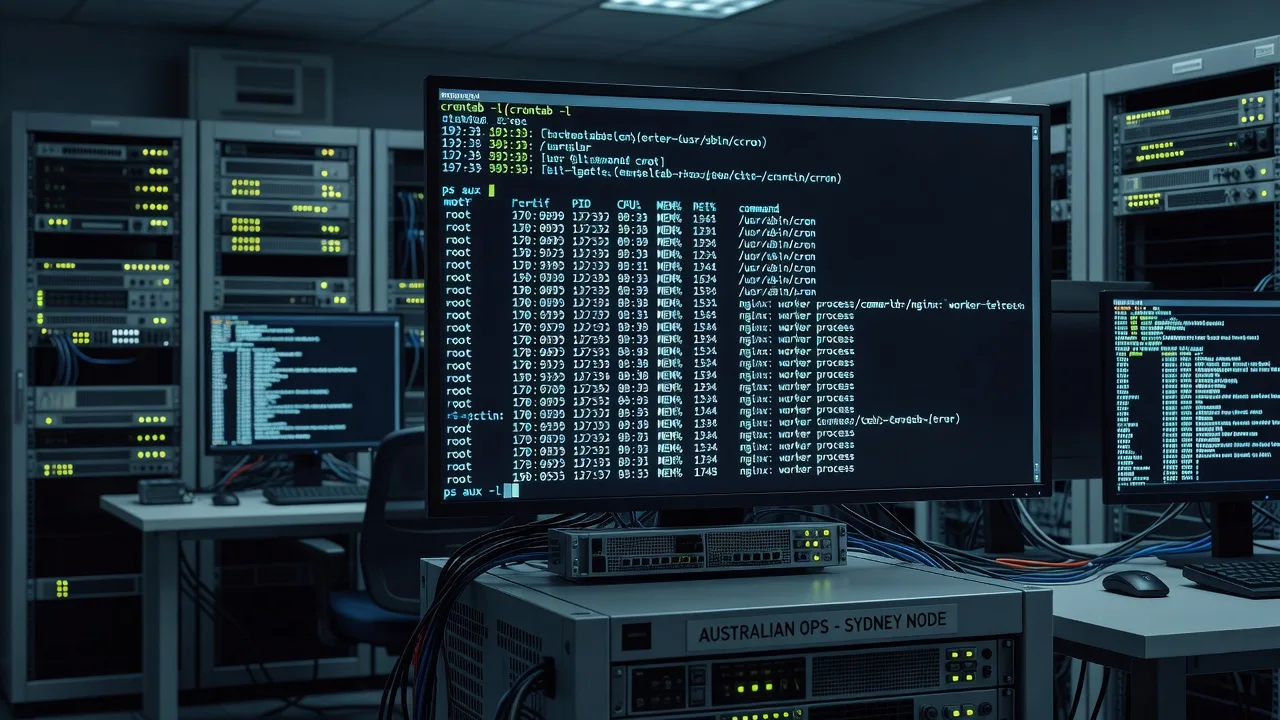
If scheduled jobs silently stop, mail queues stall, or load average climbs for no obvious reason, broken cron syntax and frozen PHP worker queues are often the cause. This guide walks Australian site owners and small-business sysadmins through remote CLI diagnosis: SSH in, inspect root and user crontabs, find stalled task loops, clear resource-hogging zombie PHP threads, and rewrite schedules so output is handled safely. Fixwebnode provides direct remote Ubuntu Linux server support and bug fixing across Australia when DIY steps are not enough.
Scope assumes SSH access to a typical Ubuntu or Debian-style VPS or dedicated host (systemd, cron or cronie, PHP-FPM or CLI PHP). You need sudo rights for system crontabs and process control. Work in a maintenance window if the server is production-critical.
Why broken cron and frozen queues matter under pressure
Cron is the backbone of backups, cache clears, queue workers, invoice runs, and WordPress or Laravel schedulers. One bad argument, a missing binary path, or a PHP process that never exits can stall the whole automation loop. In Australia, after-hours failures often surface as “the site is slow” or “emails stopped sending” rather than a clear cron error—because default mail-to-root noise is ignored or discarded. Tracing from the terminal is faster than guessing in a panel UI.
How do you trace broken cron jobs and frozen PHP queues on an Australian server?
SSH in as a sudo-capable user, list every crontab with sudo crontab -l and per-user tables, then correlate failed lines with system logs and ps aux for stuck PHP processes. Fix syntax and paths first, kill true zombies or runaway workers, and redirect noisy job output to /dev/null only after you confirm the job itself is healthy. Call Fixwebnode when jobs span multiple users, panels, or queue systems you cannot safely unwind alone.
| Symptom | Quick check | When to call Fixwebnode |
|---|---|---|
| Jobs never run | sudo crontab -l + cron syslog | Root/user tables conflict or unknown deploy hooks |
| Load spike, site timeouts | ps aux | grep php | Thousands of workers; unsure what is safe to kill |
| Mail flood or silent fail | Rewrite redirects; test one job | Complex MAILTO, containers, or managed panels |
Common issues with cron loops and frozen system queues
These problems show up repeatedly on production hosts. Each has a different root cause—do not treat them as one generic “restart cron” fix.
1. Broken crontab syntax or bad arguments stall the task loop
A single invalid minute field, unescaped percent sign, or wrong binary path can stop cron from installing the table or cause every subsequent line to misbehave. Symptoms: no new log lines at the expected minute, cron.service active but jobs absent, or crontab rejecting an install with a syntax error.
2. Thousands of frozen or zombie PHP threads hog CPU and RAM
Queue workers, wp-cron fallbacks, or long CLI scripts fork until the box thrashes. Symptoms: load average far above core count, PHP-FPM pool saturation, “zombie” or uninterruptible sleep states, and SSH lag. Cron may still fire new copies every minute on top of the pile.
3. Uncontrolled cron output fills mail or hides real errors
Jobs without redirection email root on every run, or operators redirect everything to /dev/null too early and never see failures. Symptoms: mailbox full, disk pressure under /var/mail, or “silent” jobs that exit non-zero with no trace.
4. Overlapping schedules and locked queue workers
A job that should take two minutes is scheduled every minute without flock or a pid lock. Symptoms: duplicate invoice runs, corrupted cache rebuilds, and frozen “system queues” waiting on the same database row locks.
Fix 1 — SSH in and audit crontabs for broken syntax
Start at the terminal. Confirm you are on the correct host and that cron is running before editing anything.
Step 1 — Connect and verify cron is active
ssh youruser@your-server-ip
sudo systemctl status cron
# On some hosts the unit is cron.service; RHEL-like may use crond
sudo systemctl is-active cron || sudo systemctl is-active crond
Expect active (running). If inactive, start and enable it only after you understand why it stopped:
sudo systemctl start cron
sudo systemctl enable cron
Step 2 — List root and system crontabs
sudo crontab -l
sudo ls -la /etc/cron.d/ /etc/cron.daily/ /etc/cron.hourly/
sudo grep -R . /etc/cron.d/ 2>/dev/null | head -n 50
sudo crontab -l shows the root table. Drop-in files under /etc/cron.d/ often hold panel or app jobs—read those too. Note any line with odd fields (six time fields instead of five, bare commands without full paths, or % in arguments without escaping).
Step 3 — List application user crontabs
sudo crontab -u www-data -l
sudo crontab -u ubuntu -l
getent passwd | cut -d: -f1 | while read u; do echo "== $u =="; sudo crontab -u "$u" -l 2>/dev/null; done
Many PHP apps run under www-data, nginx, or a deploy user. A broken line in that user table stalls only that user’s loops while root jobs still look healthy.
Step 4 — Cross-check logs for the exact failure
sudo journalctl -u cron -n 100 --no-pager
sudo grep CRON /var/log/syslog | tail -n 80
# Debian/Ubuntu often use syslog; some images use /var/log/cron.log
sudo tail -n 80 /var/log/auth.log
Look for “bad command”, “ERROR (Missing newline before EOF)”, permission denied on the script, or “No such file or directory” for php or wp.
Step 5 — Correct syntax and reinstall the table safely
sudo crontab -e
# Example healthy line (five time fields, full paths):
# 15 2 * * * /usr/bin/php /var/www/app/artisan schedule:run >> /var/log/artisan-schedule.log 2>&1
Rules of thumb: use absolute paths; escape % as \% inside commands; end the file with a newline; prefer appending to a dedicated log while debugging. After save, confirm:
sudo crontab -l
sudo systemctl reload cron 2>/dev/null || true
Run the command once by hand as the same user cron would use:
sudo -u www-data /usr/bin/php /var/www/app/artisan schedule:run -vvvIf the manual run fails, fix the app or path before blaming the schedule.
Fix 2 — Detect and clear frozen zombie PHP threads with ps aux
When cron keeps launching workers that never exit, you must identify and stop the pile-up without killing the whole web stack blindly.
Step 1 — Snapshot CPU, memory, and PHP processes
uptime
free -h
ps aux --sort=-%cpu | head -n 25
ps aux | grep -E '[p]hp|[p]hp-fpm' | wc -l
ps aux | grep -E '[p]hp' | head -n 40
Note PIDs, elapsed time (ETIME), and whether state is Z (zombie), D (uninterruptible I/O), or long-running R/S CLI scripts. Count is as important as any single process—hundreds of identical php artisan queue:work lines mean overlap.
Step 2 — Separate FPM pool workers from rogue CLI cron children
ps aux | grep -E '[p]hp-fpm'
ps aux | grep -E '[p]hp .*artisan|[p]hp .*wp-cron|[p]hp .*queue'
sudo ls -la /run/php/ 2>/dev/null
FPM masters should stay; runaway CLI children from cron are the usual kill targets. Check parent PID to avoid shooting the master:
ps -o pid,ppid,etime,cmd -C php
ps -o pid,ppid,etime,cmd -C php-fpm8.3 2>/dev/null || ps -o pid,ppid,etime,cmd -C php-fpm
Step 3 — Stop the schedule first so new copies stop spawning
sudo crontab -u www-data -e
# Comment out the offending line with # temporarily
sudo systemctl reload cron 2>/dev/null || true
Step 4 — Graceful then firm kill of stuck CLI workers
# Replace PIDs after you verify them — example pattern for artisan queue workers:
sudo pkill -TERM -f 'php .*artisan queue:work'
sleep 5
sudo pkill -KILL -f 'php .*artisan queue:work'
# Or single PID:
# sudo kill -TERM 12345
# sudo kill -KILL 12345
Zombies (Z) only disappear when their parent reaps them—restarting the parent service is the real fix:
sudo systemctl restart php8.3-fpm
# Adjust version: php8.1-fpm, php8.2-fpm, php-fpm as installed
sudo systemctl status php8.3-fpm --no-pager
Step 5 — Verify the host recovered
ps aux | grep -E '[p]hp' | wc -l
uptime
free -h
sudo tail -n 50 /var/log/php8.3-fpm.log 2>/dev/null
Load should fall within a few minutes. If disk wait stays high, check I/O and database locks next—killing PHP alone will not fix a saturated volume.
For hosts managed with RunCloud or Ploi-style tooling, align worker counts and restart policies in the panel after CLI cleanup; Fixwebnode can configure RunCloud or Ploi for automated PHP server management so queue concurrency stops fighting cron.
Fix 3 — Securely rewrite crontab variables and route output
Once jobs run correctly by hand, control environment and output so failures are visible during debug and quiet in steady state.
Step 1 — Set explicit environment at the top of the crontab
sudo crontab -eExample header and job (adjust paths to your app):
SHELL=/bin/bash
PATH=/usr/local/sbin:/usr/local/bin:/usr/sbin:/usr/bin:/sbin:/bin
MAILTO=""
HOME=/root

# Debug phase — keep a log:
*/5 * * * * /usr/bin/php /var/www/app/bin/job.php >> /var/log/cron-job.php.log 2>&1

# Steady state — discard stdout/stderr only after success is proven:
# */5 * * * * /usr/bin/php /var/www/app/bin/job.php >/dev/null 2>&1
MAILTO="" stops local mail spam. Prefer a dedicated log while tracing; switch to >/dev/null 2>&1 only when exit codes and side effects are verified. Never discard output on a job you have not run manually.
Step 2 — Prevent overlap with flock
*/5 * * * * /usr/bin/flock -n /tmp/job.php.lock /usr/bin/php /var/www/app/bin/job.php >> /var/log/cron-job.php.log 2>&1If the lock is held, the new invocation exits immediately instead of stacking frozen workers.
Step 3 — Validate install and permissions
sudo crontab -l
sudo touch /var/log/cron-job.php.log
sudo chown root:adm /var/log/cron-job.php.log
sudo chmod 640 /var/log/cron-job.php.log
# If the job runs as www-data:
sudo chown www-data:www-data /var/log/cron-job.php.log
sudo crontab -u www-data -l
Step 4 — Watch one full cycle
sudo tail -f /var/log/cron-job.php.log
sudo grep CRON /var/log/syslog | tail -n 20
Confirm a single start, a clean finish, and no new PHP pile-up in ps aux.
Fix 4 — Unstick frozen system / application queues
Cron and PHP cleanup often expose a deeper stuck queue (Horizon, database jobs, mail, or form pipelines).
Step 1 — Inspect queue depth and failed jobs (Laravel example)
cd /var/www/app
sudo -u www-data /usr/bin/php artisan queue:failed
sudo -u www-data /usr/bin/php artisan queue:monitor 2>/dev/null || true
sudo -u www-data /usr/bin/php artisan schedule:list
Step 2 — Clear only what you understand
# Retry failed jobs after fixing the underlying error
sudo -u www-data /usr/bin/php artisan queue:retry all
# Or flush a broken queue name deliberately — destructive:
# sudo -u www-data /usr/bin/php artisan queue:flush
Step 3 — Restart related services cleanly
sudo systemctl restart php8.3-fpm
sudo systemctl restart nginx
# If a supervisor program runs workers:
sudo supervisorctl status
sudo supervisorctl restart all
Sites that depend on complex form routing should confirm submissions still flow after queue recovery; specialist help is available for Gravity Forms advanced logic and complex client funnels when automation touches CRM or payment steps.
When DIY is enough vs when to book Fixwebnode
DIY is reasonable when: you have SSH and backups; a single user crontab shows an obvious bad path or typo; PHP process counts are elevated but you can identify CLI workers; and you can afford a short maintenance window to comment out lines, kill workers, and watch one successful cycle.
Book a specialist when: crontabs exist across root, deploy users, and panel drop-ins you did not create; killing processes risks payment or inventory jobs; zombies return immediately after FPM restart; disk, database locks, or containerised cron (Kubernetes CronJobs, Docker) are involved; or the outage is customer-facing during Australian business hours and you need a second pair of hands on the session.
Fixwebnode works as a direct remote server-support provider—not a freelance marketplace. Coverage and remote help are organised by service area; see all service areas for where support is offered across Australia. Soft timing only: remote sessions are often available same-day when booked early, depending on load.
Troubleshooting quick reference
crontab -l works but jobs never appear in syslog — wrong user table; anacron vs cron; or the script exits before logging. Run the binary under sudo -u matching the crontab owner.
pkill removed workers but load stays high — check MySQL/MariaDB threads, NFS mounts (D state), and iostat -xz 1. PHP was a symptom.
After redirecting to /dev/null, you cannot tell if jobs fail — temporarily restore logging, add set -x in wrapper scripts, or log exit codes: ...; echo $? >> /var/log/cron-job.php.log.
Permission denied in cron only — cron has a minimal environment; home-relative paths and SSH keys often break. Use absolute paths and explicit HOME/PATH.
Conclusion and next step
Tracing broken cron jobs and frozen server queues is a straight path: SSH in, list every crontab with sudo crontab -l and user tables, prove each command by hand, clear runaway PHP threads with careful ps aux and targeted signals, then rewrite schedule lines with locks and deliberate output handling—including /dev/null only after the job is known-good. That sequence restores automation without guessing in a control panel.
If you want a guided remote session on your Ubuntu or PHP host in Australia, start a conversation with Fixwebnode via the landing page for Linux server support and bug fixing. Bring SSH access details and a short note on which jobs should have run; we will pick up from the same diagnostic steps above and stabilise the queues with you.