Multi-Vendor & Complex SaaS Marketplaces
 Modern Headless & Jamstack Web Development
 High-End Corporate & Specialized Business Websites
 Advanced API, Checkout & Database Troubleshooting
Stuck in WordPress Maintenance Mode Loop? Quick Fix Guide
Site frozen on “Briefly unavailable for scheduled maintenance”? Learn the real causes of a WordPress maintenance mode loop, step-by-step DIY fixes (file removal, permissions, cache, failed updates), and when to book Fixwebnode support.
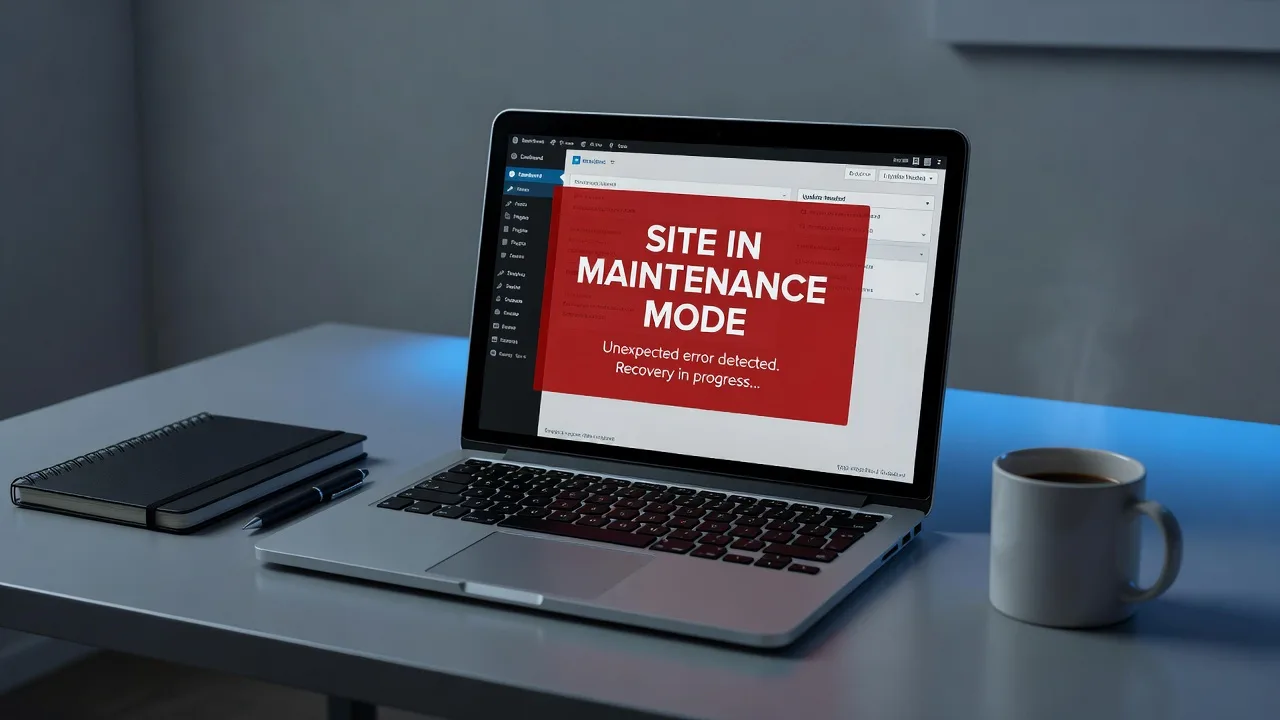
If your WordPress site is stuck on the grey “Briefly unavailable for scheduled maintenance. Check back in a minute” screen and never comes back, this guide walks you through the exact fixes homeowners and small businesses use to break the loop—plus when to hand it to a specialist.
A maintenance mode loop usually means an update never finished cleanly. WordPress drops a lock file named .maintenance in the site root; if that file is left behind (or a plugin, cache, or permission problem keeps recreating the outage), visitors—and you—stay locked out. Below you will get practical, numbered DIY steps for the most common root causes, verification checks, and clear signals to book WordPress Support from Fixwebnode when the site will not recover safely on its own.
Fixwebnode provides direct WordPress support for site owners who need a production-safe recovery—not a marketplace of bids. Whether you manage a local business site in Juneau or a remote small-business install, the same file-level and update hygiene steps apply.
Why a maintenance mode loop matters
Unlike a planned maintenance window, a stuck loop is an unplanned outage. Checkout pages stop, contact forms die, and search engines may see repeated downtime. The good news: most loops are mechanical. WordPress creates .maintenance at the start of core, plugin, or theme updates and is supposed to delete it when the job finishes. Interrupted PHP processes, low disk space, bad file ownership, aggressive page cache, or a half-applied update package are the usual villains.
Before you change anything, take a full backup (files + database) from your host panel or a known-good snapshot. If you cannot log into wp-admin, use SFTP, SSH, or the host file manager for every step below.
Common issues that keep WordPress in maintenance mode
These problems look similar on the front end but have different causes. Match your symptoms before you edit files.
- Orphaned
.maintenancelock file after a failed update — The classic case: you started a plugin, theme, or core update, the browser timed out or the host killed PHP, and the lock file was never removed. Symptom: every URL shows the maintenance message; wp-admin is unreachable the same way. - Wrong ownership or permissions blocking removal or rewrite of the lock — You delete
.maintenance, refresh, and it returns—or you cannot delete it at all. Symptom: file manager errors, “permission denied” over SFTP/SSH, or the site flickers between normal and maintenance. - Failed or partial core/plugin update leaving broken packages — The lock is gone but the site white-screens, throws critical errors, or re-enters maintenance when you retry updates. Symptom: missing plugin folders, incomplete
wp-includes/wp-adminfiles, or update nags that crash mid-run. - Full-page cache or CDN still serving the maintenance HTML — The
.maintenancefile is deleted on disk, yet visitors (and sometimes you) still see the maintenance page. Symptom: different result in a private window, another device, or after appending a cache-busting query string. - Stuck automatic update or conflicting must-use / drop-in — Background updates, a custom
maintenance.phpdrop-in, or a security plugin keeps forcing maintenance behavior. Symptom: no root.maintenancefile, but the maintenance template still appears; or the file reappears within seconds of deletion.
Fix 1 — Remove the orphaned .maintenance lock file
This is the first and most common fix. WordPress only needs that file absent to leave maintenance mode (assuming the rest of the install is intact).
Step 1 — Connect to the site root
Use your host’s file manager, SFTP, or SSH. The site root is the folder that contains wp-config.php, wp-content, wp-admin, and wp-includes (often public_html, www, or a domain-named directory).
Step 2 — Locate the lock file
Show hidden files (names starting with a dot). Confirm .maintenance sits beside wp-config.php.
Over SSH you can list it explicitly:
cd /path/to/your/wordpress
ls -la .maintenance wp-config.php
Step 3 — Delete the lock file
rm -f .maintenanceOr delete it in the file manager / SFTP client. Do not delete wp-config.php or entire directories while you are here.
Step 4 — Verify in the browser
Hard-refresh the homepage and /wp-admin/ (Ctrl+F5 or Cmd+Shift+R). The maintenance message should be gone. If wp-admin loads, open Dashboard → Updates and confirm no update is still mid-flight.
Step 5 — Optional sanity check via WP-CLI
If your host offers WP-CLI:
wp core is-installed
wp plugin list
wp theme list
These should run without maintenance-mode errors.
If the file is missing already and the message remains, skip to Fix 4 (cache) or Fix 5 (drop-ins). If deletion fails with permission errors, go to Fix 2.
Fix 2 — Correct ownership and permissions so the lock can stay gone
Shared hosts often run PHP as a different user than your SFTP account. That mismatch can recreate or block .maintenance handling during updates.
Step 1 — Check current ownership and mode
cd /path/to/your/wordpress
ls -la .maintenance wp-config.php
namei -l $(pwd)/wp-config.php
Step 2 — Set ownership to the account that runs the site
Replace USER:GROUP with the values your host documents (commonly your cPanel user and nobody, www-data, or the same user twice). When unsure, copy ownership from a known-good file such as wp-config.php rather than guessing:
ref_user=$(stat -c '%U:%G' wp-config.php)
chown "$ref_user" .maintenance 2>/dev/null || true
# After removing the lock, ensure the root stays writable by the PHP user for future updates:
chown -R "$ref_user" wp-content
Step 3 — Apply conservative WordPress permissions
find . -type d -exec chmod 755 {} \;
find . -type f -exec chmod 644 {} \;
chmod 600 wp-config.php
rm -f .maintenance
Step 4 — Re-test updates on a single small plugin
In wp-admin, update one low-risk plugin only. Watch that .maintenance appears briefly then disappears. If it sticks again, stop batch-updating and move to Fix 3.
When to call Fixwebnode: hosts with jailed shells, reverse proxies, or unclear PHP users make ownership fixes easy to get wrong. If chown/chmod are restricted or the lock returns immediately, book direct support rather than loosening permissions site-wide.
Fix 3 — Recover from a failed or partial update
Deleting the lock only clears the gate. If core or a plugin was half-written, you can still have fatals, reconnect loops, or instant return to maintenance when WordPress retries the job.
Step 1 — Enable visible errors temporarily (off production once done)
In wp-config.php, above the “That’s all, stop editing!” line:
define('WP_DEBUG', true);
define('WP_DEBUG_LOG', true);
define('WP_DEBUG_DISPLAY', false);
Reproduce the problem once, then read wp-content/debug.log.
Step 2 — Identify the broken extension
Via SFTP/SSH, rename the active problem plugin folder so WordPress disables it:
cd wp-content/plugins
mv problem-plugin-slug problem-plugin-slug.off
Or disable all plugins in one move if you cannot tell which failed:
cd wp-content
mv plugins plugins.off
mkdir plugins
Reload the site. If it recovers, restore plugins one at a time from plugins.off until the culprit appears, then replace that plugin with a fresh copy from WordPress.org or the vendor.
Step 3 — Repair a broken core file set (careful)
Only if logs point at missing core files. Prefer host backup restore first. With WP-CLI:
wp core download --force --skip-content
wp core verify-checksums
--skip-content avoids overwriting wp-content. Recheck that .maintenance is absent afterward:
rm -f .maintenance
wp core verify-checksums
Step 4 — Clear update transients that keep retrying a bad package
wp transient delete --all
wp cache flush
Without WP-CLI, from phpMyAdmin run only if you know your table prefix (default wp_): delete rows in wp_options where option_name like %_transient_% related to updates—or use a maintenance plugin after admin access returns. Prefer WP-CLI when available.
Step 5 — Retry updates one at a time
Never bulk-update dozens of plugins on a site that just looped. Update core first (if needed), then each plugin, confirming the front end between each run.
When to call Fixwebnode: checksum failures across many core files, malware-modified cores, or e-commerce sites that cannot tolerate trial-and-error plugin renames. Fixwebnode can restore from clean packages and inspect for backdoors if the “failed update” was actually a compromise.
Fix 4 — Purge cache and CDN copies of the maintenance page
Object cache, full-page cache plugins, host cache, and CDNs often store the maintenance HTML as a full page response.
Step 1 — Confirm origin is healthy
After removing .maintenance, request the origin bypassing cache if your host allows a header or query flag. Quick check:
curl -I https://your-domain.example/
curl -s https://your-domain.example/ | head -n 20
If the body no longer contains “Briefly unavailable for scheduled maintenance” but browsers still show it, you are in cache territory.
Step 2 — Flush WordPress and host caches
wp cache flush
# If using popular cache plugins via WP-CLI helpers, examples:
wp plugin deactivate --all 2>/dev/null || true
In the host panel, purge “LiteSpeed / Nginx / Varnish / Redis” page cache if listed. Re-activate security plugins only after the site is stable if you deactivated them for testing.
Step 3 — Purge CDN
In Cloudflare or your CDN, purge everything for the domain (or at least the homepage and /wp-admin). Wait a few minutes, then retest on mobile data to avoid local ISP cache.
Step 4 — Drop a hard refresh path for editors
Ask staff to hard-refresh or open a private window. If only one office network still sees maintenance, flush that network’s proxy or wait for TTL expiry.
Fix 5 — Find drop-ins, custom maintenance templates, or auto-update loops
If there is no .maintenance file and cache is cold, WordPress may be loading a drop-in.
Step 1 — Inspect drop-ins and MU-plugins
cd /path/to/your/wordpress
ls -la wp-content/maintenance.php wp-content/db.php wp-content/object-cache.php 2>/dev/null
ls -la wp-content/mu-plugins
A custom wp-content/maintenance.php controls the maintenance screen design and can confuse troubleshooting; it does not by itself enable maintenance mode, but combined with other logic it may look like a loop. Temporarily rename non-essential drop-ins (not db.php unless you know the stack) for testing:
cd wp-content
[ -f maintenance.php ] && mv maintenance.php maintenance.php.off
[ -f object-cache.php ] && mv object-cache.php object-cache.php.off
rm -f ../.maintenance
wp cache flush 2>/dev/null || true
Step 2 — Pause aggressive automatic updates during recovery
In wp-config.php you can temporarily reduce surprise update runs while you stabilize:
define('AUTOMATIC_UPDATER_DISABLED', true);Remove that line after the site is healthy and you have a backup plan, or replace it with a controlled update policy you actually want long term.
Step 3 — Re-enable components deliberately
Restore drop-ins one at a time, purge caches, and only then turn automatic updates back on.
When DIY is enough vs when to book Fixwebnode
DIY is usually enough when: you can reach the file system, deleting .maintenance restores the site, logs are clean, and a single plugin update was the trigger. Homeowners and small-business operators with host file manager access resolve most classic loops in under fifteen minutes using Fixes 1 and 4.
Book a specialist when:
- The lock file reappears within seconds of deletion.
- You cannot change ownership or write to the site root.
- wp-admin white-screens after the lock is gone and plugin renames do not help.
wp core verify-checksumsreports widespread mismatches.- The outage coincides with suspicious admin users, unknown plugins, or SEO spam—maintenance loops sometimes mask a compromised site.
- WooCommerce, membership billing, or booking calendars are losing orders and you need a controlled restore window.
Fixwebnode works as a direct WordPress support partner across listed regions on our All service areas page—including hands-on help for owners who need Juneau-timezone coordination or remote production recovery. If your roadmap also includes modern front ends or member gateways after the site is stable, related build work such as Headless WordPress + React/Next.js Setup Melbourne | Ultra-Fast Frontends and WordPress Membership Site Setup South Melbourne | MemberPress & Stripe is available as separate specialist services—only after the maintenance loop and any integrity issues are fully cleared.
Get the site out of maintenance mode—and keep it out
Start with the lock file, fix permissions if it returns, repair any half-applied update, purge every cache layer, then inspect drop-ins and auto-update behavior. That order solves the vast majority of “stuck in WordPress maintenance mode” incidents without guesswork.
If you would rather not risk file ownership experiments on a live business site—or DIY steps did not stick—start a conversation with Fixwebnode. Book direct WordPress Support and we will help you exit the loop cleanly, verify core integrity, and leave you with a safer update routine going forward.