Multi-Vendor & Complex SaaS Marketplaces
 Modern Headless & Jamstack Web Development
 High-End Corporate & Specialized Business Websites
 Advanced API, Checkout & Database Troubleshooting
RunCloud PHP Server Best Practices for Adelaide Devs
Fix 502s, SSL renewals, and PHP-FPM pool issues on RunCloud with practical DIY steps for Adelaide developers—plus when remote server support from Fixwebnode makes sense.
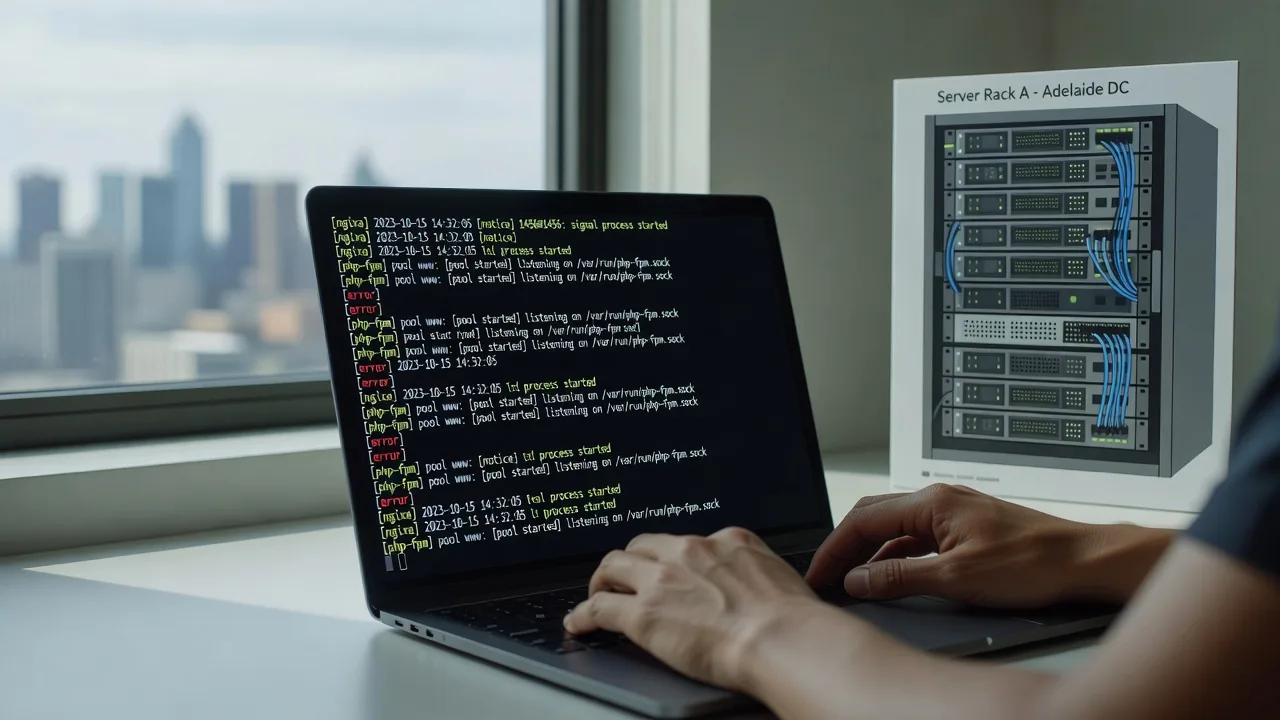
Adelaide developers running Laravel, WordPress, or custom PHP apps on RunCloud (or comparing it with Ploi) often hit the same wall: the panel automates a lot, until a deploy, PHP version change, or SSL renewal leaves the site on 502s, empty queues, or expired certificates.
This guide stays on automated PHP server management with RunCloud—real diagnostics, copy-pasteable checks, and clear DIY fixes. When the stack is too far gone or you need a second pair of eyes remotely, Fixwebnode server support can step in as a direct specialist for teams in your area, without marketplace bidding.
Why RunCloud configuration still matters for PHP teams
RunCloud (and similar tools like Ploi) abstracts Nginx, PHP-FPM, SSL, and deployment hooks. That speed is why Adelaide startups and agencies adopt them. The trade-off is that panel defaults do not always match your app’s memory limits, queue workers, or multi-site vhost layout. A bad pool size, a stuck Let’s Encrypt job, or a custom Nginx snippet that never reloads cleanly will take production down even when the “green” status lights look fine in the dashboard.
Remote server support is often enough: SSH, log review, PHP-FPM and Nginx reloads, and tightening RunCloud scripts. Geography still matters for timezone-aware maintenance windows and local business context—we work across all service areas with remote-first delivery for Adelaide and wider SA teams.
Why does my RunCloud PHP site return 502 after a deploy?
A 502 Bad Gateway after deploy almost always means Nginx cannot talk to PHP-FPM: the pool crashed, the socket path changed after a PHP version switch, or the new release exhausted memory and workers died. Check PHP-FPM status and the site error log first; restart the matching pool only after you confirm the socket and pool name in RunCloud match what Nginx expects.
| Symptom | Quick check | Call Fixwebnode when |
|---|---|---|
| 502 / empty PHP responses | systemctl status php*-fpm; tail site error.log | Pool keeps dying or socket path mismatches panel |
| SSL shows invalid / renew fails | RunCloud SSL job + certbot/nginx -t | HTTP-01 blocked or multi-domain SAN mess |
| Queues/cron silent | supervisor/cron + php artisan schedule:list | Workers fight panel scripts or lock files |
Common RunCloud/Ploi PHP issues (symptoms)
- Post-deploy 502 Bad Gateway — Browser or uptime monitor shows 502; RunCloud still shows the app “online”;
error.logmentions upstream prematurely closed connection or no live upstreams. - Let’s Encrypt renewal fails while the old cert is days from expiry — Panel SSL job red; browsers warn on HTTPS; HTTP challenge cannot reach
/.well-known/acme-challenge/. - Queue workers and scheduler look “configured” but jobs never run — Horizon/Supervisor or cron entries exist in the UI, yet failed_jobs grows and schedule never ticks after a PHP upgrade or web root change.
- Custom Nginx rules break on every “Rebuild Nginx Config” — Caching or security headers you added vanish or cause
nginx -tfailures after RunCloud regenerates the vhost.
Fix 1 — 502 Bad Gateway and PHP-FPM pool mismatch
Root cause is usually a dead or mis-pointed PHP-FPM pool after changing PHP version, deploy user, or max children under load. DIY only if you have SSH and can afford a brief reload.
Step 1 — Confirm Nginx and the site error log
sudo nginx -t
sudo tail -n 80 /home/*/webapps/*/logs/error.log
# or typical path under your RunCloud user web root logs
sudo tail -n 80 /var/log/nginx/error.log
Look for connect() failed to a .sock file or upstream timed out.
Step 2 — Identify which PHP-FPM service and pool RunCloud uses
ls /etc/php/
sudo systemctl status php8.2-fpm php8.3-fpm 2>/dev/null
ls /etc/php/*/fpm/pool.d/
sudo ss -lxp | grep php
Match the socket path Nginx references to an actual listening pool.
Step 3 — Inspect pool limits (memory / pm settings)
sudo grep -E '^(pm\.|listen|user|group)' /etc/php/8.2/fpm/pool.d/*.conf
# adjust version to match your stack
If pm.max_children is tiny on a busy Adelaide e-commerce site, workers exhaust under deploy traffic. Raise carefully in RunCloud’s PHP settings (preferred) so the panel does not overwrite SSH edits on rebuild.
Step 4 — Restart PHP-FPM and verify the site
sudo systemctl restart php8.2-fpm
sudo systemctl status php8.2-fpm --no-pager
curl -I https://your-domain.example
Expect HTTP 200/302, not 502. If the socket still missing, re-save the PHP version in RunCloud for that web app so the panel rewrites pool + Nginx upstream together, then retest.
When to call Fixwebnode: repeated FPM segfaults, unclear which of several pools serves the vhost, or deploys that only fail under production traffic. Remote diagnosis avoids guesswork on multi-app servers.
Fix 2 — SSL renewal failures on RunCloud
Symptoms: panel certificate job fails; HTTPS warns; port 80 blocked, wrong docroot for ACME, or a conflicting redirect to HTTPS before the challenge file is served.
Step 1 — Validate Nginx and listening ports
sudo nginx -t
sudo ss -tlnp | grep -E ':80|:443'
curl -I http://your-domain.example/.well-known/acme-challenge/test
You need port 80 reachable from the public internet for HTTP-01. A forced HTTPS redirect at the wrong server block often breaks issuance.
Step 2 — Check disk space and RunCloud SSL job logs
df -h
sudo journalctl -u nginx -n 50 --no-pager
# Review the SSL / certificate section inside the RunCloud panel for the exact error string
Step 3 — Temporary allow ACME path (if you use custom redirects)
In RunCloud’s Nginx config editor for the site, ensure a location for /.well-known/acme-challenge/ is served from the web root before blanket HTTPS redirects. Save, then:
sudo nginx -t && sudo systemctl reload nginxStep 4 — Re-run issuance from the panel
Trigger Renew/Issue in RunCloud. Confirm expiry dates:
echo | openssl s_client -servername your-domain.example -connect your-domain.example:443 2>/dev/null | openssl x509 -noout -datesWhen to call Fixwebnode: multi-domain SANs, reverse proxies in front of the VPS, or Cloudflare/proxy modes that break HTTP-01. We handle challenge strategy and clean panel/Nginx alignment remotely.
Fix 3 — Cron, scheduler, and queue workers silent after changes
Distinct from 502s: the site loads, but Laravel queues stall, WordPress cron feels dead, or night jobs never fire after a PHP binary path or deploy path change.
Step 1 — Verify system cron and the RunCloud user crontab
sudo crontab -l -u runcloud 2>/dev/null || true
crontab -l
grep CRON /var/log/syslog | tail -n 30
Confirm the scheduler line points at the current PHP binary and artisan path (or WP-CLI path).
Step 2 — Run the scheduler/worker once in the foreground
cd /home/runcloud/webapps/your-app
php -v
php artisan schedule:list
php artisan queue:work --once -vvv
Errors about missing .env, wrong DB socket, or open_basedir show up immediately.
Step 3 — Supervisor / RunCloud “Supervisor” or deployment script
sudo supervisorctl status
sudo tail -n 100 /var/log/supervisor/*.log
If workers still reference an old release directory after atomic deploys, update the program directory and command in the panel (or Supervisord config RunCloud manages), then:
sudo supervisorctl reread
sudo supervisorctl update
sudo supervisorctl restart all
Step 4 — Align PHP CLI with FPM version
which php
php -i | grep -E 'php.ini|memory_limit'
# Ensure CLI matches the version selected for the web app in RunCloud
When to call Fixwebnode: overlapping Supervisord programs, Redis/Horizon auth failures, or deploy hooks that race workers. That is routine remote server support work for us.
Fix 4 — Custom Nginx snippets wiped or failing rebuild
RunCloud regenerates vhosts. Hand-edited files outside the panel’s “Nginx Config” hooks get overwritten; invalid snippets fail nginx -t and block reloads.
Step 1 — Always test before reload
sudo nginx -tStep 2 — Put customisations only where the panel preserves them
Use RunCloud’s per-site Nginx configuration fields (headers, cache bypass, security) rather than editing generated files under /etc/nginx/sites-enabled directly. After saving in the UI:
sudo nginx -t && sudo systemctl reload nginxStep 3 — Diff if something still looks wrong
sudo ls -la /etc/nginx/sites-enabled/
sudo nginx -T 2>/dev/null | head -n 200
Remove duplicate server_name blocks or leftover includes from old apps.
When to call Fixwebnode: complex multi-site routing, canary deploys, or WAF rules that must survive every rebuild. We document durable panel-safe patterns so the next rebuild does not surprise you.
When DIY is enough vs when to book Fixwebnode
DIY is enough when you have SSH, a recent backup/snapshot, a single web app, and the failure matches one clear symptom above (one pool, one cert, one worker). Follow the numbered steps, verify with curl, nginx -t, and a test request, and keep a notes file of what the panel overwrote.
Book Fixwebnode when any of these apply: production revenue impact, multiple PHP versions on one VPS, repeated 502s after “successful” deploys, SSL failing across several hostnames, or you are mid-migration between RunCloud and Ploi-style workflows and configs are diverging. We are a direct specialist provider for server support—not a freelance marketplace—so you speak with the people doing the remote work.
Adelaide and SA teams typically use remote sessions: secure SSH access, change windows you approve, and a short written summary of pool, Nginx, SSL, and worker changes so your next deploy is safer.
Talk through your RunCloud setup with Fixwebnode
If your PHP app on RunCloud is throwing 502s, failing renewals, or dropping queue workers, get a practical remote review before the next release window. Start a conversation or booking via our server support landing page—we will focus on automated PHP server management, panel-safe config, and stable deploys for your stack.
Prefer to confirm coverage first? See all service areas. Bring your error snippets, PHP version, and whether you use Supervisor or cron; that is enough to triage quickly.