Multi-Vendor & Complex SaaS Marketplaces
 Modern Headless & Jamstack Web Development
 High-End Corporate & Specialized Business Websites
 Advanced API, Checkout & Database Troubleshooting
Fix Let's Encrypt SSL Handshake Errors on Plesk Servers
SSL handshake failures and broken HTTPS on Plesk waste sales and trust. This guide covers real Let's Encrypt symptoms, DIY fixes with commands, and when remote Fixwebnode support is the safer path.
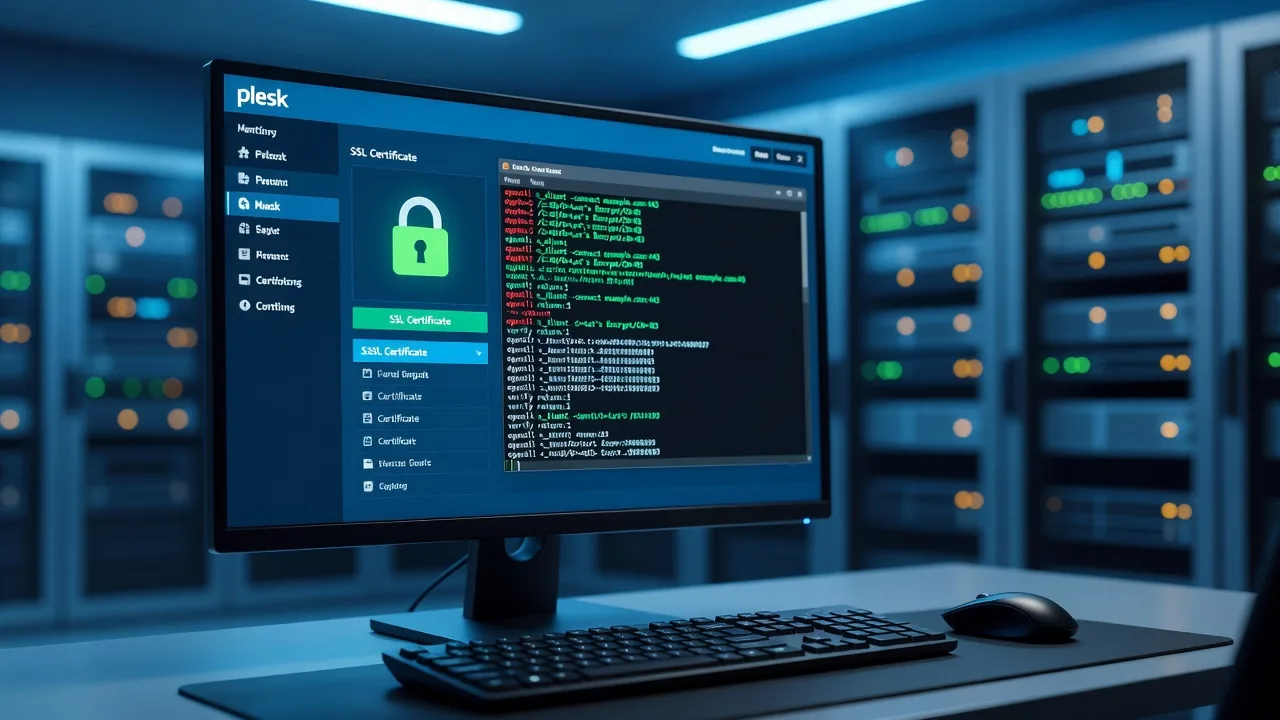
If your Plesk site shows SSL handshake errors, expired Let's Encrypt certs, or broken HTTPS after a renew, this guide walks you through the exact checks and fixes that restore secure browsing—without guesswork.
Site owners and small businesses running Plesk often hit the same wall: the panel says the certificate is installed, yet browsers still fail the handshake, checkout pages refuse to load over HTTPS, or renewals silently stop. In Perth CBD and across Australia, Fixwebnode provides remote server support focused on Let's Encrypt and Plesk HTTPS recovery—not a freelance marketplace. Below is a practical runbook you can follow first, plus clear signals for when to book a specialist.
Why Let's Encrypt handshake and HTTPS breaks matter on Plesk
A failed TLS handshake is not a cosmetic warning. Payment gateways, admin logins, email web clients, and SEO all depend on a clean certificate chain, correct vhost SSL bindings, and successful ACME renewals. On Plesk Obsidian, Let's Encrypt is usually driven by the official extension, nginx/Apache templates, and scheduled tasks. When any of those drift—wrong document root, blocked challenge path, incomplete chain, or stale SSL directives—visitors see ERR_SSL_PROTOCOL_ERROR, NET::ERR_CERT_DATE_INVALID, or endless redirect loops.
Remote diagnosis works well for this class of problem: logs, openssl probes, and panel CLI actions do not require someone on-site. If you also need a clean panel baseline, see our Plesk Obsidian install and configure on Ubuntu (remote) service. Geography coverage is listed on our service areas page; work for this topic is delivered digitally.
Why does Let's Encrypt SSL fail the handshake on my Plesk server?
Most handshake and broken-HTTPS failures on Plesk come from a mismatched certificate chain, a failed HTTP-01 ACME challenge, wrong SSL assignment on the domain or www alias, or nginx/Apache config that still serves an old cert or mixed HTTP content. Fix the binding and renewal path first; only then chase ciphers or HSTS.
| Symptom | Quick DIY check | Call Fixwebnode when |
|---|---|---|
| Handshake / protocol error | openssl s_client chain and vhost SSL | Chain still incomplete after reissue |
| Renewal / challenge fails | ACME path, firewall, docroot | Panel extension errors persist |
| HTTPS redirect loop / mixed content | Plesk permanent SEO redirect + app URLs | Shop checkout still breaks over TLS |
Common Let's Encrypt and HTTPS issues on Plesk
These problems are distinct. Match your browser and panel symptoms before changing production SSL.
- Incomplete certificate chain after install — Desktop browsers may work intermittently while mobile clients, payment APIs, or monitoring tools reject the handshake because the intermediate CA is missing from what Plesk serves.
- HTTP-01 ACME challenge blocked — Let's Encrypt renewals fail; the panel shows “Could not complete domain control validation” or similar. Port 80 is filtered, a custom nginx rule intercepts
/.well-known/acme-challenge/, or the challenge lands in the wrong document root. - Certificate present but wrong domain or alias — The cert covers example.com but not www, a parked alias, or a subdomain used for mail/webmail. Browsers report name mismatch (NET::ERR_CERT_COMMON_NAME_INVALID).
- Broken HTTPS after “successful” renew: redirect loops and mixed content — Padlock missing, checkout stuck, or ERR_TOO_MANY_REDIRECTS once “Permanent SEO-safe 301 redirect from HTTP to HTTPS” is enabled while the app still forces HTTP base URLs.
Fix 1 — Incomplete chain and SSL handshake failures
Confirm what the server actually presents, not only what Plesk’s UI lists under SSL/TLS Certificates.
Step 1 — Probe the live handshake from any admin machine
openssl s_client -connect yourdomain.com:443 -servername yourdomain.com -showcerts </dev/null 2>/dev/null | openssl x509 -noout -subject -issuer -dates

echo | openssl s_client -connect yourdomain.com:443 -servername yourdomain.com 2>/dev/null | grep -E 'Verify return code|depth|s:'
A healthy Let's Encrypt leaf should chain to an ISRG intermediate. Verify return code 0 is the goal. Non-zero codes or a single cert with no intermediate point to a chain problem.
Step 2 — Reassign Let's Encrypt from Plesk (UI path)
- Log into Plesk as admin or the subscription owner.
- Open the domain → SSL/TLS Certificates → Let's Encrypt (or the Extensions page if the icon is missing).
- Include www and any required aliases; enable “Assign the certificate to the mail domain” only if mail is served on the same hostname.
- Re-issue, then set the certificate as used for the domain under Hosting Settings (and for webmail if applicable).
Step 3 — CLI reissue and web repair when the UI stalls
plesk bin extension --list | grep -i let
plesk repair web yourdomain.com -y
plesk bin subscription --update-web-server-settings yourdomain.com -ssl true
On many Obsidian builds the Let's Encrypt extension can also be driven from the panel task queue after you trigger reissue in the UI. After repair, reload the web stack:
nginx -t && apachectl configtest
# Plesk-managed reload (preferred over raw systemctl on locked-down hosts):
plesk sbin nginxmng --restart 2>/dev/null || service nginx reload
plesk sbin httpdmng --reconfigure-domain yourdomain.com
Step 4 — Verify again
echo | openssl s_client -connect yourdomain.com:443 -servername yourdomain.com 2>/dev/null | openssl x509 -noout -issuer -dates
curl -sI https://yourdomain.com | head -n 15
If the issuer is still wrong or Verify return code stays non-zero after a clean reissue, stop DIY chain experiments—custom templates or a third-party cert may be overriding Plesk. That is a specialist job.
Fix 2 — Let's Encrypt renewal fails (ACME HTTP-01 blocked)
Renewals need port 80 reachable to the correct docroot for the challenge token. HTTPS-only firewall rules and aggressive rewrite rules are frequent causes.
Step 1 — Confirm HTTP reachability and the challenge path
curl -sI http://yourdomain.com/ | head -n 20
mkdir -p /var/www/vhosts/yourdomain.com/httpdocs/.well-known/acme-challenge
echo ok > /var/www/vhosts/yourdomain.com/httpdocs/.well-known/acme-challenge/plesk-test.txt
curl -sI http://yourdomain.com/.well-known/acme-challenge/plesk-test.txt
You want HTTP 200 for the test file (or 301/302 that still lands on the same host without stripping the path). Adjust the path if this domain uses a different document root in Plesk Hosting Settings.
Step 2 — Check firewall and Plesk fail2ban noise
firewall-cmd --list-all 2>/dev/null || iptables -L -n | head -n 40
ss -tlnp | grep -E ':80|:443'
tail -n 100 /var/log/plesk/panel.log
tail -n 100 /var/log/httpd/error_log 2>/dev/null
tail -n 100 /var/www/vhosts/system/yourdomain.com/logs/error_log
Ensure TCP 80 and 443 listen on the public address. Temporarily allow ACME if a WAF or geo-block sits in front of the server.
Step 3 — Inspect nginx/Apache additional directives
In Plesk → domain → Apache & nginx Settings, look for blanket rewrites that send all traffic to HTTPS before the ACME location is served, or that force another hostname. Prefer Plesk’s built-in HTTPS redirect over hand-written rules. Keep a location exception for ACME if you must keep custom nginx:
# Example snippet only — place via Plesk “Additional nginx directives” if needed
location ^~ /.well-known/acme-challenge/ {
 default_type "text/plain";
 root /var/www/vhosts/yourdomain.com/httpdocs;
 allow all;
}
Step 4 — Force renewal and read the result
- Plesk → domain → SSL/TLS Certificates → Let's Encrypt → renew/reissue.
- Watch panel.log and the domain error log during the attempt.
- Remove the test token file when finished.
rm -f /var/www/vhosts/yourdomain.com/httpdocs/.well-known/acme-challenge/plesk-test.txtCall Fixwebnode if validation still fails with correct DNS A/AAAA records, open port 80, and a reachable challenge file—extension corruption or reverse-proxy layers often need remote repair.
Fix 3 — Name mismatch on www, aliases, or webmail
Browsers fail the handshake with a common-name/SAN error when the certificate does not list the hostname you typed.
Step 1 — List names on the live certificate
echo | openssl s_client -connect yourdomain.com:443 -servername yourdomain.com 2>/dev/null | openssl x509 -noout -ext subjectAltName
echo | openssl s_client -connect www.yourdomain.com:443 -servername www.yourdomain.com 2>/dev/null | openssl x509 -noout -ext subjectAltName
Step 2 — Align DNS and Plesk hosting
- Ensure www and bare domain both resolve to this server (A/AAAA).
- In Plesk, open the domain and confirm www is assigned (or add it as an alias).
- Re-run Let's Encrypt with every public hostname checked.
- Under Mail, assign the same cert to webmail if users open https://webmail.yourdomain.com or https://yourdomain.com:8443 patterns that expect a matching name.
Step 3 — Reconfigure the domain vhost
plesk sbin httpdmng --reconfigure-domain yourdomain.com
curl -sI https://www.yourdomain.com | head -n 15
If SAN still omits a required host after a fresh issue, check whether another subscription or a CDN edge certificate is answering the handshake instead of Plesk.
Fix 4 — Redirect loops, mixed content, and “HTTPS is on but the site is broken”
This often appears right after a successful Let's Encrypt install. The certificate is valid; the application and Plesk redirects fight each other. WooCommerce and WordPress are frequent offenders when siteurl still uses http://.
Step 1 — Separate TLS success from app misconfig
curl -sI http://yourdomain.com | head -n 20
curl -sI https://yourdomain.com | head -n 20
curl -skI https://yourdomain.com | grep -iE 'HTTP/|location|strict-transport|content-type'
A single clean 200 or 301 to the canonical HTTPS URL is healthy. Alternating Location headers between http and https indicate a loop.
Step 2 — Plesk hosting and SEO redirect
- Hosting Settings → enable SSL/TLS support; pick the Let's Encrypt certificate.
- Turn on “Permanent SEO-safe 301 redirect from HTTP to HTTPS” once only—disable competing .htaccess force-SSL rules while testing.
- Reconfigure the domain (command above) and retest with curl.
Step 3 — Application URLs (WordPress example)
# From the domain shell (path may vary)
cd /var/www/vhosts/yourdomain.com/httpdocs
wp option get siteurl 2>/dev/null
wp option get home 2>/dev/null
# Only if both should be HTTPS and you have a backup:
# wp option update siteurl 'https://yourdomain.com'
# wp option update home 'https://yourdomain.com'
Search the database or config for hard-coded http:// asset URLs. For checkout and payment failures that appear only after TLS is fixed, use dedicated help via Fix WooCommerce checkout and payment gateway issues (remote)—card gateways reject mixed content and invalid cert chains quickly.
Step 4 — PHP-FPM / proxy cache flush if old pages stick
plesk bin php_handler --list
# Restart domain PHP-FPM handler after major SSL/template changes if pages still mix schemes:
systemctl list-units 'plesk-php*-fpm.service' --no-pager
# Example: systemctl restart plesk-php81-fpm
nginx -t && plesk sbin nginxmng --restart 2>/dev/null || service nginx reload
When DIY is enough vs when to book Fixwebnode
DIY is reasonable when you have SSH or solid Plesk admin access, DNS already points to this server, you can open ports 80/443, and the failure matches one clear issue above (expired cert, missing www SAN, simple ACME path block, or WordPress http siteurl). Keep a snapshot or Plesk backup before rewrites and CLI repairs.
Book Fixwebnode remote server support when any of the following apply: openssl still fails verify after reissue; Let's Encrypt extension errors with no clear challenge file issue; multiple domains share broken templates; custom nginx/Apache overlays fight Plesk; mail/webmail certs and site certs conflict; or HTTPS loops continue after panel redirects and app URL fixes. Production shops should not experiment with live payment TLS.
We work as a direct specialist provider for Plesk and Let's Encrypt recovery—remote sessions, concrete log review, and stable reissue—not a bid board. Perth CBD businesses and remote clients elsewhere follow the same digital process; see where we work for coverage context.
Get HTTPS stable again — talk to Fixwebnode
If your Plesk server still fails the SSL handshake, drops Let's Encrypt renewals, or serves broken HTTPS after you have tried the steps above, bring the exact browser error, domain name, and a recent openssl or panel log snippet to a booking conversation. Start here: Fixwebnode server support — step by step. We will confirm scope, run remote diagnostics, and restore a clean Let's Encrypt chain and vhost binding so visitors and gateways trust your site again.