Multi-Vendor & Complex SaaS Marketplaces
 Modern Headless & Jamstack Web Development
 High-End Corporate & Specialized Business Websites
 Advanced API, Checkout & Database Troubleshooting
Fix Broken Meta Pixel & GA4 Tracking on Shopify (Hobart)
Shopify ads data looks wrong? Learn how to diagnose dead Meta Pixel events, missing GA4 purchases, and consent blockers—then fix them step by step or book remote Shopify support with Fixwebnode.
If your Shopify store is spending on Meta or Google ads but purchases, add-to-carts, or ROAS look empty or wildly off, your Meta Pixel and GA4 e-commerce setup is almost certainly broken—not your products.
Hobart and wider Tasmania brands often discover this after a theme update, a new checkout customisation, or a consent banner change. This guide walks through the unique failure modes we see on Shopify, DIY checks you can run from your laptop, and when remote Shopify support from Fixwebnode is the faster path. We work digitally with store owners in your area and beyond—see all service areas for coverage.
Why Meta Pixel and GA4 breakage hurts Shopify brands
Broken tracking does not only hide sales in Ads Manager or GA4. It starves Meta’s optimisation, under-reports revenue in GA4, and makes every campaign decision noisier. On Shopify, the usual culprits are Customer Events / web pixels, theme app embeds, duplicate base codes, thank-you page scripts that never fire on Checkout Extensibility, and consent mode blocking tags before the buyer opts in.
Fixwebnode provides direct specialist Shopify support for Pixel and GA4 repair—not a freelance marketplace. The steps below are the same diagnostic path we use on remote sessions.
Why did my Meta Pixel and GA4 stop tracking Shopify purchases?
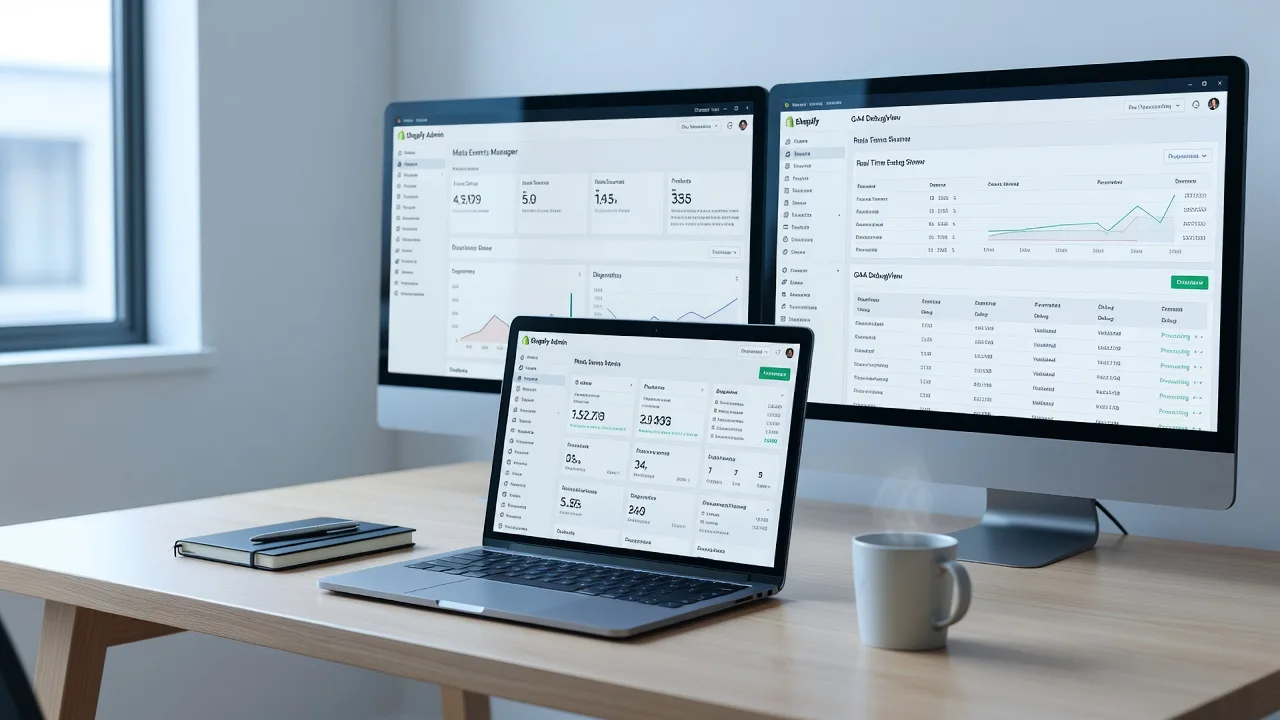
Most “dead” purchase tracking on Shopify comes from three places: the thank-you page no longer running old script tags after checkout upgrades, web pixels not subscribed to the right customer events, or consent/ad blockers preventing tags before a conversion fires. Confirm with Meta Pixel Helper and GA4 DebugView on a real test order before you rewrite theme code.
| Symptom | Quick check | When to call Fixwebnode |
|---|---|---|
| No Purchase in Events Manager | Pixel Helper on /checkouts/…/thank_you | Helper empty after theme & pixel reinstall |
| GA4 missing revenue / items | DebugView + purchase event params | Data layer incomplete or double-counted |
| Only PageView, no ATC/Checkout | Customer Events log + consent state | Custom theme or multi-pixel conflicts |
Common Meta Pixel and GA4 issues on Shopify
These problems are distinct. Treat them separately so you do not “fix” the wrong layer.
- Issue 1 — Meta Pixel fires PageView only; AddToCart, InitiateCheckout, and Purchase never appear. Symptom: Events Manager shows traffic but zero funnel events after a theme or app change.
- Issue 2 — GA4 records sessions but e-commerce purchases are missing, $0, or duplicated. Symptom: monetisation reports disagree with Shopify Orders; item arrays empty in DebugView.
- Issue 3 — Tracking worked until Checkout Extensibility / new customer privacy; thank-you scripts went silent. Symptom: old additional scripts in checkout settings no longer run; only web pixels should fire.
- Issue 4 — Consent banner or CAPI mismatch: browser pixel blocked, server events missing or unmatched. Symptom: iOS/privacy traffic looks healthy in Shopify but Meta attributes almost nothing.
Issue 1: Meta Pixel only sends PageView
Root cause is usually a disconnected web pixel, a theme embed toggled off, or a second hard-coded pixel fighting the official one.
Step 1 — Confirm the pixel ID in Shopify
- Shopify admin → Settings → Customer events (or Sales channels → Facebook & Instagram / Meta).
- Note the Pixel ID. It must match Events Manager exactly (no extra base code in theme.liquid unless you intentionally maintain a custom setup).
- Online Store → Themes → Customize → App embeds: enable the Meta / Facebook channel embed if your install uses it.
Step 2 — Browser diagnostics on a product page
- Install the official Meta Pixel Helper extension.
- Open a product URL in an incognito window with the helper on.
- Add to cart and open the cart drawer or cart page. Helper should show AddToCart (or the equivalent standard event).
If you prefer a console check while the storefront is open:
// In DevTools Console on your storefront
typeof fbq;
// Expect: "function"
// Then after add-to-cart, watch Network → filter "facebook" or "meta" for b.gif / tr requests
Step 3 — Customer Events test
- Settings → Customer events → open your Meta pixel.
- Use the test/preview tools Shopify provides and trigger add_to_cart, checkout_started, and checkout_completed on a draft or real $1 test product.
- In Meta Events Manager → Test Events, paste the test code if you use browser test mode and confirm event names and event_id values.
Step 4 — Remove duplicate base codes
- Edit theme code only if you are comfortable: search theme.liquid and snippets for
fbq('init'or hard-coded pixel IDs. - Leave a single authoritative install (preferably the Shopify/Meta channel or one web pixel). Duplicates create double PageViews and broken deduplication later.
Verification: complete a full test purchase. Events Manager should show PageView → ViewContent → AddToCart → InitiateCheckout → Purchase within a few minutes (Test Events is near-instant).
When to call Fixwebnode: Helper stays empty after reinstalling the sales channel, or you have multiple pixels, custom liquid, and apps injecting their own fbq calls.
Issue 2: GA4 e-commerce purchases missing, $0, or duplicated
Root cause is often the Google & YouTube channel misconfigured, a second gtag/GTM container double-firing purchase, or purchase parameters not mapped (value, currency, transaction_id, items).
Step 1 — Baseline in GA4
- GA4 → Admin → Data streams → your Web stream → Enhanced measurement on.
- Configure → DebugView. Enable Google Analytics Debugger or use the GA4 debug_mode flag via GTM/Shopify channel test mode.
- Place a test order. You need a
purchasehit withtransaction_id,value,currency, and ideally anitemsarray.
Step 2 — Shopify Google channel / gtag check
- Shopify → Settings → Customer events / Google & YouTube app: confirm the correct Measurement ID (G-XXXXXXXX).
- Disable any old UA (Universal Analytics) leftovers and duplicate G- IDs in theme.liquid.
- If you use Google Tag Manager, ensure only one purchase tag fires on the order status / customer event path—not both native Shopify GA4 and a parallel GTM purchase tag without deduping on transaction_id.
Step 3 — Console and network verification
// DevTools Console — presence of gtag or dataLayer
typeof gtag;
Array.isArray(window.dataLayer) ? window.dataLayer.slice(-10) : 'no dataLayer';

// DevTools Network — filter: collect? or google-analytics or g/collect
// Confirm a purchase hit includes v=2, en=purchase, tid=G-XXXX, ep.value / pr1 params
Step 4 — Fix $0 or missing items
- In DebugView, open the purchase event. If value is 0, currency is missing, or items are absent, the channel or GTM tag is not reading Shopify’s checkout payload correctly.
- For GTM setups: map event data from the Shopify customer event / data layer variables; do not hard-code value.
- For native Google channel: reconnect the property, remove conflicting custom purchase pixels, and retest.
- Deduplicate: every purchase must send a stable
transaction_idmatching the Shopify order name/id so browser + server (if used) collapse to one conversion.
Verification: one test order → exactly one purchase in DebugView → same order appears once under Monetization → Ecommerce purchases within the processing window.
When to call Fixwebnode: dual GTM + channel installs, custom thank-you apps, or headless/Hydrogen storefronts where the standard Shopify channel never sees checkout_completed.
Issue 3: Checkout Extensibility killed thank-you page scripts
Shopify’s move away from additional checkout scripts means liquid pasted under legacy checkout often never runs. Brands in Hobart still discover this months later when Meta and GA4 “quietly” lose Purchase only.
Step 1 — Confirm checkout architecture
- Settings → Checkout: note whether you are on checkout extensibility / thank-you and order status extensions versus legacy additional scripts.
- If additional scripts are deprecated or empty on live orders, stop relying on them for pixels.
Step 2 — Move tracking to Customer Events / web pixels
- Settings → Customer events → Add custom pixel only if the official Meta and Google apps cannot cover your case.
- Subscribe the pixel to standard events Shopify documents (page_viewed, product_viewed, product_added_to_cart, checkout_started, checkout_completed, etc.).
- For checkout_completed, send value, currency, order_id, and line items to Meta/GA4 using their recommended event schemas.
Step 3 — Sandbox test without risking live ads data
- Use a non-production pixel or GA4 debug stream if available.
- Complete checkout with a real payment gateway test mode or a 100% discount code.
- Confirm checkout_completed in Customer events logs and Purchase in Meta Test Events / GA4 DebugView.
// Example mindset for a custom web pixel (pseudocode structure — adapt to Shopify's pixel API)
// analytics.subscribe('checkout_completed', (event) => {
// fbq('track', 'Purchase', { value, currency, contents }, { eventID: orderId });
// gtag('event', 'purchase', { transaction_id, value, currency, items });
// });
Verification: a paid test order on the live checkout path shows Purchase without any code on the old thank-you liquid block.
When to call Fixwebnode: you need custom pixels, multi-brand pixels, or subscription apps that alter checkout_completed payloads.
Issue 4: Consent mode and CAPI / event match quality
A banner that blocks tags until accept—or a Cookie banner app that never signals granted consent—will look like a “broken pixel” even when IDs are correct. Separately, browser-only pixels without Conversions API struggle on iOS and ad-blocked sessions.
Step 1 — Reproduce with and without consent
- Incognito: reject all non-essential cookies, browse, add to cart, checkout as far as you can.
- Repeat after accepting marketing cookies.
- Compare Pixel Helper / network beacons. If events only appear after accept, consent wiring is working—but advanced matching and CAPI still matter for blocked browsers.
Step 2 — Align Shopify customer privacy
- Settings → Customer privacy: set the right region logic for Australia and any overseas buyers you serve.
- Ensure your banner app writes consent that Shopify customer events and Google consent mode understand (ad_storage, analytics_storage, etc. when you use Google).
- Do not load a second conflicting banner that never updates gtag consent.
Step 3 — Meta Conversions API (CAPI) sanity
- In the official Meta / Facebook channel or your gateway, confirm CAPI / server events are connected with a valid access token.
- Use the same event_id / order id on browser Purchase and server Purchase so Meta deduplicates instead of double-counting.
- Events Manager → Overview → Event match quality: improve with customer parameters your checkout already collects (email, phone hashed by the official integration—do not roll your own hashing unless you know the spec).
Step 4 — Quick server-side visibility check
# From your workstation: confirm the storefront responds and is not mixed-content blocking tags
curl -sI https://YOUR-STORE.myshopify.com | head -n 20
# Expect: HTTP/2 200 (or 301 to primary domain) and strict-transport headers
# Then open the primary domain product page over HTTPS only — mixed HTTP assets can block tags
Verification: Test Events shows browser + server pairs collapsing to one Purchase; GA4 still receives purchase when analytics consent is granted per your policy.
When to call Fixwebnode: consent apps fight each other, CAPI tokens fail silently, or you need a clean dual setup (Pixel + CAPI + GA4 + GTM) without double conversions.
When DIY is enough vs when to book Fixwebnode
DIY is enough when you have one pixel, one GA4 stream, the official Shopify channels, and Test Events / DebugView light up after re-enabling app embeds and removing duplicate snippets.
Book a specialist when any of the following are true:
- Purchase still missing after Customer Events migration and channel reinstall.
- Multiple domains, subfolders, or international markets with inconsistent consent.
- Custom theme JS intercepts cart AJAX so standard events never emit.
- You need GTM + CAPI + GA4 item-level reporting aligned to Shopify refunds and partial fulfilments.
- You want a remote screen-share audit with a single accountable provider—not scattered freelancers.
Fixwebnode works remote-first with Shopify brands in Hobart and across our service areas. Sessions focus on live diagnostics, clean event maps, and verification on real test orders.
Book remote Shopify Pixel and GA4 repair
If ads spend is live and the funnel events are not trustworthy, do not keep scaling blind. Bring your Pixel ID, GA4 Measurement ID, and a recent order number to a focused remote session.
Start the conversation with Fixwebnode’s Shopify tracking specialists here: Facebook Pixel & Google Analytics for Shopify. We will confirm what is broken, what you can keep, and what needs a proper web pixel / GA4 rebuild—so Meta and GA4 finally match the orders Shopify already knows about.