




 Multi-Vendor & Complex SaaS Marketplaces
 Modern Headless & Jamstack Web Development
 High-End Corporate & Specialized Business Websites
 Advanced API, Checkout & Database Troubleshooting
Cut Shopify Cart Abandonment in Australia: Guest Checkout & Wallets
Australian Shopify stores lose sales when checkout feels slow. Learn how to enable guest checkout, surface Apple Pay and Shop Pay, and add a free-shipping bar so buyers can pay in seconds with Face ID—plus when to book Fixwebnode on-site.
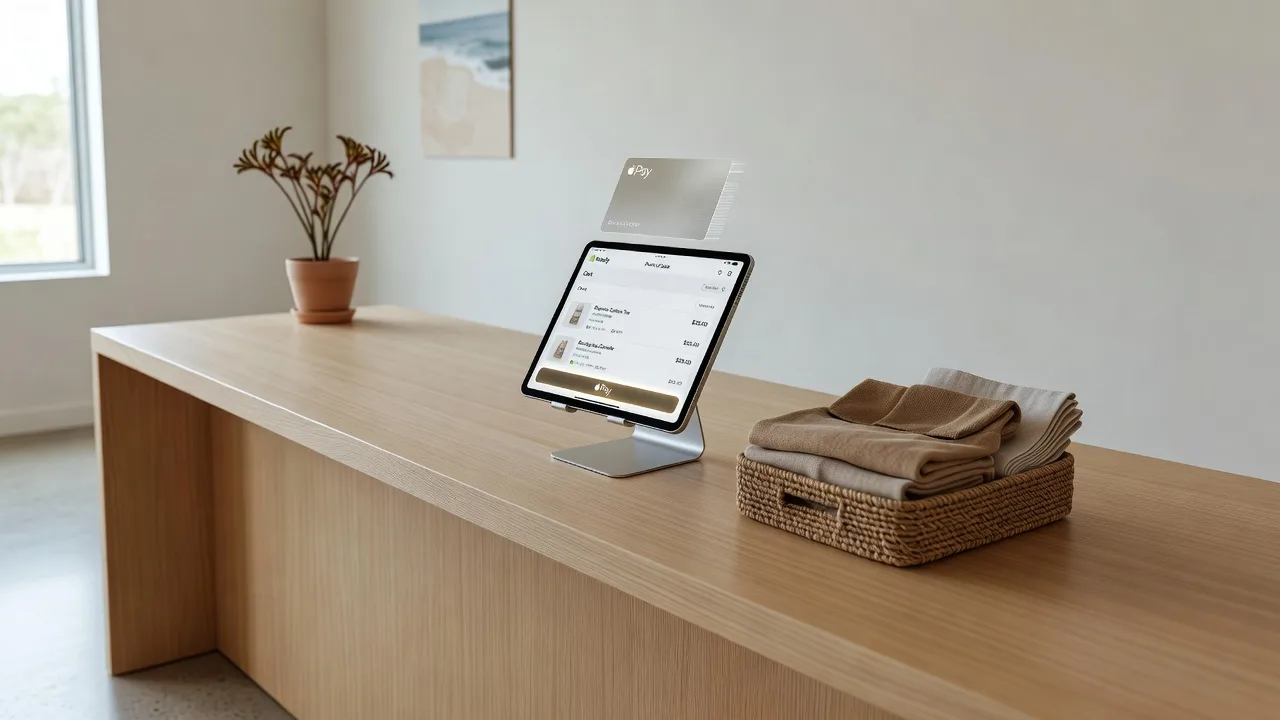
If shoppers in Australia add products then vanish before paying, forced account sign-ups, missing wallet buttons, and unclear shipping thresholds are usually the culprits—not “bad traffic.” This guide walks sole traders and small retailers through enabling one-click guest checkout, placing Apple Pay and Shop Pay at the top of checkout, and adding a clear free-shipping progress bar in the cart drawer so customers can complete payment in about six seconds with Face ID on supported devices.
Fixwebnode is a direct specialist provider for Shopify support across Australia. We help individuals, sole traders, and local operators tighten checkout on the store admin and, when needed, on the physical iPad or phone you use for counter sales. Start with the DIY steps below, or book a conversation via Fixwebnode website repair Australia when themes, apps, or payment hardware fight each other.
Why faster Shopify checkout matters for Australian stores
Cart abandonment climbs when the path to pay feels longer than the browse. Australian buyers expect guest checkout, familiar wallets (Apple Pay and Shop Pay), and an honest free-shipping meter before they commit. When those pieces are missing, mobile sessions drop hardest—especially if Face ID or wallet pay never appears on the device they already trust.
The goal is not a redesign for its own sake. It is a short, trustworthy path: open cart, see how far they are from free shipping, skip account creation if they want, and pay with one biometric tap. That combination is what stores aim for when they talk about lifting checkout sales toward a thirty percent improvement in completed orders from the same traffic.
How do I reduce Shopify cart abandonment in Australia with guest checkout, Apple Pay, Shop Pay, and a free-shipping bar?
Turn on guest checkout in Shopify customer accounts settings, enable Shop Pay and Apple Pay (via Shopify Payments where available) so wallet buttons sit at the top of checkout, and add a free-shipping progress bar in your cart drawer theme or a lightweight cart app. On the shop floor, use a Face ID–capable iPhone or iPad with a clean screen and working biometrics so wallet pay is actually one tap—not a fallback to long card forms.
If buttons still hide, shipping math is wrong, or the cart drawer never updates, stop guessing in the theme code and book a specialist review.
| Symptom | Quick fix | When to call Fixwebnode |
|---|---|---|
| Forced login before pay | Allow guest checkout; reduce optional fields | Custom theme still blocks guests |
| No Apple Pay / Shop Pay at top | Shopify Payments + wallet toggles; HTTPS domain | Buttons missing only on POS device or one browser |
| No free-shipping progress in cart | Cart drawer bar + correct threshold (AUD) | Drawer app conflicts or wrong shipping rules |
| Face ID pay feels slow or fails | Inspect device biometrics, network, case/screen | Hardware fault or store device setup on-site |
Common issues that keep Australian carts from converting
These problems show up repeatedly on local Shopify stores. Each has a different root cause—do not treat them as one “checkout is broken” ticket.
1. Guest checkout is blocked or buried
Symptoms: Buyers hit “Create account” or password fields before they can pay; mobile bounce spikes on the first checkout step; support inbox fills with “I just wanted to buy once” messages.
2. Apple Pay and Shop Pay never appear at the top of checkout
Symptoms: Only card fields show; Shop Pay is off or incomplete; Apple Pay works on a home iPhone but not on the store iPad; express buttons sit below a long form instead of above it.
3. Cart drawer has no clear free-shipping progress bar
Symptoms: Customers cannot see how many AUD remain until free shipping; threshold text is buried on a shipping policy page; the bar shows the wrong amount after discounts or mixed shipping rates.
4. Face ID / wallet pay is slow or unreliable on the device you use in-store
Symptoms: Biometric prompt loops, screen cracks interfere with taps, weak Wi‑Fi drops the wallet sheet, or a thick case and dirty lens make Face ID fail so staff fall back to manual card entry.
Fix 1 — Enable one-click guest checkout
Shopify can require accounts by policy or by theme behaviour. Unlock guest paths first so wallet pay is not trapped behind a password.
- Step 1 — Open customer account settings. In Shopify admin, go to Settings → Customer accounts. Choose the option that lets customers check out as guests (or the modern equivalent that does not force account creation before payment).
- Step 2 — Strip non-essential fields. Under checkout settings, keep phone or marketing boxes optional unless you truly need them for fulfilment. Every extra required field is another abandonment point.
- Step 3 — Test in a private mobile browser. Add a product, open checkout, and confirm you can reach payment without registering. Repeat while logged out of any Shop account.
- Step 4 — Check theme overrides. Some Dawn forks and paid themes hide guest links or force login modals from the cart drawer. In the theme editor, review cart and checkout-related sections; disable “account required” style blocks if present.
- Step 5 — Verify order emails still work. Place a test order as a guest and confirm the order confirmation reaches the guest email so operations stay clean.
When to call Fixwebnode: If the admin allows guests but your live theme still traps users in a login modal, you likely have custom JavaScript or an app conflict. That is a specialist theme pass, not another settings toggle.
Fix 2 — Activate Apple Pay and Shop Pay at the top of checkout
Express wallets cut form friction. Australian stores on Shopify Payments (where eligible) should surface Shop Pay and Apple Pay as the first actions, not an afterthought under the fold.
- Step 1 — Confirm payments foundation. Settings → Payments. Use Shopify Payments when your business is eligible in Australia. Complete any identity or bank details so wallets are allowed to activate.
- Step 2 — Enable Shop Pay. In the payments / accelerated checkout area, turn Shop Pay on. Ensure your storefront uses a proper connected domain with HTTPS (not a broken custom domain).
- Step 3 — Enable Apple Pay. Activate Apple Pay in the wallet / accelerated checkout controls. Apple Pay only appears in supported Safari / Apple-device contexts and when product, shipping, and currency setup is valid (AUD pricing helps local clarity).
- Step 4 — Prioritise express buttons visually. In checkout and theme cart settings, keep dynamic checkout / buy buttons enabled on product and cart where appropriate so Shop Pay and Apple Pay sit at the top of the pay path. Avoid stacking heavy upsell apps above the wallet row.
- Step 5 — Device and browser verification. Test on an iPhone with Face ID and Safari, and on your counter iPad if you take in-person or tap-to-pay style flows. Confirm the wallet sheet opens in one tap. On desktop Chrome you may not see Apple Pay—that is expected, not a store fault.
- Step 6 — Shipping and product blockers. Some products (certain subscription apps, incompatible shipping scripts) hide wallets. Temporarily test with a simple physical product and standard shipping to isolate the cause.
When to call Fixwebnode: Buttons appear on your phone but never on the shop device, or only after a long scroll under third-party scripts. Bring the iPad or phone you use for sales (unlocked, charged, with your Apple ID settings you are willing to use for testing) and a note of which apps you installed in the last month. We work across Australia—see the Australia service area page for coverage context—and can inspect both admin configuration and the physical checkout device.
Fix 3 — Add a clear free-shipping progress bar inside the cart drawer
Ambiguous shipping is a silent killer. A progress bar in the cart drawer answers “how much more until free shipping?” before the customer opens full checkout.
- Step 1 — Decide one honest AUD threshold. Pick a single free-shipping minimum that matches your shipping settings (for example free above a set AUD subtotal). Do not advertise a bar that shipping rules cannot honour.
- Step 2 — Align Shopify shipping rules. Settings → Shipping and delivery. Create or edit rates so the free rate truly unlocks at that subtotal for the zones you serve in Australia. Remove conflicting legacy rates that still charge postage above the threshold.
- Step 3 — Enable a cart drawer bar in the theme. Online Store → Themes → Customise. Open the cart drawer / cart notification section. Many modern themes include a free-shipping bar block—enable it and enter the same threshold amount and clear copy (“$X away from free shipping”).
- Step 4 — If your theme lacks a bar, use one focused cart app. Install a single reputable cart-drawer or free-shipping-bar app rather than three overlapping upsell tools. Configure the bar only; turn off noisy popups that delay pay.
- Step 5 — Test discount interaction. Apply a discount code and a multi-item cart. Confirm the bar uses the same basis you intend (usually subtotal after discounts, matching how shipping is calculated).
- Step 6 — Mobile drawer check. On a phone, open the drawer, watch the bar update live when you change quantities, then tap checkout and confirm wallets still sit at the top.
When to call Fixwebnode: The bar fights your drawer app, shows GST-inclusive amounts incorrectly, or shipping scripts recalculate differently at checkout. That needs coordinated theme, app, and shipping logic—not more stickers on the product page.
Fix 4 — Make Face ID checkout actually take about six seconds on-site
Software wallets cannot save a sale if the hardware in your hands is fighting biometrics or the network.
- Step 1 — Inspect the device. Use a Face ID–capable iPhone or iPad with a stable OS update policy. Check for cracked glass over the TrueDepth area, heavy privacy screen protectors that break Face ID, and cases covering sensors.
- Step 2 — Re-enrol biometrics if needed. On the device, confirm Face ID works for Apple Wallet generally before blaming Shopify. Clean the camera area; remove metal mounts that reflect into the sensors during counter use.
- Step 3 — Network path. Prefer reliable Wi‑Fi with a simple captive-portal-free path to Shopify and Apple’s services. Guest networks that intercept HTTPS often break wallet sheets mid-pay.
- Step 4 — Staff rehearsal. Run three timed test checkouts: guest user, Shop Pay returning customer, Apple Pay with Face ID. If any path needs account creation or manual card typing, fix that path before peak trading.
- Step 5 — Backup reminder before any on-site work. Export recent orders and note your theme name. If you hand a device to a specialist, back up the iPad/iPhone first and remove unrelated personal passcodes you do not wish to share—use a store Apple ID profile where practical.
When to call Fixwebnode: Admin settings are correct but the counter device still fails wallet pay, or you need someone on-site in Australia to align theme, payments, and the physical checkout kit together. For broader geography notes see all service areas.
When DIY is enough vs when to book Fixwebnode
DIY is enough when you can toggle guest checkout, enable Shop Pay and Apple Pay under Shopify Payments, and turn on a theme free-shipping bar that matches real AUD shipping rules—and private-browser tests complete with wallet buttons on top.
Book Fixwebnode when symptoms diverge by device, apps stack competing drawers, custom Liquid hides express buttons, shipping scripts disagree with the bar, or you need an on-site pass over the iPad/phone you use for Face ID checkout. We are a direct specialist—not a freelance marketplace—so you speak with the people doing the work.
Related deep work for growing catalogues and enterprise builds includes Custom WooCommerce Setup St Kilda | High-Converting E-Commerce Stores and Shopify Plus Enterprise Setup for Toorak Global Brands when your stack goes beyond a standard Shopify checkout tune-up.
Book a checkout review with Fixwebnode
If Australian buyers still abandon after you have tried guest checkout, top-of-checkout wallets, and a honest free-shipping bar, get a practical second pair of eyes on the store and the device path to Face ID pay. Tell us what fails (guest wall, missing Apple Pay, wrong shipping meter, or hardware biometrics) and which device you sell from.
Start a conversation or booking through the landing page for individuals, sole traders, and local operators: https://fixwebnode.com.au/website-repair-australia. Bring access to Shopify admin, a note of recent apps, and—if on-site—the charged checkout iPhone or iPad with a backup already taken. We will keep the focus on finishing more carts, not on generic redesign talk.