Multi-Vendor & Complex SaaS Marketplaces
 Modern Headless & Jamstack Web Development
 High-End Corporate & Specialized Business Websites
 Advanced API, Checkout & Database Troubleshooting
WordPress Maintenance Mode Loop Recovery — Remote Specialist
Break a stuck WordPress maintenance-mode loop remotely—sites back online without risky guesswork.
We clear orphaned.maintenance flags, finish failed updates, and fix plugin or cache states that keep visitors on a blank maintenance screen. Built for ecommerce, agency multi-sites, and content teams who cannot wait through a full rebuild.
Need hands-on help now? Dial 0421498927 or use fixwebnode.com.au/contact-support for direct recovery support.
- Root-cause exit from maintenance loops
- Safe file, plugin, and cache checks
- Worldwide remote delivery
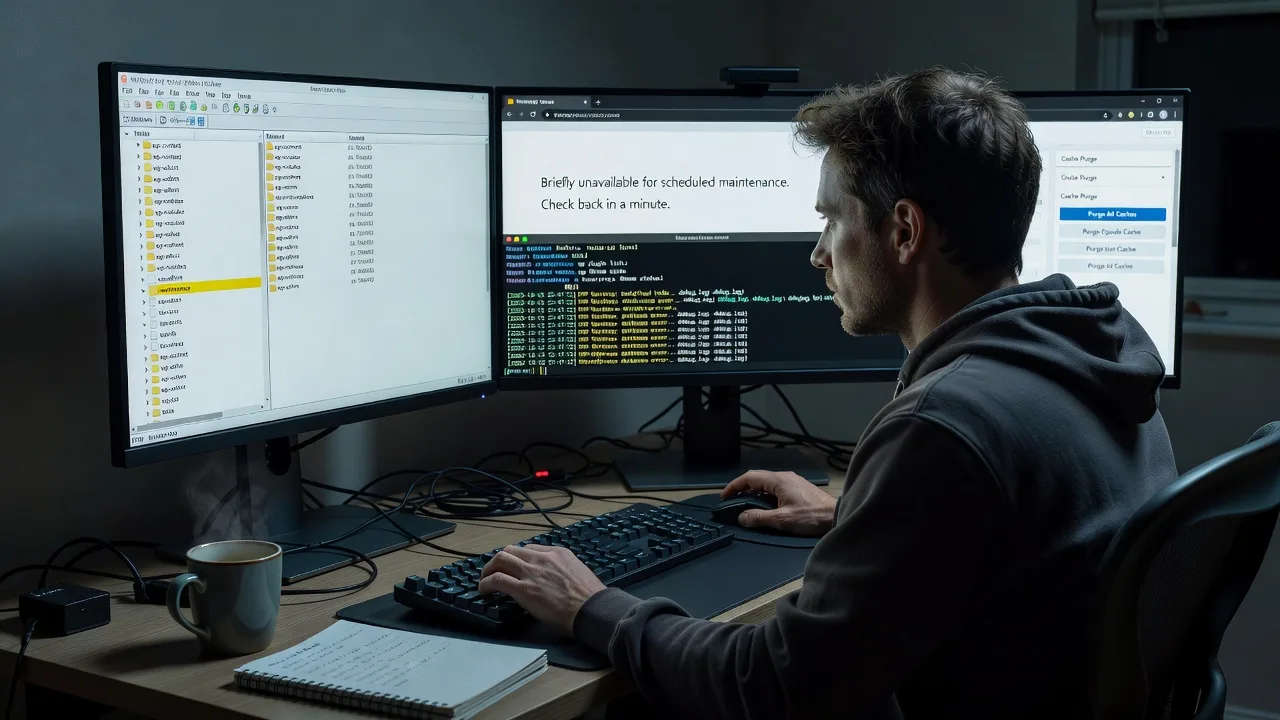
About this service
Get your WordPress site out of a stuck maintenance-mode loop with direct remote recovery—so customers, staff, and search crawlers see the live site again instead of a blank screen. We handle the infrastructure side: filesystem flags, incomplete core or plugin updates, object cache, and CDN edge states that DIY toggles often miss.
What You'll Get
- Full maintenance-loop diagnosis - Identify whether the lock is a leftover.maintenance file, a half-applied update, a plugin failure, or a cached maintenance response.
- Safe recovery to a live front end - Remove or correct the lock, restore critical files if needed, and confirm the site loads without the maintenance interstitial.
- Update completion or rollback path - Finish interrupted core/plugin/theme updates or roll back the broken piece so you are not stuck mid-upgrade.
- Cache and CDN purge guidance - Clear object cache, page cache, and edge caches that keep serving the maintenance page after the origin is fixed.
- Plain-English incident notes - What failed, what we changed, and simple checks so your team can spot a repeat early.
- Optional hardening pass - Staging-friendly update habits, disk space checks, and plugin audit notes on higher packages.
Serving Remote & surrounds
This service is delivered worldwide over secure remote access for WordPress hosts, agencies, and in-house teams who run production sites across time zones. Demand spikes when catalogue launches, enrolment windows, or campaign landing pages coincide with plugin bulk-updates—exactly when a maintenance loop hurts revenue and trust.
- Ecommerce and subscription stores frozen mid-sale after a one-click update
- Agency-managed multi-sites where one failed plugin update locked several properties
- Fully remote SSH, SFTP, and host-panel recovery; on-site only where practical and agreed
How We Work
- Step 1: Reach Out - Share the site URL, host type, what was updating when it broke, and any error or blank-page screenshots. We listen first and confirm access method.
- Step 2: Tailored Plan - You get a fixed-scope quote for recovery depth (flag clear only vs. update finish, cache purge, and stability checks)—no bidding rounds.
- Step 3: We Deliver - We connect remotely, isolate the lock source, recover the front end, and verify admin and public pages load cleanly.
- Step 4: Confirm & Follow-up - Handoff in plain language, optional short watch window, and guidance if a follow-up maintenance window is wise.
Common Issues & How to Fix Them
These are the maintenance-loop patterns we clear most often after years of WordPress incident work—each with safe first checks you can try before escalating.
Orphaned.maintenance file after a failed or timed-out update
WordPress drops a root-level.maintenance file during updates; if PHP times out, the host kills the process, or the connection drops, that file stays and every visitor sees maintenance even though no update is running.
- Step 1: Connect over SFTP or your host file manager and list the WordPress root (same folder as wp-config.php). Confirm a file named exactly.maintenance exists and note its timestamp.
- Step 2: Download a copy for your records, then delete only that.maintenance file—do not delete wp-config.php,.htaccess, or entire wp-content.
- Step 3: Hard-refresh the homepage and /wp-admin/ in a private window. If the site loads, check Dashboard → Updates for a half-finished core or plugin state and finish or roll back carefully.
Plugin or must-use plugin still forcing maintenance / brief under construction behaviour
Some security, migration, or “coming soon” plugins set their own maintenance flags or mu-plugins; after a crash they never clear, so removing.maintenance alone is not enough.
- Step 1: Via SFTP, rename /wp-content/plugins to plugins.off and, if present, rename /wp-content/mu-plugins to mu-plugins.off to disable custom loaders without deleting code.
- Step 2: Reload the site. If it returns, rename folders back, then re-enable plugins in small batches (or move suspect folders out one at a time) until the maintenance behaviour reappears—that plugin is the culprit.
- Step 3: Update, replace, or remove the offending plugin from a known-good copy; clear any plugin-specific “maintenance mode” option in the database only if you know the option_name, otherwise leave DB edits to a specialist.
Object cache, full-page cache, or CDN still serving the maintenance HTML
Origin is healthy again, but Redis/Memcached, host page cache, or Cloudflare/other CDN edges keep returning the old maintenance response for minutes or hours—especially painful on high-traffic marketing and shop sites.
- Step 1: Confirm origin is clean: load the site with a cache-bypass query string your host documents, or curl the origin IP with a proper Host header if you know how; if origin is fine, the problem is cache layers.
- Step 2: Flush object cache (Redis/Memcached panel or plugin), purge host full-page cache, then purge the CDN entirely (not a single URL only) and wait for propagation.
- Step 3: Test from a mobile network or online headers tool in another region; check CF-Cache-Status or equivalent. If maintenance HTML still appears only on some edges, repeat purge and bypass cookies/rules that pin old content.
When DIY is not enough (urgent, unsafe, recurring, or burning time), book Fixwebnode for direct professional support—no freelancers, bidding, or marketplace noise.
Why Choose Fixwebnode
We recover production WordPress estates as a direct technical provider: one accountable team, fixed scopes, and infrastructure-first habits. You get calm incident handling and clear notes—not a queue of competing proposals.
- ✓ Deep experience with failed updates, partial file writes, and host-level PHP timeouts
- ✓ Remote-first workflow suited to worldwide hosts (cPanel, Plesk, GridPane, RunCloud, raw SSH)
- ✓ Direct line for urgent recovery—call 0421498927 or use fixwebnode.com.au/contact-support
Tools & Technologies
WordPress core filesystem layout, SFTP/SSH, WP-CLI (when available), host file managers, MySQL/phpMyAdmin read-only checks, Redis/Memcached flush, Nginx/Apache cache rules awareness, Cloudflare and common CDN purge APIs, staging clones, health-check and debug.log review, PHP version and memory-limit diagnostics.
Perfect For
Store owners, publishers, SaaS marketing sites, clinics with booking WordPress stacks, and agencies who need a stuck maintenance loop cleared without a full rebuild. Ideal when revenue or intake forms are blocked and you want a specialist who owns the fix end-to-end—remotely, worldwide, with on-site only where practical.
Choose a package
Remote diagnosis and clearance of a standard WordPress maintenance-mode lock so the public site loads again.
Full loop recovery including plugin isolation path, update finish or safe rollback guidance, and cache/CDN purge steps.
Priority multi-check recovery for high-traffic or multi-site estates with stability pass, hardening notes, and extended verify window.
FAQ
Yes. We work over SFTP, SSH, and host panels from anywhere the site is hosted. On-site visits are only arranged where practical and agreed in advance; most maintenance-mode recoveries complete without physical access.
Typically WordPress admin if it still loads, plus SFTP or SSH to the site root, or equivalent host file-manager access. Hosting panel login helps for cache and PHP limits. We use least-privilege access and can work with temporary credentials you revoke after handover.
Often it restores the front end, but not always. Failed plugins, mu-plugins, object cache, and CDN edges can keep showing maintenance after the file is gone. Our Standard and Premium scopes cover those layers so you are not stuck in a false recovery.