Multi-Vendor & Complex SaaS Marketplaces
 Modern Headless & Jamstack Web Development
 High-End Corporate & Specialized Business Websites
 Advanced API, Checkout & Database Troubleshooting
Secure Telehealth Software & Hardware Setup – Melbourne
Calm, secure telehealth software and hardware setup for Melbourne clinics and solo practitioners.
We configure encrypted video platforms, cameras, mics, and room layouts so consults stay private and stable—ideal for CBD rooms, suburban practices, and hybrid aged-care visits. Patient, jargon-free guidance; you stay focused on care.
Power up support: call 0421498927 or book via fixwebnode.com.au/contact-support.
- Privacy-first device and app hardening
- Clear handoff notes for your team
- Remote or on-site Melbourne paths
About this service
Get a secure, clinic-ready telehealth stack—software, hardware, and room flow—set up with plain-English support for Melbourne practices that need reliability without tech overwhelm.
What You'll Get
- Secure platform configuration - Privacy settings, waiting rooms, recording rules, and access controls matched to how your clinicians actually work.
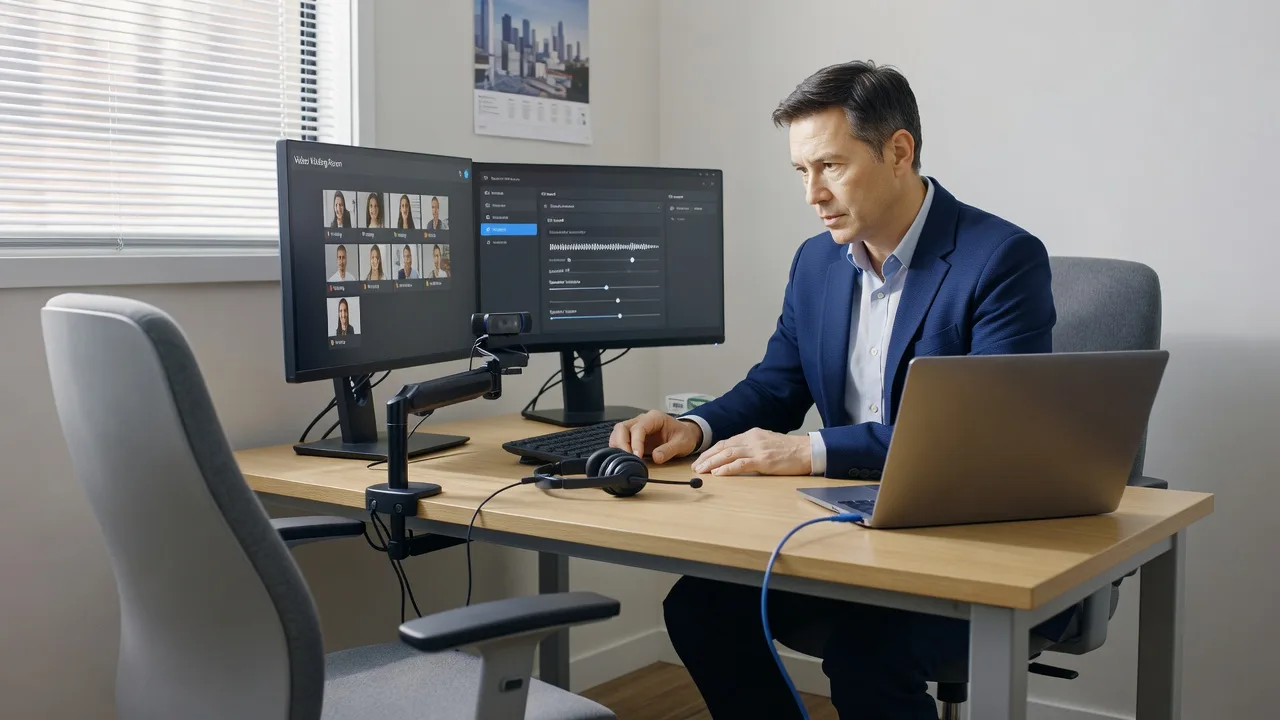
- Hardware pairing & placement - Camera, mic, headset, lighting, and secondary display setup so faces and documents stay clear on video.
- Network & bandwidth checks - Practical Wi‑Fi and wired guidance so peak afternoon sessions do not freeze mid-consult.
- Staff walkthrough - Patient, step-by-step coaching so reception and clinicians can start, admit, and end sessions confidently.
- Security baseline - Device lock, updates, MFA where appropriate, and simple daily open/close routines.
- Written run sheet - One-page checklist your team can keep at the desk after we leave the call or site.
Serving Melbourne & surrounds
Melbourne telehealth demand spikes when CBD consulting rooms run back-to-back video lists, when suburban GPs mix in-person and remote follow-ups, and when aged-care or NDIS-linked sessions need calm tech support rather than jargon. We work as your direct setup partner—remote first, on-site when hardware layout or multi-room clinics need hands-on work—including practices near hospital and university health precincts such as Parkville and mixed high-street clinics toward Footscray.
- CBD and inner-city suites where strata Wi‑Fi is shared and waiting-room audio must stay private
- Suburban family clinics juggling school-zone afternoon peaks and parent telehealth callbacks
- On-site or remote access notes for multi-room fit-outs, portable carts, and after-hours lockdown of consult devices
How We Work
- Step 1: Reach Out - Tell us your platform (or shortlist), device list, room count, and who needs coaching—we listen before we prescribe tools.
- Step 2: Tailored Plan - Fixed-scope quote for software hardening, hardware layout, and support path; clear what is remote versus on-site in Melbourne.
- Step 3: We Deliver - We configure, test a live dry-run consult, and coach your team at a patient pace with no marketplace middle layer.
- Step 4: Confirm & Follow-up - Plain-English handoff, optional tune-up session, and a simple path back if a new clinician or room is added.
Common Issues & How to Fix Them
These are the faults we see repeatedly in Melbourne telehealth rooms—try the safe checks first, then book us if it keeps burning appointment time.
Echo and “robot voice” only on the clinician side
Usually speaker and mic fighting each other, or laptop speakers left on while a USB headset is half-connected.
- Step 1: Mute laptop speakers; wear one headset only; unplug unused USB audio devices.
- Step 2: In OS sound settings, set both input and output to the same headset; disable “listen to this device” if present.
- Step 3: Join a test call: speak at normal volume—if the other party hears clean audio and you hear no self-echo, it is fixed.
Patient stuck in waiting room while the clinician screen looks “connected”
Common when browser permissions, pop-up blockers, or dual-monitor focus hide the admit button during busy lists.
- Step 1: Refresh the clinician browser tab; check the waiting-room panel on the primary display, not a covered second screen.
- Step 2: Allow camera/mic for the site; disable blockers for the telehealth domain; use the vendor’s supported browser.
- Step 3: Run a dummy patient join—confirm admit works within two clicks and the session timer starts cleanly.
Video freezes every afternoon while mornings are fine
Often contention on shared clinic Wi‑Fi when admin uploads, cloud backups, and multiple consults overlap—not “broken” cameras.
- Step 1: Note the time and which rooms fail; run a wired laptop test in the same room if a cable port exists.
- Step 2: Pause large backups during clinic hours; move telehealth PCs to 5 GHz or Ethernet; close unused cloud sync on consult machines.
- Step 3: Repeat a 10-minute HD test at the known peak window—stable motion and clear speech means the path is healthy.
When DIY is not enough (urgent, unsafe, recurring, or burning time), book Fixwebnode for direct professional support—no freelancers, bidding, or marketplace noise.
Expert Insights
In Melbourne multi-room clinics we repeatedly see “secure platform” work undone by a single shared admin login on the front-desk PC that also hosts the telehealth browser profile. After five-plus years of clinic fit-outs, our non-Google tip is the consult-identity split: one locked browser profile (or thin user) per consulting room that only opens the telehealth URL, calendar, and approved forms—no personal email, no bulk file sync. Pair that with a 60-second open routine (cable seat, headset check, waiting-room test patient) and a 60-second close routine (end session, lock screen, dock headset). Practices that adopt the split cut accidental recording/privacy mishaps and the classic “who changed the camera?” chaos when locums rotate through CBD and suburban rooms in the same week. Measure success by failed-start rate in the first five minutes of booked video slots, not by how many security features you tick in a vendor checklist.
Why Choose Fixwebnode
We are a direct provider: infrastructure depth when servers and networks matter, and human digital support when clinicians and reception need calm coaching. Melbourne practices get setup that respects privacy, appointment flow, and real room constraints—not a generic template.
- ✓ Direct delivery by our team—fixed scopes, no bid boards
- ✓ Patient coaching suited to clinical staff, NDIS-linked, and aged-care digital contexts
- ✓ Local awareness of CBD suite, suburban clinic, and hybrid visit patterns across Melbourne
Tools & Technologies
Major telehealth and video platforms (vendor-native apps and browser clients), Windows and macOS endpoint hardening, MFA and password managers suited to small clinics, USB and Bluetooth headsets, 1080p webcams, basic ring/key lighting, Ethernet and dual-band Wi‑Fi checks, waiting-room and breakout features, screen-share document workflows, and simple written SOPs for open/close and incident escalation.
Perfect For
Melbourne GPs, allied health, psychology and specialist rooms, small multi-practitioner clinics, and care teams adding or tightening video consults. Ideal when you need software privacy settings, hardware that just works on camera, and staff who feel steady—not lectured. Remote configuration is standard; on-site Melbourne visits when room layout or multiple devices need hands-on alignment.
Ready to steady your telehealth stack? Call 0421498927 or reach us at fixwebnode.com.au/contact-support.
Choose a package
Remote security and settings tune-up for one telehealth workstation plus a short staff walkthrough.
Full software plus hardware pairing for one consult room, test call, and dual-role coaching.
Multi-room Melbourne clinic rollout: secure profiles, network peak checks, on-site option, and extended coaching.
FAQ
Both. Most software hardening, platform settings, and coaching are delivered remotely across Melbourne and surrounds. When camera placement, multi-room cabling, or shared strata Wi‑Fi needs hands-on work, we arrange an on-site visit to your clinic suite. You get one direct team either way—no freelancers or bid chains.
We work with the major clinical video tools clinics already use, plus browser-based consult flows. In discovery we confirm your vendor, recording policy, and who may admit patients, then lock settings to match. If you are choosing a platform, we help you compare privacy and workflow fit—not sales fluff.
Yes. Tier-two style support is core: slow pacing, plain language, and practice on a dummy patient until admit/end feels automatic. We leave a short run sheet so locums and new staff can follow the same steps after the session.
That pattern is often network contention, not a failed camera. Basic may uncover simple fixes; Standard and Premium include structured peak-window testing and practical separation of consult devices from backup traffic. If DIY steps do not hold, we take it from there under a fixed scope.