Multi-Vendor & Complex SaaS Marketplaces
 Modern Headless & Jamstack Web Development
 High-End Corporate & Specialized Business Websites
 Advanced API, Checkout & Database Troubleshooting
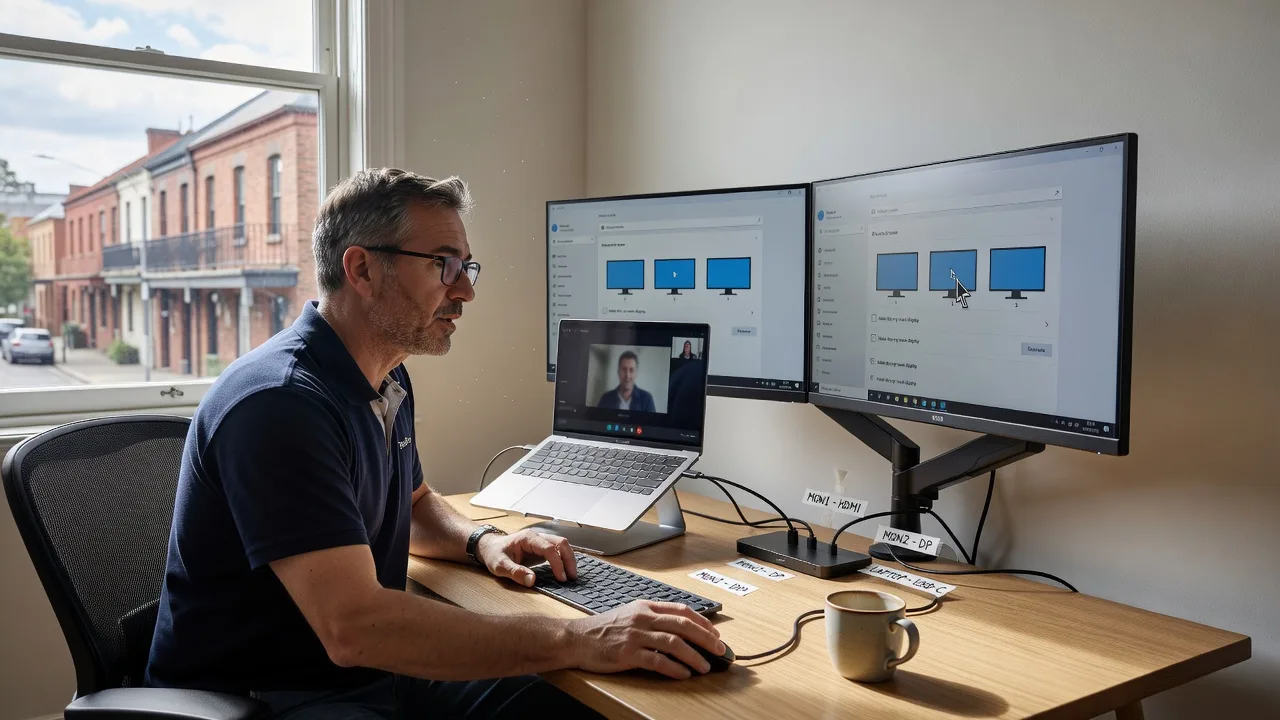
Remote Multi-Monitor Desk Workspace Config — Melbourne
Get a calm, productive multi-monitor desk layout configured remotely for Melbourne home offices and hybrid teams.
We map your displays, GPU outputs, docking, cable paths, and OS layout so windows stay where you left them—ideal for CBD hybrid desks, strata apartments with limited wall space, and clinic admin stations. Clear fixed-scope support, no marketplace noise.
Power up your setup: dial 0421498927 or visit fixwebnode.com.au/contact-support for direct help.
- Display arrangement & scaling tuned for your work
- Dock, USB-C, and cable hygiene guidance
- Patient, jargon-free walkthroughs when you need them
About this service
We configure multi-monitor desk workspaces remotely so Melbourne professionals get stable layouts, correct scaling, and fewer daily friction points—without guessing cable maps or display modes. Ideal when hybrid days, telehealth admin, or design/dev work demand two or three screens that simply behave.
What You'll Get
- Display topology map - Which ports, docks, and GPUs drive each screen, documented in plain English.
- OS layout & scaling plan - Windows/macOS arrangement, primary display choice, DPI/scaling, and night/day profiles that match your eyes and tasks.
- Dock & USB-C path check - Bandwidth, MST/SST realities, and why a third panel goes black when you close the laptop lid.
- Cable & desk ergonomics notes - Strain relief, reach zones, and monitor height/tilt cues for long Melbourne workdays.
- Persistence settings - Saved layouts so apps reopen on the correct monitor after sleep or undock.
- Optional patient walkthrough - Screen-share coaching for NDIS, aged-care admin, educators, or small-business owners who want calm, step-by-step guidance.
Serving Melbourne & surrounds
Metro Melbourne mixes dense apartment desks, warehouse-edge studios, and café-strip hybrid workers who undock twice a day. We tailor remote multi-monitor configuration to those constraints—power board access, thin USB-C docks, and variable natural light—rather than a one-size national template. Clients in and around Footscray industrial lofts and quieter residential pockets near Glen Waverley both need different cable and glare strategies; we plan for the room you actually have.
- CBD and inner hybrid desks where laptop + dock + two externals fight for USB-C bandwidth at peak meeting hours
- Strata apartments and shared offices with limited wall mounts, short desk depth, and strict noise/cable rules
- Fully remote sessions first; optional coordinated on-site only when hardware seating truly cannot be solved over video
How We Work
- Step 1: Reach Out - Tell us your screens, laptop/PC, dock model, and the job you do (trading screens, design, clinic admin, study). We listen before we prescribe.
- Step 2: Tailored Plan - Fixed-scope quote for the technical configurator work, plus a clear support path if you want patient coaching rather than pure IT jargon.
- Step 3: We Deliver - Remote session: topology check, display arrangement, scaling, sleep/undock behaviour, and cable hygiene. We fix what we can live; we document what needs a hardware change.
- Step 4: Confirm & Follow-up - Plain-English handoff notes, optional short follow-up after you live with the layout for a few days, and maintenance if your dock or panels change.
Common Issues & How to Fix Them
These are the patterns we see constantly on multi-monitor desks—specific symptoms, safe checks, and when to stop DIY.
Third monitor blanks the moment the laptop lid closes
Usually a dock or GPU policy that treats the internal panel as required for the MST chain, or a “close lid = sleep” power setting that cuts the whole graph.
- Step 1: In OS power options, set lid close to Do nothing while plugged in; confirm the machine stays awake with lid shut for 30 seconds.
- Step 2: Plug both externals into the dock (not one dock + one laptop HDMI) and set an external as Primary before closing the lid.
- Step 3: Close the lid and move the cursor across all screens; if one still blacks out, note which port dies—that is the bandwidth/MST clue for a dock upgrade, not more cable swapping.
Text looks sharp on one screen and blurry or huge on another
Mixed DPI (laptop 200% + older 1080p at 100%) plus apps that do not handle per-monitor scaling cleanly—common when a Melbourne hybrid worker adds a second-hand panel mid-week.
- Step 1: Match physical sizes where you can; set each display’s scaling deliberately (e.g. 150% laptop, 100–125% external) rather than leaving “Recommended” on autopilot.
- Step 2: Sign out (not just lock) after scaling changes so Explorer/Finder and Electron apps reload DPI; drag one test window across monitors.
- Step 3: If a single app stays fuzzy only on the external, check that app’s high-DPI override (Windows compatibility) or force it to open on the sharper panel first—verify with a full restart of that app only.
Windows jump to the wrong monitor after undock or sleep
The OS re-enumerates displays in a different order; saved positions evaporate when the dock presents panels as new device IDs.
- Step 1: Always connect dock power and displays before opening the lid; wait until all panels light, then unlock—order matters more than people think.
- Step 2: Set a stable primary external, disable auto-rearrange surprises, and (on Windows) use a layout tool or display profile you control; on macOS, lock Arrangement and avoid frequent cable hot-swaps.
- Step 3: Undock, wait 20 seconds, redock with the same port order; if apps still scatter, the dock firmware or a flaky USB-C cable is reshuffling IDs—replace the cable first before buying another dock.
When DIY is not enough (urgent, unsafe, recurring, or burning time), book Fixwebnode for direct professional support—no freelancers, bidding, or marketplace noise.
Why Choose Fixwebnode
We deliver the configuration ourselves: enterprise-grade remote IT judgment with human, jargon-free coaching when the person at the desk is not a technician. Melbourne hybrid patterns—undocking for trams, glare from north-facing apartments, clinic admin dual-screen needs—are part of how we plan, not an afterthought.
- ✓ Direct provider fixed scopes for display, dock, and OS layout work
- ✓ Technical depth on USB-C bandwidth, MST, and multi-GPU quirks plus patient walkthroughs
- ✓ Local awareness of apartment desks, warehouse studios, and hybrid CBD rhythms
Expert Insights
On Melbourne CBD hybrid desks we repeatedly see the same silent failure: a “USB-C dual 4K” dock that only sustains dual 4K when the laptop lid is open and the internal panel is part of the link training. Close the lid—or join a long Teams call that spikes GPU load—and the third pipe collapses to 30 Hz or black. Before you buy a third monitor, run one stress check we use after years of these setups: lid closed, both externals at native resolution, full-screen 4K video on one and a scrolling spreadsheet on the other for ten minutes. If either panel flickers, drops to 30 Hz, or the dock LED renegotiates, you do not have a settings problem—you have a bandwidth ceiling. Good looks like sustained native refresh on both externals with lid shut and a single high-quality cable per path; bad looks like mixing HDMI 1.4 adapters, daisy-chaining on a non-MST panel, and hoping Display Settings will invent bandwidth. We document the failing port map first, then recommend the cheapest fix that actually matches the dock chipset—not a random “get a bigger dock” guess.
Tools & Technologies
Windows Display Settings & GPU control panels (Intel/AMD/NVIDIA), macOS Displays Arrangement, USB-C / Thunderbolt docks, DisplayPort MST vs SST behaviour, EDID-aware layout persistence, cable standards (DP 1.2/1.4, HDMI 2.0), basic power and sleep policy, optional screen-share coaching tools for calm remote sessions.
Perfect For
Melbourne hybrid workers, small-business owners, clinic and telehealth admin desks, educators, and NDIS or aged-care support contexts where multi-monitor calm matters as much as the cables. You want a desk that stays organised after sleep and undock—and a direct specialist who can either deep-configure the stack or walk someone through it without jargon.
Ready to lock in a stable multi-monitor workspace? Call 0421498927 or contact us via fixwebnode.com.au/contact-support—we configure it with you, directly.
Choose a package
Remote audit and single-session multi-monitor layout fix for one desk (up to dual external + laptop).
Full dual/triple display configurator with dock path review, persistence settings, and short follow-up.
Comprehensive multi-desk or advanced triple-display plan with patient coaching and extended revisions.
FAQ
Most multi-monitor configuration is fully remote across Melbourne and surrounds—we guide cable seating on video and configure the OS live. If a dock or panel physically cannot be seated safely without hands-on help, we discuss a coordinated option; otherwise remote keeps turnaround fast for CBD hybrid desks and apartment offices alike.
Yes. We assess what your hub can actually drive (resolution and refresh), set the best stable layout for that hardware, and tell you plainly when a true dock is required versus when settings alone will fix black screens or scrambled windows.
We do. Alongside the technical configurator work, we can run a patient, jargon-free walkthrough so the person at the desk understands how to undock, wake screens, and restore a simple layout—suited to small business, education, and care-related digital support contexts.