Multi-Vendor & Complex SaaS Marketplaces
 Modern Headless & Jamstack Web Development
 High-End Corporate & Specialized Business Websites
 Advanced API, Checkout & Database Troubleshooting
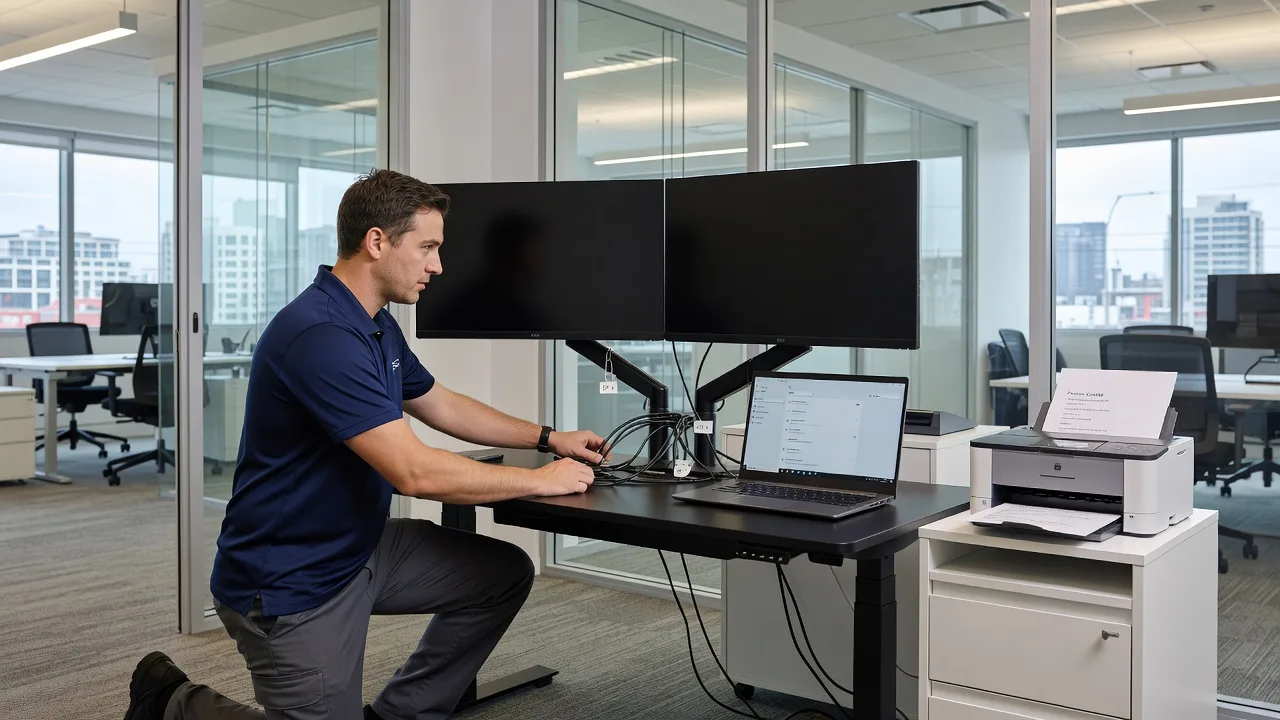
Peripheral & Multi-Monitor Setup for Melbourne Offices
Get printers, scanners, and ergonomic dual-monitor layouts working cleanly across Melbourne offices.
We configure office equipment so dual displays, high-end scanners, and network printers stay reliable for CBD teams, warehouse desks, and home-office hybrids—clear labelling, cable routing, and driver checks included. Patient walkthroughs for staff who need jargon-free handoff.
Power up support: call 0421498927 or book via fixwebnode.com.au/contact-support.
- Dual-monitor alignment & docking
- Printer/scanner driver & share setup
- Fixed-scope packages, direct provider
About this service
We set up printers, high-end scanners, and ergonomic dual-monitor displays so Melbourne offices stop losing time to blank screens, missing drivers, and tangled docks. You get a direct Fixwebnode specialist who balances clean technical configuration with plain-English coaching for the people who use the gear every day.
What You'll Get
- Dual- and multi-monitor layout - Correct resolution, scaling, orientation, and primary display so windows and video calls land where staff expect them.
- Docking station & cable discipline - USB-C/Thunderbolt docks, DisplayPort/HDMI paths, and labelled runs that survive desk moves.
- Network & USB printer configuration - Drivers, queues, defaults, and shared access without guest-account chaos.
- High-end scanner profiles - ADF, duplex, colour/greyscale presets, and folder destinations for clinics, accounting, and legal paper loads.
- Ergonomic display placement guidance - Height, distance, and glare notes suited to open-plan and compact home offices.
- Staff handoff notes - Short how-to for power cycle, paper jams, and which cable goes where—no marketplace middlemen.
Serving Melbourne & surrounds
Melbourne workplaces mix dense CBD towers, light-industrial estates, and strata apartments where lift access and shared Wi-Fi complicate peripheral installs. We plan around peak freight deliveries, school-zone parking limits near suburban clinics, and hybrid teams who rotate desks after market or tourist-season rushes in the inner city.
- Open-plan professional suites needing silent multi-monitor docks without cable sprawl across shared benches
- Warehouse and trade-office desks where heavy-duty printers and A3 scanners must stay online during dispatch peaks
- On-site or guided remote sessions across metro Melbourne, with clear access notes for building managers and after-hours windows
How We Work
- Step 1: Reach Out - Tell us device models, OS, number of screens, and whether the pain is print queues, scanner folders, or dual-display flicker—we listen before quoting.
- Step 2: Tailored Plan - Fixed-scope quote for the tech work plus a clear support path if staff need patient, jargon-free walkthroughs.
- Step 3: We Deliver - Remote configuration where safe, or scheduled on-site setup for cabling, mounts, and physical calibration.
- Step 4: Confirm & Follow-up - Plain-English checklist, optional maintenance window, and one tidy follow-up so nothing drifts after the first busy Monday.
Common Issues & How to Fix Them
These are the faults we see repeatedly on Melbourne office desks—use the DIY path first, then book us when time or risk outweighs tinkering.
Second monitor detected but stays black or mirrors only
Usually a wrong output path on the dock, a cable that only carries USB data, or Windows/macOS stuck on duplicate mode after a laptop lid change.
- Step 1: Note which ports the dock labels as DisplayPort/HDMI versus USB-only; reseat the video cable at both ends with the laptop awake.
- Step 2: Open display settings, choose Extend (not Duplicate), set the correct main display, and match native resolution—avoid 150% scaling on one panel and 100% on the other if text looks blurry.
- Step 3: Drag a window slowly across both screens; if it jumps cleanly and the taskbar sits on the intended primary, the layout is verified.
Network printer installs then vanishes after sleep or Wi-Fi roam
Common when laptops jump between guest and staff SSIDs in multi-tenant Melbourne buildings, or when the printer holds a stale DHCP lease.
- Step 1: Print a config page from the printer panel and confirm IP, subnet, and that it is on the same staff VLAN—not guest isolation.
- Step 2: Remove the old queue, add the printer by IP (or hostname if reserved), install the vendor driver—not the generic class driver—and set it as default.
- Step 3: Sleep the laptop for two minutes, wake it, and print a test page; if the queue stays online, the binding is solid.
High-end scanner finishes jobs but files never appear in the shared folder
Typical after password rotations, mapped-drive letters changing on login, or SMB path typos when clinics and accountants push duplex batches to a NAS.
- Step 1: From another PC, open the destination share and create a tiny test file to prove write permission still works.
- Step 2: On the scanner, re-enter the UNC path (\\server\share), credentials, and file format (PDF/searchable if needed); avoid relying only on a drive letter that may not exist at boot.
- Step 3: Run a one-page duplex scan and confirm the timestamped file lands in the folder within a minute—then check the scanner job log for authentication errors.
When DIY is not enough (urgent, unsafe, recurring, or burning time), book Fixwebnode for direct professional support—no freelancers, bidding, or marketplace noise.
Why Choose Fixwebnode
We deliver the setup ourselves as a two-tier direct provider: enterprise-grade remote IT judgement for docks, drivers, and networks, plus patient human digital support when reception or clinical staff need calm coaching. Expert insight from years of Melbourne installs: before mounting dual 27-inch panels in north-facing CBD glass offices, measure afternoon glare with the blinds at typical height—many "faulty" panels are actually specular reflection that forces staff to crank brightness and then complain about eye strain; a slight inward toe-in and a matte filter often fix more than another GPU driver reinstall.
- ✓ Direct specialist work—fixed scopes, not bid wars
- ✓ Local rhythm awareness for tower access, industrial estates, and hybrid desks
- ✓ Technical depth paired with jargon-free staff handoff
Tools & Technologies
Windows display and print management, macOS System Settings displays & printers, USB-C/Thunderbolt docks, DisplayPort MST and HDMI, vendor printer/scanner suites (HP, Brother, Epson, Canon, Fujitsu/Ricoh scan paths), SMB/UNC folder destinations, basic VLAN/Wi-Fi checks, VESA mounts, cable combs and labelled patch leads, remote assistance tools for guided sessions.
Perfect For
Melbourne small businesses, clinics, education admins, and hybrid teams who need reliable dual-monitor ergonomics plus printers and scanners that actually share. Ideal when you want one accountable provider for the infrastructure work and the human walkthrough—not a pile of unresolved tickets after a DIY weekend.
Ready to stabilise the desk kit? Call 0421498927 or continue at fixwebnode.com.au/contact-support.
Choose a package
Single workstation dual-monitor and one printer or scanner configuration with remote guidance and checklist.
Full desk setup for dual monitors, dock cabling, plus printer and scanner profiles with staff walkthrough.
Multi-desk Melbourne office peripheral rollout: multi-monitor standards, shared devices, labelling, and follow-up.
FAQ
Both. Many dual-monitor, driver, and queue issues we resolve remotely with screen share. When mounts, dense cabling, or building access matter—typical in Melbourne CBD towers and industrial desks—we schedule on-site work with clear timing so security and reception know who is coming. We deliver the work directly as Fixwebnode.
Yes. We verify the dock’s video bandwidth, choose the right DP/HDMI paths, set lid-close power behaviour, and lock primary display and scaling so external screens stay correct after sleep. We also label cables so staff can unplug for meetings without undoing the layout.
Laptop or PC model, operating system, dock brand if any, monitor sizes and ports, printer/scanner models, and whether devices must be shared on the network. Photos of the desk back and any error messages speed up a fixed quote and reduce back-and-forth.