Multi-Vendor & Complex SaaS Marketplaces
 Modern Headless & Jamstack Web Development
 High-End Corporate & Specialized Business Websites
 Advanced API, Checkout & Database Troubleshooting
Laptop HDD to SSD Upgrade — Remote Setup & Migration
Turn a slow spinning-disk laptop into a fast daily driver—remote worldwide support for the full HDD-to-SSD path.
We plan the drive, guide safe cloning or fresh install, and tune boot performance after the swap so telehealth, NDIS admin, study, and small-business workloads stop waiting on the hard disk. Available remotely worldwide; on-site where practical.
Power up your support experience at fixwebnode.com.au/contact-support — or chat with us when you are ready to book.
- Drive fitment & interface checks before you buy
- Guided clone or clean OS migration
- Post-upgrade speed & reliability pass
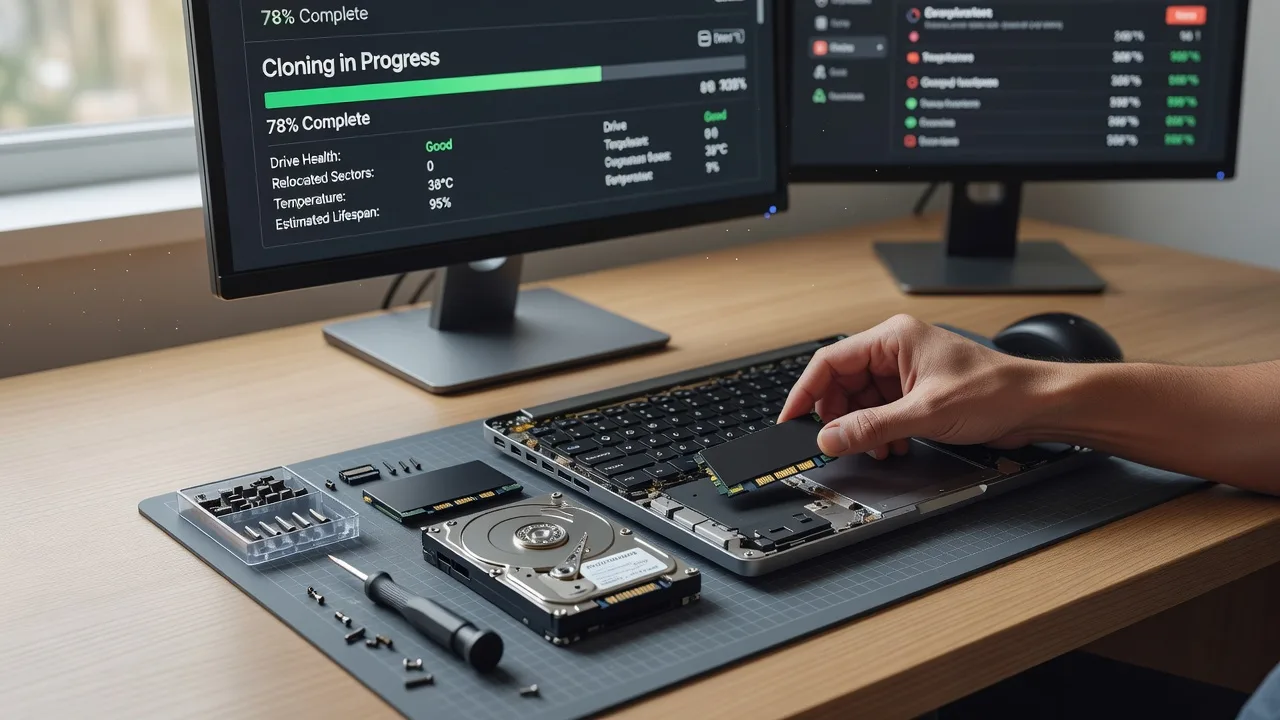
About this service
Replace a mechanical laptop hard drive with a solid-state drive and reclaim boot time, app launch speed, and quiet reliability—delivered as a direct remote service worldwide, with on-site help where practical. Ideal for remote workers, telehealth clinicians, NDIS and aged-care coordinators, students, and small teams who need the machine they already own to feel new again without a full hardware refresh.
What You'll Get
- Pre-upgrade compatibility check - Interface type (SATA/M.2), bay height, caddy needs, BIOS/UEFI notes, and a clear SSD shortlist matched to your laptop model.
- Data migration plan - Clone vs clean install decision, partition layout, and backup verification so you do not gamble with client files or clinical notes.
- Guided hardware swap briefing - Step-by-step opening sequence, ESD-safe handling, cable/connector orientation, and screw map for your chassis family.
- Remote post-install commissioning - Boot repair if needed, driver sanity pass, TRIM/AHCI confirmation, and startup debloat so the new SSD is actually used well.
- Performance baseline - Before/after feel checks (boot to desktop, cold app open, large folder copy) with plain-English notes you can keep.
- Optional dual-drive layout advice - When the optical bay or second slot still holds the old HDD for bulk storage while the OS lives on SSD.
Serving Remote & surrounds
This page exists for people working away from a city bench—home offices, clinic rooms, regional practices, and travelling consultants—who feel every second of disk thrash during video consults, roster spreadsheets, and cloud sync. Seasonal spikes hit hard before financial-year cutovers, student term starts, and telehealth roster expansions when machines must stay online.
- Home-office professionals stuck on 5400 RPM drives during multi-tab admin and VPN days
- Clinic and education laptops that freeze mid-session when spinning disks spin up under antivirus scans
- Worldwide remote sessions first; on-site swap assistance arranged only where travel is practical for your location
How We Work
- Step 1: Reach Out - Tell us the laptop model, current symptoms (slow boot, loud seek noise, freezes under load), and whether the goal is clone-in-place or a clean OS. We listen before prescribing parts.
- Step 2: Tailored Plan - Fixed-scope quote for remote migration support (Basic/Standard/Premium). You get a parts checklist, risk notes, and a clear timeline—no bidding or marketplace noise.
- Step 3: We Deliver - Live remote session for imaging prep, swap coaching, first boot, and optimisation. On-site hardware help only where it is practical to schedule.
- Step 4: Confirm & Follow-up - Plain-English handoff: what changed, how to keep TRIM healthy, backup habit tips, and optional follow-up if anything feels off after a few days of real use.
Common Issues & How to Fix Them
These are patterns we see repeatedly on ageing laptop HDDs—use the safe checks first; escalate when data or boot integrity is at risk.
Issue 1 — Boot takes 3–8 minutes and the drive chatters under light use
Classic failing or heavily fragmented 5400 RPM behaviour: the head is hunting while Windows or macOS waits on small random reads at login.
- Step 1: Note whether the noise is rhythmic seeking vs grinding; back up essential folders to external or cloud immediately if grinding appears.
- Step 2: In Windows, open Task Manager → Performance → Disk and watch active time and queue length while idle; sustained high active time with little CPU usually points at the disk, not the network.
- Step 3: After a clean reboot with nothing auto-opened, time boot-to-usable-desktop twice. If both runs stay multi-minute with disk at 100%, plan SSD migration rather than more defrag cycles.
Issue 2 — Clone completes but the laptop will not boot from the new SSD
Often a mix of legacy BIOS vs UEFI mismatch, wrong boot order, missing EFI partition, or the old drive still winning the boot race.
- Step 1: Enter firmware setup and confirm the SSD is detected at the same interface (SATA/NVMe). If it is missing, reseat the module/cable before changing software.
- Step 2: Set the correct mode (UEFI preferred on modern machines), disable legacy-only if the clone was UEFI, and move the SSD to first boot device—then save and exit.
- Step 3: If you reach the firmware logo but not the OS, boot repair media and run startup repair / rebuild BCD (Windows) or bless/recovery (macOS as applicable). Verify you land on the desktop from a cold power-on twice.
Issue 3 — SSD is installed yet feels only slightly faster; disk still spikes to 100%
Common when AHCI/TRIM was never confirmed, OEM bloat still storms at login, pagefile/hibernation thrash remains, or the clone brought over a failing SMART-era Windows install full of filter drivers.
- Step 1: Confirm the controller mode is AHCI (not IDE legacy) and that the OS sees the volume as SSD; on Windows check that Optimize Drives schedules TRIM (ReTrim), not old defrag-only habits.
- Step 2: Trim startup apps ruthlessly, remove duplicate security suites, and move bulk media off the OS volume so free space stays above ~15–20%.
- Step 3: Re-time boot and a cold open of your heaviest daily app. Good outcome: near-instant wake from idle and disk active time that drops quickly after login instead of lingering at 100%.
When DIY is not enough (urgent, unsafe, recurring, or burning time), book Fixwebnode for direct professional support—no freelancers, bidding, or marketplace noise.
Why Choose Fixwebnode
We deliver the upgrade path ourselves as a two-tier practice: solid technical migration discipline plus patient, jargon-free coaching for people who are not full-time IT staff. You get fixed scopes, honest go/no-go calls on tired chassis, and remote sessions structured so clinical or business work is not left half-migrated overnight.
- ✓ Direct provider model—clear ownership of the session outcomes, not a bid board
- ✓ Experience balancing enterprise-grade care (imaging integrity, boot modes) with human digital support for NDIS, aged care, telehealth, education, and small business users
- ✓ Remote-first worldwide delivery with practical on-site options only when they genuinely help
Tools & Technologies
CrystalDiskInfo / smartctl health reads; manufacturer SSD tools (Samsung Magician, Crucial Storage Executive, WD Dashboard as model-appropriate); Macrium Reflect, Clonezilla, or ddrescue-style imaging workflows; Windows Installation Media & Startup Repair; diskpart / Disk Management; firmware AHCI/UEFI checks; TRIM verification; modest benchmark spot-checks (sequential and real-world folder copy); remote support via secure screen-share with change logging in plain English.
Perfect For
Remote and hybrid professionals whose laptops still run a mechanical drive and stall during consults, case notes, LMS uploads, or end-of-month books. Especially useful for telehealth and community-support staff, tutors, and sole traders who need a predictable speed lift without buying a whole new device this quarter. If your days are blocked by disk thrash and you want a calm, specialist-led upgrade—not a generic parts dump—this service is built for you.
Ready when you are: start at fixwebnode.com.au/contact-support or chat with us to lock a remote slot.
Choose a package
Remote compatibility review, SSD shortlist, and a guided prep session before your HDD-to-SSD swap.
Full remote-assisted migration: imaging plan, swap coaching, first-boot repair if needed, and post-SSD tuning.
End-to-end priority upgrade with dual-drive layout options, deeper OS cleanup, verification, and follow-up check-in.
FAQ
We handle planning, imaging strategy, firmware boot settings, and post-install tuning over secure remote sessions. You (or a local helper) perform the physical drive swap using our chassis-specific guidance, or we arrange on-site assistance only where travel is practical. Most clients finish with a faster machine without shipping the laptop across cities.
Clone when you need the same apps and licensed tools working the next morning and the OS is basically healthy. Choose a clean install when the system is packed with years of OEM clutter, mystery startups, or unstable drivers—the SSD will feel dramatically better on a clean image. We help you pick based on risk, downtime, and what your workload cannot lose.
Yes. After we confirm form factor (2.5-inch SATA, mSATA, or M.2), length/keying, and any caddy needs, we give a short practical shortlist with capacity guidance. We avoid vague mega-lists and focus on drives that fit, stay cool in thin chassis, and match your budget without overselling capacity you will never fill.
That is a common firmware or partition-layout issue, not a reason to panic. In the Standard and Premium packages we stay on the session to correct boot order, UEFI/legacy mode, and repair boot files when needed. Basic clients receive documented checks so you know what to try before escalating.