Multi-Vendor & Complex SaaS Marketplaces
 Modern Headless & Jamstack Web Development
 High-End Corporate & Specialized Business Websites
 Advanced API, Checkout & Database Troubleshooting
WooCommerce Payment Gateway Failing at Checkout: Fixes
Checkout fails and payments never clear? Learn the real causes of WooCommerce gateway errors—SSL, webhooks, keys, caching—and the DIY steps that restore paid orders before you book a specialist.
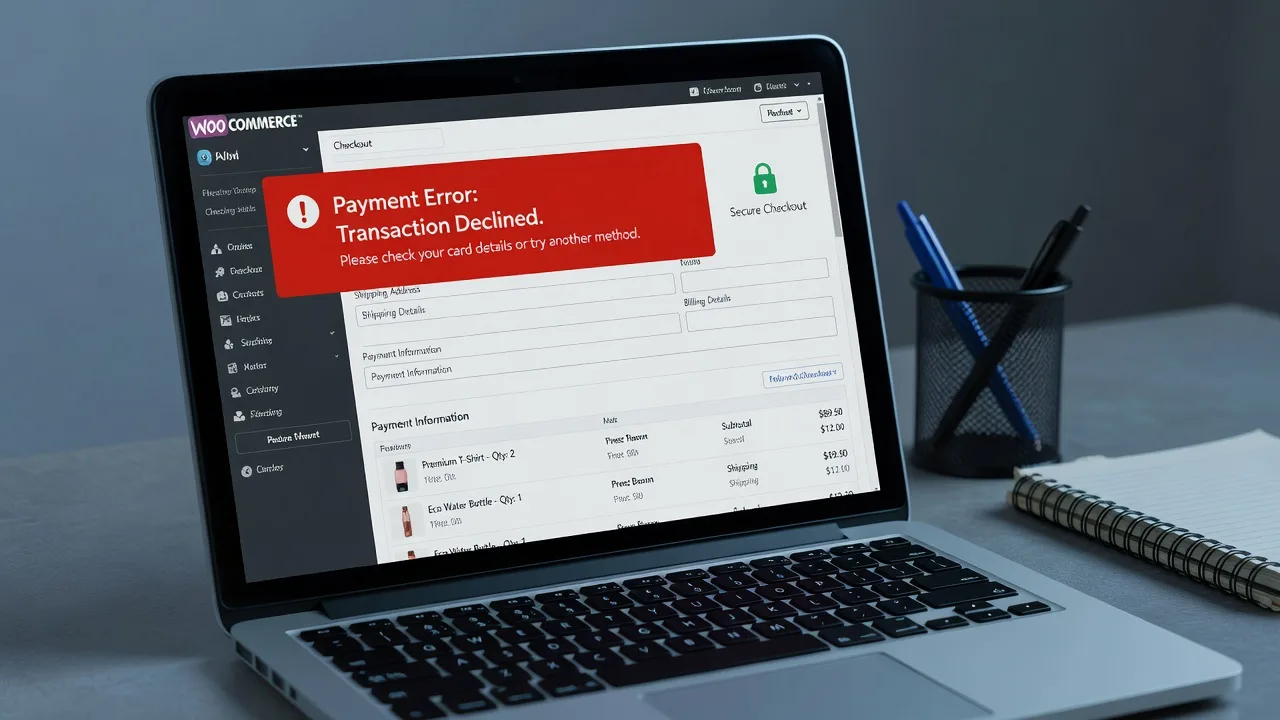
If customers reach your WooCommerce checkout, click Place order, then see a red error, a spinning button, or a silent return to cart, you are losing sales in real time. This guide walks small-business owners through why a payment gateway fails at checkout, the exact checks you can run yourself, and when it is smarter to bring in a specialist rather than keep guessing.
Fixwebnode works directly on WordPress and WooCommerce stores—including shops serving Canberra and wider Australian metro areas—so the steps below match how production sites actually break. For hands-on help on this exact problem, start with our WordPress Developer page.
Why a failing checkout gateway matters more than a “plugin glitch”
A broken gateway is not a cosmetic bug. Card networks, Stripe, PayPal, Afterpay, and bank APIs reject or time out when your site sends the wrong environment keys, an insecure callback, a cached nonce, or a PHP fatal during the payment handshake. Every failed attempt also trains customers not to retry. Fixing the root cause restores revenue faster than redesigning the theme.
Below are the failure patterns we see most often on live WooCommerce stores, with DIY resolution steps first and a clear line for when to book Fixwebnode.
Common issues when the WooCommerce payment gateway fails at checkout
These problems look similar in the browser (“Payment error” / “try again”) but have different root causes. Match your symptoms before you change settings.
- Test/live API key mismatch or wrong webhook secret — Orders stay Pending payment; the gateway dashboard shows no charge or “invalid API key.”
- HTTPS, mixed content, or insecure return/callback URLs — Browser console shows blocked mixed content; gateways refuse to post back to
http://endpoints. - Checkout page or cart fragments cached by a plugin, host, or CDN — First load works for you (logged-in admin), customers get expired nonces and “session expired” or gateway timeouts.
- Plugin or PHP conflict during the payment request — White screen, 500 error, or critical error email at the exact moment Place order is clicked; WooCommerce logs show fatals in a gateway or security plugin.
- Currency, country, or minimum-amount rules blocking the method — Gateway disappears or errors only for certain shipping countries or order totals.
Issue 1 — Test keys, live keys, and webhook secrets out of sync
Symptoms: Checkout returns “Invalid API Key,” “No such payment_intent,” or the order is created as Pending with nothing in Stripe/PayPal. You recently switched from sandbox to live or rotated keys.
Step 1 — Confirm mode in WooCommerce and the gateway dashboard
- In wp-admin go to WooCommerce → Settings → Payments, open your gateway, and note whether Test/Sandbox mode is enabled.
- In Stripe (Developers → API keys) or PayPal (Apps & Credentials), copy the matching publishable and secret keys for that same mode. Never mix a live publishable key with a test secret.
- Paste keys carefully—no leading spaces—and save. Clear any object cache if your host uses Redis/Memcached.
Step 2 — Repair webhooks so the store learns payment results
- In Stripe, open Developers → Webhooks and point the endpoint at your site’s WooCommerce Stripe webhook URL (usually under the gateway’s settings screen). For PayPal, confirm IPN/webhook URLs use HTTPS.
- Send a test event from the provider dashboard. In WooCommerce → Status → Logs, open the latest gateway log and confirm a 200-style handling message, not signature failures.
- Place a low-value live or test order yourself and watch the order notes: you want “Payment complete” (or the gateway’s equivalent), not endless Pending.
Step 3 — Verify from the server if the UI is unclear
wp option get woocommerce_stripe_settings --format=json
wp wc tool run clear_transients --user=1
Those WP-CLI checks (run over SSH in the site root) surface whether settings actually saved and clear stale payment transients. Adjust the option name to your gateway’s ID if you are not on Stripe.
When to call Fixwebnode: If webhooks keep failing signature checks, you run multiple currencies or memberships billing off the same Stripe account, or orders complete in the gateway but never flip to Processing in WooCommerce. That usually needs coordinated work on endpoints, cron, and order-status mapping—not another key paste.
Issue 2 — SSL, mixed content, and bad return URLs
Symptoms: Padlock missing on checkout, console errors about active mixed content, or the gateway redirects then fails because the return URL is still http://.
Step 1 — Force clean HTTPS at WordPress level
- Confirm a valid certificate on the host (not expired, covering www and apex if both are used).
- In Settings → General, set WordPress Address and Site Address to
https://versions of your domain. - In WooCommerce → Settings → Advanced, verify the checkout endpoints resolve under HTTPS.
Step 2 — Hunt mixed content that breaks gateway scripts
- Open checkout in a private window, open DevTools → Console/Network, and note any
http://script or XHR calls to your domain or the gateway. - Update the theme/customizer image URLs and any hardcoded asset links in headers or trust badges.
- If you use a search-replace plugin or WP-CLI, rewrite residual http URLs in the database carefully on a staging copy first:
wp search-replace 'http://www.example.com' 'https://www.example.com' --all-tables --dry-run
wp search-replace 'http://www.example.com' 'https://www.example.com' --all-tables
Run dry-run first; only execute when the planned replacements look correct. Replace the example domain with yours.
Step 3 — Align gateway callback/return URLs
- In the payment provider dashboard, edit every registered return, cancel, and notify URL so each starts with
https://and matches the live domain (including www vs non-www consistency). - Retest checkout on mobile data as well as desktop—some hosts serve different cert chains on www.
When to call Fixwebnode: Certificate chain errors on older Android devices, reverse-proxy/SSL termination at Cloudflare or a load balancer, or a multisite where only some stores inherit the wrong home URL. Those need server and WordPress configuration together.
Issue 3 — Full-page cache, CDN, or cart-fragment caching on checkout
Symptoms: You can pay while logged in as admin; customers report “session expired,” “invalid order,” or a gateway error after a long pause. Problems spike after enabling a “speed” plugin or host CDN.
Step 1 — Exclude cart, checkout, and my-account from page cache
- In your cache plugin (LiteSpeed Cache, WP Super Cache, W3 Total Cache, etc.) add exclusions for
/cart,/checkout,/my-account, and any custom checkout slug. - Disable cache for users with a WooCommerce session cookie (
woocommerce_items_in_cart,wp_woocommerce_session_*). - Purge all caches and the CDN (Cloudflare “Purge Everything” if used).
Step 2 — Stop caching fragments and payment scripts
- Turn off “cache WooCommerce fragments” style options if present; they often break dynamic totals and nonces.
- Do not combine or defer the gateway’s JavaScript on checkout. Exclude Stripe.js, PayPal SDK, and similar from delay/optimization lists.
- Retest in a private window while logged out.
Step 3 — Confirm cookies and HTTPS consistency
- Ensure the site is not bouncing between www and non-www mid-checkout (that drops the session cookie).
- In Cloudflare or the host panel, avoid aggressive “cache everything” page rules on checkout paths.
wp cache flush
wp transient delete --all
Use these after config changes so stale totals and session helpers are not reused.
When to call Fixwebnode: Custom checkout shortcodes, headless/decoupled front ends, or host-level Varnish rules you cannot edit from wp-admin. Mis-tuned edge cache is a frequent silent killer of paid checkouts.
Issue 4 — Plugin/theme PHP fatals during the payment request
Symptoms: Critical error screen on Place order, HTTP 500 in Network tab, or WooCommerce email “A visitor tried to check out and the site crashed.” Gateway may authorize then void because Woo never finished the order.
Step 1 — Read the right logs before changing plugins blindly
- Open WooCommerce → Status → Logs and the latest
fatal-errorsor gateway log. - On the host, check
wp-content/debug.logifWP_DEBUG_LOGis enabled on staging. - Note the plugin file path in the stack trace—that is your prime suspect.
Step 2 — Isolate on staging, not only on production
- Clone to staging. Deactivate non-essential plugins; leave WooCommerce + the payment gateway + the active theme.
- Retry checkout. Reactivate plugins in small batches until the fatal returns.
- Common clash sources: security suites that block the gateway IPN/webhook user-agent, old “one-page checkout” add-ons, and abandoned currency switchers.
wp plugin list --status=active
wp plugin deactivate conflicting-plugin-slug
wp scaffold _ignore 2>/dev/null; tail -n 50 wp-content/debug.log
List actives, deactivate the culprit by slug, then inspect the log tail. Skip any scaffold noise; the useful part is the log path on your host.
Step 3 — Raise visibility on resource limits if the log shows timeouts
- If logs show max execution time or memory exhausted during payment, raise PHP
memory_limitandmax_execution_timein the host panel for the site, then retest. - Update WooCommerce, the gateway extension, and WordPress to compatible versions after a backup—not mid-sale without a restore point.
When to call Fixwebnode: The fatal sits inside custom theme code, a must-use plugin, or a patched gateway you cannot safely update during peak trading. Also book help if disabling security plugins “fixes” payments but re-opens brute-force exposure—you need allowlists for webhook IPs, not a permanent off switch.
Issue 5 — Currency, country, or amount rules hiding or rejecting the method
Symptoms: Gateway works for domestic cards but fails for overseas customers; or the method vanishes below a minimum total; or multi-currency plugins send a currency code the merchant account does not support.
Step 1 — Align WooCommerce currency with the merchant account
- Check WooCommerce → Settings → General currency and currency position.
- In the gateway dashboard, confirm the same settlement currency (or explicitly enabled presentment currencies).
- Disable experimental multi-currency plugins temporarily and retest a single-currency checkout.
Step 2 — Review gateway-specific restrictions
- Open the payment method settings for minimum order amount, allowed countries, and “enable for specific shipping methods.”
- Place test orders for the failing country/shipping combination with a matching test card.
- If you sell to AU customers while the Stripe account is locked to another country, expect declines—fix that in the provider’s logs, not only in WooCommerce.
When to call Fixwebnode: Memberships, deposits, or partial captures (common on membership and construction quote sites) need gateway features configured beyond the default WooCommerce toggle. Stores in South Melbourne running MemberPress with Stripe, or Canberra builders taking staged payments online, often need that deeper wiring rather than a simple key swap—see WordPress Membership Site Setup South Melbourne | MemberPress & Stripe and Website Solutions for Canberra Builders & Construction Specialists when those business models match yours.
When DIY is enough vs when to book Fixwebnode
DIY is enough when you can reproduce a single clear cause: wrong mode keys, an obvious cache exclusion miss, or a plugin you can disable on staging with an immediate fix. Document what you changed, keep a backup, and retest logged-out on phone and desktop.
Book a specialist when any of the following are true:
- Money is captured in Stripe/PayPal but WooCommerce orders stay Pending or go to failed inconsistently.
- Failures are intermittent and only appear behind CDN/WAF rules you do not control.
- You need webhooks, subscriptions, memberships, or multi-gateway failover configured without downtime.
- Logs show fatals in custom code, and restoring sales matters more than experimenting on production.
Fixwebnode is a direct specialist practice—not a bid board. We work across the service regions listed on our All service areas page, with remote production debugging for WooCommerce checkout and gateway stacks used by Australian small businesses.
Get checkout taking paid orders again
A WooCommerce payment gateway that fails at checkout almost always traces to keys and webhooks, HTTPS/callbacks, cache on cart/checkout, a PHP conflict at Place order, or currency/rule mismatches. Work through the matching section above in order, verify with a real test payment, and watch both the gateway dashboard and WooCommerce order notes before you declare victory.
If you want a specialist to trace logs, repair webhooks, and harden checkout without guesswork, talk to Fixwebnode via the WordPress Developer landing page and describe the exact error text, gateway name, and whether test mode still works. We will focus on restoring paid checkouts—not on generic site redesigns.