



 Multi-Vendor & Complex SaaS Marketplaces
 Modern Headless & Jamstack Web Development
 High-End Corporate & Specialized Business Websites
 Advanced API, Checkout & Database Troubleshooting
Stop Cookie Pop-Ups in Australia with GPC and Blockers
Turn on Global Privacy Control or a free privacy blocker so cookie banners auto-reject while you browse. Practical DIY fixes for Australian laptops and phones, plus when Fixwebnode helps on-site.
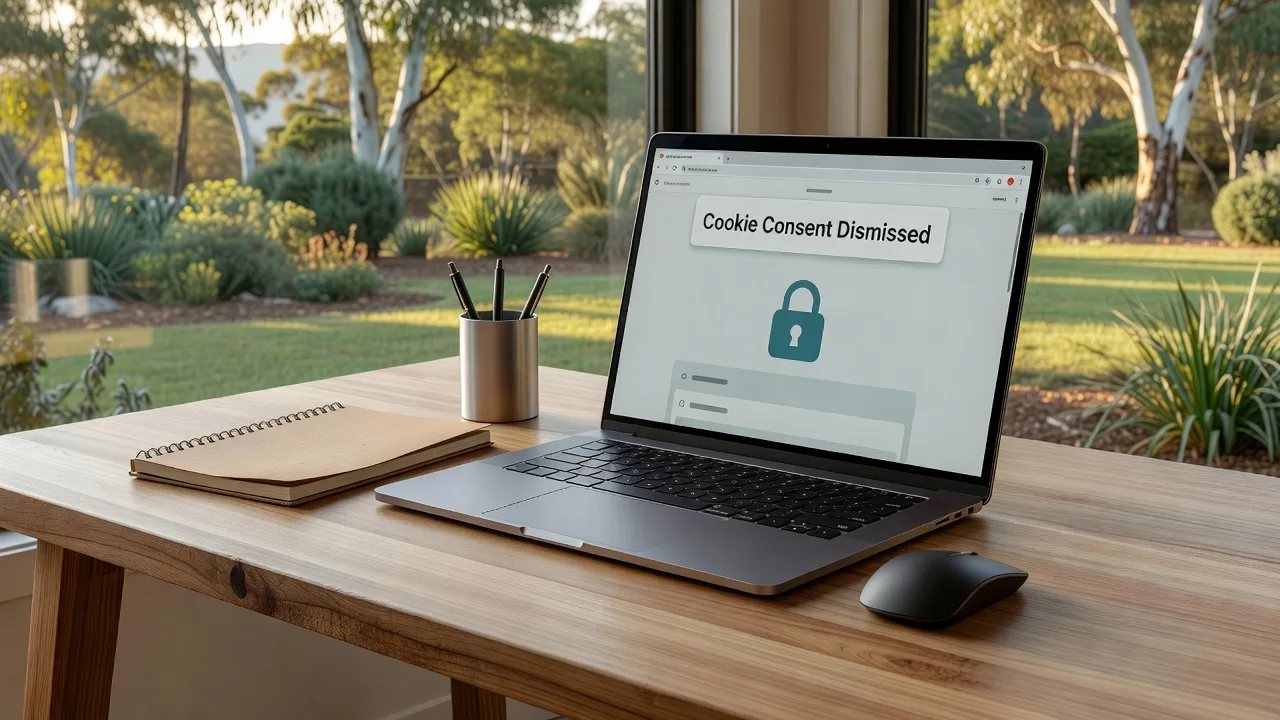
If every Australian news site, shop, and council page greets you with a cookie wall, you are not alone—and you do not have to click “Reject all” a hundred times a day.
Turning on Global Privacy Control (GPC) in your browser, or adding a free privacy blocker, sends a persistent “do not sell or share” signal and can auto-dismiss many consent banners in the background. This guide is for homeowners and small businesses in Australia who want calm browsing on the devices they already own. When settings will not stick, extensions break checkout, or a managed work laptop blocks the fix, Fixwebnode can help in person or by appointment across our Australia service area—as a direct specialist, not a freelance marketplace.
Does Global Privacy Control stop cookie pop-ups on Australian devices?
Yes, in many cases. Enabling GPC (or installing a reputable free privacy / consent blocker) tells supporting sites and scripts that you decline non-essential tracking, so banners are suppressed or auto-rejected while you browse. Results vary by site and browser; stubborn banners, broken logins, or settings that reset after an update are common and fixable with the steps below—or with a short on-site check if the device itself is at fault.
| Symptom | Quick fix | When to call Fixwebnode |
|---|---|---|
| Banners still appear after GPC is on | Confirm GPC in browser privacy settings; add a consent/privacy extension | Signal never sticks after reboot or profile repair fails |
| Site login or pay wall breaks | Pause blocker on that site only; allowlist checkout domains | Multiple business sites fail and you need a stable profile |
| Settings vanish after update | Re-enable GPC; check sync and admin policies | Managed laptop or corrupted browser profile needs hands-on work |
Why quiet browsing matters when cookie walls never stop
Cookie pop-ups slow reading, interrupt ordering, and train people to click “Accept all” just to get work done. GPC is a browser-level preference some sites honour automatically. A free privacy blocker (for example uBlock Origin with suitable filter lists, Privacy Badger, or a dedicated consent-auto-reject extension) handles many banners that ignore GPC. Together they reduce noise without you hunting through every dialog.
On a home PC, Mac, or phone in Australia the setup is usually a few minutes. On shared family machines, older hardware, or small-business laptops with security software, the same steps can fail for distinct reasons—which is why the issues below are separated by root cause, not generic “clear your cache” advice.
Common issues when GPC or a privacy blocker should auto-reject banners
1. GPC is on, but banners still cover the page
You enabled the Global Privacy Control option, yet major publishers and shops still show full-screen consent walls. Symptom: the privacy toggle shows enabled, but every new tab still demands a manual choice.
2. The blocker hides the banner and breaks login or checkout
After installing a free privacy or cookie blocker, the pop-up is gone—but “Sign in”, “Add to cart”, or payment buttons do nothing. Symptom: blank modals, endless spinners, or forms that never submit on banking, government, or store sites.
3. GPC or extension settings reset after an update or reboot
You fixed everything yesterday; today the banners are back and the extension is disabled or missing. Symptom: browser update, OS restart, or profile sync wiped the preference; work devices may also enforce a policy that blocks extensions.
4. Your browser has no GPC toggle and store policies block add-ons
Especially on older Safari builds, locked-down Chromebooks, or company-managed Edge/Chrome, there is no clear GPC switch and you cannot install blockers from the store. Symptom: greyed-out extension page or “blocked by administrator.”
How to fix each issue (DIY first)
Fix 1 — Banners remain after you turn on Global Privacy Control
Many sites still do not honour GPC alone. Treat GPC as the baseline signal, then add a lightweight consent helper.
- Open your desktop browser settings and search for privacy, cookies, or “Global Privacy Control” / “Sell or share my data.” Enable GPC or the equivalent “Send do not sell / do not share” signal where offered (Chrome, Edge, Firefox, Brave, and several others expose this under privacy or cookies).
- Visit a site that previously nagged you. If the banner remains, install one free, well-known privacy or consent extension from the official browser store only (examples people use successfully: uBlock Origin for general blocking, plus a consent-auto-reject style add-on if you want banner-specific handling). Avoid random “cookie cleaner” APKs or sideloaded CRX files.
- Open the extension options. Enable any “cosmetic filtering,” “annoyances,” or “cookie notices” lists if present. Keep default security lists on.
- Hard-refresh the test page (Ctrl+F5 or Cmd+Shift+R). Confirm the banner is gone or auto-dismissed without you clicking Accept.
- On a phone, use the browser that supports extensions or built-in tracking prevention (for example Firefox on Android with add-ons, or Safari’s advanced tracking features on iPhone). Re-check GPC-equivalent controls under Settings → Safari / browser → Privacy.
If banners still full-screen after a reputable blocker and GPC, the page may load consent scripts in a way your filter misses—or the device clock, DNS filter, or another extension is interfering. That is a good moment for a specialist profile check rather than stacking more unknown add-ons.
Fix 2 — Privacy blocker breaks sign-in, carts, or payments
Over-blocking is a different problem from “GPC ignored.” You want auto-reject for marketing cookies, not a dead checkout.
- On the broken site, open the extension icon and choose Pause / Disable on this site only (not globally).
- Reload. Complete login or payment once to confirm the site works.
- Re-enable the extension, then use the allowlist / trusted site list for that shop’s main domain and its payment domain only. Do not disable protection on your whole browser.
- If a blank overlay remains, use the extension’s element picker (where available) to hide the leftover banner layer instead of turning the whole blocker off.
- For a small-business till or bookkeeping PC, create a separate browser profile named “Banking” with fewer extensions, and keep the locked-down profile for everyday news and social.
Bring the device (laptop with charger, or phone) if several revenue sites fail at once—Fixwebnode can sort allowlists and profiles on-site so staff are not toggling extensions all day.
Fix 3 — Settings disappear after update, sync, or reboot
This is usually profile sync, an update that reset flags, or security software quarantining the add-on—not “the internet.”
- Re-open privacy settings and confirm GPC is still enabled. Switch it off and on once, then restart the browser fully (all windows).
- Check chrome://extensions, edge://extensions, or about:addons. If the privacy blocker is disabled, re-enable it. If it vanished, reinstall from the official store and export/import settings if the extension offers a backup.
- Temporarily disable browser sync, set GPC and the extension again, restart, then re-enable sync so a stale cloud profile does not overwrite the fix.
- On Windows or macOS, check whether antivirus “web shield” or a company portal re-disabled the add-on. Allow the extension if your policy permits personal privacy tools.
- Create a short checklist: after every major browser update, verify GPC + blocker in under a minute before you resume normal browsing.
When the profile corrupts repeatedly (extensions vanish, bookmarks flicker, settings never save), stop resetting blindly. Back up bookmarks/export passwords if you use the browser manager, note the device model and OS version, and book a local inspection so the profile can be repaired or recreated cleanly.
Fix 4 — No GPC toggle and extensions are blocked
Hardware and policy limits need a different path than “just install uBlock.”
- Update the browser from its official vendor channel. Newer builds add privacy toggles older ones lack.
- If the machine is personal, install a second mainstream browser that supports GPC and extensions, and use it for daily browsing while keeping the locked browser only for the one app that requires it.
- If the machine is employer-owned, do not bypass management software. Ask IT whether GPC or an approved privacy extension can be allowlisted; document the cookie-banner productivity issue.
- For a home user’s only computer with a failing store page, try the browser’s built-in strict tracking prevention and block third-party cookies as a partial stand-in until a supported browser is available.
- For phones that cannot run desktop-class blockers, enable the strongest built-in tracker blocking and limit in-app browsers where you cannot control consent UI.
If you need the same calm setup on several office PCs in Australia, an on-site pass is faster than repeating guesswork on each locked image.
When DIY is enough vs when to book Fixwebnode
DIY is enough when you can enable GPC, install one official free privacy or consent blocker, allowlist the odd checkout site, and the preference survives a reboot. Give yourself one careful pass through the numbered steps above on a single device before changing every PC in the house.
Book a specialist when any of these show up: settings never persist; the browser profile looks damaged; a business laptop is policy-locked; multiple staff devices show different broken behaviours; or you are unsure which extension is safe. For local / on-site help, bring or have ready the actual device (laptop with power pack, or phone/tablet), a rough list of sites that still nag or break, and a reminder that you have backed up bookmarks or important downloads. Say whether it is a home machine or a small-business workhorse. Fixwebnode works as a direct provider for individuals, sole traders, and local operators—see website repair and device help in Australia—and covers geography listed under Australia and all service areas. Timing is appointment-based; early bookings are often easier to place same-day when schedules allow, without promised travel windows.
Browse in peace—then get help if the device fights back
Global Privacy Control plus a free privacy blocker is the practical way to auto-reject many cookie pop-ups so you can read, shop, and work without constant consent theatre. Work through the distinct fixes above on your own hardware first. If banners still win, logins fail across key sites, or every update wipes your privacy setup, start a conversation with Fixwebnode and book through the landing page for individuals and local operators: https://fixwebnode.com.au/website-repair-australia. Bring the device, a backup mindset, and the symptoms—you will get hands-on help aimed at quiet, private browsing on the machines you already use in Australia.