Multi-Vendor & Complex SaaS Marketplaces
 Modern Headless & Jamstack Web Development
 High-End Corporate & Specialized Business Websites
 Advanced API, Checkout & Database Troubleshooting
Shopify Liquid Errors on Checkout: Cart Page Fixes
Broken Liquid on cart or checkout can block sales fast. Learn the common error patterns, DIY theme checks, and when Fixwebnode should take over remote repair for Bunbury stores.
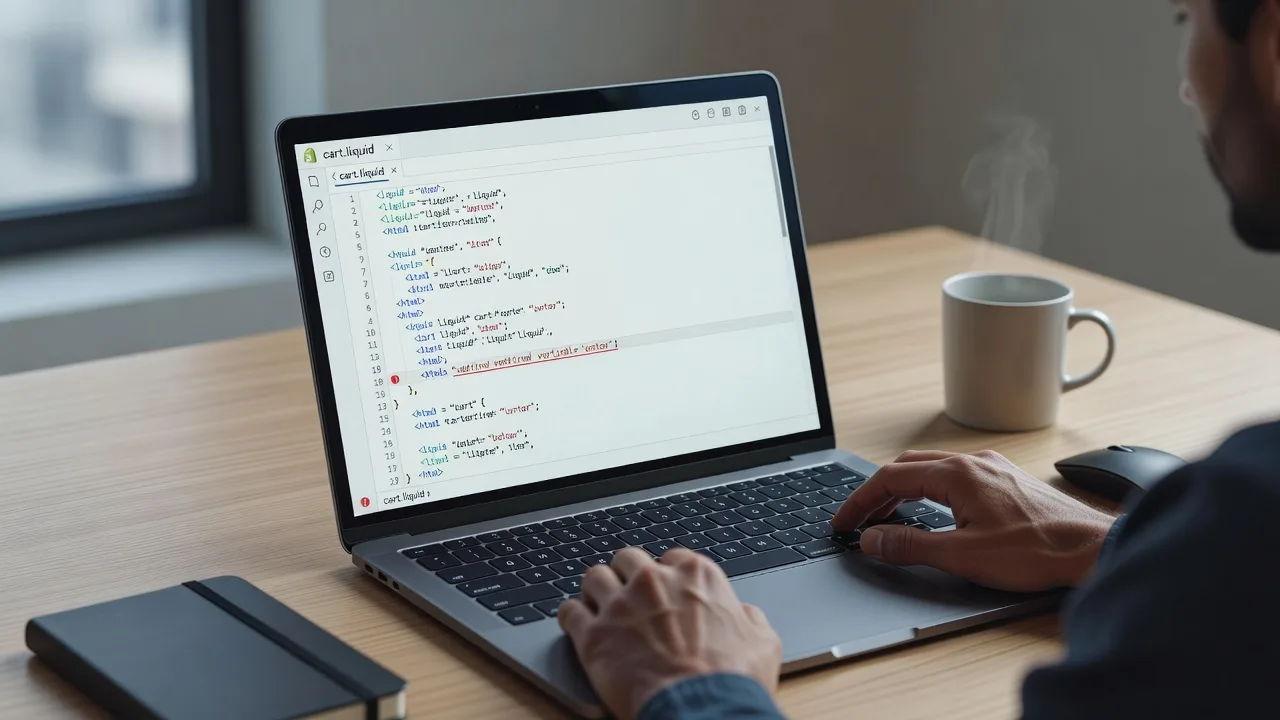
If your Shopify cart page throws Liquid errors, the checkout button vanishes, or customers see a blank drawer, you are losing orders until the theme code is fixed.
This guide is for store owners and small businesses who need practical troubleshooting for broken Liquid on cart and checkout templates. We work remote-first from your area, including Bunbury, WA, and walk through diagnostics you can run yourself before booking specialist help from Fixwebnode Shopify Developer support.
Why Liquid errors on cart and checkout matter
Shopify renders cart, cart drawer, and checkout-related theme sections with Liquid. A single undefined object, unclosed tag, or outdated filter can stop the page from rendering, break AJAX add-to-cart, or hide payment buttons. Unlike a cosmetic CSS glitch, these failures sit on the money path: customers cannot complete purchase.
Theme app embeds, custom cart attributes, and rushed edits in the code editor are the usual triggers. The goal below is to isolate the failing snippet, restore a safe cart experience, and know when remote specialist repair is safer than more DIY edits.
What causes Shopify Liquid errors on the cart page?
Most cart Liquid failures come from unsafe object access, syntax mistakes after a theme or app update, or cart JSON endpoints returning data your template no longer expects. Fix the root cause in the theme files rather than masking the message with CSS.
| Symptom | Quick fix | When to call Fixwebnode |
|---|---|---|
| Liquid error: undefined variable on cart | Guard objects with if / empty?; duplicate theme first | Error spans multiple sections or apps |
| Cart drawer blank or checkout button missing | Validate tags; roll back last edit; test in preview | Syntax looks fine but render still fails |
| Works in admin preview, fails on live cart AJAX | Compare /cart.js fields to template assumptions | Custom line-item properties or bundles involved |
Common Liquid issues on Shopify cart pages
These problems show up repeatedly on live stores. Each has a different root cause so you can match symptoms before editing code.
- Undefined cart or line-item properties — Red error text such as “Liquid error: undefined variable” or empty line rows when a snippet assumes
item.product, metafields, or custom properties always exist. - Broken tag or filter syntax after an edit — Cart section fails to render entirely; checkout CTA disappears; Theme Editor shows a parse error near a recent change.
- Cart AJAX / section rendering mismatch — Full page cart looks fine, but the drawer or “added to cart” section returns an error because Liquid expects fields that
/cart.jsor section rendering no longer provides. - App embed or outdated snippet conflict — A shipping estimator, upsell, or loyalty snippet still calls deprecated filters or old cart object shapes after a Shopify or theme upgrade.
Issue 1: Undefined variables and missing line-item objects
Symptoms include partial cart tables, missing product titles, or inline Liquid error strings beside quantities. Root cause is almost always unsafe dotted access without existence checks.
Step 1 — Duplicate the live theme
In Shopify admin go to Online Store → Themes → … → Duplicate. Only edit the copy so a bad save does not take checkout offline.
Step 2 — Open the cart templates
Edit the duplicate. Check sections/main-cart-items.liquid, sections/cart-drawer.liquid, snippets/cart-drawer.liquid, and any cart-* snippets your theme uses.
Step 3 — Find unsafe object chains
Search the theme for patterns like item.product.metafields, line_item.properties[, or custom keys without guards. Replace bare access with conditionals.
{% if item.product != blank %}
 {{ item.product.title }}
{% endif %}

{% if item.properties != blank %}
 {% for property in item.properties %}
 {% unless property.last == blank %}
 {{ property.first }}: {{ property.last }}
 {% endunless %}
 {% endfor %}
{% endif %}
Step 4 — Verify with a real cart
Preview the duplicate theme. Add a normal product, a product with line-item properties, and an item from a bundle or customizer app. Confirm no red Liquid strings remain and totals still calculate.
Step 5 — Publish only after a clean pass
If the duplicate is clean, publish it during a low-traffic window. If errors persist across several snippets, stop stacking conditionals and book a specialist review.
When to call Fixwebnode: multiple templates reference custom metafields or app properties you did not author, or fixing one guard surfaces three new undefined errors.
Issue 2: Syntax and filter mistakes that blank the cart
Symptoms: white cart body, Theme Editor crash on the cart template, or “Unknown filter” / unclosed tag messages. Often introduced by a partial paste, a missing endif, or a filter renamed in newer Shopify Liquid.
Step 1 — Capture the exact error
Note the file name and line if Shopify shows one. Screenshot the storefront message. That pinpoints whether the failure is in a section, snippet, or layout.
Step 2 — Diff against the last good version
In the code editor, use older copies under the theme’s file history if available, or compare to the pristine theme zip from the theme developer. Revert only the cart-related files first.
Step 3 — Validate tag balance and filters
Check every {% if %}, {% for %}, {% case %}, and {% form %} has a matching end tag. Replace obsolete filters with current equivalents your theme docs list. Avoid inventing filter names.
{% comment %} Example: safe money output {% endcomment %}
{{ item.final_line_price | money }}

{% comment %} Close every opened block {% endcomment %}
{% if cart.item_count > 0 %}
 {% for item in cart.items %}
 ...
 {% endfor %}
{% endif %}
Step 4 — Theme Check via Shopify CLI (optional but precise)
If you use Shopify CLI locally, run theme checks on the cart paths before pushing.
shopify theme check --path sections/main-cart-items.liquid
shopify theme check --path sections/cart-drawer.liquid
shopify theme dev --store your-store.myshopify.com
Fix reported syntax issues, then refresh the development preview cart.
Step 5 — Confirm checkout entry points
From the fixed cart, click checkout on desktop and mobile. Ensure the checkout button is inside a valid {% form 'cart' %} (or your theme’s equivalent) and not stranded outside a broken conditional.
When to call Fixwebnode: the file is large, minified, or heavily customized and you cannot locate the unclosed block without risking further breakage.
Issue 3: Cart drawer AJAX and section render mismatches
Symptoms: full-page /cart works, but the drawer, pop-up, or “sections” cart update returns an error toast; quantity changes fail; add-to-cart never refreshes line items. Root cause is Liquid that assumes product fields not present in the JSON or section response used by JavaScript.
Step 1 — Inspect network responses
In the browser developer tools Network tab, add a product and watch requests to /cart/add.js, /cart.js, and any ?sections= cart section calls. Open the response body and note which keys exist for each line item.
Step 2 — Align Liquid with actual cart JSON
Templates sometimes call item.product.tags or deep metafield paths during section re-render even though the section payload is thinner. Prefer fields always present on cart line items (title, quantity, final_line_price, image, url, properties) or load richer data only inside full page cart templates.
{% comment %} Prefer line-item fields in drawer snippets {% endcomment %}
{{ item.title }}
{{ item.quantity }}
{{ item.final_line_price | money }}

{% if item.image %}
 {{ item.image | image_url: width: 150 | image_tag }}
{% endif %}
Step 3 — Test section IDs your theme JS expects
Confirm the section file name and ID match what your cart.js or theme script requests. Renaming a section without updating the JS selector produces empty HTML that looks like a Liquid failure.
Step 4 — Disable one app embed at a time
In Theme settings → App embeds, turn off cart-related embeds temporarily. Retest add-to-cart. If the drawer recovers, the embed’s Liquid snippet is the conflict; leave it off until updated or replaced.
Step 5 — Re-test guest and logged-in carts
Some themes branch on customer login. Repeat add, change quantity, and checkout as guest and as a customer account to ensure both branches render.
When to call Fixwebnode: custom JS bundles, headless cart layers, or multiple apps rewrite the same section and you need a coordinated remote fix without downtime.
Issue 4: Deprecated snippets and post-update theme debt
Symptoms appear right after a theme update, Shopify checkout change, or installing a cart upsell app: errors reference old include names, removed include patterns, or filters your new theme version dropped.
Step 1 — Note what changed in the last 48 hours
List theme updates, app installs, and manual code edits. Rollback the last change on the duplicate theme if the timing is obvious.
Step 2 — Replace legacy includes
Update old {% include 'snippet' %} calls to {% render 'snippet' %} where appropriate, and pass variables explicitly as required by modern Liquid rules.
{% render 'cart-item', item: item %}Step 3 — Remove or rewrite dead snippets
Delete calls to snippets that no longer exist in the theme. Do not leave commented half-blocks that still open Liquid tags.
Step 4 — Regression checklist
Empty cart state, cart with one item, cart at discount threshold, and cart with gift note or attributes should all render without errors before you publish.
When to call Fixwebnode: the update touched dozens of files or you need a clean merge between vendor theme updates and your custom cart logic.
When DIY is enough vs when to book Fixwebnode
DIY is reasonable when you have a duplicated theme, a clear error pointing at one file, and simple guards or a clean rollback restore checkout. Stay disciplined: one change at a time, preview always, publish only after cart and checkout clicks succeed on mobile and desktop.
Book specialist help when errors jump across sections, app embeds, and custom JS together; when the store cannot stay in draft while you experiment; or when you need a remote developer to inspect theme source, reproduce AJAX failures, and ship a stable patch. Fixwebnode is a direct Shopify support provider—not a freelance marketplace—so you work with the same specialist workflow from first diagnosis through fix.
We support merchants remotely across our service areas, including stores operating around Bunbury that need cart and checkout Liquid repaired without an on-site visit. Related remote Shopify capacity is also outlined on our on-demand remote Shopify expert page, and broader storefront build-support context sits alongside offerings such as the Brisbane kitchen renovation website specialist service listing for teams standardising how they request web work.
Get cart Liquid fixed and checkout selling again
If your cart page still shows Liquid errors after the checks above, do not keep publishing speculative edits on the live theme. Share the exact error text, theme name, and whether the failure is full-page cart, drawer, or checkout button with Fixwebnode.
Start a conversation or booking through the landing page: Shopify Liquid errors on checkout — Fixwebnode. We will prioritise restoring a clean cart render and a reliable path to checkout for your store.