Multi-Vendor & Complex SaaS Marketplaces
 Modern Headless & Jamstack Web Development
 High-End Corporate & Specialized Business Websites
 Advanced API, Checkout & Database Troubleshooting
Revive a 2015 Laptop with Lightweight Linux: AU DIY Guide
Bring a slow 2015 laptop back to daily use with a lightweight Linux install. This guide covers prep, USB boot, common hardware snags in Australia, and when to book Fixwebnode on-site or drop-off help.
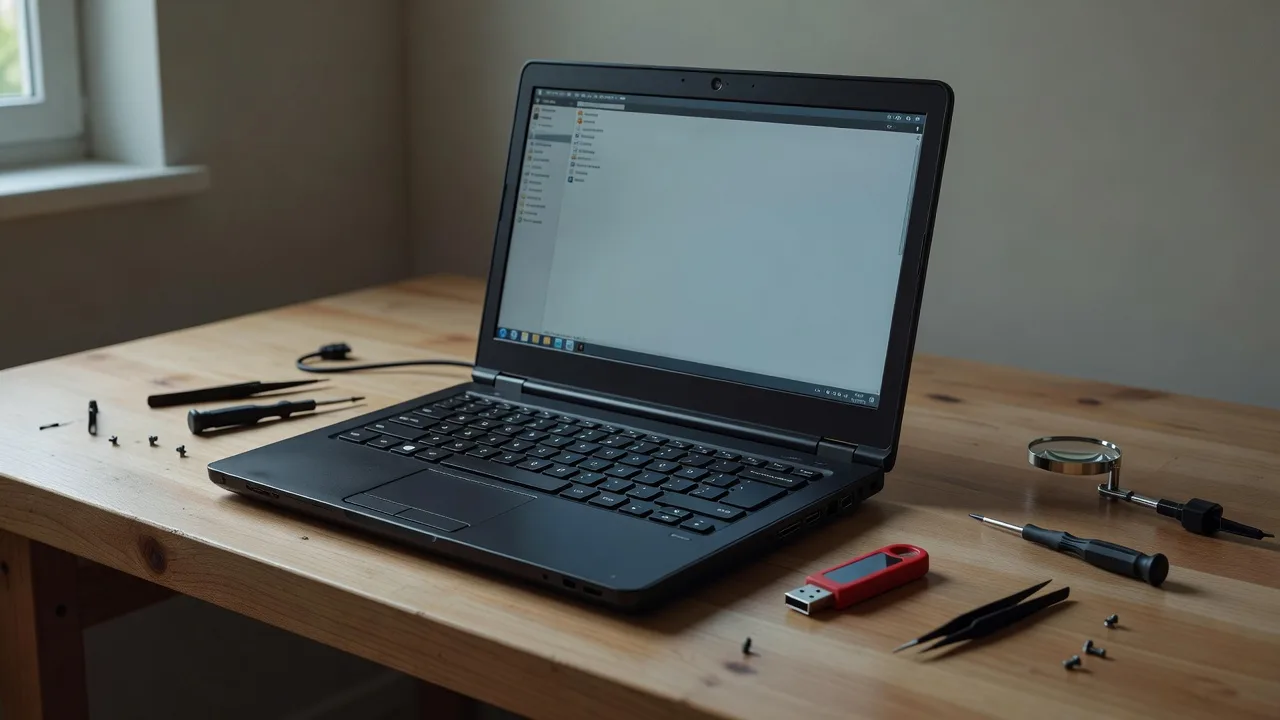
If your 2015 laptop crawls under Windows, freezes on simple tabs, or fails free upgrades, a lightweight Linux install can restore usable speed for browsing, documents, and light work.
This practical guide is for homeowners and small businesses in Australia who want a full DIY path: check the hardware, write a boot USB, install a lean desktop, fix the issues that commonly block older machines, and know when hands-on help is safer. Fixwebnode supports laptop revive work as a direct specialist—local or remote guidance and on-site or drop-off repair when the machine will not cooperate—not a freelance marketplace.
Why reviving a 2015 laptop with lightweight Linux still makes sense
Many 2015 machines still have sound CPUs, 4–8 GB RAM, and working screens. What fails them is an OS that expects more RAM, constant background services, and newer drivers. A light distribution (for example Linux Mint XFCE, Xubuntu, Lubuntu, or MX Linux) cuts idle memory use, boots faster from ageing HDDs, and often runs cooler. Before you wipe anything, back up photos and documents to an external drive or cloud account you control. Confirm the charger seats firmly, the battery is not swollen, and the vents are not packed with dust—those checks prevent a “failed install” that was really a power or thermal fault.
Can you still install lightweight Linux on a 2015 laptop in Australia?
Yes. Most 2015 consumer laptops boot a 64-bit Linux live USB if Secure Boot is handled correctly and the USB is written as a proper hybrid ISO. Expect Wi-Fi chipset quirks, older BIOS menus, and slow HDDs more often than total incompatibility. If the live session already freezes or never shows a desktop, stop and get the hardware checked rather than forcing a full install.
| Symptom | Quick DIY check | When to call Fixwebnode |
|---|---|---|
| USB will not boot | Try another port, disable Secure Boot, verify ISO checksum | BIOS locked, no boot menu, or repeated POST errors |
| No Wi-Fi after install | Ethernet or phone USB tethering, then install firmware packages | No wired option and missing internal antenna or dead card |
| Black screen on boot | nomodeset at live boot; update after first login | Blank panel even in BIOS, or suspected GPU/eDP fault |
Common issues when putting Linux on a 2015 laptop
These problems show up repeatedly on mid-2010s hardware. Each has a different root cause—do not treat them as one generic “Linux is hard” failure.
- Installer USB never appears in the boot menu — Symptom: power-on goes straight to the old OS or a “no bootable device” message; the stick works on another PC.
- Live desktop loads but Wi-Fi is missing — Symptom: network applet shows no wireless interface; Ethernet may work; common on Broadcom-era chips.
- Black or frozen screen after the grub/kernel hand-off — Symptom: backlight on, cursor maybe blinking, no login screen; often Intel/AMD modesetting on ageing firmware.
- Install finishes but the laptop is still painfully slow — Symptom: high disk light, multi-second app launches; usually a failing HDD, almost no free RAM, or no swap plan—not “Linux being heavy.”
Full step-by-step: install a lightweight Linux distribution
The walkthrough below assumes a typical 64-bit 2015 Windows laptop, 4 GB RAM or more, and a spare 8 GB USB stick. Prefer Linux Mint XFCE or Xubuntu for a familiar desktop with modest resource use. Work on a stable desk with mains power connected.
Prerequisites
- Full file backup off the laptop
- Another working PC to download the ISO and write the USB
- Ethernet cable or phone tethering as a fallback network
- Note of any Wi-Fi password and printer model
Step 1 — Download a light ISO and verify it
On the working PC, download the official 64-bit ISO (Mint XFCE or Xubuntu). Verify the checksum published next to the download so you do not flash a corrupt image.
sha256sum ubuntu-or-mint.iso
# Compare the printed hash to the official SHA256 on the distro site
Step 2 — Write the bootable USB correctly
Graphical tools such as balenaEtcher work well. On Linux you can also use dd after confirming the device name with lsblk (wrong device will wipe a disk—double-check).
lsblk
sudo dd if=ubuntu-or-mint.iso of=/dev/sdX bs=4M status=progress oflag=sync
sync
Replace /dev/sdX with the whole USB device (for example /dev/sdb), not a partition like sdb1.
Step 3 — Firmware checks on the 2015 laptop
Insert the USB, connect power, then enter firmware setup (often F2, Del, or Esc at power-on). Disable Secure Boot if the live USB will not start. Set Boot Mode to UEFI when the ISO is UEFI-capable (most modern light ISOs are). Put the USB first in boot order or use the one-time boot menu (often F12, F10, or Esc). Save and exit.
Step 4 — Test the live session before erasing the disk
Choose “Try” / live mode first. Open a browser, confirm the trackpad and screen brightness keys respond, and watch temperatures under light load. If the live session is already unstable, fixing hardware first saves a wasted install.
Step 5 — Install to internal storage
Start the installer. For a dedicated Linux machine, use erase-and-install (this deletes Windows). For dual-boot, shrink Windows in Disk Management first on a healthy Windows session, then choose “Install alongside.” Create a user, set a strong password, and allow third-party codecs/drivers when the installer offers them if you have temporary network access.
Step 6 — First boot updates and drivers
Remove the USB when prompted, then boot to the new desktop. Connect Ethernet or tether if Wi-Fi is absent. Apply updates:
sudo apt update
sudo apt full-upgrade -y
sudo reboot
On Ubuntu-family systems, check additional drivers:
ubuntu-drivers devices
sudo ubuntu-drivers install
sudo reboot
Step 7 — Verify the revive worked
free -h
df -h
ip link
journalctl -b -p err --no-pager | head -n 40
You want free RAM headroom after opening a browser, a sensible root filesystem with space left, a working network interface, and no repeating hardware errors in the boot journal.
How to fix issue 1: USB installer will not boot
Root cause is usually Secure Boot, wrong USB write, USB 3 port quirks on old controllers, or a stick that never enumerated.
- Rewrite the USB from a fresh ISO after checksum verification; avoid “ISO copy to partition” file explorers.
- Try a USB 2 port on the side of the chassis if USB 3 ports ignore the stick.
- Enter firmware setup: disable Secure Boot; enable USB boot; try UEFI first, then Legacy/CSM only if UEFI boot fails for that ISO.
- Use the vendor one-time boot menu and select the explicit USB UEFI entry.
- Test the same stick on another computer. If it boots elsewhere, the 2015 unit’s firmware or USB board needs attention.
Book Fixwebnode when the firmware setup password is unknown, the boot menu never appears, POST beeps or LED codes repeat, or the machine powers off during firmware entry—those point past a simple USB mistake.
How to fix issue 2: no Wi-Fi after a successful install
Root cause is often missing proprietary firmware (Broadcom and similar) or a soft-blocked radio—not a dead antenna every time.
- Connect Ethernet or USB phone tethering so packages can install.
- Identify the chip and RF kill state:
lspci -nn | grep -i network
lsusb
rfkill list
ip link- Unblock if soft-blocked:
sudo rfkill unblock all - On Debian/Ubuntu-family light desktops, install firmware and Broadcom stacks when the PCI ID matches Broadcom:
sudo apt update
sudo apt install -y linux-firmware
# Broadcom example (only if lspci shows Broadcom):
sudo apt install -y bcmwl-kernel-source
sudo reboot- After reboot, join the network from the desktop applet and test:
ping -c 3 1.1.1.1
Call a specialist if there is no network controller in lspci/lsusb, the laptop needs a replacement M.2/mini-PCIe card, or antennas were damaged after a prior hinge repair. Bring the charger and note your router band (2.4 GHz helps older cards).
How to fix issue 3: black or frozen screen on boot
Root cause is usually kernel modesetting clashing with old firmware or hybrid graphics paths.
- At the grub menu, highlight the default entry, press
e, find the line starting withlinux, appendnomodeset, then boot (Ctrl+X or F10). - If you reach a desktop, install updates immediately, then reboot without the temporary flag.
- For a lasting grub change only after confirming stability:
sudo nano /etc/default/grub
# set: GRUB_CMDLINE_LINUX_DEFAULT="quiet splash nomodeset"
sudo update-grub
sudo reboot- If the live USB itself never shows graphics, try the vendor’s “safe graphics” / nomodeset live option, or another light ISO with a newer kernel (for example a current MX Linux or Mint point release).
- Reseat RAM only if you are comfortable: power off, remove the main battery if the model allows, open the access cover, reseat modules—dust and unseated SODIMMs cause blank boots that look like OS failure.
Stop DIY and book in-person help if the screen is blank even in firmware setup, there are lines/flicker on the panel, or the lid cable was stressed. That is display hardware, not a distro choice.
How to fix issue 4: Linux is installed but the laptop still feels unusable
Root cause is frequently a worn 5400 RPM HDD, full filesystem, browser-heavy workloads on 4 GB RAM, or missing swap—not the desktop theme.
- Check memory and disk pressure:
free -h
swapon --show
df -h
sudo smartctl -a /dev/sda | head -n 80- Install SMART tools if needed:
sudo apt install -y smartmontools. Reallocate/pending sectors mean replace the drive; cloning to an SSD is the real revive on many 2015 units. - Add or enlarge swap on HDD systems (example 4 GB file) when RAM is 4 GB:
sudo fallocate -l 4G /swapfile
sudo chmod 600 /swapfile
sudo mkswap /swapfile
sudo swapon /swapfile
echo '/swapfile none swap sw 0 0' | sudo tee -a /etc/fstab- Reduce startup apps from the desktop session settings; prefer Firefox or a light browser with fewer extensions.
- Clean dust from intake vents with compressed air outdoors; thermal throttling feels exactly like “slow Linux.”
When SMART data looks failing, the drive is clicking, or you want an SSD upgrade plus OS transfer done cleanly, book Fixwebnode for local or drop-off work across the Australia service area. Bring the laptop, charger, and a clear note of what must be preserved if any recovery is still needed.
When DIY is enough vs when to book Fixwebnode
DIY is enough when the live USB is stable, storage SMART data is clean, you can tether for drivers, and you are comfortable wiping the disk after a backup. Book a specialist when Secure Boot or firmware is locked, the panel or hinges are damaged, the battery is swollen (do not puncture or bend it—stop using the machine), Wi-Fi hardware is absent from the bus, or business files need careful imaging before any repartition. Fixwebnode is a direct laptop-support provider for individuals, sole traders, and local operators: explain the symptoms, whether the live USB worked, and whether you need on-site, guided remote steps, or drop-off. See all regions via the service areas hub if you are confirming coverage geography only.
What to bring or prepare: the laptop and original charger, any external backup drive, a short list of must-keep folders, and whether Windows must remain dual-boot. Do not promise yourself a same-hour outcome on failing disks; hardware lead times vary.
Get this 2015 laptop usable again
A lightweight Linux install—done with a verified USB, firmware boot settings, live testing, and driver follow-up—can turn a discarded 2015 laptop into a reliable browser and office machine again. Work through the numbered fixes above for boot, Wi-Fi, graphics, and storage slowness first. If you hit a hardware wall or want the job finished without risking family or business data, start a conversation with Fixwebnode for direct specialist laptop support in Australia.