Multi-Vendor & Complex SaaS Marketplaces
 Modern Headless & Jamstack Web Development
 High-End Corporate & Specialized Business Websites
 Advanced API, Checkout & Database Troubleshooting
Old PC to Linux Samba Server: Family Photos & Backups
Revive a failing desktop as a lightweight Linux Samba server for family photos, movies, and backups. Practical AU-focused fixes for share access, permissions, and disk health—plus when to book Fixwebnode remote support.
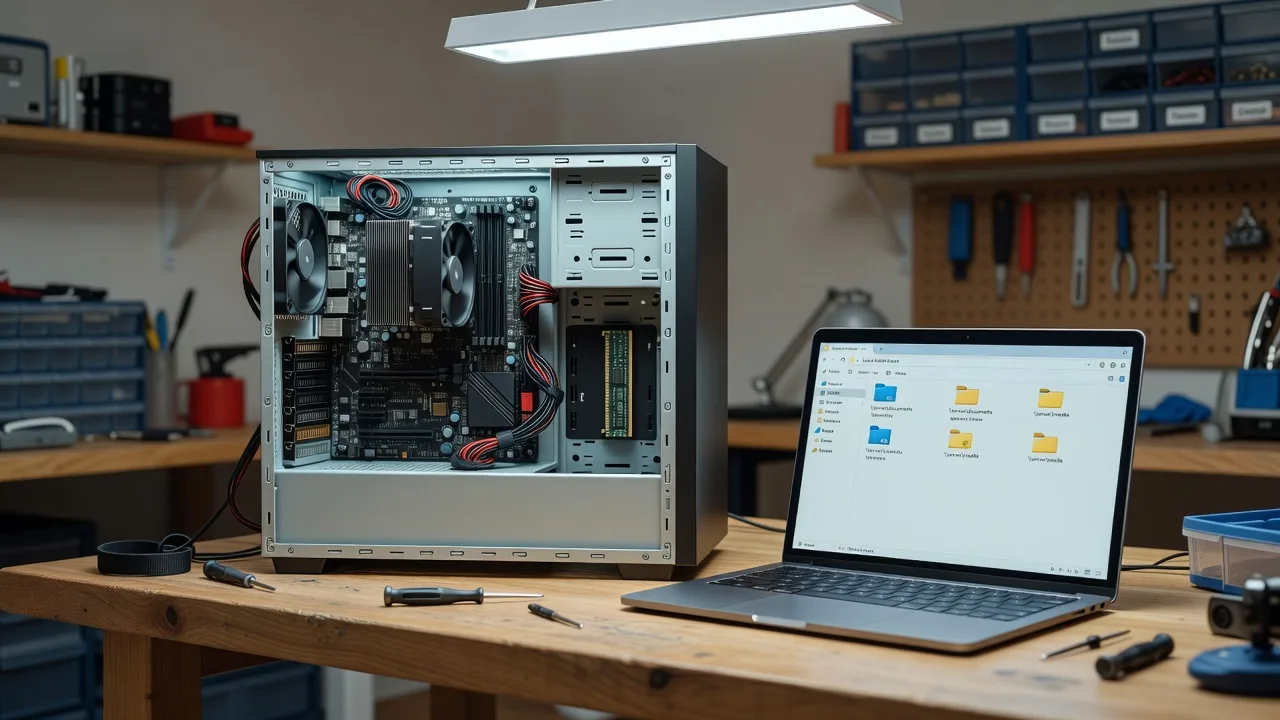
If your old tower is slow, noisy, and one power cut away from losing years of family photos, you can still turn it into a reliable home file server. This guide walks Australian homeowners and small offices through cleaning the hardware, installing a lightweight Linux server OS, and setting up Samba so phones, laptops, and TVs can store and stream media over the LAN—with remote diagnostics you can run yourself before calling in help.
When the DIY path stalls (broken packages, flaky disks, or Samba that never appears on Windows), Fixwebnode Linux server support can take over remotely: logs, share config, and recovery without shipping the PC. Coverage and booking context across Australia are listed on the service areas page.
Why rescue the old PC instead of buying another NAS box
A dusty office PC still has a working CPU, RAM, and often a large drive. With a light server image (Ubuntu Server LTS or Debian), headless operation, and Samba, it becomes a quiet box for family photos, movie libraries, and nightly laptop backups. You keep control of the data on your own LAN in Australia, avoid subscription lock-in, and stretch hardware you already own. The catch is the same trio that kills most home builds: thermal dust, dying disks, and Samba misconfiguration that leaves shares invisible or read-only.
Why can family PCs not see the Samba share on my old Linux server?
Most “share not showing” cases are not mysterious hardware failure. They are name resolution, firewall, or workgroup mismatches after a fresh lightweight Linux install—especially when Windows 10/11 and macOS sit on the same home Wi‑Fi. Confirm the Samba service is running, the share path exists with correct ownership, and ports 139/445 are allowed on the server firewall; then map the share by IP if discovery still fails.
| Symptom | Quick check | Call Fixwebnode when |
|---|---|---|
| Share missing in Network | systemctl status smbd + map by IP | Service crashes or nmbd/wsdd never advertise |
| Access denied on write | Folder owner/group + smb.conf writeable | POSIX vs Samba ACL mismatch after multi-user setup |
| Transfers crawl / timeouts | Disk SMART, CPU load, Gigabit link | Failing HDD, flaky NIC, or kernel errors in journal |
Common issues after cleaning, Linux install, and Samba setup
These problems show up repeatedly on rescued desktops used as photo and backup servers. Each has a different root cause—do not treat them as one “network is broken” blob.
- Share never appears on Windows or the TV — File Explorer Network is empty; smart TVs cannot browse; only a manual
\\IP\sharesometimes works. - Photos copy fails with “permission denied” or read-only — Family accounts can open folders but cannot drop new camera dumps or edit albums.
- Server fills up or drops offline mid-backup — rsync/Time Machine-style jobs die;
dfshows 100% or SMART reallocated sectors climb on the old drive. - Samba starts then dies after reboot — Shares work until the next power cycle;
smbdfails on a bad path or disk that mounts late.
Issue 1 — Samba share not visible on the home network
After a minimal server install, discovery often fails even when the daemon is healthy. Fix visibility first, then harden.
Step 1 — Confirm services and config syntax
sudo systemctl status smbd nmbd --no-pager
sudo testparm -s
ip -br a
Expect active (running) for smbd. Note the LAN IP (for example 192.168.1.50). testparm must print the share list without parse errors.
Step 2 — Define a simple family share
sudo mkdir -p /srv/family/{photos,movies,backups}
sudo chown -R nobody:nogroup /srv/family
sudo chmod -R 0775 /srv/family
Append a share block (adjust path/users to match your install):
sudo nano /etc/samba/smb.conf[family]
path = /srv/family
browseable = yes
read only = no
guest ok = no
valid users = @family
create mask = 0664
directory mask = 0775Step 3 — User, firewall, restart
sudo groupadd -f family
sudo useradd -M -G family mediauser 2>/dev/null || sudo usermod -aG family mediauser
sudo smbpasswd -a mediauser
sudo smbpasswd -e mediauser
sudo ufw allow OpenSSH
sudo ufw allow Samba
sudo ufw reload
sudo systemctl restart smbd nmbd
Step 4 — Verify from another machine
smbclient -L //127.0.0.1 -U mediauser
# On Windows: \\SERVER_IP\family
# On macOS Finder: Go → Connect to Server → smb://SERVER_IP/family
If listing works by IP but not by name, set a fixed DHCP reservation on your router and optionally install a WS-Discovery helper later—do not chase random “network reset” advice first.
When to call Fixwebnode: smbd fails unit tests, ports stay filtered behind double NAT/VPN, or domain-joined work PCs need constrained delegation you should not DIY on a family box.
Issue 2 — Write access denied for photos and backups
Classic symptom: browse works, drag-and-drop of a holiday folder fails. Root cause is almost always Linux ownership not matching the Samba user/group—not “Windows is broken.”
Step 1 — See who Samba is on disk
namei -l /srv/family/photos
getent group family
id mediauser
sudo tail -n 50 /var/log/samba/log.smbd
Step 2 — Align POSIX permissions with the share
sudo chown -R root:family /srv/family
sudo find /srv/family -type d -exec chmod 2775 {} \;
sudo find /srv/family -type f -exec chmod 0664 {} \;
sudo testparm -s | grep -A20 '\[family\]'
sudo systemctl reload smbd
The setgid bit on directories (2775) keeps new camera folders in the family group so siblings do not create root-owned dead ends.
Step 3 — Force group from Samba if multiple accounts write
# inside [family] in smb.conf
 force group = family
 force create mode = 0664
 force directory mode = 2775
sudo systemctl restart smbd
smbclient //SERVER_IP/family -U mediauser -c 'mkdir _write_test; rmdir _write_test'When to call Fixwebnode: you mixed Windows ACLs, external USB disks with odd uid mapping, or Time Machine/Apple dual protocols and keep hitting auth loops.
Issue 3 — Old disk full, slow, or dropping during movie and backup writes
Lightweight Linux will not save a dying HDD. Heat dust you cleaned from fans can still leave a drive with pending sectors that corrupts photo libraries mid-copy.
Step 1 — Capacity and mount health
df -hT /srv/family
lsblk -f
findmnt /srv/family
sudo journalctl -b -u smbd --no-pager | tail -n 80
Step 2 — SMART quick pass (install tools if missing)
sudo apt-get update
sudo apt-get install -y smartmontools
sudo smartctl -H /dev/sdX
sudo smartctl -A /dev/sdX | egrep 'Reallocated|Pending|Uncorrectable|Temperature'
Replace /dev/sdX with the real device from lsblk. FAILED overall-health or climbing pending sectors means stop writing family originals to that disk.
Step 3 — Free space and separate media from system
sudo du -xhd1 /srv/family | sort -h
sudo apt-get autoremove --purge -y
sudo journalctl --vacuum-time=14d
Prefer a dedicated data partition or second drive mounted at /srv/family so logs and the OS cannot fill the same volume as backups.
Step 4 — Optional fstab bind for a data disk
sudo blkid /dev/sdY1
# add UUID=... /srv/family ext4 defaults,nofail 0 2
sudo nano /etc/fstab
sudo mount -a
findmnt /srv/family
When to call Fixwebnode: SMART is failing, the array/partition will not mount after reboot, or you need a safe rsync migration to a new disk without losing the only copy of photos.
Issue 4 — Samba dies after reboot on the rescued PC
Symptom: works until the next morning; systemd shows smbd failed because /srv/family was empty or the USB disk was not ready.
Step 1 — Capture the failure
systemctl status smbd --no-pager -l
journalctl -u smbd -b --no-pager
ls -la /srv/family
Step 2 — Make mounts reliable before Samba
sudo systemctl enable smbd nmbd
# ensure fstab uses UUID + nofail for data disks
sudo systemctl daemon-reload
sudo mount -a
sudo systemctl restart smbd
Step 3 — Delay start only if the disk truly enumerates late
sudo systemctl edit smbd[Unit]
After=local-fs.target
RequiresMountsFor=/srv/familysudo systemctl daemon-reload
sudo systemctl restart smbd
sudo systemctl is-active smbdReboot once on purpose and re-check systemctl is-active smbd and a client write test before trusting overnight backups.
When to call Fixwebnode: unit dependency loops, encrypted volumes needing unlock, or kernel USB reset storms on ageing chipsets.
Hardware clean-up checklist before you trust the library
Remote software support cannot blow dust out of a PSU. Before the Linux install “sticks,” power off, unplug, and do a basic physical pass: compressed air on heatsinks and intakes, reseat RAM, confirm the data drive SATA/power connectors click home, and boot a live USB to run memtest or a short SMART test if the machine previously froze under Windows. Then install Ubuntu Server or Debian without a desktop environment so RAM stays free for file service.
Minimal packages after first boot:
sudo apt-get update
sudo apt-get install -y samba samba-common-bin ufw smartmontools rsync openssh-server
sudo systemctl enable --now ssh smbd
When DIY is enough vs when to book Fixwebnode
Stay on DIY if you can SSH in, testparm is clean, clients write by IP, SMART health passes, and a deliberate reboot still serves /srv/family. Document the share name, IP reservation, and smbpasswd accounts for the household.
Book Fixwebnode remote server support when the old PC is the only copy of family media and you hit failing disks, recurring smbd crashes, broken upgrades, or network policies you do not want to experiment with. As a direct specialist provider—not a freelance marketplace—Fixwebnode works the Ubuntu/Debian and Samba stack with you over remote sessions focused on this class of home and small-business file server. Geography and how engagements are scoped are summarised on the Fixwebnode service areas page for clients across Australia.
Talk through your old-PC Samba build
If the tower is cleaned, Linux is installed, and Samba still will not hold photos, movies, and backups the way the family needs, bring the symptoms (service status, testparm output, SMART summary)—not just “the network is slow.” Start a conversation or book remote help via the Ubuntu Linux server support landing page so the box you rescued stays the reliable archive it was meant to become.