Multi-Vendor & Complex SaaS Marketplaces
 Modern Headless & Jamstack Web Development
 High-End Corporate & Specialized Business Websites
 Advanced API, Checkout & Database Troubleshooting
Fix Shopify Add to Cart Drawer Errors in Australia
When the Ajax cart drawer fails, shoppers cannot check out. This guide covers unique causes, DIY theme checks, and when Australian stores should book Fixwebnode for hands-on help.
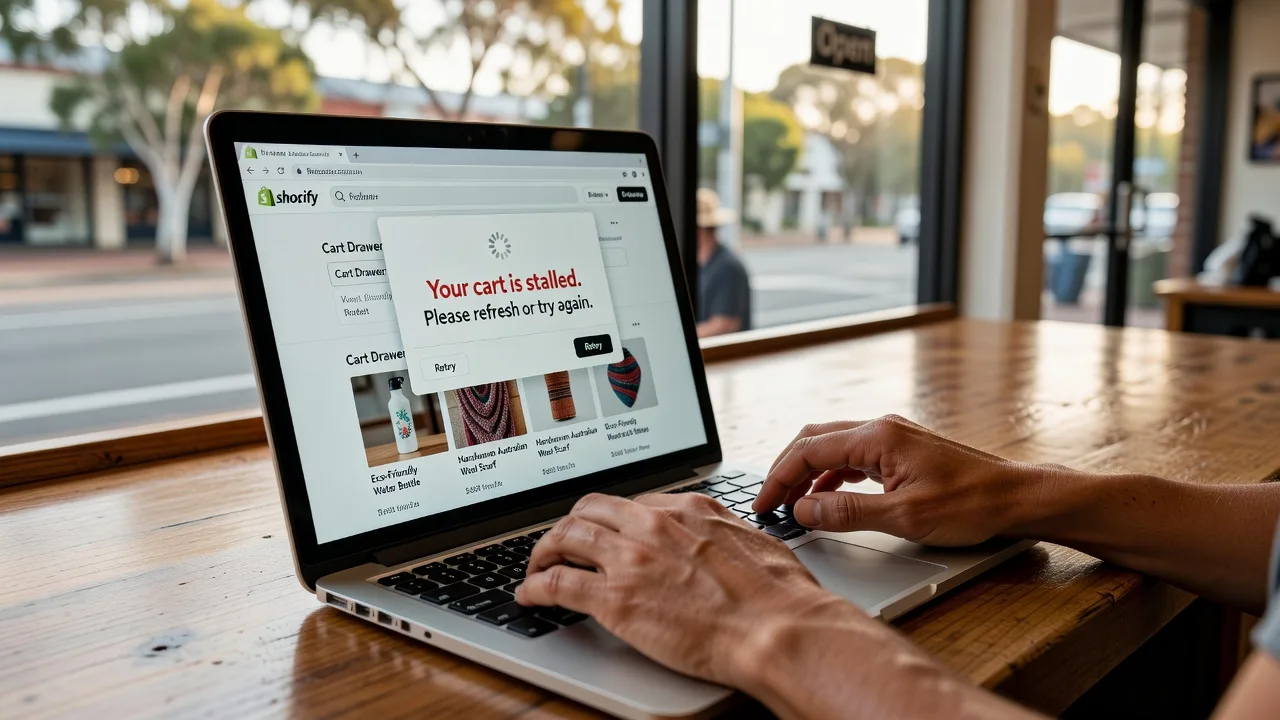
If your Shopify “Add to Cart” drawer opens blank, freezes, or never appears, sales stop cold—especially for Australian retailers running flash offers and same-day fulfilment expectations.
This guide stays on one problem: a broken Ajax cart drawer after theme edits, app installs, or updates. You will walk through inspection checks on your own laptop, safe DIY repairs in the theme editor, and clear points to book on-site or drop-off help with Fixwebnode across Australia when the storefront still will not add items.
Why a broken Add to Cart drawer matters for your store
The Ajax cart is the slide-out or popup that updates without a full page reload. When its JavaScript, section markup, or cart API response fails, customers tap Add to Cart and nothing useful happens. Mobile shoppers abandon fastest. Theme customisations, outdated cart snippets, and conflicting apps are the usual culprits—not “random Shopify downtime.”
Fixwebnode works as a direct specialist for individuals, sole traders, and local operators who need the cart path restored without marketplace bidding. Bring the device you use to manage the store (laptop or desktop), note your theme name, and keep a full theme backup before any edit.
What causes the Shopify Add to Cart drawer to break in Australia?
Most Australian merchants see the same pattern: the button still clicks, the network call to /cart/add.js may succeed or fail, but the drawer UI never renders, shows “undefined,” or closes immediately. Root causes are almost always theme JavaScript, a missing cart drawer section, or an app rewriting cart behaviour after a theme update. DIY below covers the three most common distinct failures; book a specialist when console errors span multiple apps or the live theme cannot be safely rolled back during trading hours.
| Symptom | Quick DIY check | When to call Fixwebnode |
|---|---|---|
| Drawer never opens | Browser console + theme cart section present | Errors after multiple app scripts load |
| Opens empty / “0 items” | Test /cart.js and variant IDs |
Line-item properties or bundles break JSON |
| Works on desktop, fails on mobile | CSS overflow, z-index, sticky header | Custom mobile header still blocks drawer |
Common issues that break the Ajax cart drawer
1. Theme JavaScript conflict after an app or custom script
Symptom: Clicking Add to Cart does nothing, or the page logs TypeError / $ is not defined / Cannot read properties of null in the browser console. The product form submits only with a full page reload if you disable JavaScript.
2. Cart drawer section removed or Ajax endpoint mismatch after a theme update
Symptom: The button animates, a network request to cart add returns 200, but no drawer HTML appears. Theme editor shows the cart drawer section disabled, or the theme expects sections/cart-drawer while your customisation still calls an old snippet name.
3. CSS stacking context hides a working drawer (especially mobile)
Symptom: Inspect element shows the drawer node in the DOM with classes like is-open or active, yet you see nothing. Sticky headers, full-screen promo bars, or overflow: hidden on body clip or bury the panel—common after homepage banner work.
4. Variant / line-item JSON breaks the drawer render
Symptom: Simple products add fine; products with many options, personalisation fields, or bundle apps open a drawer that hangs on a spinner or shows raw undefined titles and prices. /cart.js contains unexpected properties the theme’s cart item template does not handle.
How to fix each Add to Cart drawer failure
Fix 1 — Clear JavaScript conflicts safely
Work on a unpublished theme copy first. Use the same computer you normally use for admin so app password sessions and browser extensions match what you see in production.
Step 1 — Capture the error
- Open the product page in Chrome or Edge.
- Press F12 (or right-click → Inspect) and open the Console tab.
- Tick “Preserve log,” clear the console, then click Add to Cart once.
- Note the first red error and the file name (theme.js, an app CDN URL, or a custom liquid asset).
Step 2 — Prove whether an app is involved
- In Shopify admin, open Online Store → Themes → Edit code on a duplicate theme, or use the theme preview with apps temporarily disabled via your app embeds (Online Store → Themes → Customise → App embeds).
- Turn off cart-related embeds one at a time: upsells, free-shipping bars, loyalty popups, subscription widgets.
- Retest Add to Cart after each toggle. If the drawer returns, leave that embed off and contact the app vendor—or keep it off until a specialist reconciles the scripts.
Step 3 — Restore theme cart scripts if you overwrote them
- Themes → Actions → Edit code on the duplicate.
- Compare
assetsfiles named likecart.js,theme.js,global.js, orproduct-form.jswith the theme’s original (install a second clean copy of the same theme version for diffing). - Restore only the cart-related functions you deleted (fetch to
/cart/add.js, drawer open class toggles, section rendering viasections.js). - Preview the duplicate on a real product with variants before publishing.
Step 4 — Verify
- Add a varianted product, change quantity in the drawer, and remove the line without a full reload.
- Repeat on your phone browser on the same Wi‑Fi.
If errors remain from minified third-party bundles you cannot edit, stop DIY and book Fixwebnode with the console screenshot and theme name.
Fix 2 — Restore the cart drawer section and Ajax wiring
Step 1 — Confirm the section exists
- Online Store → Themes → Customise on a duplicate theme.
- Open the theme’s section list / app blocks area and find Cart drawer, Cart notification, or similar.
- If it is absent, Add section and re-add the theme’s cart drawer. Save.
Step 2 — Check the product form hooks
- Edit code → open
sections/main-product.liquid(or your product main section) and the cart drawer section file. - Confirm the product form still has the theme’s expected selectors (for example
data-type="add-to-cart-form"or the classes your theme’s JS queries). Custom product pages often drop these attributes. - Ensure buttons are
type="submit"inside the product form, not bare links that bypass Ajax.
Step 3 — Validate cart endpoints in the browser
- While previewing, open the Network tab, filter by “cart”.
- Click Add to Cart. You should see
add.jsoradd.js?…with status 200 and a JSON body containingitemsor line item fields. - Open
/cart.json your shop domain in a tab; it must return valid JSON, not an HTML error page.
Step 4 — Roll back a bad publish if needed
- Themes → … on the live theme → older versions if available, or publish the last known-good duplicate.
- Re-apply only the visual changes after the drawer is confirmed working.
When the theme’s section schema no longer matches your heavily forked liquid, an on-site session with your laptop logged into admin is safer than guessing file names during peak trading.
Fix 3 — Unhide a drawer blocked by CSS or layout
Step 1 — Prove the markup is there
- Add to Cart, then Inspect the page.
- Search the DOM for cart drawer landmarks (ids/classes such as
cart-drawer,CartDrawer,mini-cart). - If the node gains an open class but stays invisible, continue; if it never appears, return to Fix 2.
Step 2 — Check stacking and overflow
- In Computed styles, note
z-index,visibility,opacity,transform, anddisplayon the drawer and its parents. - Look at
bodyand main wrappers foroverflow: hiddenleft behind by modal promo bars. - Temporarily disable sticky header custom CSS in the theme customiser (Custom CSS / header section) and retest on a narrow mobile preview.
Step 3 — Correct the theme CSS carefully
- In a duplicate theme, adjust only drawer-related rules: higher
z-indexthan the header,position: fixedas the theme intends, and remove roguepointer-events: noneon overlays. - Avoid blanket
!importanton all headers; fix the conflicting banner instead. - Save, preview mobile and desktop, then publish when the overlay and close button both work.
Step 4 — Hardware-side sanity checks before blaming the theme
- Retest in a private window with extensions disabled—ad blockers often strip cart scripts.
- Try another browser and your phone on cellular data.
- If only one device fails, note screen cracks, failing trackpads, or extreme zoom that prevent clicking the real button hit area; bring that device when you book local help so the specialist can see the same input issues.
Fix 4 — Repair variant and line-item rendering
Step 1 — Isolate the product type
- Test a plain product with one variant. If it works, the drawer core is fine.
- Test the failing product with default options only, then with each line-item property or bundle option enabled.
Step 2 — Read cart JSON
- After a failed add, open
/cart.jsand confirm line items include validtitle,quantity,final_line_price, and property keys. - If an app injects nested objects the theme liquid does not print, disable that app’s cart enrichment and retest.
Step 3 — Align the cart item snippet
- In the cart drawer section or
snippets/cart-drawer-item(name varies by theme), ensure loops guard missing properties (theme updates often assume Shopify’s default shape only). - Do not paste unverified code from random forums into live liquid; use the duplicate theme and preview.
Step 4 — Verify checkout path
- From the restored drawer, increase quantity, apply a discount code if you use one in-drawer, and reach checkout.
- Confirm AUD pricing and tax display still match your markets settings for Australia.
When DIY is enough vs when to book Fixwebnode
DIY is enough when a single app embed, a missing cart section toggle, or a clear CSS z-index issue reproduces on a duplicate theme and disappears after one controlled change. Stay on unpublished copies, keep backups, and publish only after mobile and desktop both add, update, and remove lines.
Book Fixwebnode when several apps fight for cart events, your live theme is heavily forked, liquid and JS errors cascade, or you cannot afford cart downtime during Australian business hours. As a direct local/remote provider—not a freelance marketplace—Fixwebnode focuses on this class of storefront break: inspection on your machine, theme rollback strategy, and restoring the Ajax drawer path. Service coverage is described on the Australia service area page and the full service areas hub.
What to bring or prepare for on-site / drop-off style help: the laptop or desktop you use for Shopify admin, charger, store owner or staff login ready (do not share passwords in email), theme name and whether you already duplicated it, a short screen recording of the failed Add to Cart tap, and a note of apps installed in the last month. Back up or duplicate the live theme before the appointment. Soft scheduling only—early bookings are often handled the same day when capacity allows; never treat timing as a guarantee.
Get the cart drawer taking orders again
A dead Add to Cart drawer is a checkout emergency dressed up as a “small theme glitch.” Work through the console check, section restore, CSS stacking pass, and variant JSON tests above on a duplicate theme first. If the drawer still fails—or you need someone to take the keyboard while you keep running the floor—start a conversation with Fixwebnode via the landing page for individuals, sole traders, and local operators: https://fixwebnode.com.au/website-repair-australia. Describe the symptom, your theme, and that you are in Australia; we will focus on fixing the Ajax cart path, not upselling unrelated work.