Multi-Vendor & Complex SaaS Marketplaces
 Modern Headless & Jamstack Web Development
 High-End Corporate & Specialized Business Websites
 Advanced API, Checkout & Database Troubleshooting
Find and Fix Broken Image URLs Causing 404 Missing Assets
Broken image icons and 404 asset errors hurt trust and SEO. Learn how to hunt dead image URLs with real CLI checks, fix path, CDN, and CMS root causes, and know when Fixwebnode should take over.
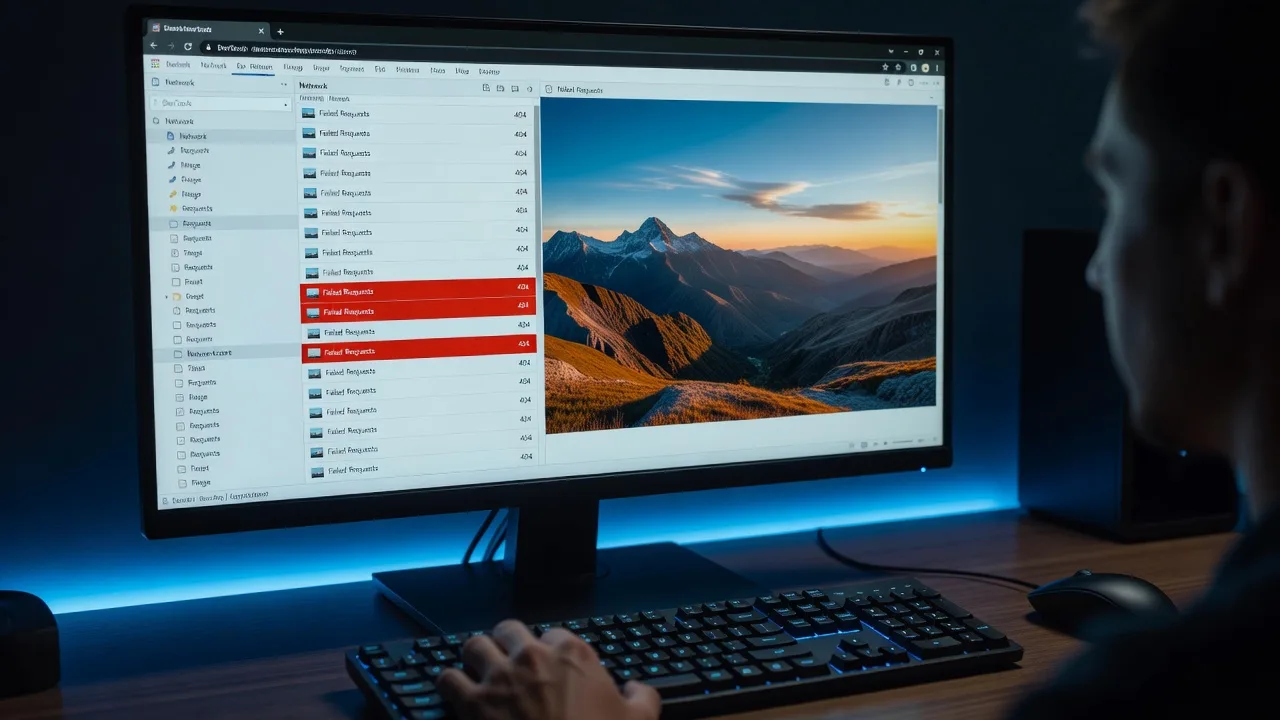
If your site shows empty boxes, alt text only, or red 404s for JPG/PNG/WebP files, visitors notice—and so do search crawlers. This guide walks homeowners and small-business owners through finding and fixing broken image URLs that cause 404 missing asset errors, with copy-paste checks you can run yourself before calling in help.
Fixwebnode focuses on practical web repair: locating dead image references, correcting paths and media libraries, and stabilizing how assets are served. Start with our dedicated service page on How to Find and Fix Broken Image URLs causing 404 Missing Asset Errors, then use the runbooks below on your own staging copy first.
Why broken image URLs and 404 missing assets matter
A single missing hero image can make a homepage look abandoned. At scale, dozens of 404 image requests waste bandwidth, slow Largest Contentful Paint, and clutter server logs so real outages are harder to spot. Common triggers include domain or CDN moves, case-sensitive Linux paths, CMS media renames, and third-party hotlinks that disappear overnight.
You do not need a full redesign to clean this up. You need a repeatable way to detect every bad URL, map it to a root cause, and repair or replace the asset. The sections below stay on that workflow only.
Common issues that cause 404 missing image assets
These problems look similar in the browser (broken icon) but have different fixes. Treat them as separate tickets.
- Stale absolute URLs after a domain or CDN cutover — HTML, CSS, or database rows still point at
https://old-cdn.example/...or a retired subdomain. Symptom: every migrated page 404s the same host while new uploads work. - Case or path mismatches on Linux web roots — Markup requests
/Images/Hero.JPGbut the file is/images/hero.jpg. Symptom: works on a case-insensitive laptop, fails in production. - Orphaned CMS media after import, plugin, or theme change — Attachment IDs or upload paths in the database no longer match files on disk. Symptom: Media Library thumbnails break; front-end still references old
wp-content/uploads/...years. - Dead hotlinks and third-party asset hosts — Product shots or badges loaded from another site’s URL. Symptom: your HTML is unchanged, but their server returns 403/404.
- Wrong site/home URL or base href breaking relative image paths — Relative
src="images/photo.webp"resolves against the wrong origin. Symptom: mixed content or 404s only on certain entry URLs.
How to find broken image URLs first (inventory)
Before editing themes or the database, build a list of failing image URLs from the live site or a staging clone.
Step 1 — Capture 404 image lines from access logs
On a typical Nginx or Apache host (adjust log path for your stack):
sudo grep ' 404 ' /var/log/nginx/access.log | grep -E '\.(png|jpe?g|gif|webp|svg|ico)(\?| |$)' | tail -n 200
sudo awk '$9==404 && $7 ~ /\.(png|jpg|jpeg|gif|webp|svg)$/ {print $7}' /var/log/nginx/access.log | sort | uniq -c | sort -rn | head -n 50
That ranked list shows which missing assets hurt you most.
Step 2 — Spider public HTML for img src and CSS url() references
curl -sL 'https://YOUR-DOMAIN.example/' -o /tmp/home.html
grep -oE 'https?://[^"\' )]+\.(png|jpe?g|gif|webp|svg)' /tmp/home.html | sort -u
grep -oE '(src|href)="[^"]+\.(png|jpe?g|gif|webp|svg)"' /tmp/home.html | sort -u
Step 3 — Probe each candidate with HTTP status only
while read -r u; do
 code=$(curl -s -o /dev/null -w '%{http_code}' -L --max-time 15 "$u")
 echo "$code $u"
done < urls.txt | tee url-status.txt
grep -E '^(404|403|000)' url-status.txt
Keep url-status.txt; every fix below starts from that evidence.
Fix 1: Stale absolute URLs after domain or CDN cutover
Root cause: content still embeds the old host. DIY is safe if you have backups and can search-replace on staging.
Step 1 — Confirm the old host is the failure
grep -E '404' url-status.txt | awk '{print $2}' | awk -F/ '{print $1"//"$3}' | sort | uniq -cStep 2 — On WordPress, inspect home/siteurl and options that store full URLs
wp option get home
wp option get siteurl
wp db query "SELECT option_name FROM wp_options WHERE option_value LIKE '%old-cdn.example%' LIMIT 20;"
Step 3 — Controlled search-replace (staging first)
wp search-replace 'https://old-cdn.example' 'https://cdn.YOUR-DOMAIN.example' --all-tables --dry-run
wp search-replace 'https://old-cdn.example' 'https://cdn.YOUR-DOMAIN.example' --all-tables
For static HTML/CSS sites:
grep -RIn 'old-cdn.example' /var/www/YOUR-SITE --include='*.html' --include='*.css' --include='*.js'
sed -i 's|https://old-cdn.example|https://cdn.YOUR-DOMAIN.example|g' /var/www/YOUR-SITE/index.html
Step 4 — Verify
curl -sI 'https://cdn.YOUR-DOMAIN.example/path/to/hero.webp' | head -n 5
curl -s -o /dev/null -w '%{http_code}\n' 'https://YOUR-DOMAIN.example/'
Re-run your URL probe list. When hundreds of posts, custom fields, and page builders still disagree after a dry-run, book Fixwebnode rather than bulk-editing production blind.
Fix 2: Case-sensitive path mismatches on Linux
Root cause: the file exists, but the requested path’s casing or directory spelling does not. This is classic after uploading from Windows/macOS to Linux hosting.
Step 1 — Compare request vs disk
# Example failing URL path from logs: /Images/Hero.JPG
ls -la /var/www/YOUR-SITE/public/Images 2>/dev/null
find /var/www/YOUR-SITE/public -iname 'hero.jpg' -o -iname 'Hero.JPG'
Step 2 — Prefer correcting references to match real filenames (keeps one canonical name for caches and SEO):
grep -RIn 'Images/Hero.JPG' /var/www/YOUR-SITE --include='*.html' --include='*.css' --include='*.php'
# Then edit templates or run a careful replace to the real path, e.g. images/hero.jpg
Step 3 — If you must rename files, normalize deliberately
cd /var/www/YOUR-SITE/public/images
mv Hero.JPG hero.jpg
find . -type f \( -iname '*.jpg' -o -iname '*.png' \) -print
Step 4 — Verify with the exact URL browsers request
curl -s -o /dev/null -w '%{http_code} %{url_effective}\n' 'https://YOUR-DOMAIN.example/images/hero.jpg'If a large theme or builder emits inconsistent casing across hundreds of components, Fixwebnode can inventory and normalize without breaking cache keys.
Fix 3: Orphaned CMS media library paths
Root cause: database attachment metadata points at missing files, or files were moved outside the CMS upload workflow.
Step 1 — Spot missing files for known upload years (WordPress example)
wp media regenerate --dry-run
find wp-content/uploads -type f | wc -l
wp db query "SELECT ID, guid FROM wp_posts WHERE post_type='attachment' AND guid LIKE '%/uploads/%' ORDER BY ID DESC LIMIT 30;"
Step 4 — For a single broken attachment, confirm disk path
wp post meta get ATTACHMENT_ID _wp_attached_file
ls -la wp-content/uploads/$(wp post meta get ATTACHMENT_ID _wp_attached_file)
Step 3 — Restore from backup or re-upload, then fix guid/metadata only if required
Re-upload through the Media Library when possible so sizes and metadata regenerate. If files were restored from backup into the correct uploads/YYYY/MM folders:
wp media regenerate ATTACHMENT_ID --yes
curl -s -o /dev/null -w '%{http_code}\n' "$(wp post get ATTACHMENT_ID --field=guid)"
Step 4 — Clear page and CDN caches so old 404 responses are not sticky, then re-spider key templates.
When imports left thousands of mismatched guids, or a security plugin quarantined uploads, stop DIY mass SQL edits and use Fixwebnode so attachment rows and disk stay in sync.
Fix 4: Dead hotlinks and third-party image hosts
Root cause: src points at someone else’s server. Your site never controlled the file lifecycle.
Step 1 — Isolate external image hosts from your probe file
awk '{print $2}' url-status.txt | awk -F/ '{print $3}' | sort | uniq -c | sort -rnStep 2 — Download critical assets you have rights to use, then host them locally or on your CDN
mkdir -p /var/www/YOUR-SITE/public/images/local
curl -fsSL -o /var/www/YOUR-SITE/public/images/local/badge.png 'https://third-party.example/badge.png'
# Update HTML/CSS to /images/local/badge.png
curl -s -o /dev/null -w '%{http_code}\n' 'https://YOUR-DOMAIN.example/images/local/badge.png'
Step 3 — Remove or replace assets you cannot legally mirror with your own photography, SVG icons, or licensed stock.
Step 4 — Optional CSP / hotlink hygiene going forward so your brand images are not the next site’s dependency—and you are not depending on theirs.
If product catalogs embed hundreds of vendor URLs, Fixwebnode can script an allowlisted mirror-and-rewrite pass and wire durable storage.
Fix 5: Wrong base URL breaking relative image paths
Root cause: relative image paths resolve against an unexpected origin (incorrect site URL, reverse-proxy path prefix, or stray <base href>).
Step 1 — See what the browser would resolve
curl -sI 'https://YOUR-DOMAIN.example/shop/' | tr -d '\r' | grep -iE '^(HTTP|location|content-type):'
curl -sL 'https://YOUR-DOMAIN.example/shop/' | grep -i '<base' || true
Step 2 — Correct CMS canonical URLs
wp option update home 'https://YOUR-DOMAIN.example'
wp option update siteurl 'https://YOUR-DOMAIN.example'
# If behind a reverse proxy, ensure HTTPS and host headers match production
Step 3 — Prefer root-relative or absolute same-origin image URLs in templates (/images/photo.webp or full https URL on your domain) instead of deep relative paths like ../../images/photo.webp.
Step 4 — Verify from multiple entry points
for p in / /shop/ /blog/sample-post/; do
 echo "== $p"
 curl -sL "https://YOUR-DOMAIN.example$p" | grep -oE 'src="[^"]+\.(png|jpe?g|webp)"' | head
done
Proxy, multisite, or subdirectory installs that still flip-flop between www/non-www and http/https after option fixes are a good moment to involve Fixwebnode.
When DIY is enough vs when to book Fixwebnode
DIY is enough when you have a short list of 404 image URLs, file-system access, a recent backup, and the root cause matches one clear pattern above (one old CDN host, a handful of case typos, or a few hotlinks). Use staging, keep the probe file as your checklist, and re-verify with curl status codes after each change.
Book Fixwebnode when 404 image noise spans the whole site, page builders and the database disagree, CDN and origin both cache failures, or asset problems sit next to deeper host issues. Fixwebnode is a direct specialist—not a bid board—and can pair front-end asset repair with server hygiene when the web stack itself is unhealthy.
Geography is straightforward: see All service areas for where remote and on-call web repair is available, then bring your url-status.txt sample and a description of CMS vs static hosting so diagnosis starts from evidence, not guesswork.
Close the loop: stop shipping broken image 404s
Broken image URLs are measurable: logs name them, curl confirms them, and each class of failure has a concrete repair—host rewrite, case alignment, media restore, local hosting of former hotlinks, or base URL correction. Work the inventory first, fix one root cause at a time, and verify until the ranked 404 image list is empty.
If you want a specialist to finish the sweep, harden caching, and double-check templates after migration, start a conversation through How to Find and Fix Broken Image URLs causing 404 Missing Asset Errors. Share a few failing URLs and your stack (static, WordPress, or other CMS); Fixwebnode will help you map the fastest safe path from missing assets back to clean, loadable images.