Multi-Vendor & Complex SaaS Marketplaces
 Modern Headless & Jamstack Web Development
 High-End Corporate & Specialized Business Websites
 Advanced API, Checkout & Database Troubleshooting
Figma & XD to WordPress: Pixel-Perfect Builds for South Perth
Agencies in South Perth often lose hours when Figma, Adobe XD, or Canva files refuse to match live WordPress. This guide covers real spacing, font, and breakpoint failures—plus DIY fixes and when to book Fixwebnode remote WordPress support.
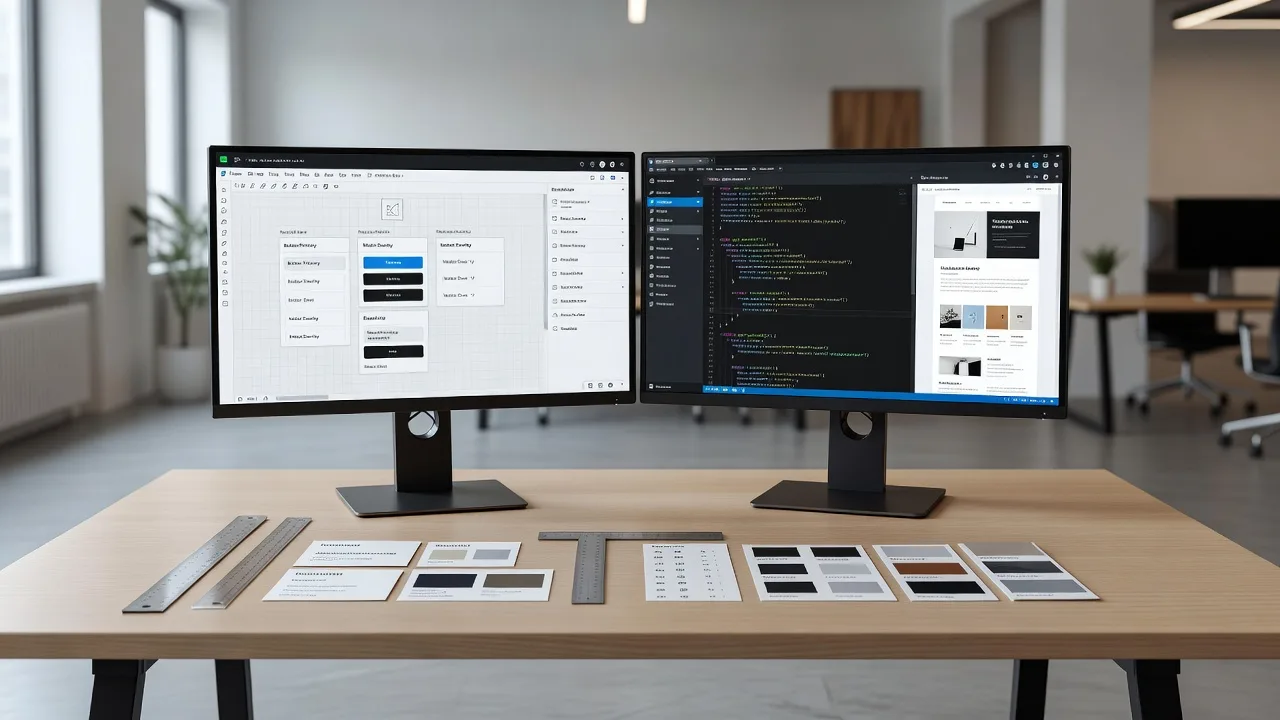
If your agency hands over a polished Figma, Adobe XD, or Canva file and the WordPress build still looks “almost right,” you are not alone. South Perth studios and small businesses routinely hit spacing drift, font substitution, broken breakpoints, and asset export gaps that kill pixel-perfect delivery. This practical guide walks through the failures that actually show up in production, the DIY checks you can run on a remote WordPress stack, and when to bring in direct specialist help from Fixwebnode WordPress Support.
Fixwebnode works as a direct remote WordPress support provider for agencies converting design systems into stable themes and block patterns—not a freelance marketplace. The focus here stays on Figma/Adobe XD (and Canva) to WordPress conversion quality for teams serving clients in your area.
Why pixel-perfect Figma and XD builds matter for WordPress agencies
Design files encode intent: type scale, grid, auto-layout gaps, component states, and motion cues. WordPress encodes behaviour: theme.json, CSS custom properties, block markup, media queries, and caching layers. When those two languages disagree, stakeholders see soft edges, uneven columns, and “it looked fine in Figma.” For agencies, that means revision loops, delayed launches, and eroded trust—even when the site is technically “live.”
Remote delivery makes diagnosis harder: you cannot lean over a designer’s shoulder. You need repeatable checks on the staging host, clear export rules, and a decision point for specialist intervention. The sections below stay on that path.
Why does my Figma WordPress build look correct in the editor but break on the front end?
Most “pixel-perfect” failures are not mysterious theme bugs. They come from design tokens that never reached CSS, fonts that load a different metric set than Figma, or breakpoints that ignore the frames your designer actually used. Fix the token pipeline and font stack first; only then chase layout plugins or page-builder overrides.
| Symptom | Quick check | Call Fixwebnode when |
|---|---|---|
| Spacing matches in editor, not front end | Compare theme.json spacing scale vs computed CSS | Global styles are overridden by builder CSS |
| Headings look heavier or tighter | Verify webfont files and font-display metrics | Licensed fonts or variable axes are mis-mapped |
| Mobile frame ≠ phone layout | Align media queries to Figma frame widths | Custom blocks ignore container queries |
Common issues when converting Figma, Adobe XD, and Canva to WordPress
These problems are distinct. Each has a different root cause and a different DIY path.
1. Auto-layout gaps become uneven CSS margins
Symptoms: Cards look evenly spaced in Figma but stack with random 12px / 18px / 24px gaps on WordPress. Section padding “breathes” differently on desktop versus tablet even when the design used a strict 8-point scale.
2. Type looks right in the design file but wrong in the browser
Symptoms: Same family name, different optical size. Line length wraps earlier, letter-spacing feels tighter, or bold weights jump because WordPress loads a system fallback or a subset without the axes Figma previewed.
3. Breakpoints ignore the designer’s frames
Symptoms: Figma has frames at 1440 / 1024 / 768 / 390. The theme collapses at Bootstrap-style 992 and 576. Hero copy reflows one breakpoint too early; sticky headers collide with mobile menus.
4. Canva or XD exports introduce soft, oversized, or wrong-format assets
Symptoms: Logos are flattened PNGs with white boxes, icons blur at 2x, or SVGs arrive with inline widths that fight responsive CSS. Lighthouse flags huge hero images that looked crisp inside Canva.
5. Design components do not map to WordPress blocks or patterns
Symptoms: Repeated cards are hand-copied HTML. Editors break layouts when they add a third column. Hover and focus states from XD prototype links never appear in the theme.
How to fix uneven spacing from Figma auto-layout
Root cause: Figma gap values never became a single spacing scale in theme.json or CSS variables, so page builders and core blocks invent their own margins.
Step 1 — Export the spacing scale
List every gap and padding token from the design (for example 4, 8, 16, 24, 32, 48, 64). Keep one source of truth; do not mix “section padding” with ad-hoc block margins.
Step 2 — Map tokens into theme.json
In a block theme, define spacing sizes so the editor and front end share values. Example structure (edit paths to match your theme):
wp theme list cd wp-content/themes/your-theme grep -n "spacing" theme.json || trueAdd or correct entries under settings.spacing.spacingSizes, then clear caches.
Step 3 — Verify computed styles on staging
Open the front end, inspect a card grid, and confirm margin/gap match the token—not the builder default. If a plugin injects !important margins, disable its layout CSS on a staging copy first.
Step 4 — Harden with custom properties
:root { --space-1: 0.25rem; --space-2: 0.5rem; --space-3: 1rem; --space-4: 1.5rem; --space-5: 2rem; } .card-grid { gap: var(--space-4); }When global styles still fight Elementor, Gutenberg, or a parent theme after you align tokens, book Fixwebnode remote WordPress support to untangle cascade order without rewriting the whole design system.
How to fix font and metric mismatch after XD or Figma handoff
Root cause: preview fonts inside the design tool are not the same files, subsets, or font-display behaviour WordPress serves.
Step 1 — Confirm licensed files on the server
ls -la wp-content/themes/your-theme/assets/fonts/ # expect .woff2 files matching the design spec, not only .ttfStep 2 — Register faces once
Use @font-face (or theme.json fontFamilies) with explicit weight and stretch. Avoid loading the same family through both a plugin and the theme.
Step 3 — Check what the browser actually applied
In DevTools → Computed, confirm font-family, weight, and size on H1–body. If you see a fallback stack, the WOFF2 path or MIME type failed.
Step 4 — Inspect web server and PHP errors if fonts 404
sudo tail -n 80 /var/log/nginx/error.log # Apache example: sudo tail -n 80 /var/log/apache2/error.log wp option get siteurl curl -I https://your-staging.example/wp-content/themes/your-theme/assets/fonts/Display-Bold.woff2Expect HTTP 200 and a font content-type. Repair permissions or rewrite rules if you see 403/404.
Step 5 — Match line-height and letter-spacing tokens
Copy exact unitless line-heights from Figma. Do not “approximate” with theme defaults.
Call Fixwebnode when variable fonts, subsetting, or GDPR-friendly self-hosting still drift after files resolve correctly—especially if multiple brands share one multisite.
How to fix breakpoint drift against design frames
Root cause: theme or builder breakpoints were never aligned to the Figma/XD frame set used for sign-off.
Step 1 — Write down the signed-off widths
Example agency set: 1440, 1280, 1024, 768, 390. Treat these as contracts, not suggestions.
Step 2 — Align theme media queries
grep -R "min-width" -n wp-content/themes/your-theme/assets/css/ | head # adjust queries to the agreed frame widths, then rebuild assets if you use npmStep 3 — Test with device mode and real widths
Resize to each frame width and screenshot against the design. Watch sticky headers, mega menus, and full-bleed bands.
Step 4 — Purge caches that serve old CSS
wp cache flush wp rewrite flush # if using PHP-FPM after CSS deploy: sudo systemctl reload php8.2-fpm sudo systemctl reload nginxWhen custom blocks ignore container queries or a page builder locks breakpoints you cannot edit safely, stop forcing overrides and engage Fixwebnode for a controlled remote fix.
How to fix weak Canva and XD asset exports
Root cause: marketing exports optimise for slides or print, not retina web and CLS-stable layout.
Step 1 — Re-export rules
- Logos and icons: SVG where possible; remove fixed width/height that break CSS.
- Photos: full-resolution master, then WordPress-responsive sizes—not a single flattened Canva PNG.
- Avoid text rasterised into images unless legally required.
Step 2 — Check what WordPress generated
wp media image-size ls -lah wp-content/uploads/$(date +%Y/%m) | headStep 3 — Compress without destroying edges
Run a controlled pass on staging (for example with your preferred CLI image tool), then verify heroes still match the design crop.
Step 4 — Validate front-end weight
curl -sI https://your-staging.example/ | head # then run your usual Lighthouse or WebPageTest pass on staging onlyBook a specialist when the design depends on masked complex illustrations, art-directed crops per breakpoint, or SVG animation that editors must still update safely.
How to map design components to blocks and patterns
Root cause: the file is a set of pretty frames, not a component inventory WordPress can reuse.
Step 1 — Inventory components
List buttons, cards, testimonials, CTAs, pricing rows, and form shells. Note default / hover / disabled states from XD or Figma.
Step 2 — Build block patterns or block variations
Convert each repeated unit once. Editors should insert a pattern, not duplicate HTML.
Step 3 — Lock structure, leave content editable
Use template lock carefully so agency clients cannot break grid columns while still changing copy and images.
Step 4 — Regression check
wp plugin list wp theme status # confirm only required builder/plugins are active on stagingIf the design system needs custom dynamic blocks, ACF-driven layouts, or multisite-shared patterns, that is specialist territory—not a quick DIY plugin stack.
When DIY is enough vs when to book Fixwebnode
DIY is enough when you control the theme, can edit theme.json and CSS, have staging with logs, and the gaps are token mapping, font files, breakpoint alignment, or clean asset re-exports. Work through the numbered steps above, document the design tokens, and keep a changelog so the next campaign does not undo the scale.
Book Fixwebnode when cascade wars between builders and core blocks persist, when production-only CSS appears after deploy, when fonts or SVGs fail under real server rules, or when an agency deadline needs a senior implementer to finish pixel-perfect parity without marketplace bidding. Remote WordPress support from Fixwebnode is direct specialist work for this conversion problem—ideal when your team already designs in Figma, XD, or Canva and needs the live site to match.
Geography is straightforward: Fixwebnode supports clients across listed regions via remote delivery. See all service areas for coverage context while you keep build work on staging hosts you control.
Related implementation work for niche operators—useful if your agency also ships vertical sites—includes specialised builds such as Adelaide Bathroom Renovator Website Design and Adelaide Pool Maintenance Website Design. Those gigs still depend on the same discipline: honest design tokens, clean assets, and WordPress structures editors can maintain.
Talk through your Figma or XD WordPress build
If your South Perth agency is stuck between a signed design and a front end that will not match, bring the Figma/XD/Canva links, staging URL, and a short list of mismatched frames. Fixwebnode provides direct remote WordPress support focused on pixel-perfect conversion—not bids, not a freelance board.
Start a conversation or book a session through WordPress Support at Fixwebnode. Share the symptoms (spacing, type, breakpoints, assets, or components), and we will map the fastest safe path from design file to production-grade WordPress.