Multi-Vendor & Complex SaaS Marketplaces
 Modern Headless & Jamstack Web Development
 High-End Corporate & Specialized Business Websites
 Advanced API, Checkout & Database Troubleshooting
Fail2Ban and UFW Bot Blocking on Local Servers in Australia
Bots hammering your local server? Learn how Fail2Ban and UFW work together, the lockouts Australians hit most often, safe DIY checks, and when to book Fixwebnode for on-site network defence.
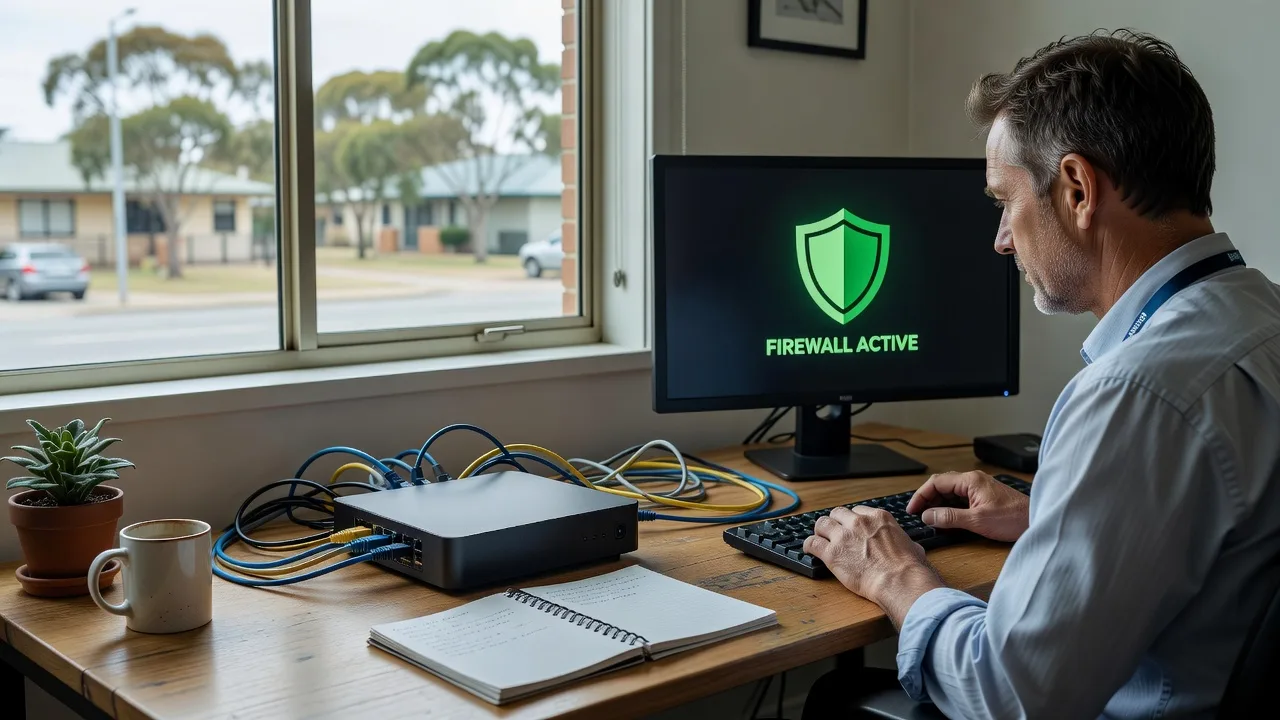
If your small-business server, NAS, or office mini PC in Australia is flooded with login noise, scrapers, or repeated probes, automated network defence with Fail2Ban and UFW is the practical first line of control.
This guide stays on that subject: how those two tools block malicious bots on local / on-site hardware, the unique problems people actually hit, numbered DIY checks you can try safely, and when physical console work or a specialist visit is the smarter path. Fixwebnode is a direct specialist for individuals, sole traders, and local operators—see website repair and on-site help across Australia—not a freelance marketplace.
Fail2ban and UFW work together effectively, but you need to explicitly configure Fail2ban to use UFW as its ban action. This ensures banned IPs appear in `ufw status` and keeps your firewall rules consistent.
🔗 Configuration Steps
1. Enable UFW and set default policies
sudo apt install ufw -ysudo ufw default deny incomingsudo ufw default allow outgoingsudo ufw allow 22/tcpsudo ufw enable
Verify with `sudo ufw status verbose`. The output should show `Status: active` and `Default: deny (incoming)` .
2. Configure Fail2ban to use UFW
Create a local override file rather than editing `jail.conf` directly :
sudo cp /etc/fail2ban/jail.conf /etc/fail2ban/jail.localsudo nano /etc/fail2ban/jail.local
Add or modify the `[DEFAULT]` section:
[DEFAULT]banaction = ufwbanaction_allports = ufwbantime = 1hfindtime = 10mmaxretry = 5
[sshd]enabled = true
The `banaction = ufw` line is the critical change—it tells Fail2ban to insert UFW deny rules instead of raw iptables rules .
3. Restart and verify
sudo systemctl restart fail2bansudo fail2ban-client status sshd
After a ban triggers, run `sudo ufw status numbered`. You should see a `DENY` rule for the banned IP near the top of the list .
💡 Practical Notes
- **Default behavior**: Fail2ban uses iptables directly by default. Without setting `banaction = ufw`, bans still work but won't show in `ufw status` .
- **SSH hardening first**: Before relying on Fail2ban, disable password authentication and use key-based login. Fail2ban reduces brute-force noise but doesn't fix weak SSH configuration .
- **UFW rate limiting**: As an alternative or complement, `sudo ufw limit 22/tcp` blocks IPs after 6 connection attempts in 30 seconds .
- **Check logs**: Monitor `/var/log/fail2ban.log` to confirm bans are firing and adjust `maxretry`/`bantime` as needed .
The combination gives you UFW's static "whitelist" boundary control plus Fail2ban's dynamic "blacklist" response to active threats .
Why automated bot blocking matters on local hardware
Home offices and small sites often run a single Linux box that hosts a site, mail relay, VPN endpoint, or control panel. Without rate limiting and host firewall rules, that machine absorbs endless password guesses and path scans. Fail2Ban watches logs and bans repeat offenders; UFW (Uncomplicated Firewall) enforces which ports are reachable at all. Used together, they cut noise before it becomes an outage.
On-site reality in Australia is different from a cloud-only setup: if a rule locks you out, you may need keyboard-and-monitor access, a spare Ethernet cable, or a drop-off appointment rather than “just another SSH session.” Coverage and booking context for where work is delivered is outlined on the Australia service area page and the full service-areas hub.
What if Fail2Ban and UFW lock me out of my office server in Australia?
If you enabled UFW or Fail2Ban and lost remote access, treat it as a local console problem first: connect a display and keyboard (or use the machine’s own screen), confirm you can log in physically, then review active bans and firewall allow rules before you change anything else. Do not keep retrying from the same public IP—that often deepens a ban. If you cannot reach a login prompt on the hardware itself, back up critical data if the disk is still readable and book on-site or drop-off help rather than forcing more remote attempts.
| Symptom | Quick check | When to call Fixwebnode |
|---|---|---|
| Remote login refused after firewall change | Physical console; verify allow rules for management ports | No local login, headless box, or unclear rule set |
| Your office IP keeps getting banned | Inspect Fail2Ban ban list; allowlist trusted static IPs | Shared NAT, flapping bans, or production downtime |
| Bots still hit open services | Confirm UFW default policy and which ports are actually open | Custom stacks, odd log paths, or recurring incidents |
Common issues with Fail2Ban and UFW bot defence
These problems show up repeatedly on local servers used by homeowners and small businesses. Each has a different root cause.
1. Whole-office lockout from a shared public IP
Symptoms: Everyone on the same NBN or business link suddenly cannot reach SSH, the control panel, or web admin. Fail2Ban shows your ISP’s public address banned after one person mistyped a password several times.
2. UFW “default deny” applied before allow rules
Symptoms: The moment the firewall is switched on, all remote management dies. Ping may fail; browsers time out; you only regain control with a monitor plugged into the machine.
3. Fail2Ban runs but never bans real bots
Symptoms: Auth logs still fill with probes; ban lists stay empty; jails refer to log files that do not exist on this install (common after panel moves or custom web stacks).
4. Protection disappears after reboot
Symptoms: Overnight restart or power blip and the box is wide open again—or the opposite: firewall comes up in a blocking state before network services are ready, so the host looks “dead” until someone is on site.
5. Double-blocking and flapping with legitimate scanners
Symptoms: Monitoring tools, payment callbacks, or a warehouse handheld app get intermittent blocks; UFW rejects and Fail2Ban bans stack on the same traffic; support tickets spike at opening time.
How to fix each issue (DIY first)
Issue 1 — Shared IP ban locking the whole office
Root cause: Fail2Ban correctly bans a noisy address, but that address is your entire site’s NAT exit.
- Gain local console access (keyboard and display on the server, or a directly attached admin laptop on the same LAN).
- Open the Fail2Ban status view for the active jail and note which address is banned.
- Remove the ban for your current office public IP only after you confirm it is yours (check the modem/router status page).
- Add a permanent allowlist entry for trusted static office IPs and for a known backup path (for example a secondary fixed IP or out-of-band management host).
- Lower “max retry” sensitivity only if staff regularly mistype credentials; prefer fixing password practices over disabling jails.
- Verify from a phone on mobile data that the service answers, then from the office LAN again.
When to call Fixwebnode: bans return daily, you use dynamic DNS without a stable allowlist plan, or multiple jails fight each other across web, mail, and SSH.
Issue 2 — Locked out after enabling UFW
Root cause: default deny inbound was activated without an allow rule for your management port, or rules were applied in the wrong order on a headless box.
- Stop remote guessing. Go to the hardware with a screen and keyboard (bring a spare HDMI/DisplayPort cable if the mini PC is headless).
- Log in locally and inspect the firewall’s numbered rule list and default policies for incoming traffic.
- Ensure explicit allow rules exist for the ports you truly need (management, web, and any VPN) before a broad deny remains in force.
- Confirm the firewall service is enabled intentionally, not half-configured from a partial session.
- From a second device on the LAN, test only the ports you opened; leave unnecessary services closed.
- Document the final rule set so the next reboot does not surprise you.
When to call Fixwebnode: no local credentials work, the unit is in a locked rack you cannot access cleanly, or you need a reviewed baseline policy for a multi-service host.
Issue 3 — Fail2Ban idle while bots continue
Root cause: jail filters point at the wrong log path, the service logs to journal-only locations, or the web app uses a non-standard failure pattern.
- Identify which service is under attack (SSH, web login, mail, panel).
- On the console, locate where that service actually writes failures today—not where an old tutorial assumed.
- Align each jail’s log path and filter with that real source; reload Fail2Ban after changes.
- Trigger a controlled failed login from a test address you control, then confirm a ban appears.
- Keep UFW tight so only required ports face the internet; Fail2Ban cannot help traffic that never hits an application log.
- Re-check after 24 hours that ban counters move during real probe noise.
When to call Fixwebnode: custom applications, reverse proxies, or control panels with non-default log layouts; recurring probes on obscure ports.
Issue 4 — Rules or jails missing after power loss
Root cause: services not set to start on boot, firewall backend not persistent, or boot order exposes services before bans load.
- After a safe local login, confirm both UFW and Fail2Ban are set to start automatically on boot.
- Reboot once during a maintenance window while you remain on site with console access.
- On the way up, verify default firewall policy, allow rules, and that jails load without errors in their status output.
- If the host comes up blocked, adjust startup so critical allow rules are present before remote exposure matters.
- Note UPS or surge protection gaps—brownouts in summer storms are a common Australian trigger for “it worked until the restart.”
When to call Fixwebnode: boot loops, encrypted volumes needing manual unlock, or rack gear where on-site sequencing and cable labelling matter.
Issue 5 — Legitimate traffic flapping
Root cause: aggressive find-time/maxretry settings, duplicate blocking layers, or third-party callbacks sharing addresses with abusive traffic.
- List every automated client that must always succeed (monitors, payment webhooks, partner APIs).
- Allowlist those addresses in Fail2Ban and ensure UFW permits them on the correct ports.
- Tune one jail at a time; avoid stacking identical rate limits in the application, UFW, and Fail2Ban without a clear owner.
- Watch logs during peak business hours for false positives rather than only at night.
- Keep a short written rollback: which allowlist entry or jail to relax if sales checkout fails.
When to call Fixwebnode: e-commerce callbacks breaking, warehouse devices on CGNAT, or you need a durable policy without weakening bot defence.
When DIY is enough vs when to book Fixwebnode
DIY is enough when you still have physical login, you can identify a single banned office IP, and your stack is a standard SSH-plus-web layout with known log locations. Work slowly, change one control at a time, and keep a spare admin path on the LAN.
Book a specialist when the server is headless and unreachable, credentials for local login are unknown, disks may need careful handling, or bot traffic returns after every “fix.” For on-site or drop-off work in Australia, bring (or have ready) the server or mini PC, any power and display cables, and a note of what changed last. Always keep a current backup before firewall experiments—snapshot or copy critical site and database files first.
Fixwebnode works directly with you as the provider for this kind of automated network defence on local hardware—policy review, lockout recovery at the console, and stable Fail2Ban plus UFW baselines—without posting jobs or collecting bids. Geography and availability context sit on the Australia service area listing.
Talk through your bot-blocking setup
If malicious bots, repeated lockouts, or a half-applied firewall have left your local server exposed or unreachable, start a straightforward conversation about Automated Network Defense with Fail2Ban and UFW on your hardware. Book via the landing page for individuals, sole traders, and local operators: https://fixwebnode.com.au/website-repair-australia. Bring the device type (tower, mini PC, or NAS), describe the last change you made, and mention whether you still have console access—we will take it from there.