Multi-Vendor & Complex SaaS Marketplaces
 Modern Headless & Jamstack Web Development
 High-End Corporate & Specialized Business Websites
 Advanced API, Checkout & Database Troubleshooting
Elementor or Divi Layout Collapsed? Fix Broken CSS Styling
Layout gone flat, columns stacked wrong, or styles missing? Learn the unique causes of collapsed Elementor and Divi CSS—and the exact DIY steps to restore your design before you book specialist help.
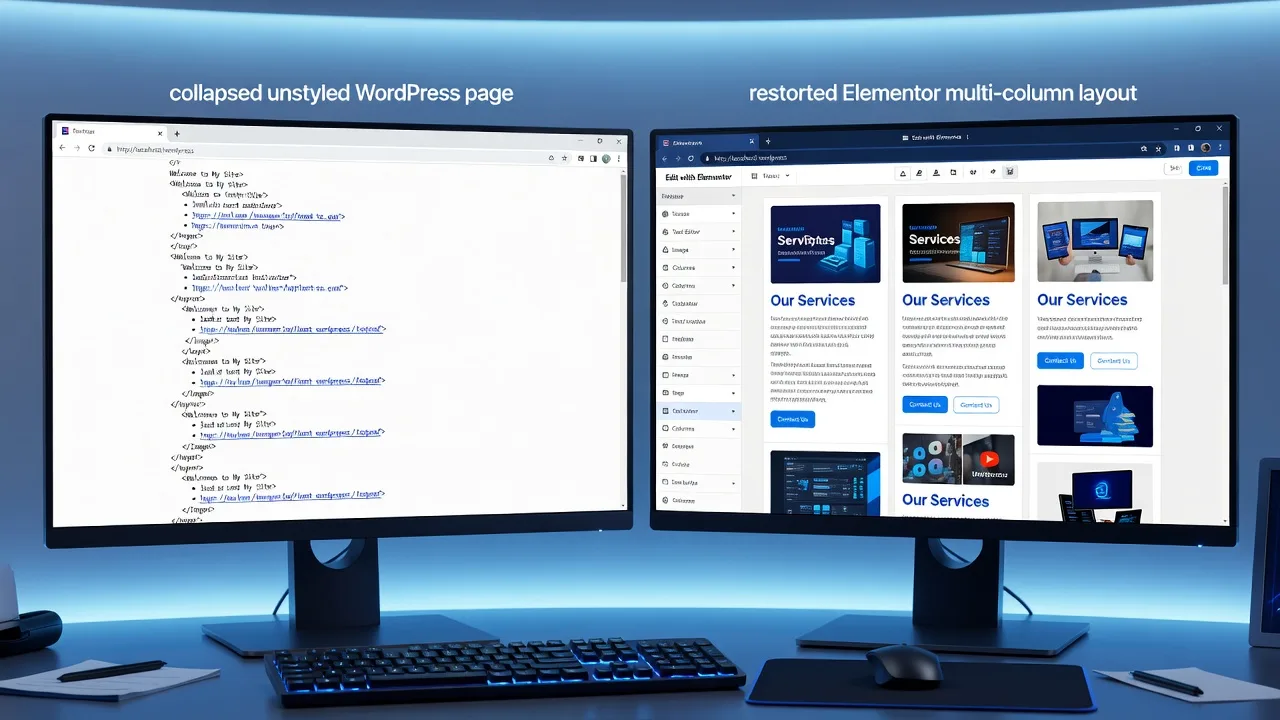
When your Elementor or Divi page suddenly looks like a bare HTML skeleton—no columns, no spacing, buttons unstyled—the problem is almost always broken or unloaded CSS, not “lost content.”
Homeowners and small-business owners hit this after a plugin update, a cache purge, a theme tweak, or a hosting change. The page still exists in the builder, but the front end collapses into a single narrow column or an unformatted stack. This guide stays strictly on Elementor / Divi layout completely collapsed and how to fix broken CSS styling: the symptoms, root causes, and numbered fixes you can run yourself, plus when it is smarter to hand the site to a specialist.
If you need hands-on recovery rather than trial-and-error, Fixwebnode’s Elementor / Divi collapsed-layout and broken CSS service is built for this exact failure mode—not generic marketplace bidding.
Why a collapsed Elementor or Divi layout matters
A collapsed layout is not a cosmetic glitch. It breaks trust on first visit, hides calls-to-action, and can tank mobile usability overnight. Elementor and Divi both rely on generated CSS (inline, file-based, or post-meta) plus theme and plugin stylesheets. When any link in that chain fails—file missing, cache serving a stale empty sheet, specificity war, or a plugin dequeue—the builder canvas can still look fine while the public site falls apart.
Fixing it means isolating which CSS path failed, not redesigning the page from scratch. The sections below list distinct failure patterns and the DIY sequence for each.
Common issues that collapse Elementor and Divi CSS
These are separate root causes. Matching your symptoms to the right issue saves hours.
- Generated CSS file missing or 404 after migrate/cache clear — Desktop and mobile both show unstyled sections; browser Network tab shows 404 on
post-*.css, Elementor upload CSS, or Divi’s Dynamic CSS path. - Plugin or optimization tool dequeueing builder styles — Layout works for logged-in admins but collapses for guests; Autoptimize, asset cleaners, or “disable unused CSS” removed critical Elementor/Divi handles.
- Custom CSS or theme update specificity war — Only some widgets break (e.g. full-width sections become boxed, gutters vanish); a recent theme, child-theme, or custom CSS rule overrides container widths and flex/grid.
- Responsive breakpoint / viewport CSS not loading on mobile — Desktop looks normal; phones show stacked, overlapping, or zero-height sections because mobile-specific CSS or viewport meta is wrong.
- Mixed content or CDN serving stale empty stylesheets — Padlock warnings or intermittent collapse after enabling HTTPS/CDN; old HTTP CSS URLs or purged edge cache returns empty bodies.
Fix 1 — Regenerate missing Elementor or Divi CSS files
Symptoms: Entire page unstyled; DevTools Network shows failed CSS for Elementor post CSS, external CSS method files, or Divi dynamic sheets. Often appears after site move, disk cleanup, or “clear all caches.”
Step 1 — Confirm the 404
- Open the broken page in a private window.
- Press F12 → Network → filter by CSS. Reload.
- Note any red Elementor (
/elementor/css/post-….css) or Divi dynamic CSS URLs.
Step 2 — Regenerate Elementor CSS
- WordPress admin → Elementor → Tools → Regenerate CSS & Data.
- Click Regenerate. Then Elementor → Settings → Performance (or Advanced) and confirm CSS Print Method (Internal vs External). If external files 404 on your host, switch temporarily to Internal Embedding, save, and retest.
- Clear all layers: plugin cache, host cache, CDN, then browser cache.
Step 3 — Regenerate Divi CSS
- Div → Theme Options → Builder → Advanced (labels vary by version) and trigger Static CSS File generation if enabled—or disable Static CSS briefly to force inline rebuild.
- Div → Theme Options → clear/transients if present; save Theme Options once to rewrite options-based CSS.
- If you use a child theme, confirm
style.cssstill enqueues and was not emptied during deploy.
Step 4 — Verify file permissions on upload CSS dirs
On hosts where Elementor writes to uploads, the directory must be writable by the web user. From SSH (only if you already manage the server):
ls -la wp-content/uploads/elementor/css
# If missing or empty after regenerate, check ownership (example):
# sudo chown -R www-data:www-data wp-content/uploads/elementor
# find wp-content/uploads/elementor -type d -exec chmod 755 {} \;
# find wp-content/uploads/elementor -type f -exec chmod 644 {} \;
Retest the front end logged out. If files still 404 after regenerate, the host may block writes—that is a specialist job.
When to call Fixwebnode: regenerate succeeds in admin but files never appear on disk, or the site is on locked managed WordPress where you cannot fix path mapping yourself.
Fix 2 — Stop plugins from stripping builder stylesheets
Symptoms: You see a perfect layout while logged in; guests get a collapsed stack. Or collapse started the day you enabled “remove unused CSS,” combine JS/CSS, or an asset-manager whitelist.
Step 1 — Binary-search the optimizer
- Disable Autoptimize, WP Rocket delay/remove unused CSS, Perfmatters, Asset CleanUp, LiteSpeed Optimize CSS, or similar—one at a time.
- After each disable, purge that plugin’s cache and view the page in a private window.
- When the layout returns, you found the culprit.
Step 2 — Whitelist Elementor / Divi handles (do not leave optimization fully off if you need speed)
- In the optimizer’s exclude lists, add paths/handles such as
elementor-frontend,elementor-post-,elementor-global,divi-style,et-builder, and your theme stylesheet. - Turn off “Remove unused CSS” for builder-driven templates; those tools often cannot see dynamically generated Elementor/Divi rules and delete layout-critical selectors.
- Disable “defer all CSS” on templates that use critical above-the-fold builder sections until you have a proper critical-CSS profile.
Step 3 — Check for aggressive security or “disable emojis/dashicons” kits
- Plugins that strip
wp_enqueue_stylebroadly can drop builder dependencies. Deactivate security “performance” modules briefly and retest. - Re-enable modules only after confirming the layout holds for logged-out users.
Step 4 — Verify
- Incognito load → View Source or Network: Elementor/Divi CSS status 200.
- Confirm columns, gaps, and button widgets match the editor.
When to call Fixwebnode: you need optimization kept on for Core Web Vitals but every exclude list still collapses nested containers—safe allowlists on complex multi-plugin stacks are easy to get wrong.
Fix 3 — Resolve custom CSS and theme overrides fighting the builder
Symptoms: Only certain sections collapse (full-width becomes boxed, overlapping modules, missing column gaps). The Elementor navigator or Divi layers still show correct structure. Often follows a theme update or a “quick” Customizer CSS paste.
Step 1 — Isolate custom CSS
- Appearance → Customize → Additional CSS: copy the rules to a text file, then clear Additional CSS and publish.
- If you use Elementor → Custom Code / Theme Builder CSS, disable those snippets temporarily.
- Divi: check Divi → Theme Options → Custom CSS and any Code modules on the page.
- Hard refresh. If layout recovers, the conflict is in that CSS—not the builder data.
Step 2 — Find the overriding rule in DevTools
- Right-click a broken column → Inspect.
- In the Styles panel, look for crossed-out
width,display,flex,max-width, ormarginon.elementor-section,.elementor-container,.et_pb_row, or.et_pb_column. - Note the file and line (theme
style.css, plugin, or custom CSS).
Step 3 — Fix with safer overrides (prefer repair over !important spam)
- Remove global rules like
div { width: 100% !important; }or.container { max-width: 960px !important; }that trap builder sections. - Scope fixes to non-builder areas, or raise specificity only for the broken selector after the builder classes load.
- Example pattern (adjust to your markup—test on staging first):
/* Restore Elementor full-width sections broken by theme .container rules */
.elementor-section.elementor-section-stretched {
 width: 100vw;
 max-width: 100vw;
 left: 50%;
 right: 50%;
 margin-left: -50vw;
 margin-right: -50vw;
}

/* Divi row gutters wiped by a global reset */
.et_pb_row {
 width: 80%;
 max-width: 1080px;
}
Step 4 — After theme updates
- Re-save the page in Elementor/Divi (Update) so regenerated CSS picks up new section settings.
- If the parent theme ships breaking changes, move lasting overrides into a child theme instead of the Customizer alone.
When to call Fixwebnode: the override is buried in a commercial theme’s compiled SCSS or a page has dozens of one-off Code modules and you cannot safely diff them.
Fix 4 — Repair mobile-only collapse and breakpoint CSS
Symptoms: Desktop is fine; phones show stacked chaos, horizontal scroll, or sections with height collapse. Tablet may be mixed.
Step 1 — Confirm viewport meta
- View source: ensure a single
<meta name="viewport" content="width=device-width, initial-scale=1">. - Duplicate or missing viewport tags from old headers/plugins cause “desktop shrunk” or ignored mobile CSS.
Step 2 — Rebuild mobile settings in the builder
- Elementor: open the page → responsive mode (mobile) → check each section’s column width, padding, and “hide on mobile/desktop” toggles. Save.
- Divi: open the page → phone icon → verify module sizing and visibility. Save then clear Divi static CSS if used.
- Regenerate CSS again (Fix 1) so mobile rules rewrite to disk.
Step 3 — Kill mobile-only custom CSS bugs
- Search Additional CSS for
@mediablocks that setdisplay: none, fixed pixel widths, orposition: absoluteon builder rows. - Comment them out, purge cache, retest on a real device or DevTools device mode.
Step 4 — Verify
- Chrome DevTools device toolbar + a physical phone on cellular cache.
- Check that mobile CSS files (or internal mobile rules) return 200 and that section min-heights are not zero.
When to call Fixwebnode: Theme Builder headers/footers disagree with single-page mobile settings, or a custom breakpoint setup was half-migrated between Elementor versions.
Fix 5 — Clear mixed-content and CDN stale CSS
Symptoms: Collapse is intermittent or only on HTTPS; console shows mixed content blocked; CDN URLs serve empty or old CSS bodies after a redesign.
Step 1 — Force correct URLs in WordPress
- Settings → General: both WordPress Address and Site Address use
https://. - If you use a search-replace tool for migrations, rewrite
http://asset URLs carefully (database + serialized data).
Step 2 — Purge every cache layer in order
- Builder regenerate CSS (Fix 1).
- WordPress cache plugin full purge.
- Host panel cache purge.
- CDN (Cloudflare “Purge Everything” or provider equivalent), including bypass for
/wp-content/uploads/elementor/css/*while testing. - Hard-refresh browser or try another network.
Step 3 — Spot-check response bodies
- Open a CSS URL from the Network tab in a new tab. It must contain real rules—not a zero-byte file or an HTML error page.
- If the CDN returns HTML error pages as
text/css, exclude that path from caching or fix origin pull.
When to call Fixwebnode: CDN rules, reverse proxies, or multi-environment domains keep resurrecting old CSS despite local regenerates.
When DIY is enough vs when to book Fixwebnode
DIY is enough when you can regenerate CSS, identify one optimizer or one Customizer block as the culprit, and the layout matches the editor for both logged-in and logged-out users on desktop and mobile after a full purge.
Book a specialist when any of these are true:
- Regenerate reports success but CSS files never appear or keep 404ing.
- Collapse returns after every cache/CDN purge cycle.
- Multiple builders, Theme Builder templates, and optimization plugins interact and you cannot take production offline for long binary searches.
- The site is revenue-critical (bookings, quotes, construction lead gen) and you need a controlled fix window.
Fixwebnode works as a direct specialist on this failure class—collapsed Elementor/Divi layouts and broken CSS styling—rather than sending you through bid boards. Geography and on-site digital work are coordinated through the published coverage list on all Fixwebnode service areas, including support patterns used with Canberra-region businesses that need stable brochure and lead-gen sites (for related build-sector web needs see Website Solutions for Canberra Builders & Construction Specialists).
Restore your layout—then lock it in
A completely collapsed Elementor or Divi layout almost always traces to missing generated CSS, an optimizer dequeuing builder sheets, theme/custom CSS overrides, broken mobile breakpoints, or stale HTTPS/CDN assets. Work the matching numbered sequence above, verify logged-out on desktop and mobile, and only then re-enable performance tools with proper excludes.
If you have already regenerated, purged, and whitelisted and the page still looks like unstyled HTML, stop burning evenings on guesswork. Start a direct conversation about recovery via the specialist landing: Elementor / Divi Layout Completely Collapsed? How to Fix Broken CSS Styling. Bring the page URL, what changed last (update, migrate, cache, CDN), and any 404 CSS paths from DevTools—that short brief is enough to plan the next fix step with Fixwebnode.