Multi-Vendor & Complex SaaS Marketplaces
 Modern Headless & Jamstack Web Development
 High-End Corporate & Specialized Business Websites
 Advanced API, Checkout & Database Troubleshooting
cPanel to Virtualmin Zero-Downtime Migration Guide (Australia)
Move from cPanel to Virtualmin without taking sites offline. Practical DNS cutover, mail, SSL, and PHP checks for Australian hosts—plus when to book Fixwebnode for a remote handoff.
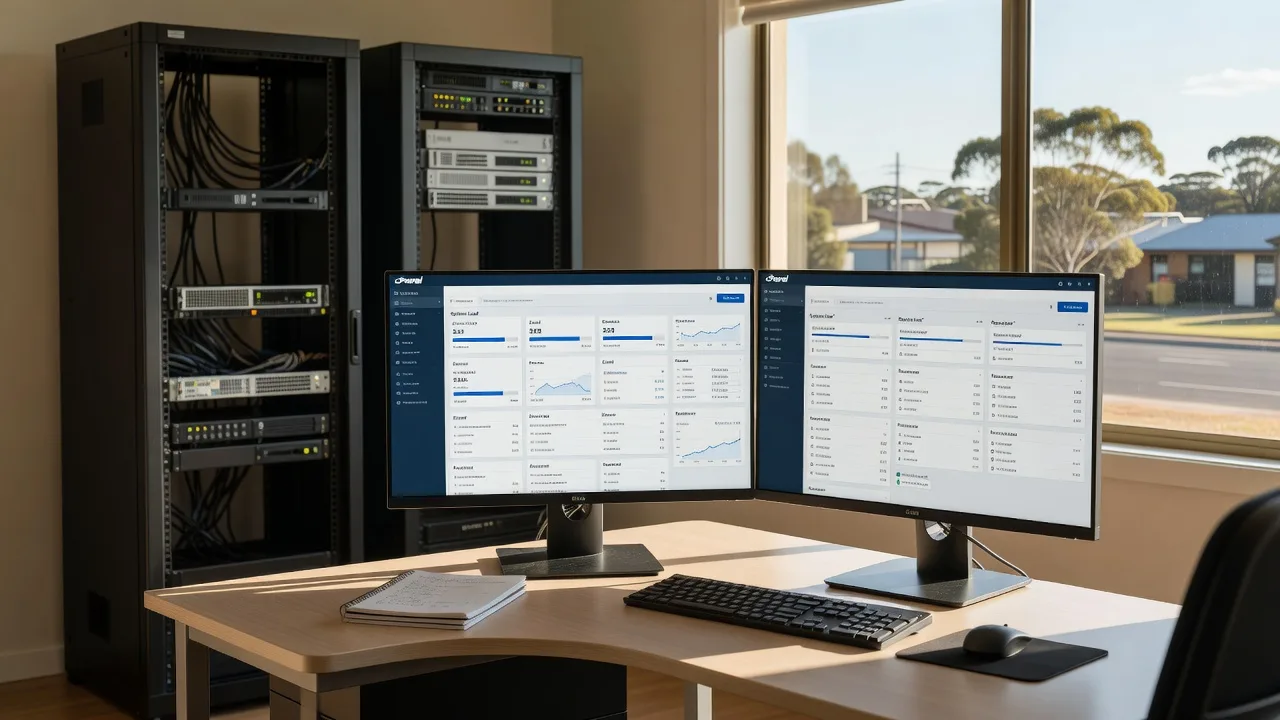
This guide is for Australian site owners, sole traders, and small businesses who need a full step-by-step migration from cPanel to Virtualmin with zero downtime—and who want copy-paste diagnostics, not marketing fluff.
You keep serving traffic on the old cPanel box while you build, test, and sync on Virtualmin. Only when mail, databases, SSL, and PHP behave do you flip DNS. If you would rather a specialist run the cutover remotely, start a conversation with Fixwebnode website repair in Australia.
Why a zero-downtime cPanel → Virtualmin move matters
cPanel licence cost, panel lock-in, or a host change often push teams toward Virtualmin on a VPS you control. A naive “export everything and point A records” approach drops mail, breaks sessions, and leaves half the audience on the old server until TTL expires. A production-grade path is parallel build, rsync/DB sync, lower TTL early, validate on the new IP, then cut over with a short dual-write or final sync window.
Fixwebnode works remotely across Australia for individuals, sole traders, and local operators who need this exact migration done carefully—not as a freelance marketplace, but as a direct specialist you can book for the parts that are risky (mail routing, multi-site PHP, SSL and DNS timing).
Why does my site still show the old cPanel server after I pointed DNS to Virtualmin?
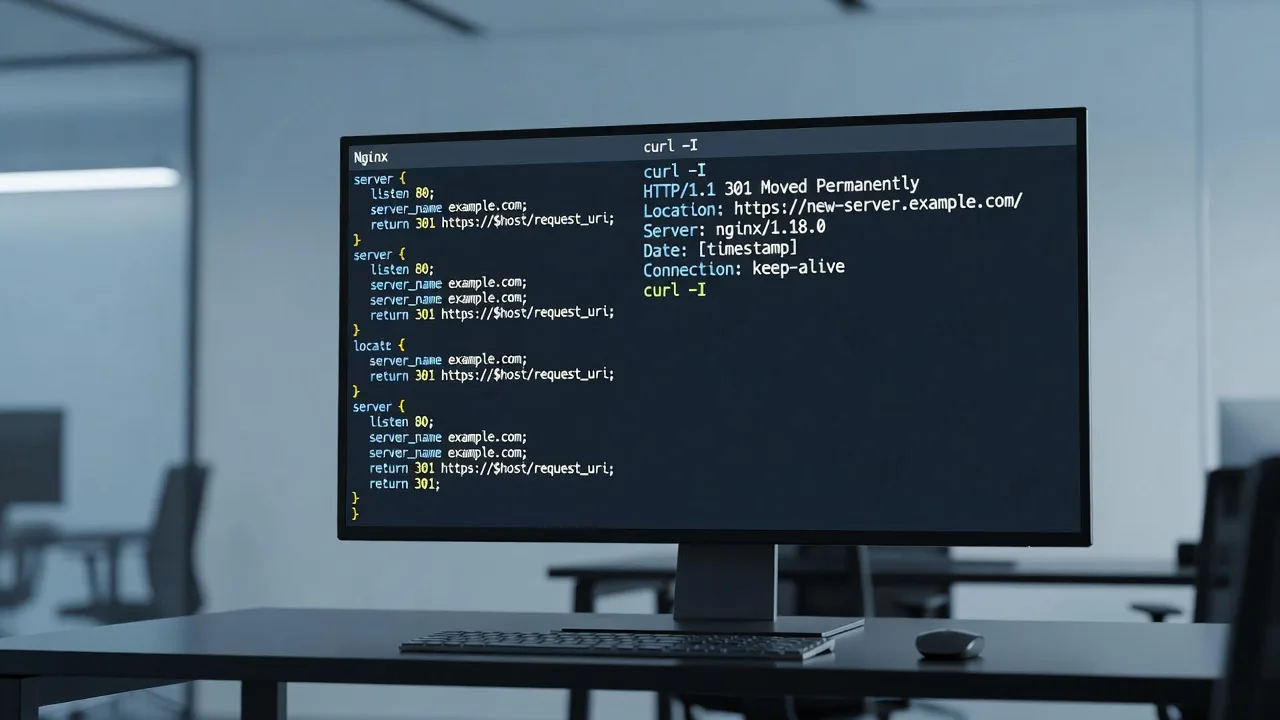
Almost always the public still hits cached DNS or a leftover A/AAAA/www record, or the new Virtualmin vhost is answering on the wrong document root or PHP version. Lower TTL at least 24–48 hours before cutover, confirm every hostname (apex, www, mail, webmail) against the new IP with dig from outside your office network, and verify the Virtualmin site is enabled and the SSL certificate matches the live names before you raise TTL again.
| Symptom | Quick check | When to call Fixwebnode |
|---|---|---|
| Mixed old/new content after cutover | dig +short yourdomain.com A; compare to Virtualmin IP | Multiple zones, Cloudflare orange-cloud, or stubborn CDN cache |
| SSL warning on new IP | openssl s_client / Virtualmin Let’s Encrypt renew | SAN mismatches, www vs apex, or mail host certs |
| Mail works on web, not on phones | MX and SPF still point at cPanel | Complex MX, Google Workspace hybrid, or spam score spikes |
Common issues in a zero-downtime cPanel to Virtualmin migration
These three failure modes show up repeatedly when Australian businesses move panels without a dual-run plan. Each has a different root cause.
- Issue 1 — Database drift during the final sync: The site looks fine on the Virtualmin preview IP, then after DNS flip orders, logins, or stock counts are wrong because MySQL kept writing on cPanel while you only copied once.
- Issue 2 — PHP / document-root mismatch: Home page loads, but wp-admin, Laravel, or a custom app 500s because Virtualmin’s PHP-FPM version or public_html path does not match cPanel’s MultiPHP setup.
- Issue 3 — Mail and SPF still glued to cPanel: Web is on Virtualmin, but MX, SPF, DKIM, or client SMTP still target the old host, so mail queues, bounces, or lands in spam right when you need confidence most.
How to fix Issue 1 — database drift with a controlled final sync
Goal: keep cPanel authoritative until the last dump, import on Virtualmin, optionally freeze writes briefly, then cut DNS.
Step 1 — Inventory databases on cPanel
mysql -e "SHOW DATABASES;"
# or via WHM/cPanel: list each site’s DB name and user
Step 2 — One-time full copy to Virtualmin (while sites still live on cPanel)
# On cPanel host — dump each app DB
mysqldump --single-transaction --routines --triggers site_db > site_db.sql
rsync -avz -e ssh site_db.sql root@NEW_VIRTUALMIN_IP:/root/db-import/
# On Virtualmin host — create DB/user in Virtualmin UI, then:
mysql site_db < /root/db-import/site_db.sqlStep 3 — Sync files continuously until cutover
rsync -avz --delete -e ssh \
 /home/USER/public_html/ \
 root@NEW_VIRTUALMIN_IP:/home/USER/public_html/
Exclude cache and sessions if your app allows (wp-content/cache, storage/framework/cache). Re-run rsync hourly or via cron until go-live.
Step 4 — Final sync window (short maintenance on writes only if needed)
- Put the app in maintenance or read-only if it supports it (WooCommerce/high-write apps).
- Final
mysqldump+ import and finalrsync. - Point DNS A/AAAA to the Virtualmin IP (TTL already lowered).
- Watch Virtualmin error logs for 10–20 minutes before raising TTL.
tail -f /var/log/virtualmin/yourdomain.com_error_log
tail -f /var/log/nginx/error.log # or httpd/error_log on Apache builds
Verification: create a test order or post on the live hostname after cutover and confirm the row exists only on the Virtualmin database host.
When to call Fixwebnode: multi-database suites, replication already in play, or you cannot afford even a short write freeze—book a remote cutover window rather than risk split-brain data.
How to fix Issue 2 — PHP-FPM version and document root mismatches
cPanel MultiPHP often runs 7.4 on one site and 8.2 on another. Virtualmin defaults can land everything on one PHP binary and the wrong public_html or public folder.
Step 1 — Record PHP versions on cPanel
# In each account, or:
cat /etc/cpanel/ea4/php.conf 2>/dev/null
# From a site directory:
php -v
# Or drop a temporary info file, request it, then delete it
Step 2 — Align PHP on Virtualmin
# Debian/Ubuntu-style Virtualmin example — list packages
dpkg -l | grep -E 'php[0-9]+\.(fpm|cli)'
# Enable the matching FPM pool per domain in Virtualmin:
# Server Configuration → PHP Versions
systemctl status php8.2-fpm
systemctl restart php8.2-fpm
Step 3 — Confirm document root and index
# Virtualmin domain directory (paths vary by template)
ls -la /home/USER/public_html
# Laravel/Node-built frontends may need public/ as the web root — set in Virtualmin Website Options
Step 4 — Reproduce errors with logs, not guesses
tail -n 100 /var/log/virtualmin/yourdomain.com_error_log
# PHP-FPM pool log (path may differ):
tail -n 100 /var/log/php8.2-fpm.log
grep -i "fatal\|primary script unknown" /var/log/nginx/error.log
Step 5 — Permissions that cPanel hid from you
chown -R USER:USER /home/USER/public_html
find /home/USER/public_html -type d -exec chmod 755 {} \;
find /home/USER/public_html -type f -exec chmod 644 {} \;
Then reload the web stack:
systemctl reload nginx 2>/dev/null || systemctl reload httpd
systemctl restart php8.2-fpm
Verification: hit a phpinfo page or CLI php -v under the site user and confirm frameworks boot without 500s on login URLs.
When to call Fixwebnode: dozens of vhosts with mixed PHP, ionCube/SourceGuardian, or custom Apache handlers that do not map cleanly to PHP-FPM.
How to fix Issue 3 — mail, MX, SPF, and SSL still tied to cPanel
Web cutover without mail planning is the classic “site is up, inbox is on fire” failure.
Step 1 — Snapshot current mail DNS before any change
dig MX yourdomain.com +short
dig TXT yourdomain.com +short
dig TXT default._domainkey.yourdomain.com +short
dig A mail.yourdomain.com +short
Step 2 — Decide mail strategy
- Move mailboxes to Virtualmin (fetch existing mail with IMAP sync), or
- Keep MX on Google Workspace / Microsoft 365 and only move web, or
- Temporary dual delivery only if you truly need it (advanced; easy to misconfigure).
Step 3 — On Virtualmin, create mailboxes to match cPanel names, then sync
# Example offline IMAP sync tool pattern (install imapsync where appropriate)
imapsync --host1 OLD_MAIL_HOST --user1 user@yourdomain.com --password1 '***' \
 --host2 NEW_VIRTUALMIN_IP --user2 user@yourdomain.com --password2 '***' \
 --ssl1 --ssl2
Step 4 — Publish SPF/DKIM/DMARC for the new sending path
# After Virtualmin generates DKIM, publish the TXT it shows, then:
dig TXT default._domainkey.yourdomain.com +short
# SPF should name the new mail IP or include: mechanism you actually use
# Send a test and read headers for Authentication-Results
Step 5 — SSL for web and mail names on Virtualmin
# From Virtualmin Let’s Encrypt UI, or CLI depending on install:
virtualmin generate-letsencrypt-cert --domain yourdomain.com --host www.yourdomain.com --host mail.yourdomain.com
# Verify:
echo | openssl s_client -servername yourdomain.com -connect NEW_IP:443 2>/dev/null | openssl x509 -noout -dates -subject
Step 6 — Only then change MX / mail A records (web A records may already point at Virtualmin). Keep cPanel mail online until IMAP sync reports clean and phones using IMAP/SMTP are retested.
Verification: send and receive from webmail on Virtualmin and from one mobile client; confirm SPF/DKIM pass on a public mail-tester or by reading headers.
When to call Fixwebnode: many mailboxes, broken DKIM chains, or hybrid Google/cPanel setups where a wrong MX minute loses inbound invoices.
End-to-end zero-downtime runbook (checklist)
- Provision Virtualmin on the new server; mirror PHP, MySQL/MariaDB, and disk needs.
- Lower DNS TTL on all relevant records (24–48 hours ahead).
- Create matching Virtualmin virtual servers / users.
- Import files (rsync) and databases; configure vhosts to the correct roots.
- Issue SSL on the new IP using hosts file or temporary hostname tests.
- Validate apps via
/etc/hostsoverride on a workstation:
# Local workstation hosts file line (remove after test)
NEW_IP yourdomain.com www.yourdomain.com- Plan mail path; sync IMAP if mail moves.
- Final DB/file sync; flip A/AAAA (and MX if applicable).
- Monitor logs, renew monitoring checks, raise TTL after stability.
- Decommission cPanel only after a soak period and full backups are confirmed on Virtualmin.
# Useful post-cutover health
curl -I https://yourdomain.com
dig +short yourdomain.com A
systemctl status nginx php8.2-fpm mariadb
# or httpd / mysql on your stack
When DIY is enough vs when to book Fixwebnode
DIY is reasonable if you have one or two brochure sites, low write traffic, mail already on Google Workspace or Microsoft 365, SSH on both servers, and time to rehearse on a staging hostname. Follow the numbered steps above, keep cPanel running until soak tests pass, and do not cancel the old service the same day as DNS.
Book Fixwebnode when any of these apply: high-traffic e-commerce, many cPanel accounts on one box, custom email for staff phones, mixed PHP with encoded plugins, Cloudflare or other proxies caching the old origin, or a hard go-live date with no room for split-brain databases. Fixwebnode is a direct remote specialist for this migration path in Australia—not a bid board. See where support is offered on the Fixwebnode service areas page, then use the landing link below to start a practical booking conversation.
Talk to Fixwebnode about your cPanel → Virtualmin cutover
If you want a zero-downtime handoff reviewed or executed remotely—DNS timing, rsync/DB final sync, PHP-FPM alignment, SSL, and mail—open a conversation with the team via https://fixwebnode.com.au/website-repair-australia. Bring your domain list, whether mail moves with web, and roughly when TTL can be lowered; you will get a clear plan for the cutover window without marketplace noise.
Move once, validate twice, and only then retire cPanel. That is how you keep Australian customers online while you change control panels underneath.